
Epson TM-S1000 M236A Single Feed MICR Check Scanner User Manual
Model: TM-S1000 (M236A)
1. Introduction
This manual provides instructions for the proper setup, operation, maintenance, and troubleshooting of your Epson TM-S1000 M236A Single Feed MICR Check Scanner. Please read this manual thoroughly before using the device to ensure optimal performance and longevity.
The Epson TM-S1000 is designed for efficient and accurate scanning of checks, featuring single-feed capability and Magnetic Ink Character Recognition (MICR) technology for secure document processing. It also supports double-sided scanning.
2. Setup
2.1 Unpacking and Contents
Carefully remove all components from the packaging. Verify that all items are present:
- Epson TM-S1000 M236A Check Scanner
- AC Adapter
- Power Cord
- USB Cable (may be included or sold separately)

Figure 2.1: Epson TM-S1000 M236A Check Scanner with included AC adapter and power cord.
2.2 Connecting Power
- Connect the AC adapter to the power input port on the scanner.
- Connect the power cord to the AC adapter.
- Plug the power cord into a standard electrical outlet.
2.3 Connecting to a Computer
- Connect one end of the USB cable to the USB port on the scanner.
- Connect the other end of the USB cable to an available USB port on your computer.
2.4 Driver Installation
After connecting the scanner to your computer, you may need to install the appropriate drivers. Refer to the Epson support website for the latest drivers compatible with your operating system (Windows, macOS).
3. Operating Instructions
3.1 Powering On/Off
- To power on the scanner, ensure it is connected to power and your computer. The power indicator light will illuminate.
- To power off, disconnect the power cord from the electrical outlet.
3.2 Loading Checks
The TM-S1000 is a single-feed scanner. Load one check at a time into the input slot.
- Ensure the check is flat and free from staples or paper clips.
- Gently insert the check into the input slot, face up, until the scanner mechanism grips it.

Figure 3.1: Input tray for single-feed check scanning.
3.3 Scanning Process
Once a check is loaded and the scanner is ready, initiate the scan through your scanning software. The check will be fed through the scanner, and the scanned image will be processed by your computer.

Figure 3.2: Scanner with the output tray extended, ready to receive scanned checks.
3.4 Understanding Indicator Lights
The scanner features indicator lights to communicate its status:
- Power Indicator: Illuminates when the scanner is powered on.
- Error Indicator: Illuminates or flashes to indicate an error condition (e.g., paper jam, scanner malfunction). Refer to the troubleshooting section.
- Document Indicator: Illuminates when a document is detected in the input slot or during scanning.

Figure 3.3: Close-up view of the scanner's status indicator lights.
4. Maintenance
4.1 Cleaning the Scanner
Regular cleaning helps maintain optimal scanning quality and prevents paper jams. Always power off and unplug the scanner before cleaning.
- Open the scanner covers to access the internal components.
- Using a soft, lint-free cloth lightly dampened with water or a mild, non-abrasive cleaner, gently wipe the rollers and glass surfaces.
- Allow all components to dry completely before closing the covers and reconnecting power.
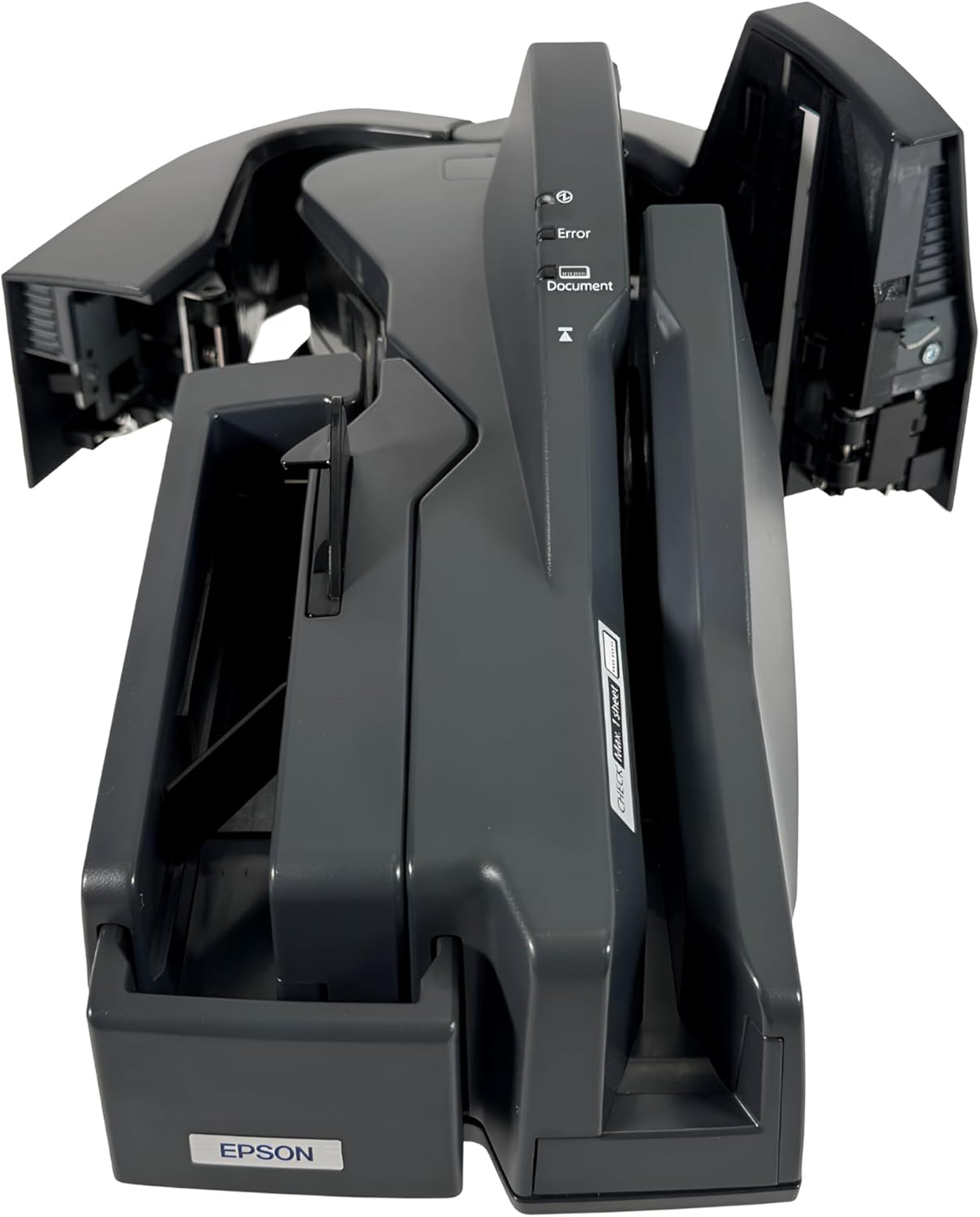
Figure 4.1: Scanner with covers open, showing internal access for cleaning.
5. Troubleshooting
This section addresses common issues you might encounter with your Epson TM-S1000 scanner.
5.1 Scanner Not Powering On
- Ensure the AC adapter is securely connected to the scanner and the power cord is firmly plugged into a working electrical outlet.
- Verify the power outlet is functional by plugging in another device.
5.2 Document Not Feeding or Paper Jam
- Check that the document is inserted correctly and is not wrinkled, folded, or damaged.
- Open the scanner covers (refer to Section 4.1) and carefully remove any jammed paper or obstructions.
- Clean the rollers if they appear dirty or worn.
5.3 Error Light Illuminated
- An illuminated error light typically indicates a problem such as a paper jam, cover open, or internal malfunction.
- Follow the steps for "Document Not Feeding or Paper Jam" if applicable.
- Ensure all covers are securely closed.
- Restart the scanner by unplugging and replugging the power cord.
- If the issue persists, consult the Epson support website or contact customer support.
5.4 Poor Scan Quality
- Clean the scanner's glass surfaces and rollers as described in Section 4.1.
- Ensure the check is clean and free from smudges or excessive folds.
- Verify that the correct scanning settings are selected in your software.
6. Specifications
| Feature | Detail |
|---|---|
| Brand | Epson |
| Model Name | TM-S1000 (M236A) |
| Scanner Type | Single Feed MICR Check Scanner Reader |
| Connectivity Technology | USB |
| Resolution | 200 dpi |
| Optical Sensor Technology | CIS (Contact Image Sensor) |
| Maximum Media Size | 8.5 x 3.5 inches |
| Sheet Size | Check, Standard |
| Item Weight | 8.8 pounds |
| Minimum System Requirements | Windows, macOS |
| Serial Number (Example) | LZDF007558 |

Figure 6.1: Product label with model, serial number, and certification details.
7. Warranty and Support
7.1 Manufacturer Warranty
This product is covered by a manufacturer's warranty provided by Epson. Please refer to the warranty documentation included with your purchase or visit the official Epson website for detailed warranty terms and conditions.
7.2 Technical Support
For technical assistance, driver downloads, or further troubleshooting not covered in this manual, please visit the official Epson support website or contact their customer service department. Have your product model (TM-S1000 M236A) and serial number ready when contacting support.


