Introduction
This manual provides instructions for the INSOLKIDON Full Coverage Ultra Slim PU Leather Tablet Case, designed specifically for the ALLDOCUBE iPlay 50 Mini Lite 8 Inch Tablet. This case offers protection, a convenient viewing stand, and an auto sleep/wake function to enhance your tablet experience.

Image: Front and back view of the INSOLKIDON tablet case, showcasing its slim design and dark blue color when closed.
Setup: Installing Your Tablet
- Verify Compatibility: Ensure your tablet is the ALLDOCUBE iPlay 50 Mini Lite 8 Inch model. This case is precisely molded for this specific device.
- Align Tablet: Gently align your ALLDOCUBE iPlay 50 Mini Lite tablet with the case's internal frame. Ensure the camera, ports, and buttons on the tablet match the cutouts in the case.
- Insert Tablet: Carefully press the tablet into the case, starting from one side and working your way around. Apply even pressure until the tablet is securely seated within the protective frame. The case is designed for easy insertion and removal.
- Check Fit: Confirm that all edges of the tablet are covered by the case and that all ports, buttons, and the camera are accessible and unobstructed.
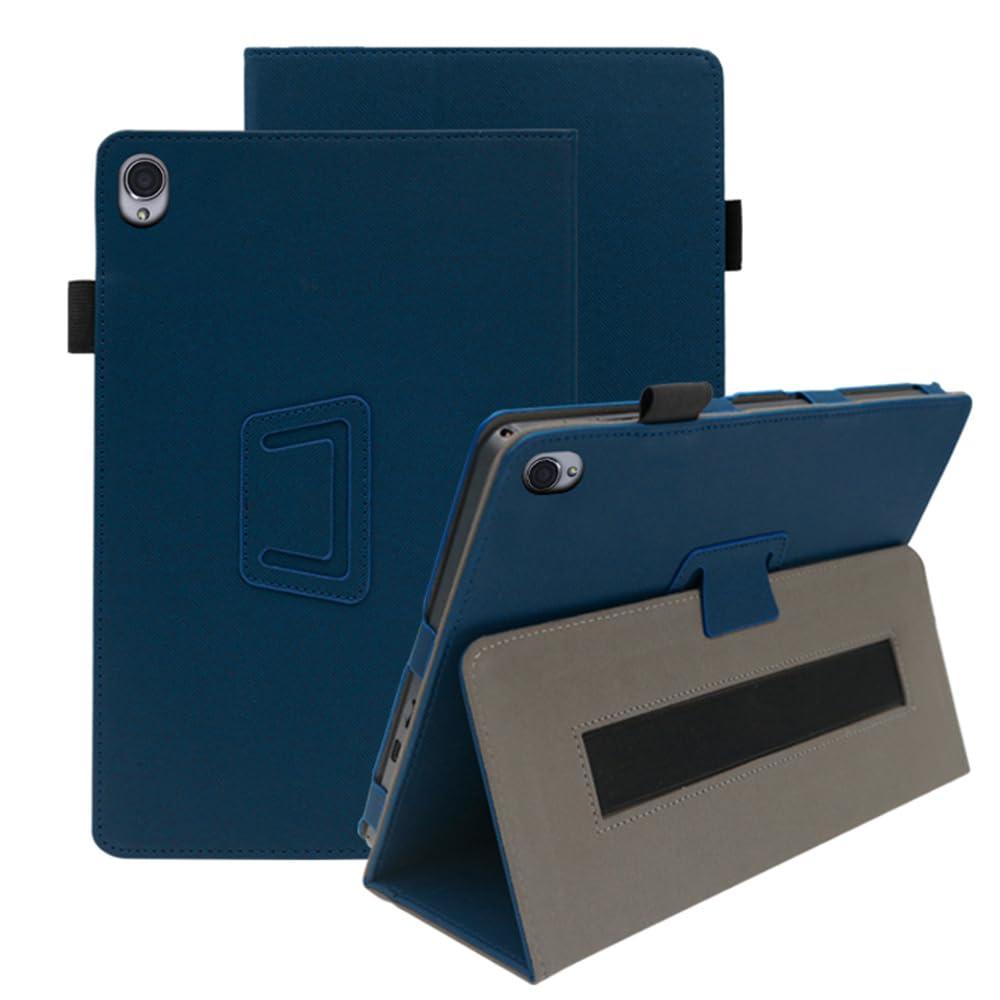
Image: The tablet case with the ALLDOCUBE iPlay 50 Mini Lite tablet securely installed, demonstrating its protective fit and stand functionality.
Operating Instructions
Using the Folding Stand
The case features a flip capability that transforms into a stable viewing stand. To activate the stand function:
- Open the Cover: Open the front cover of the tablet case.
- Fold Back: Fold the front cover completely back, utilizing the integrated creases to form a triangular support structure.
- Position Tablet: Place the tablet's bottom edge into the designated groove or against the folded cover to achieve your desired viewing angle. The stand provides a stable base for hands-free viewing.

Image: The tablet case in stand mode, positioned on a desk for convenient viewing, illustrating its practical application.
Auto Sleep/Wake Function
This case is equipped with an auto sleep/wake feature. When the front cover is closed, the tablet will automatically enter sleep mode, conserving battery life. Opening the cover will automatically wake the tablet. Ensure your tablet's settings allow for this functionality.
Integrated Hand Strap
For secure one-handed holding, the case includes an integrated hand strap on the back. Slide your hand through the strap to comfortably and safely grip your tablet, reducing the risk of accidental drops.

Image: A hand holding the tablet securely using the integrated hand strap on the back of the case.
Maintenance
To keep your INSOLKIDON tablet case in optimal condition:
- Cleaning: Wipe the PU leather surface with a soft, damp cloth. For stubborn dirt, use a mild soap solution, then wipe clean with a fresh damp cloth and dry thoroughly. Avoid harsh chemicals or abrasive cleaners.
- Avoid Extreme Conditions: Do not expose the case to extreme temperatures, direct sunlight for prolonged periods, or excessive moisture, as this may damage the material.
- Storage: When not in use, store the case in a cool, dry place away from direct sunlight.
Troubleshooting
- Tablet Does Not Fit: Double-check that your tablet is indeed the ALLDOCUBE iPlay 50 Mini Lite 8 Inch model. This case is designed for a precise fit. If it is the correct model, ensure you are aligning and inserting the tablet correctly as described in the Setup section.
- Auto Sleep/Wake Not Working:
- Ensure the tablet is fully seated in the case.
- Check your tablet's display settings to confirm that the 'Smart Cover' or 'Sleep/Wake' function is enabled.
- If the issue persists, remove the tablet from the case and reinsert it.
- Stand is Unstable: Ensure the front cover is folded correctly into a stable triangular shape. The stand works best on flat, firm surfaces.
Specifications
| Product Name | INSOLKIDON Full Coverage Ultra Slim PU Leather Tablet Case |
| Compatible Device | ALLDOCUBE iPlay 50 Mini Lite 8 Inch Tablet |
| Material | PU Leather (Hybrid Shell Type) |
| Color | Dark Blue |
| Special Features | Lightweight, Folding Stand, Auto Sleep/Wake, Dirt-Resistant, Shockproof, Scratch-Resistant, Integrated Hand Strap |
| Form Factor | Case |
| Contents | 1 x Tablet Case |
Warranty Information
Specific warranty details for this product are typically provided at the point of purchase or within the product packaging. Please refer to your purchase receipt or contact the retailer for information regarding warranty coverage and terms.
Customer Support
For further assistance or inquiries regarding your INSOLKIDON tablet case, please contact the seller or manufacturer through the platform where the product was purchased. Provide your order number and a detailed description of your issue for efficient support.


