
Inefala 8-Core 4+64G Android Car Stereo (B0CPSCL8TF)
Inefala 7-Inch Android Double Din Car Stereo User Manual
Model: 8-Core 4+64G Android Car Stereo
Introduction
This user manual provides comprehensive instructions for the installation, operation, and maintenance of your Inefala 7-Inch Android Double Din Car Stereo. Please read this manual thoroughly before using the product to ensure proper functionality and safety.
Product Overview
The Inefala 7-Inch Android Double Din Car Stereo is an advanced in-car entertainment and navigation system designed to enhance your driving experience. It features a high-definition touchscreen, powerful processing capabilities, and extensive connectivity options.
Key Features:
- 8-Core 4+64GB Android 13 System: Ensures fast and responsive performance.
- Wireless/Wired CarPlay & Android Auto: Seamless smartphone integration for navigation, music, and calls.
- Mirror Link Function: Display your smartphone screen directly on the head unit.
- 7-Inch HD Touchscreen: Provides clear visuals and intuitive control.
- Built-in GPS Navigation & WiFi: Access online maps and browse the web.
- 32EQ DSP: Advanced digital sound processing for customizable audio.
- Bluetooth 5.0: For hands-free calling and audio streaming.
- FM/RDS Radio: Stay updated with news and traffic.
- Steering Wheel Control (SWC) Support: Control functions safely from your steering wheel.
- Backup Camera Input: Enhances parking safety.
- 59 UI Themes: Personalize your user interface.
- Split Screen Functionality: Run multiple applications simultaneously.

Figure 1: Inefala 7-Inch Android Double Din Car Stereo and included accessories.
What's in the Box
Verify that all components are present before beginning installation.
- 1 x Android Car Radio
- 1 x Power Cable
- 1 x GPS Antenna
- 1 x Rear Camera Input Cable
- 1 x RCA Cable
- 2 x USB Cable
- 2 x Mounting Bracket
- 4 x Screw
- 1 x Instruction Manual
- 1 x Backup Camera (Gift)
- 1 x External Microphone (Gift)

Figure 2: Visual representation of included components and product dimensions.
Setup and Installation
Professional installation is recommended for optimal performance and to avoid damage to your vehicle or the unit. Ensure the vehicle's battery is disconnected before starting installation.
- Preparation: Remove the existing car stereo and dashboard trim. Identify the wiring harness for power, speakers, and other connections.
- Mounting: Attach the provided mounting brackets to the sides of the new car stereo. Slide the unit into the double din slot in your dashboard.
- Wiring Connections:
- Connect the main power cable to the vehicle's wiring harness (ACC, B+, GND).
- Connect speaker wires to the corresponding vehicle speaker wires.
- Connect the GPS antenna and position it in a location with a clear view of the sky (e.g., dashboard).
- Connect the external microphone for improved call quality.
- If installing the backup camera, connect its video output to the "Rear Camera Input" on the stereo and its power to the vehicle's reverse light circuit.
- Connect USB cables for external devices or wired CarPlay/Android Auto.
- Connect RCA cables for external amplifiers or subwoofers if applicable.
- Testing: Reconnect the vehicle's battery. Turn on the ignition and test the basic functions of the stereo (power, radio, sound).
- Final Assembly: Secure the stereo in the dashboard and reattach any removed trim pieces.
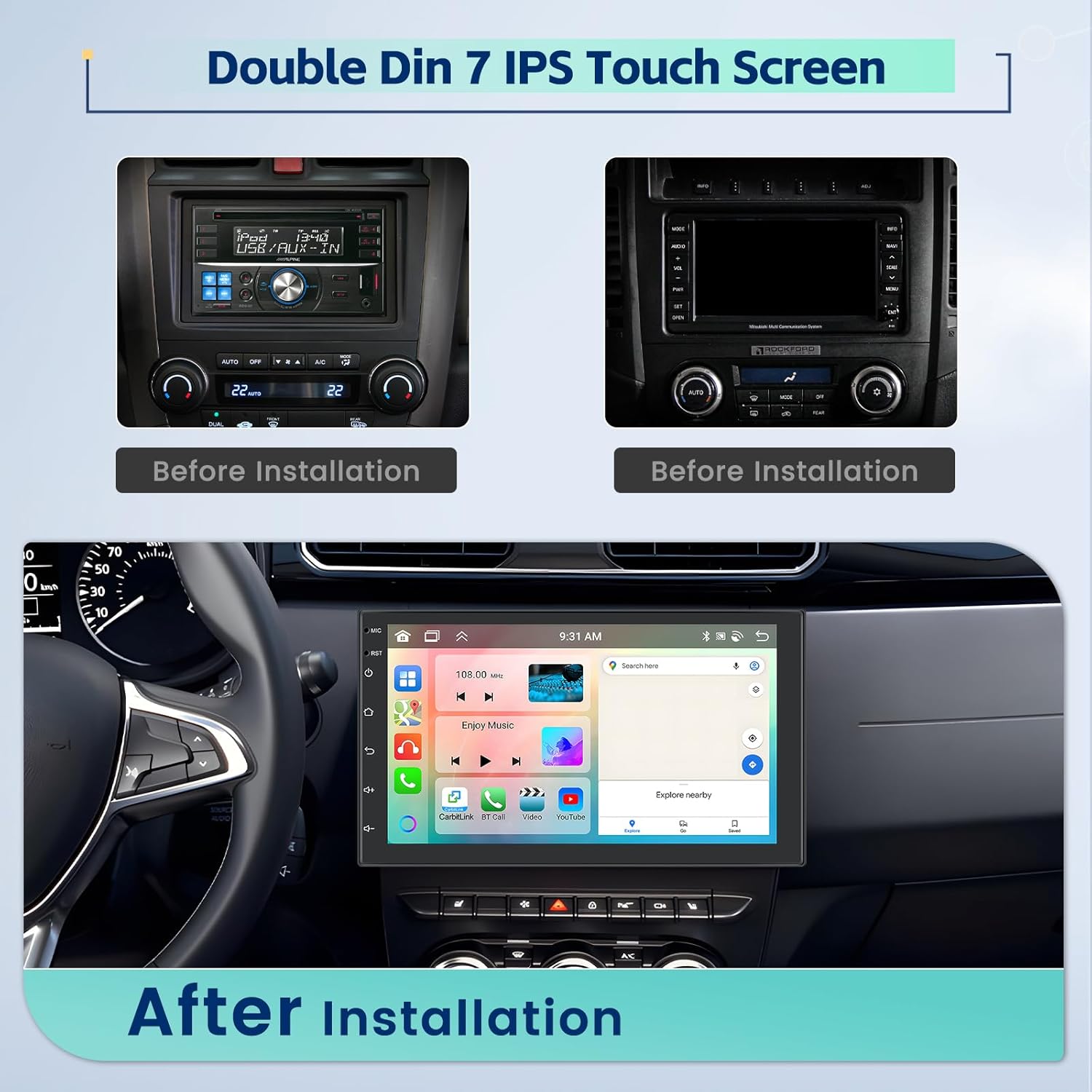
Figure 3: Comparison of car dashboard before and after installation of the Inefala stereo.

Figure 4: Detailed wiring diagram for the car stereo, including connections for power, speakers, and accessories.
Operating Instructions
Basic Operation:
- Power On/Off: Press the power button on the front panel or use the vehicle's ignition.
- Volume Control: Use the volume buttons on the unit or steering wheel controls.
- Home Screen: Tap the home icon to return to the main interface.
- Navigation: Swipe left/right on the screen to access different application pages.

Figure 5: Display showing the Wireless Apple CarPlay and Android Auto interfaces, highlighting seamless smartphone integration.
Wireless CarPlay & Android Auto:
Connect your smartphone wirelessly via Bluetooth and Wi-Fi for access to navigation, music, calls, and more directly on the stereo's screen.
- Ensure Bluetooth is enabled on your smartphone and the car stereo.
- Pair your phone with the stereo via Bluetooth.
- Once paired, the system will prompt you to enable CarPlay or Android Auto. Confirm the connection.
- For wired connection, simply connect your phone via a USB data cable.

Figure 6: Apple CarPlay interface, demonstrating voice control commands like "Hey Siri. Call Maria" and "Hey Siri. Play Music."

Figure 7: Android Auto interface, demonstrating voice control commands like "Hey Goo-gle. Message Linda" and "Take me to KFC."
Video 1: Product Function Show (A3453) - Demonstrates various features including UI themes, CarPlay/Android Auto music and navigation, video playback, hands-free calling, DSP, GPS, and rear view camera functionality.
GPS Navigation & WiFi:
The unit comes with built-in offline maps. Connect to WiFi for online navigation and app downloads.
- Access the "Maps" application from the home screen.
- To use online navigation, connect to a WiFi hotspot (e.g., from your phone).
- Download additional navigation apps from the Play Store.

Figure 8: Screen showing GPS navigation and options for WiFi connection, allowing access to online content and apps.

Figure 9: GPS navigation display with a built-in offline map, ensuring guidance even without an internet connection.
DSP & 32EQ:
Customize your audio experience with the Digital Sound Processor (DSP) and 32-band equalizer.
- Navigate to the "DSP" or "Equalizer" application.
- Adjust frequency bands, sound field, and other audio settings to your preference.
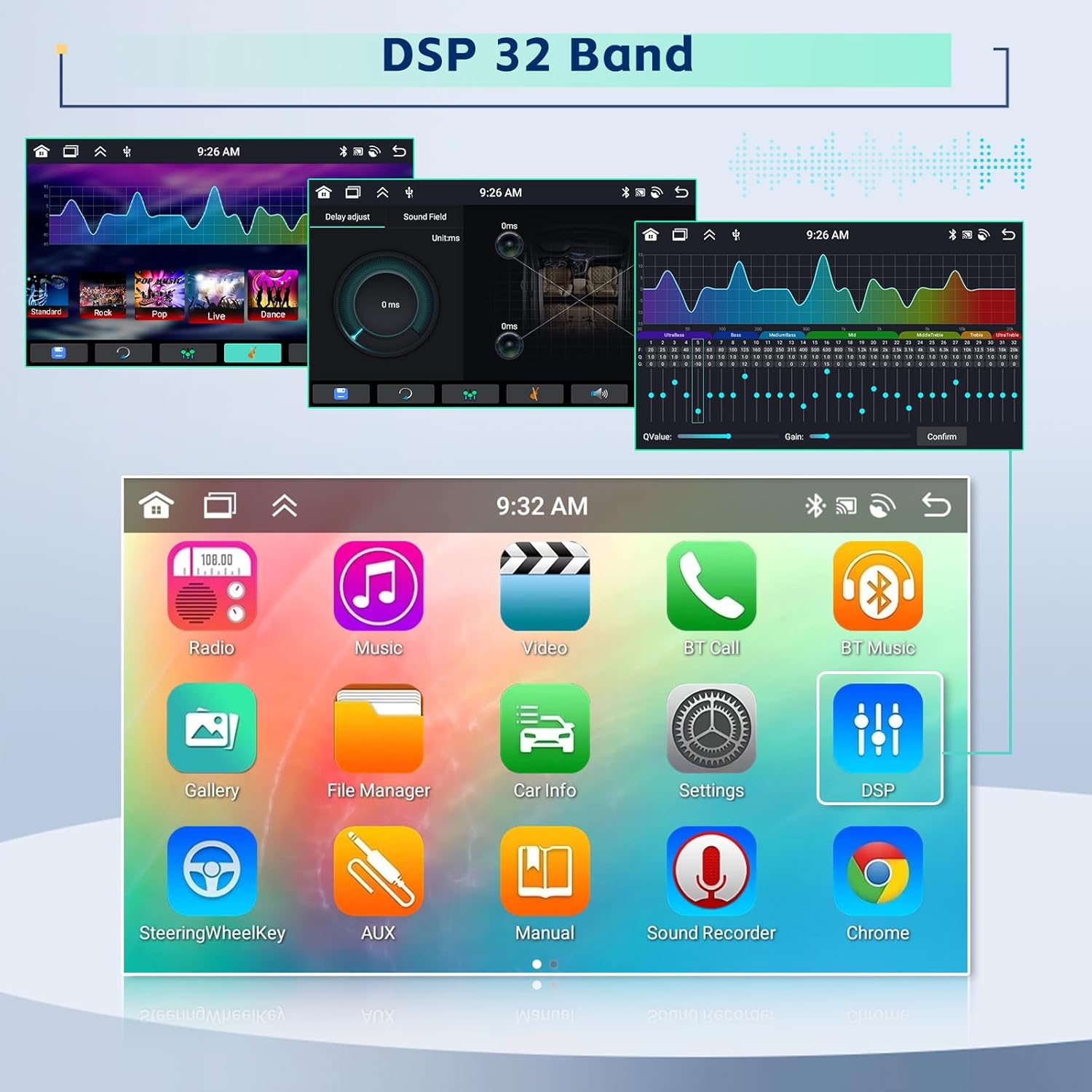
Figure 10: DSP 32-band equalizer interface, allowing detailed audio customization.

Figure 11: Diagram illustrating the DSP and 32-band EQ chip, emphasizing advanced audio processing capabilities.
Bluetooth 5.0 & FM/RDS Radio:
- Bluetooth: Access the "BT Call" or "BT Music" app for hands-free calling and audio streaming.
- FM/RDS Radio: Open the "Radio" app. Use the scan function to find stations or manually tune. RDS provides station information.

Figure 12: Diagram of the Bluetooth 5.0 chip, indicating advanced wireless connectivity.

Figure 13: FM/RDS Radio interface, showing station tuning and preset options.
Split Screen Function:
Run two applications simultaneously on the screen.
- From the home screen, long-press an app icon and drag it to one side of the screen.
- Select another app to fill the other side.
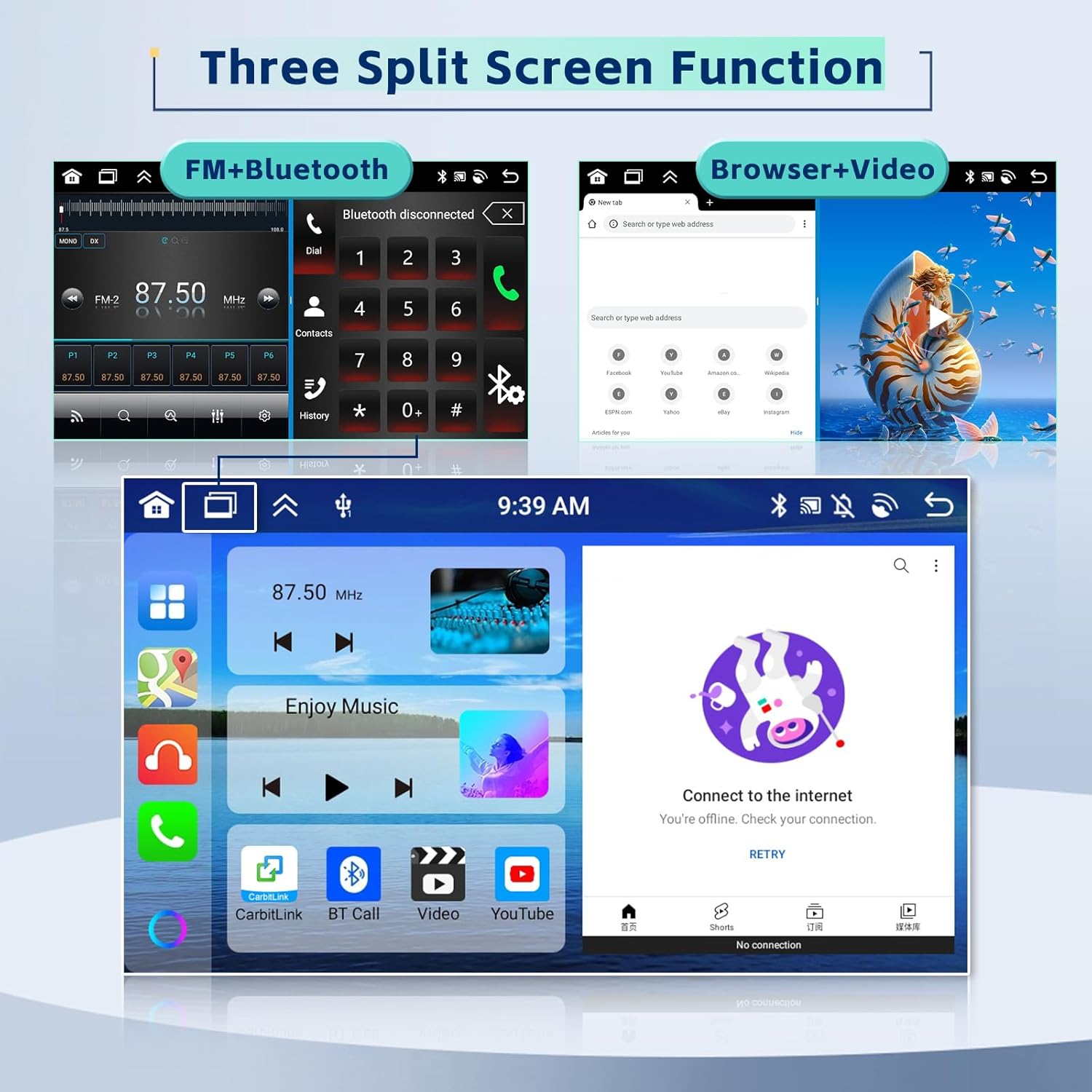
Figure 14: Display demonstrating the three-way split screen function, allowing multiple applications to be viewed simultaneously.

Figure 15: Illustration of the new split-screen technology, showing how different applications can be arranged on the display.
Steering Wheel Control (SWC):
Program your steering wheel buttons to control the stereo functions.
- Go to "Settings" > "Steering Wheel Key" or "SWC".
- Follow the on-screen instructions to map your vehicle's steering wheel buttons to the desired functions.

Figure 16: Steering Wheel Control interface, showing options for programming steering wheel buttons to control the stereo.
Rear View Camera:
The unit automatically displays the rear view when the vehicle is in reverse gear (if connected).
- Ensure the backup camera is correctly installed and wired to the reverse light trigger.
- The display will automatically switch to the camera view when reversing.

Figure 17: Rear View Camera display showing parking guidelines and a simplified wiring diagram for installation.
UI Desktop Themes:
Personalize your stereo's interface with 59 available UI themes.
- Go to "Settings" > "UI Themes" or "Wallpaper".
- Select your preferred theme from the options.

Figure 18: Display showcasing various UI desktop themes available for personalization.
Maintenance
- Screen Cleaning: Use a soft, lint-free cloth to clean the touchscreen. Do not use abrasive cleaners or solvents.
- Software Updates: Periodically check for software updates to ensure optimal performance and access to new features. Updates can usually be found in the system settings or on the manufacturer's website.
- General Care: Avoid exposing the unit to extreme temperatures, direct sunlight for prolonged periods, or excessive moisture.
Troubleshooting
If you encounter issues with your Inefala car stereo, refer to the following common problems and solutions. For persistent issues, contact customer support.
| Problem | Possible Cause | Solution |
|---|---|---|
| Unit does not power on. | Incorrect wiring, blown fuse, vehicle battery issue. | Check power connections (ACC, B+, GND). Inspect vehicle fuses. Ensure vehicle battery is charged. |
| No sound from speakers. | Speaker wiring issues, volume too low, mute enabled, amplifier issues. | Verify speaker connections. Increase volume. Check if mute is active. Ensure external amplifier (if used) is powered. |
| Bluetooth not connecting. | Bluetooth off on device/stereo, incorrect pairing, interference. | Ensure Bluetooth is on for both devices. Delete previous pairings and re-pair. Move closer to the unit. |
| GPS signal weak/lost. | GPS antenna placement, environmental interference. | Ensure GPS antenna has a clear view of the sky. Avoid placing near metal objects. |
| Display flickering or distorted. | Loose connections, software glitch, hardware issue. | Check display cable connections. Perform a system reset. If persistent, contact support. |
| Unreliable volume control. | Software issue, faulty control. | Try a system restart. Ensure no other apps are interfering with audio. If persistent, contact support. |
Specifications
| Feature | Detail |
|---|---|
| Product Dimensions | 7 x 0.9 x 4 inches |
| Item Weight | 2.44 pounds |
| Screen Size | 7 Inches |
| Resolution | 1280 x 720 (HD) |
| Operating System | Android 13 |
| Processor | 8-Core CPU |
| RAM | 4GB |
| ROM | 64GB |
| Bluetooth Version | 5.0 |
| Connectivity | Bluetooth, Wi-Fi, USB |
| Audio Output Mode | Stereo |
| Mounting Type | Dashboard Mount (Double Din) |
Warranty and Support
Inefala provides a 24-month quality assurance for this product from the date of purchase. For any quality issues or technical assistance, please contact Inefala-US customer support directly.
Contact Information:
- Email: inefalatech@163.com
- Online Support: Refer to the seller's page on Amazon for additional support options.
Please have your purchase details and product model number ready when contacting support.
Related documents8-Core 4+64G Android Car Stereo (B0CPSCL8TF)


Ask a question about this manual
Ask about setup, troubleshooting, compatibility, parts, safety, or missing instructions. Manuals+ will review the question and use this page’s manual context to help answer it.