1. Introduction
This user manual provides comprehensive instructions for the installation, operation, and maintenance of your ESCAM QF218 1080p 355º IP Security Camera. Designed for reliable surveillance, this camera offers high-definition video, wide-angle coverage, and essential security features. Please read this manual thoroughly before using the product to ensure proper setup and optimal performance.
2. Package Contents
Please verify that all items are present and in good condition upon opening the package:
- ESCAM QF218 IP Security Camera
- Power Adapter
- Mounting Kit (screws, wall plugs)
- User Manual (this document)
3. Product Overview
Familiarize yourself with the components of your ESCAM QF218 IP Security Camera:
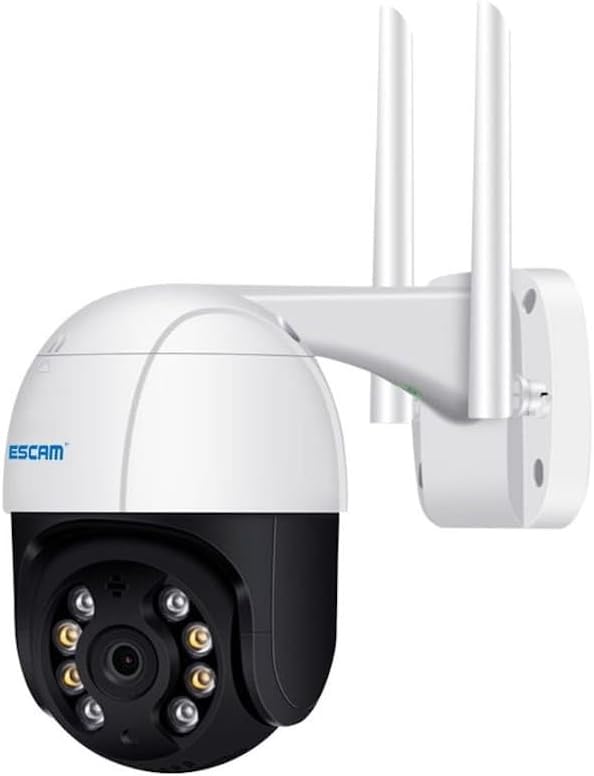
Figure 3.1: ESCAM QF218 IP Security Camera. This image displays the white and black dome-shaped camera unit, featuring a lens surrounded by infrared LEDs for night vision. Two prominent white antennas extend upwards from the rear, indicating wireless connectivity. The camera is attached to a white wall-mounting bracket.
The camera features a robust housing, a high-definition lens, multiple infrared lights for clear night vision, and two external antennas for stable wireless connectivity. The pan-tilt mechanism allows for a 355-degree horizontal rotation and vertical tilt, providing extensive coverage.
4. Setup Guide
4.1 Initial Power-Up
- Unpack the camera and all accessories.
- Connect the power adapter to the camera's power input port.
- Plug the power adapter into a standard electrical outlet. The camera will power on and initiate its self-test sequence, which may include a brief rotation.
4.2 App Installation and Account Creation
- Download the official ESCAM security camera application from your mobile device's app store (e.g., App Store for iOS, Google Play Store for Android). Search for "ESCAM Security" or refer to the QR code on the product packaging if available.
- Install and open the application.
- Follow the on-screen prompts to create a new user account or log in if you already have one.
4.3 Network Connection
- In the app, tap "Add Device" or the "+" icon.
- Select your camera model (QF218) or choose the "Scan QR Code" option if the camera has one.
- Follow the in-app instructions to connect the camera to your Wi-Fi network. This typically involves entering your Wi-Fi password and allowing the camera to scan a QR code displayed on your phone screen, or using an audio pairing method.
- Wait for the camera to connect to the network. A voice prompt or indicator light will confirm successful connection.
4.4 Mounting the Camera
- Choose a suitable location for mounting, ensuring a clear view and proximity to a power outlet.
- Use the provided mounting template (if included) or mark the drill holes on the wall/ceiling.
- Drill pilot holes and insert wall plugs if necessary.
- Secure the mounting bracket to the surface using the provided screws.
- Attach the camera to the mounting bracket, ensuring it is firmly locked in place.
- Adjust the camera's angle manually or via the app to achieve the desired viewing area.
5. Operating the Camera
5.1 Live View
Open the ESCAM app and select your camera from the device list to access the live video feed. You can view real-time footage from anywhere with an internet connection.
5.2 Pan and Tilt Control
On the live view screen, use the directional controls (usually a joystick or arrow icons) within the app to remotely pan (horizontal rotation) and tilt (vertical movement) the camera lens, allowing you to cover a wider area.
5.3 Recording and Playback
- Manual Recording: Tap the record button in the app to start and stop manual video recording. Recordings are saved to your phone or the camera's inserted SD card (if applicable).
- Motion-Activated Recording: Enable motion detection in the camera settings. The camera will automatically record when motion is detected and send alerts to your phone.
- Playback: Access recorded footage through the app's playback or history section. You can filter by date and time to review specific events.
5.4 Two-Way Audio
If your camera supports two-way audio (common for this model type), tap the microphone icon in the app to speak through the camera's speaker, and listen to audio from the camera's built-in microphone.
5.5 Motion Detection and Alerts
Configure motion detection sensitivity and alert settings in the app. You can set specific detection zones and schedule alert times to receive push notifications on your mobile device when motion is detected.
6. Maintenance
- Cleaning: Gently wipe the camera lens and body with a soft, dry cloth. Do not use harsh chemicals or abrasive cleaners.
- Firmware Updates: Regularly check the app for available firmware updates. Keeping your camera's firmware up-to-date ensures optimal performance, security, and access to new features.
- Storage Management: If using a local storage card (e.g., microSD), periodically review and manage recorded footage to prevent the card from filling up. Most cameras support loop recording, overwriting the oldest footage when full.
- Network Stability: Ensure your Wi-Fi network is stable and strong at the camera's location for uninterrupted operation.
7. Troubleshooting
| Problem | Possible Solution |
|---|---|
| Camera not powering on. | Check the power adapter connection to the camera and the wall outlet. Ensure the outlet is functional. |
| Cannot connect to Wi-Fi. | Ensure your Wi-Fi password is correct. Move the camera closer to the router. Check if your router is 2.4GHz (most IP cameras do not support 5GHz). Restart the camera and router. |
| Poor video quality or lag. | Check your internet connection speed. Reduce the video resolution in the app settings if available. Ensure strong Wi-Fi signal. |
| Motion detection not working. | Verify motion detection is enabled in the app settings. Adjust sensitivity. Check detection zones. Ensure there are no obstructions. |
| No audio from camera. | Check microphone and speaker settings in the app. Ensure volume is not muted on your device. |
If you encounter issues not listed here, please refer to the support section of the ESCAM app or contact customer support.
8. Specifications
| Feature | Detail |
|---|---|
| Model Number | QF218 (Part No. 47570) |
| Brand | ESCAM |
| Resolution | 1080p (Full HD) |
| Pan/Tilt Range | 355º Pan |
| Alert Type | Motion Only |
| Light Source Type | Infrared |
| Item Weight | 1.76 pounds |
| Package Dimensions | 13.78 x 9.45 x 6.3 inches |
| Material | Plastic |
| Batteries Required? | No |
| ASIN | B0CPPMTWJ4 |
9. Warranty and Support
9.1 Warranty Information
ESCAM products typically come with a limited manufacturer's warranty. Please refer to the warranty card included with your product or visit the official ESCAM website for detailed warranty terms and conditions. Keep your purchase receipt as proof of purchase for warranty claims.
9.2 Customer Support
For technical assistance, troubleshooting, or product inquiries, please contact ESCAM customer support. Contact information can usually be found on the official ESCAM website or within the product application. When contacting support, please have your product model (QF218) and serial number ready.
You can also visit the ESCAM Brand Store on Amazon for more product information.


