
1. Introduction
This manual provides essential instructions for setting up, operating, maintaining, and troubleshooting your Epson EcoTank ET-2862 A4 Multifunction Printer. This device is designed for high-quality printing, copying, and scanning, featuring a refillable ink tank system for cost-effective and convenient use. Please read this manual thoroughly before using the printer to ensure proper operation and to maximize its lifespan.
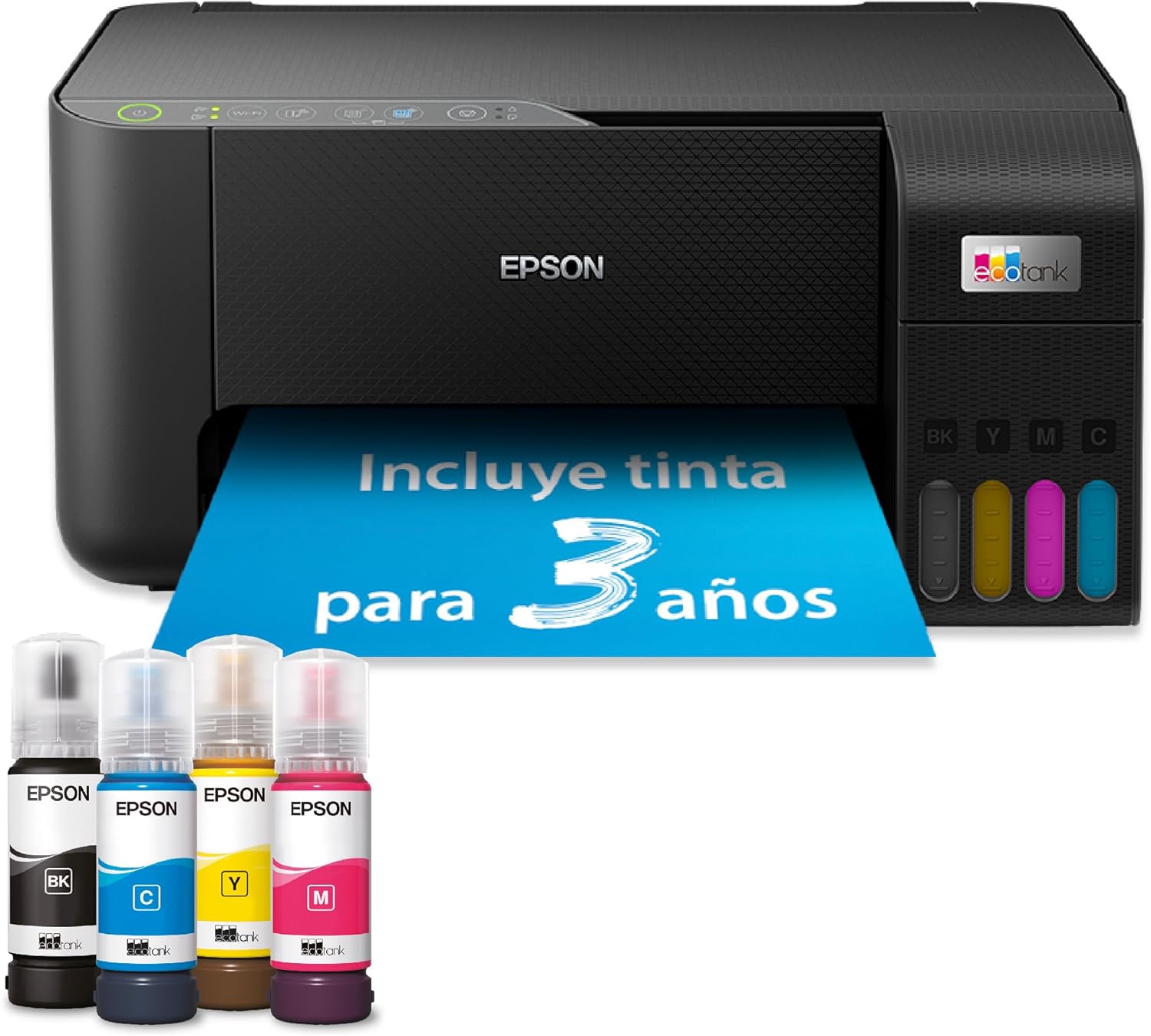
Figure 1: Epson EcoTank ET-2862 Printer with included ink bottles.
2. Safety Information
Observe the following safety precautions to prevent damage to the printer and ensure personal safety:
- Always place the printer on a stable, flat surface.
- Do not block ventilation openings.
- Use only the power cord supplied with the printer.
- Keep ink bottles out of reach of children and do not ingest ink.
- Avoid touching internal components, especially when the printer is operating.
- Disconnect the power cord before cleaning or performing maintenance.
3. Package Contents
Verify that all items are present in the box:
- Epson EcoTank ET-2862 Multifunction Printer
- Full set of Ink Bottles (Black, Cyan, Magenta, Yellow)
- Power Cable
- Setup Guide
- Software CD-ROM (may not be included in all regions, download drivers online)
4. Setup
4.1 Unpacking and Initial Placement
Remove all protective materials and tape from the printer. Place the printer in a location with adequate space for paper loading and output, and ensure it is near a power outlet.
4.2 Filling the Ink Tanks
The EcoTank system uses refillable ink tanks. Follow these steps for a clean and hassle-free refill:
- Open the ink tank unit cover on the side of the printer.
- Open the cap for the corresponding color ink tank.
- Uncap the ink bottle and insert it into the filling port. The bottle is keyed to fit only the correct color tank.
- Allow the ink to drain into the tank. The bottle will stop filling automatically when the tank is full.
- Remove the ink bottle, recap the tank, and close the ink tank unit cover.
- Repeat for all colors.

Figure 2: Ink refill process for the EcoTank system.
4.3 Power Connection and Initial Setup
Connect the power cable to the printer and a wall outlet. Press the power button to turn on the printer. Follow the on-screen instructions on the printer's control panel to select language, date, and time. The printer will then initiate the ink charging process, which may take several minutes.

Figure 3: Printer control panel.
4.4 Software Installation and Wi-Fi Setup
Install the printer drivers and software from the provided CD-ROM or download the latest versions from the official Epson support website. During installation, you will be guided through connecting the printer to your computer via USB or Wi-Fi. For Wi-Fi setup, select your network and enter the password when prompted. The Epson Smart Panel app can also be used for mobile setup and control.
5. Operating Instructions
5.1 Loading Paper
Open the rear paper support and pull out the extender. Adjust the edge guides to the width of your paper. Load paper print-side up into the paper feeder. The maximum input sheet capacity is 100 sheets.
5.2 Printing
From your computer or mobile device, open the document or image you wish to print. Select the Epson ET-2862 as your printer. Adjust print settings such as paper size (A4 supported), print quality, and color options. Click 'Print'.
5.3 Copying
Place the document face-down on the scanner glass. Close the scanner lid. On the printer's control panel, select 'Copy'. Choose the number of copies and color/black & white options. Press the 'Start' button.
5.4 Scanning
Place the document face-down on the scanner glass. Close the scanner lid. From your computer, open the Epson Scan software or use the Epson Smart Panel app on your mobile device. Select scan settings (e.g., resolution, destination folder) and initiate the scan. The scanner type is flatbed.
6. Maintenance
6.1 Checking Ink Levels
Visually inspect the ink tanks on the front of the printer to monitor ink levels. You can also check ink levels through the printer software on your computer or the Epson Smart Panel app.
6.2 Print Head Cleaning
If print quality declines (e.g., missing lines, faded colors), perform a print head cleaning. This can be done through the printer's control panel or the printer software. This process uses a small amount of ink.
6.3 Nozzle Check
Before cleaning, it is recommended to perform a nozzle check to confirm if cleaning is necessary. This prints a pattern that shows if any nozzles are clogged.
7. Troubleshooting
This section addresses common issues you might encounter with your Epson ET-2862 printer.
- Printer Not Responding: Ensure the printer is powered on and connected correctly (USB or Wi-Fi). Check for error messages on the printer's display.
- Poor Print Quality: Perform a nozzle check and print head cleaning. Ensure you are using genuine Epson ink. Check paper type settings.
- Paper Jams: Carefully remove any jammed paper following the instructions in the printer's on-screen guide or the full online manual. Avoid tearing the paper.
- Wi-Fi Connectivity Issues: Restart your printer and router. Ensure the printer is within range of your Wi-Fi network. Re-enter Wi-Fi settings if necessary.
For more detailed troubleshooting, refer to the comprehensive online manual available on the Epson support website.
8. Specifications
| Feature | Specification |
|---|---|
| Brand | Epson |
| Model | ET-2862 |
| Manufacturer Part Number | C11CJ67431 |
| Product Dimensions | 35d x 38w x 18h centimeters |
| Product Weight | 3.9 Kilograms |
| Connectivity Technology | Bluetooth, USB, Wi-Fi |
| Print Technology | Inkjet |
| Special Feature | Refillable Ink Tank |
| Printer Output | Color |
| Maximum Monochrome Print Speed | 10 pages per minute |
| Maximum Color Print Speed | 5 pages per minute |
| Maximum Black & White Print Resolution | 5760 x 1440 dpi |
| Maximum Color Print Resolution | 5760 x 1440 dpi |
| Duplex Printing | No |
| Scanner Type | Flatbed |
| Maximum Copy Speed (Black & White) | 33 pages per minute |
| Maximum Input Sheet Capacity | 100 |
| Maximum Paper Size | A4 |
| Sheet Size | A4 |
| Print Media Type | Plain Paper |
| Compatible Devices | PC, Laptop, Smartphone, Tablet |
| Controller Type | Android, iOS |
| Power Consumption | 12 Watts |
| Wattage | 12 Watts |
| Color Depth | 24 bpp |
| Maximum Copies Per Run | 1 |
| EU Spare Parts Availability Duration | 3 Years |
9. Warranty and Support
Your Epson EcoTank ET-2862 printer comes with a standard warranty. Please refer to the warranty documentation included with your product for specific terms and conditions. Epson also provides support resources, including drivers, FAQs, and contact information, on its official website. The availability of spare parts in the EU is guaranteed for 3 years.


