
Introduction
This manual provides comprehensive instructions for the setup, operation, maintenance, and troubleshooting of your SABLUTE KL3 PRO Wireless Keyboard and Mouse Combo. Please read this manual thoroughly before using the product to ensure optimal performance and longevity.
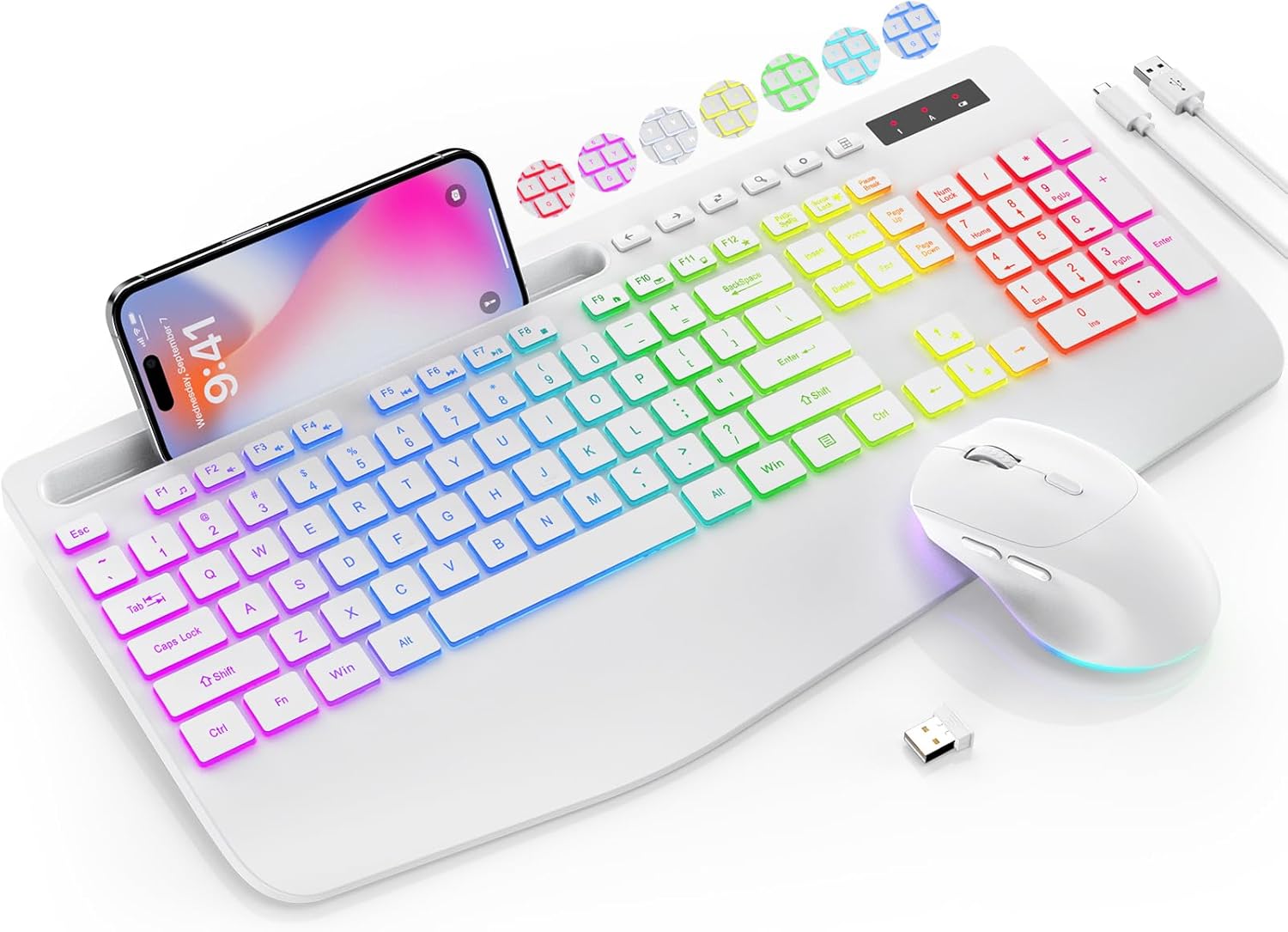
Image: The SABLUTE KL3 PRO Wireless Keyboard and Mouse Combo, featuring a full-size keyboard with a phone holder, a wireless mouse, and a USB receiver.
Package Contents
Upon opening your package, please verify that all the following items are included:
- SABLUTE KL3 PRO Wireless Keyboard
- SABLUTE Wireless Mouse
- 2.4G USB Receiver (Dongle)
- USB Type-C Charging Cable
- User Manual (this document)

Image: The SABLUTE KL3 PRO keyboard and mouse, along with the USB receiver and charging cables, as they appear in the package.
Setup Instructions
1. Charging the Devices
Both the keyboard and mouse are rechargeable. Before initial use, it is recommended to fully charge both devices.
- Connect the provided USB Type-C charging cable to the charging port on the keyboard and mouse.
- Plug the other end of the cable into a USB power source (e.g., computer USB port, USB wall adapter).
- Charging typically takes 2-3 hours for a full charge. The indicator light will change to show charging status.
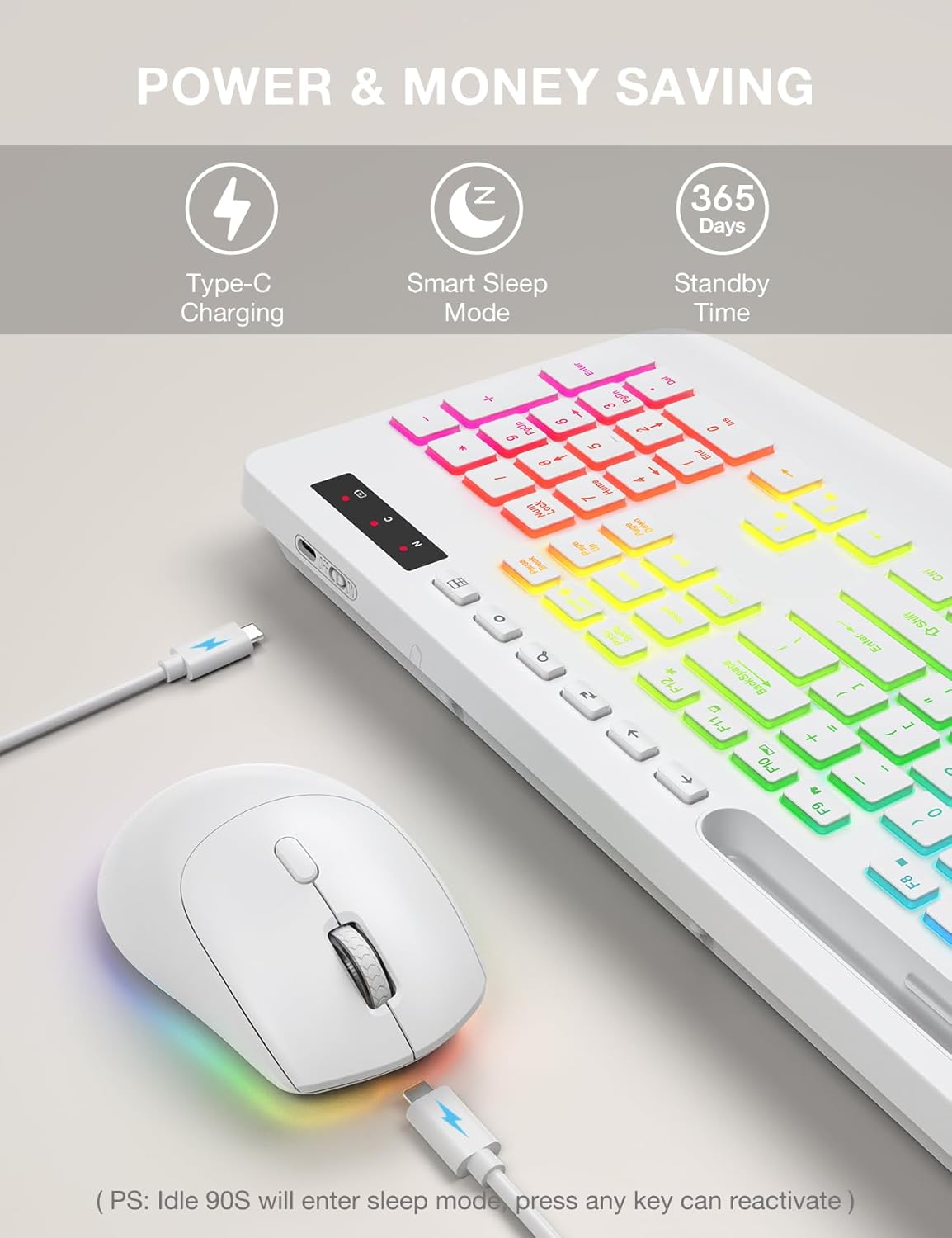
Image: The SABLUTE keyboard and mouse connected to charging cables, illustrating the Type-C charging ports.
2. Connecting to Your Device
The SABLUTE KL3 PRO combo uses a 2.4G wireless connection via a single USB receiver.
- Locate the 2.4G USB receiver. It is typically stored in the mouse's battery compartment or within the product packaging.
- Plug the USB receiver into an available USB-A port on your computer or laptop.
- Turn on the keyboard and mouse using their respective power switches.
- The devices should connect automatically within seconds. No additional drivers are usually required for most operating systems.
Compatibility: This combo is compatible with Windows, Chrome OS, Linux, and Mac devices. Please note that multimedia keys may have limited functionality on Mac operating systems.
Important Note: A USB-C dongle is not included. This keyboard and mouse combo cannot connect directly to tablets or phones without a compatible USB-A adapter (not included).

Image: The keyboard and mouse operating wirelessly with a laptop and monitor, demonstrating the 2.4G wireless connectivity and plug-and-play setup.
Operating Instructions
Keyboard Features
- Backlight Effects: Choose from 7 solid colors and 1 rainbow backlight color. There are 3 distinct backlight modes available.
- Backlight Control:
- Press Fn + PrtSc/SysRq to turn the backlight on or off.
- Press Fn + Scroll Lock to switch between different backlight modes.
- Press Fn + Up Arrow or Fn + Down Arrow to adjust the backlight brightness (3 levels).
- Ergonomic Wrist Rest: The keyboard features an extra-wide 2.8-inch wrist rest designed to reduce wrist fatigue during extended use.
- Integrated Phone Holder: A built-in holder accommodates devices up to 11.9 inches, allowing for convenient multitasking.
- Multimedia Keys: Access 6 one-touch media keys and F1-F12 shortcuts for streamlined daily tasks.
- Quiet Typing: The keyboard is designed for silent operation, minimizing disturbance in shared environments.
- Low-Profile Keycaps: Features 1mm low-profile keycaps for easier cleaning and quieter typing.

Image: Illustration of the keyboard's 7 color options and the key combinations for controlling backlight on/off, mode switching, and brightness adjustment.
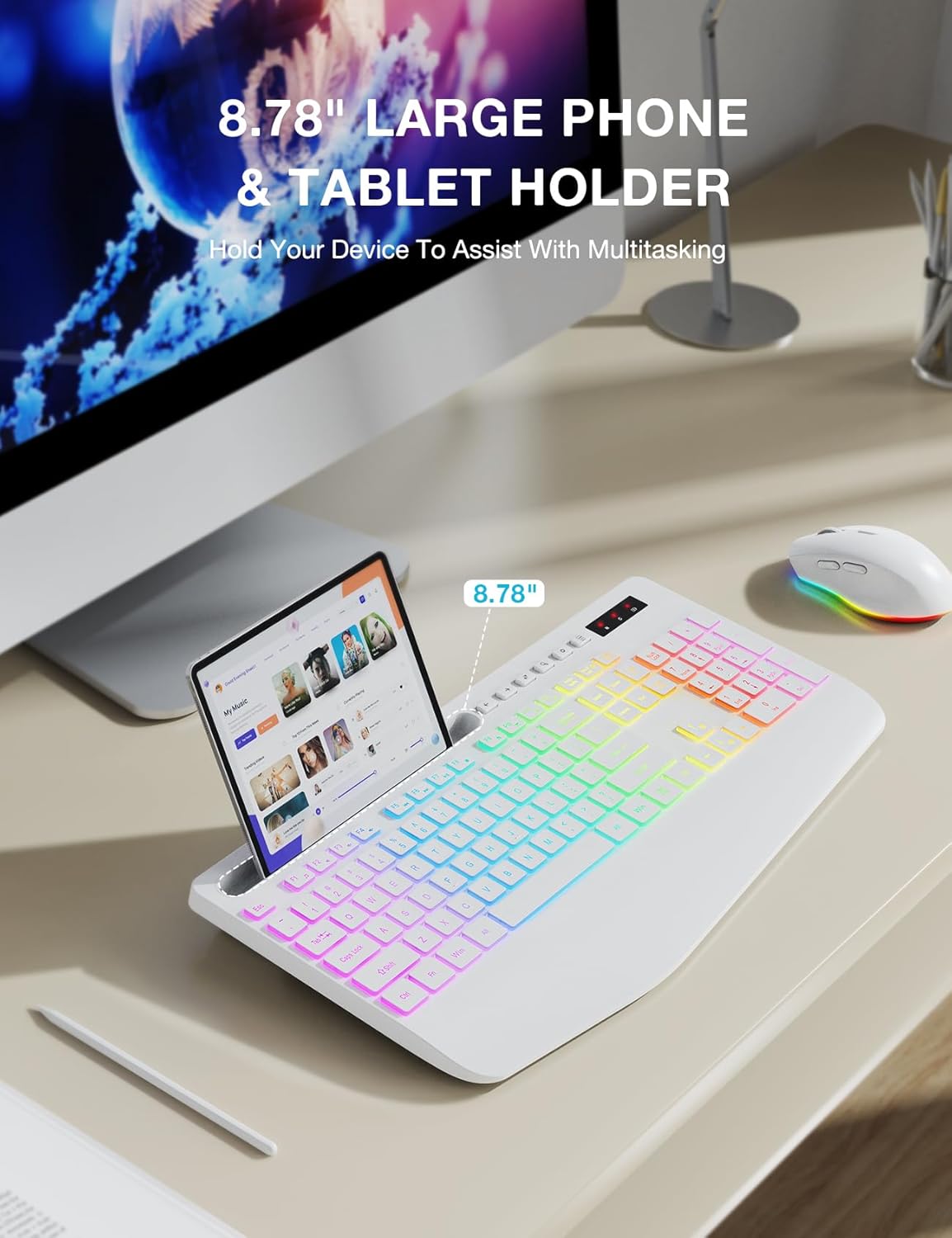
Image: The keyboard displaying a phone securely placed in its integrated holder, highlighting the 8.78-inch capacity for multitasking.
Mouse Features
- 6-Button Design: Includes standard left/right click, scroll wheel, DPI button, and forward/backward buttons for enhanced navigation.
- Adjustable DPI: Cycle through 3 DPI levels (800/1200/1600) to adjust tracking speed for different tasks.
- Quiet Clicking: The mouse is designed for silent clicks, providing a quiet working environment.
- Backlight Effects: Features 15 light effects that can be switched or turned off.

Image: A detailed view of the SABLUTE wireless mouse, labeling its 6 buttons including the scroll wheel, left/right click, DPI button, and forward/backward buttons.
Power Management
The SABLUTE KL3 PRO combo is designed with energy-saving features to extend battery life.
- Smart Sleep Mode: If idle for 90 seconds, the devices will enter a smart sleep mode to conserve power. Press any key on the keyboard or move the mouse to reactivate.
- Long Standby Time: With the backlight off, the devices can achieve up to 365 days of standby time on a full charge.

Image: An illustration highlighting the energy-saving features of the SABLUTE keyboard and mouse, including 365 days standby time and smart sleep mode activation after 90 seconds of inactivity.
Maintenance and Care
To ensure the longevity and optimal performance of your SABLUTE KL3 PRO combo, follow these maintenance guidelines:
- Cleaning: Use a soft, dry cloth to wipe down the surfaces of the keyboard and mouse. For stubborn dirt, a slightly damp cloth with mild soap can be used, ensuring no liquid enters the device.
- Keycap Cleaning: The low-profile keycaps are designed for easier cleaning. Use compressed air to remove debris from between keys.
- Storage: Store the devices in a cool, dry place away from direct sunlight and extreme temperatures.
- Avoid Liquids: Do not expose the keyboard or mouse to excessive moisture or liquids.
- Handle with Care: Avoid dropping or subjecting the devices to strong impacts.
Troubleshooting
If you encounter any issues with your SABLUTE KL3 PRO combo, please refer to the following common solutions:
| Problem | Possible Solution |
|---|---|
| Keyboard/Mouse not responding |
|
| Lag or delayed response |
|
| Backlight not working |
|
| Missing USB receiver |
|
| Devices enter sleep mode too quickly |
|
Specifications
| Feature | Detail |
|---|---|
| Model Number | KL3 PRO |
| Product Dimensions | 16.85 x 8.46 x 1.38 inches |
| Item Weight | 2 pounds |
| Batteries | 1 Lithium Metal battery required (included) |
| Connectivity Technology | 2.4G USB Wireless |
| Special Features | 3-level DPI, Backlit, Ergonomic Wrist Rest, Phone Holder, Shortcut Keys, Low-profile keycap |
| Compatible Devices | Personal Computer, Laptop |
| Manufacturer | SABLUTE |
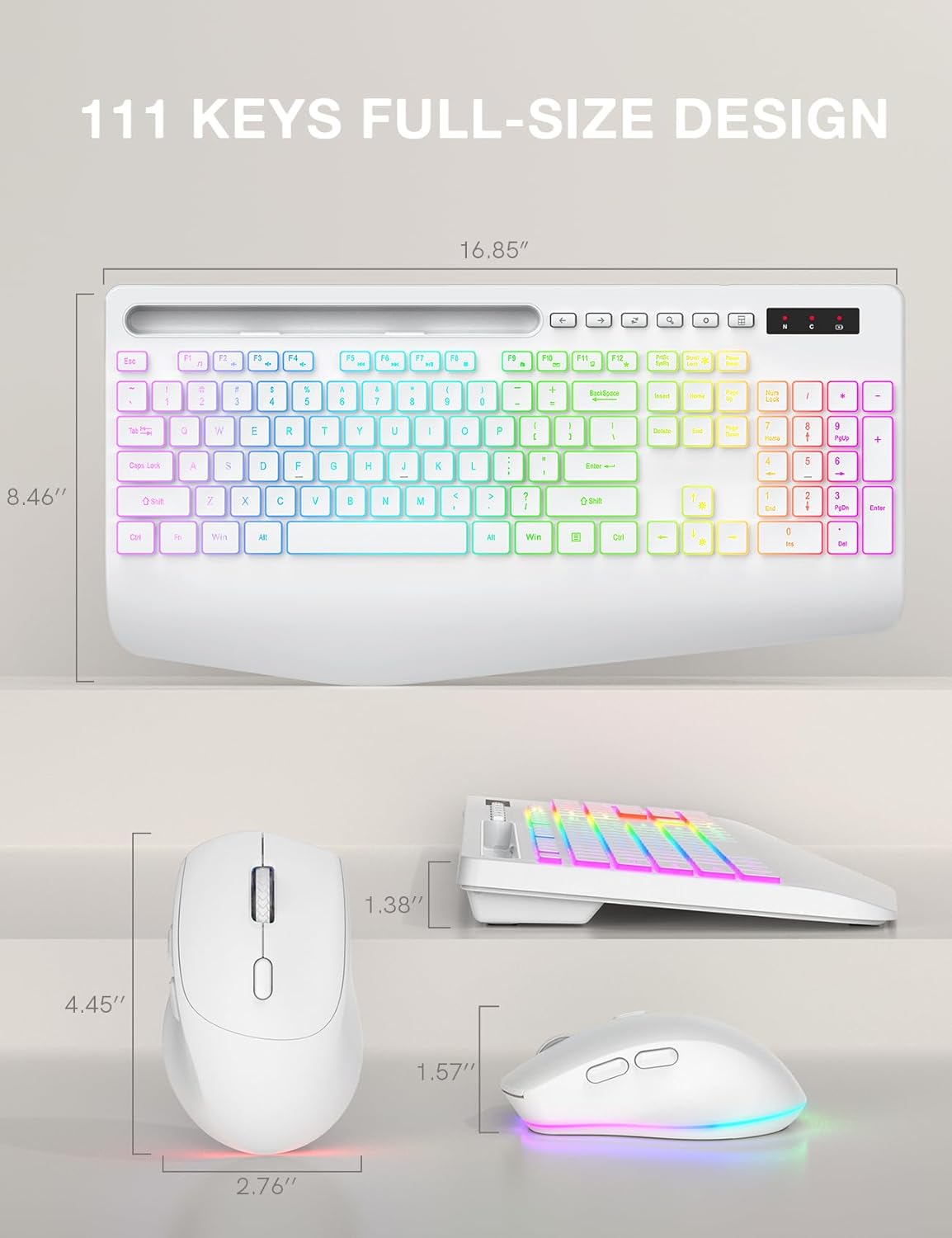
Image: Technical drawing showing the dimensions of the SABLUTE KL3 PRO keyboard and mouse.
Warranty and Support
SABLUTE is committed to providing quality products and customer satisfaction. Your KL3 PRO Wireless Keyboard and Mouse Combo comes with the following support:
- 90-Day Replacement: For any manufacturing defects or issues within 90 days of purchase.
- 360-Day Manufacturer Warranty: Covers defects in materials and workmanship for 360 days from the date of purchase.
Contact Support
For pre-sales questions, troubleshooting assistance, accessory reissue, or returns and exchanges, please contact us:
- Email Support: sabluteservices@outlook.com
- Phone Support (US): +1-888-858-1618 (Monday-Friday, 9 AM - 1 PM PST, 2 PM - 6 PM PST)


