
Introduction
Thank you for choosing the TECURS KB570 Wireless Rechargeable Keyboard. This manual provides detailed instructions for setting up, operating, and maintaining your new keyboard. Please read this manual carefully before use to ensure optimal performance and longevity of your device.
The KB570 keyboard features dual connectivity modes (Bluetooth and 2.4G wireless), a compact 60% French layout, and broad compatibility with various operating systems and devices. Its rechargeable design offers convenience and an eco-friendly solution.
Product Overview
Package Contents
- TECURS KB570 Wireless Rechargeable Keyboard
- USB Type-C Charging Cable
- 2.4G USB Receiver (stored in the keyboard's battery compartment)
- User Manual
Key Features
- Dual Connectivity: Supports both Bluetooth and 2.4G wireless modes.
- Multi-System Compatibility: Works with Windows, iOS, Android, and MacOS devices.
- Compact 60% Layout: Space-saving French layout, ideal for portability and smaller workspaces.
- Rechargeable Battery: Built-in 300mAh lithium battery, offering extended use on a single charge.
- Quiet Scissor-Switch Keys: Provides a comfortable and silent typing experience.
- Multimedia Shortcuts: Integrated function keys for quick access to media controls and other features.
Compatibility Overview

The TECURS KB570 keyboard offers broad compatibility across different operating systems, including iOS, Android, Windows, and MacOS. It can seamlessly connect to smartphones, tablets, laptops, and desktop computers.
Connection Modes
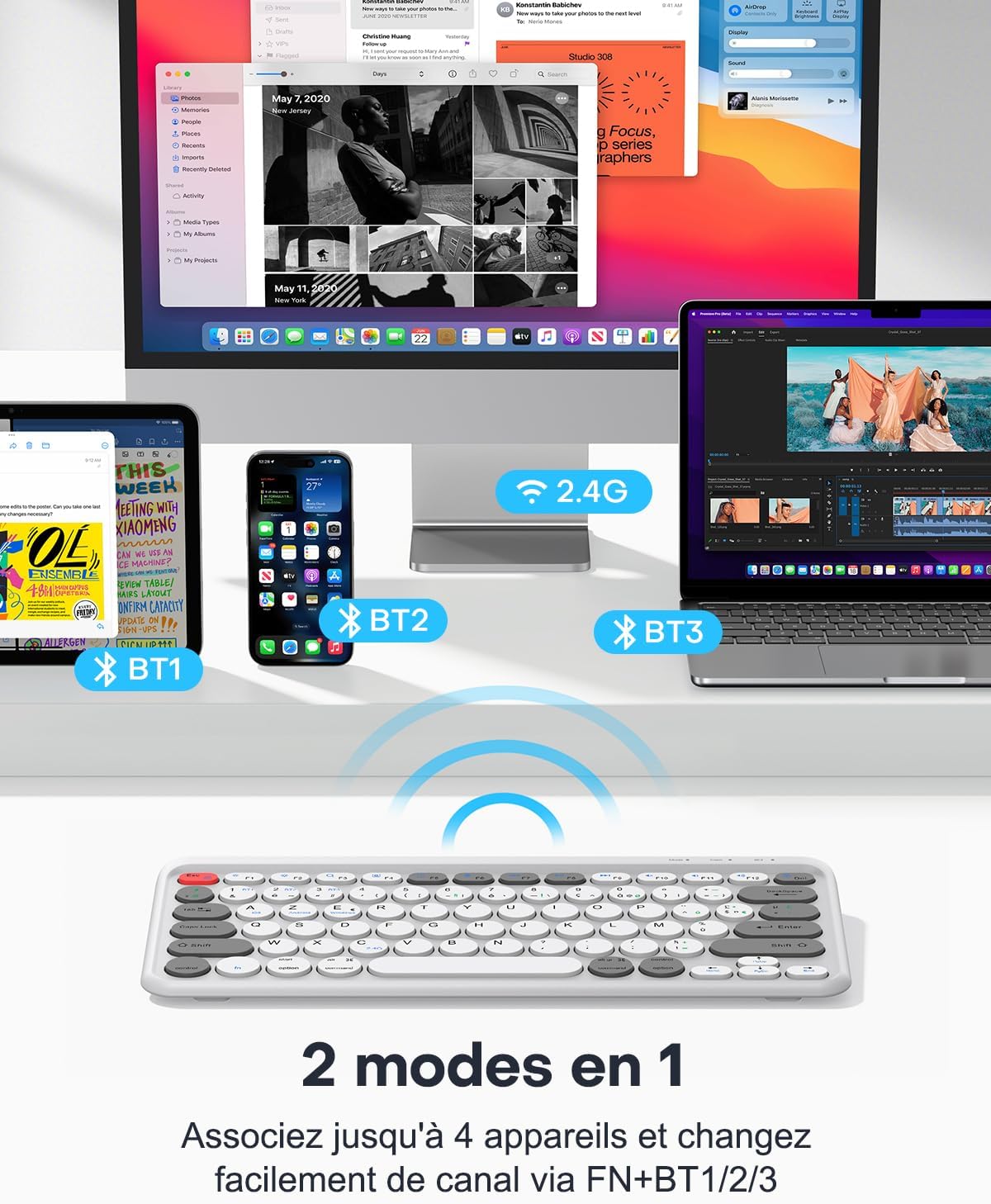
This keyboard supports two primary connection modes: a 2.4G wireless connection via a USB receiver (for computers only) and Bluetooth, allowing connection to up to three different devices simultaneously (BT1, BT2, BT3). Users can switch between these connected devices easily.
Setup
1. Charging the Keyboard

The TECURS KB570 keyboard is equipped with a convenient USB Type-C charging port. It features a built-in 300mAh lithium battery, providing approximately 120 hours of use on a single charge, which typically takes 2 to 3 hours.
- Locate the USB Type-C port on the keyboard.
- Connect the provided USB Type-C cable to the keyboard and a power source (e.g., computer USB port, USB wall adapter).
- The charging indicator light will illuminate. Once fully charged, the light will change or turn off.
2. Connecting via 2.4G Wireless Mode (for Computers)
- Locate the 2.4G USB receiver, usually stored in the battery compartment of the keyboard.
- Plug the 2.4G USB receiver into an available USB port on your computer.
- Turn on the keyboard using the power switch.
- Press the Fn + 2.4G keys simultaneously to switch to 2.4G mode. The indicator light will flash, then remain solid when connected.
- Your keyboard should now be ready for use.
3. Connecting via Bluetooth Mode (BT1, BT2, BT3)
- Turn on the keyboard using the power switch.
- Press and hold Fn + BT1 (or BT2, BT3) for 3-5 seconds until the indicator light for the selected Bluetooth channel starts flashing rapidly. This indicates the keyboard is in pairing mode.
- On your device (smartphone, tablet, computer), go to Bluetooth settings and enable Bluetooth.
- Search for available devices. You should see "TECURS KB570" or a similar name.
- Select the keyboard to pair. If prompted, enter the displayed code on the keyboard and press Enter.
- Once paired, the indicator light will stop flashing and remain solid for a few seconds, then turn off. Your keyboard is now connected.
- Repeat these steps for BT2 and BT3 to connect up to two additional devices.
Operating Instructions
Switching Between Connected Devices/Modes
To switch between your connected devices or modes, simply press the corresponding key combination:
- Press Fn + 2.4G to switch to 2.4G wireless mode.
- Press Fn + BT1 to switch to Bluetooth device 1.
- Press Fn + BT2 to switch to Bluetooth device 2.
- Press Fn + BT3 to switch to Bluetooth device 3.
System Layout Switching
The keyboard supports different operating system layouts. To ensure correct key mapping, switch to the appropriate system layout:
- Press Fn + Q for Android layout.
- Press Fn + W for Windows layout.
- Press Fn + E for iOS/MacOS layout.
Multimedia Shortcuts (Fn Keys)

The keyboard includes 12 multimedia shortcuts (F1-F12) accessible via the 'Fn' key, designed to improve efficiency by providing quick access to common functions such as volume control, media playback, and more.
To use the multimedia functions, press and hold the Fn key, then press the desired F-key (F1-F12). For example:
- Fn + F1: Home
- Fn + F2: Search
- Fn + F3: Select All
- Fn + F4: Copy
- Fn + F5: Paste
- Fn + F6: Cut
- Fn + F7: Previous Track
- Fn + F8: Play/Pause
- Fn + F9: Next Track
- Fn + F10: Mute
- Fn + F11: Volume Down
- Fn + F12: Volume Up
Maintenance
Cleaning
To keep your keyboard clean and functional:
- Turn off the keyboard before cleaning.
- Use a soft, lint-free cloth slightly dampened with water or a mild cleaning solution.
- Avoid using harsh chemicals, abrasives, or solvents that could damage the surface.
- Use compressed air to remove dust and debris from between the keys.
Battery Care
To maximize battery life:
- Charge the keyboard regularly, especially when the battery indicator is low.
- Avoid completely draining the battery frequently.
- If storing the keyboard for an extended period, charge it to about 50% and store it in a cool, dry place.
Storage
When not in use, store the keyboard in a dry environment away from extreme temperatures and direct sunlight. The compact size makes it easy to store and transport.

The compact and lightweight design of the TECURS KB570 makes it highly portable. It can be easily carried in a bag, making it suitable for use with tablets or smartphones while traveling or working remotely.
Troubleshooting
Keyboard Not Connecting / Disconnecting
- Check Power: Ensure the keyboard is turned on and has sufficient battery charge.
- Re-pair Bluetooth: If using Bluetooth, delete the keyboard from your device's Bluetooth list and re-pair it following the instructions in the Setup section.
- 2.4G Receiver: For 2.4G mode, ensure the USB receiver is securely plugged into your computer and try a different USB port.
- Switch Modes: Confirm you are in the correct connection mode (2.4G, BT1, BT2, or BT3) by pressing Fn + corresponding key.
- Interference: Move the keyboard closer to your device and away from other wireless devices that might cause interference.
Keys Not Responding / Incorrect Input
- System Layout: Ensure the keyboard is set to the correct operating system layout (Fn + Q/W/E).
- Clean Keys: Check for any debris under the keys that might be preventing proper function.
- Restart: Try turning the keyboard off and on again, or restarting your connected device.
Charging Issues
- Cable Check: Ensure the USB Type-C cable is not damaged and is properly connected.
- Power Source: Try a different USB port or wall adapter.
- Indicator Light: Observe the charging indicator light for proper behavior.
Specifications
| Brand | TECURS |
| Model Number | KB570 |
| Connectivity Technology | Bluetooth, 2.4G Wireless, USB-C (for charging) |
| Compatible Devices | Tablet, Computer, Smartphone (Windows, iOS, Android, MacOS) |
| Keyboard Layout | 60% Compact French Layout |
| Key Structure | Scissor-Switch |
| Power Source | Battery Powered (Rechargeable Lithium Battery) |
| Battery Capacity | 300 mAh |
| Charging Time | Approx. 2-3 hours |
| Usage Time (per charge) | Approx. 120 hours |
| Product Dimensions (L x W x H) | 30.3 x 14 x 2.3 cm (11.9 x 5.5 x 0.9 inches) |
| Item Weight | 440 grams |
| Color | Grey and White |
| Style | Retro |

With a 60% compact French layout, the TECURS KB570 keyboard is designed to be small and portable, measuring approximately 30.3 cm (11.9 inches) in length and 14 cm (5.5 inches) in width. This space-saving design is ideal for smaller desks or for users who need a portable typing solution.
Warranty and Support
TECURS products are designed for reliability and performance. For information regarding warranty coverage, technical support, or service inquiries, please refer to the warranty card included with your product or visit the official TECURS website. Please retain your proof of purchase for warranty claims.


