
SABLUTE KL3 PRO
SABLUTE Wireless Keyboard and Mouse Combo User Manual
Model: KL3 PRO
Introduction
This manual provides comprehensive instructions for the setup, operation, maintenance, and troubleshooting of your SABLUTE Wireless Keyboard and Mouse Combo. Please read this manual carefully before using the product to ensure optimal performance and longevity.
The SABLUTE KL3 PRO Wireless Keyboard and 6-Button Mouse Combo is designed to enhance your computing experience with its ergonomic features, customizable backlighting, and efficient wireless connectivity.
Package Contents
- SABLUTE Wireless Keyboard
- SABLUTE Wireless Mouse
- USB Receiver (located in the keyboard's battery compartment)
- Charging Cable
- User Manual (this document)
Setup
1. Locating the USB Receiver
The 2.4G USB wireless receiver for both the keyboard and mouse is conveniently stored in a dedicated slot on the underside of the keyboard. Gently remove it before initial use.
Video: Demonstrates how to locate and remove the USB receiver from the underside of the keyboard.
2. Connecting to Your Device
- Insert the USB receiver into an available USB-A port on your computer (Laptop, Personal Computer, Television).
- Ensure both the keyboard and mouse are powered on using their respective ON/OFF switches. The switches are typically located on the underside of each device.
- The devices should automatically connect to your computer. No additional drivers are usually required for Windows, Mac, or Linux systems.
Important Note: A USB-C dongle is not included. This keyboard and mouse combo cannot connect directly to tablets or phones without a compatible USB-A adapter (not supplied).

Image: The wireless keyboard and mouse in use, demonstrating the 2.4G wireless connection to a computer setup, highlighting the plug-and-play functionality and 33ft range.
Operating Instructions
Keyboard Features
- Ergonomic Wrist Rest: The keyboard features an extra-large wrist rest (2.8'' widest edge) designed to provide ergonomic support and reduce wrist pain during prolonged use.
- Integrated Device Holder: A built-in holder accommodates phones and tablets under 11.9 inches, allowing for convenient multitasking.
- Backlight Control:
- Turn ON/OFF Backlight: Press Fn + PrtSc/SysRq.
- Switch Backlight Mode: Press Fn + Scroll Lock. The keyboard offers 3 backlight modes and 7+1 backlight colors.
- Adjust Light Brightness: Press Fn + Up Arrow (increase) or Fn + Down Arrow (decrease). There are 3 brightness levels.
- Shortcut Hotkeys: In addition to standard F1-F12 functions, the keyboard includes 6 one-touch hotkeys for improved efficiency.
- Quiet Typing: Soft membrane keys ensure consistent transmission force and significantly reduce typing noise by 95%.

Image: Close-up view of the keyboard's ergonomic palm rest, illustrating how it supports the user's wrists to reduce fatigue.
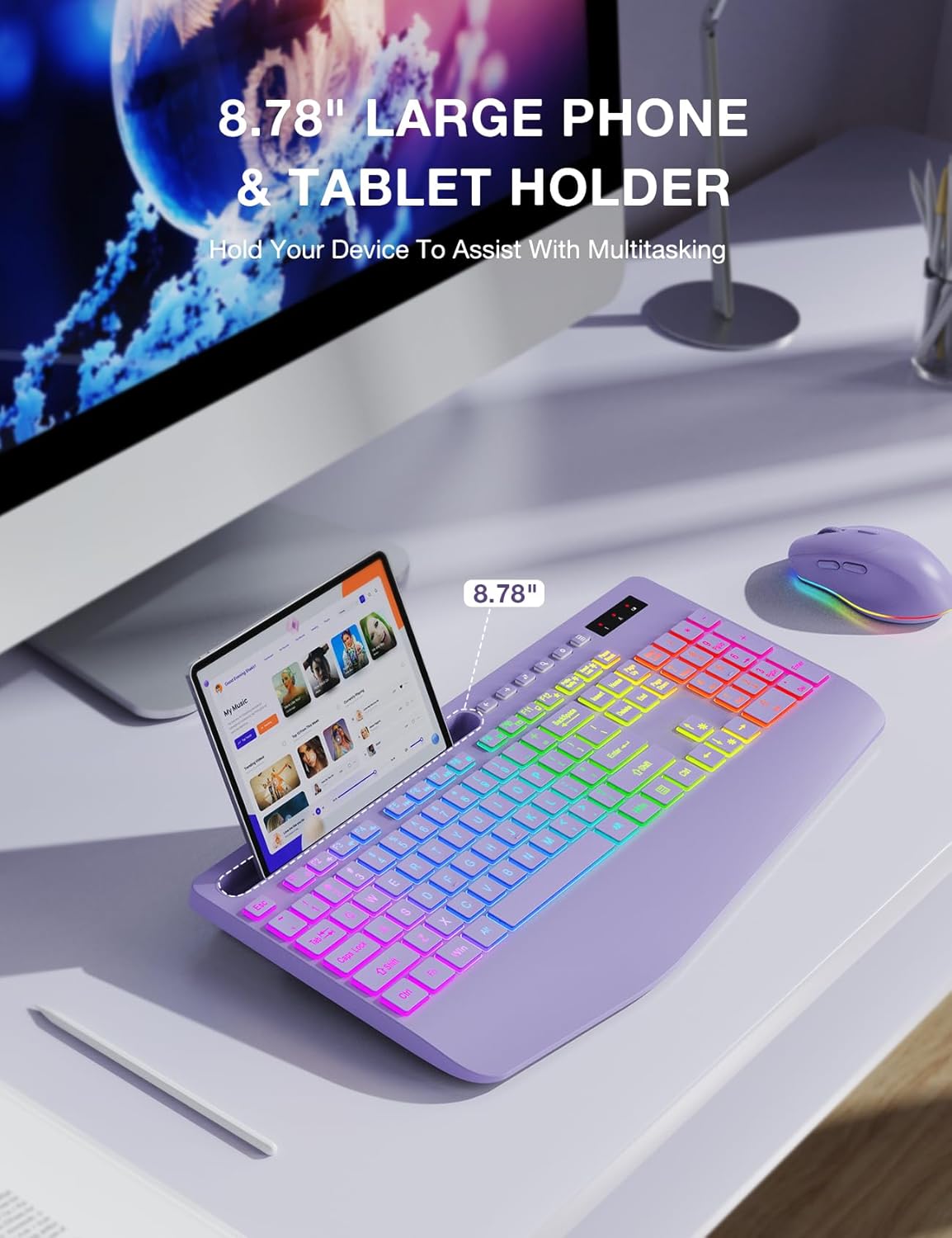
Image: The keyboard featuring its integrated phone and tablet holder, shown with a tablet in place, facilitating multitasking.

Image: Illustration of the keyboard's various colorful backlit modes, including rainbow wave, solid color, and ripple effects.
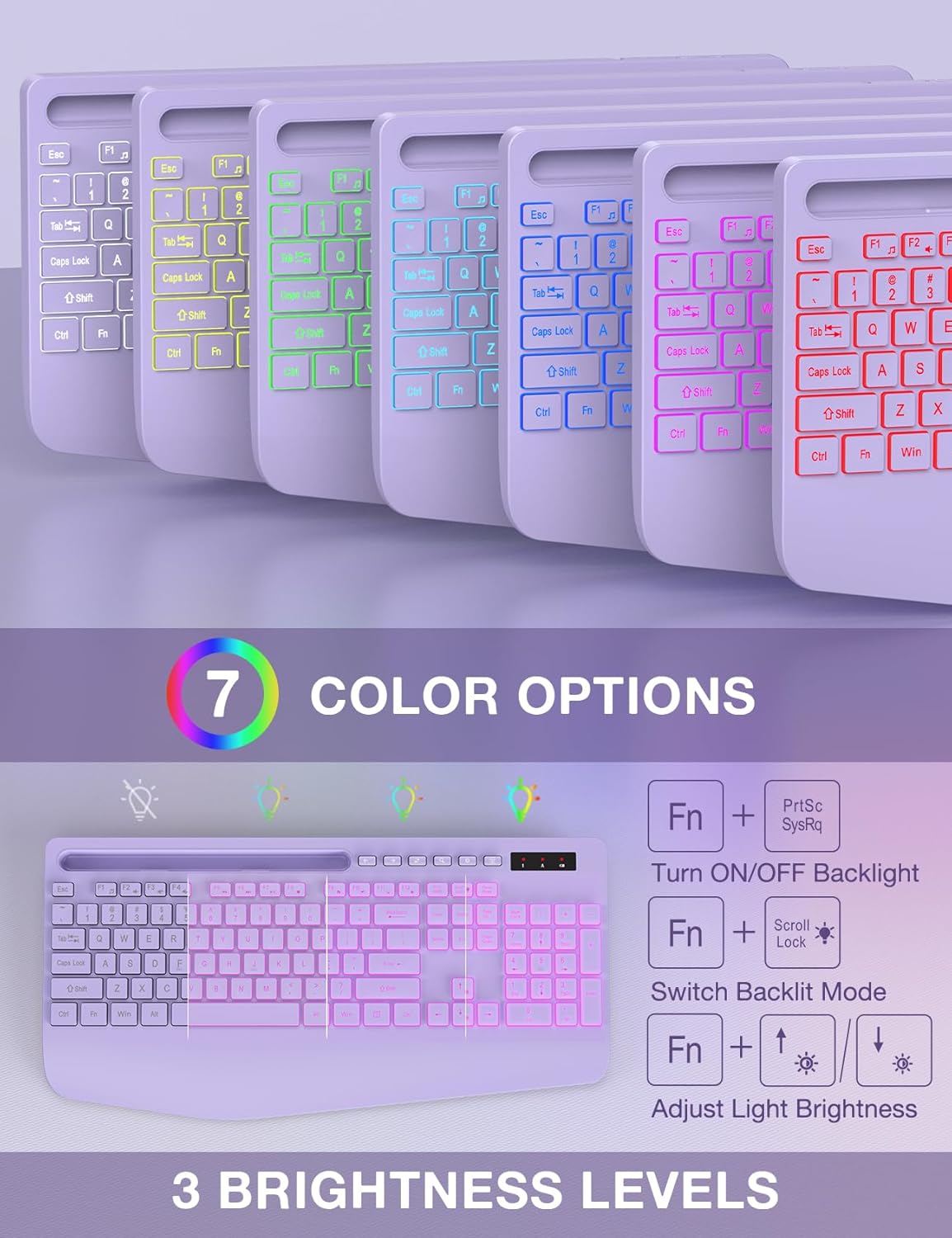
Image: Visual guide to the keyboard's 7 color options and the function key combinations used to control backlight on/off, mode switching, and brightness adjustment.
Mouse Features
- 6-Button Design: Includes standard left/right click, scroll wheel, and dedicated forward/backward buttons for enhanced navigation.
- 3-Level Tracking Speed (DPI): Adjust the mouse sensitivity to your preference.
- Silent Clicks: Features silent micro motion technology for nearly silent operation.
- Backlight: The mouse also features color backlighting which can be quickly switched or turned off.

Image: Detailed view of the 6-button mouse, highlighting its ergonomic design, quiet click feature, and the location of its scroll wheel, left/right click, and forward/backward buttons. Also indicates 15 light effects.
Maintenance
Charging the Devices
Both the keyboard and mouse have built-in rechargeable batteries. Use the provided USB-C charging cable to recharge them when the battery is low.
- Connect the USB-C end of the charging cable to the charging port on the keyboard/mouse.
- Connect the USB-A end to a USB power source (e.g., computer USB port, USB wall adapter).
- An indicator light on the device will typically show charging status and turn off when fully charged.

Image: The keyboard and mouse illustrating their power-saving features, including Type-C charging, smart sleep mode, and long standby time. A charging cable is shown connected to the mouse.
Smart Sleep Mode
To conserve energy, both the keyboard and mouse will enter a smart sleep mode after 90 seconds of inactivity. To wake them up, simply press any button or key.
Cleaning
To clean your devices, gently wipe them with a soft, damp cloth. Avoid using harsh chemicals or abrasive materials that could damage the surface.
Troubleshooting
| Problem | Possible Cause | Solution |
|---|---|---|
| Keyboard/Mouse not responding |
|
|
| Backlight not working or turning off quickly |
|
|
| Lag or delayed response |
|
|
| Cannot connect to tablet/phone |
|
|
Specifications
| Feature | Detail |
|---|---|
| Model Number | KL3 PRO |
| Brand | SABLUTE |
| Connectivity Technology | 2.4G USB Wireless |
| Compatible Devices | Laptop, Personal Computer, Television |
| Keyboard Dimensions (L x W x H) | 16.54 x 8.27 x 1.38 inches |
| Item Weight | 2.27 pounds (combined) |
| Battery Type | 1 Lithium Metal battery (included, built-in rechargeable) |
| Keyboard Backlight | 7+1 colors, 3 modes, 3 brightness levels |
| Mouse Buttons | 6 buttons (including forward/backward) |
| Mouse Tracking Speed | 3-level adjustable DPI |
| Special Features | Backlit, Ergonomic Wrist Rest, Phone Holder, Shortcut Keys, Low-profile keycap, Silent Click Mouse, Smart Sleep Mode |

Image: Diagram illustrating the physical dimensions of the full-size keyboard and mouse, including length, width, and height measurements.
Warranty and Support
For warranty information and technical support, please refer to the contact details provided by your retailer or visit the official SABLUTE website. Keep your purchase receipt as proof of purchase for warranty claims.
If you have further questions or require assistance, please feel free to contact SABLUTE customer service.
Note: The provided product data does not include specific warranty terms or direct support contact information. Please consult the product packaging or manufacturer's website for the most up-to-date details.
Ask a question about this manual
Ask about setup, troubleshooting, compatibility, parts, safety, or missing instructions. Manuals+ will review the question and use this page’s manual context to help answer it.