
1. Product Overview
The Bkiyougo Smart WiFi Bulb Socket transforms standard E26/E27 light fixtures into smart, controllable lighting. This device allows for remote control via the eWeLink app, voice control through Amazon Alexa and Google Home, and programmable timers. It is designed for indoor use with compatible LED, CFL, and fluorescent bulbs.
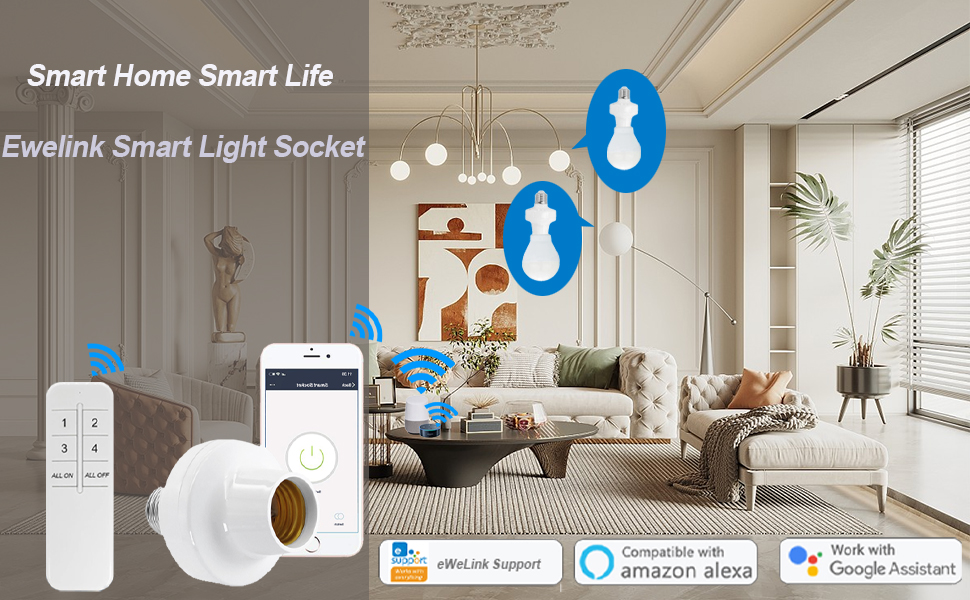
Image: Overview of the Bkiyougo Smart WiFi Bulb Socket demonstrating app, voice, and remote control capabilities.
2. Safety Information
- Indoor Use Only: This product is designed for indoor environments. Do not use outdoors or in damp locations.
- Compatible Bulbs: Use only with LED, CFL, or fluorescent bulbs. DO NOT use with incandescent, halogen, or tungsten bulbs, as this may damage the socket.
- Power Rating: Ensure the connected bulb's wattage does not exceed the socket's maximum power rating of 30W.
- Voltage: Operate within the specified voltage range of 100-120V AC.
- Installation: Ensure power is off before installing or removing the bulb socket.
- Fixture Compatibility: Verify that the dimensions of the smart bulb socket fit within your light fixture before purchase and installation.
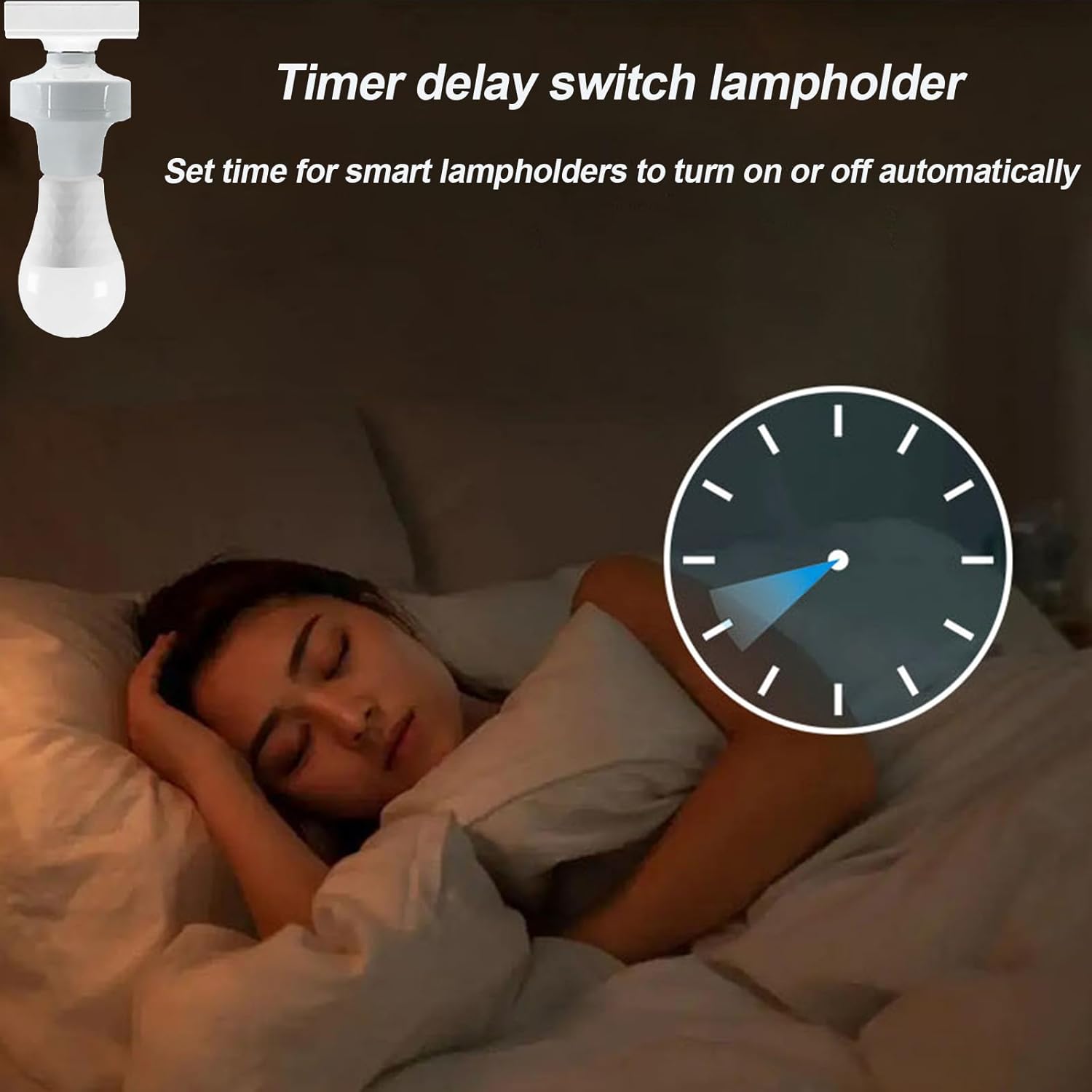
Image: Visual warning indicating that the smart socket is not compatible with incandescent, tungsten, or halogen bulbs.
3. Package Contents
Your package should contain the following items:
- Bkiyougo Smart WiFi Bulb Socket (2 units)
- Instruction Manual (this document)
Note: Remote control is not included with this ASIN and must be purchased separately if desired.
4. Product Specifications
| Feature | Specification |
|---|---|
| Brand | Bkiyougo |
| Model | Smart WiFi Bulb Socket (B0CPP4Y7J) |
| Light Type Compatibility | LED, CFL, Fluorescent (NOT Incandescent, Halogen, Tungsten) |
| Bulb Base | E26 / E27 |
| Input Voltage | 100-120V AC |
| Frequency | 60 Hz |
| Max Load Current | 2.5 Amp |
| Max Power | 30W |
| Wireless Connectivity | Wi-Fi (802.11 b/g/n 2.4GHz only) |
| App Compatibility | eWeLink APP (Android 5.0 & iOS 10 or higher) |
| Voice Control Compatibility | Amazon Alexa, Google Home |
| Material | PC V0, Copper |
| Dimensions (W x H) | 2.75"W x 3.93"H (66mm x 92mm) |
| Item Weight | 0.16 Kilograms |

Image: Product dimensions and a visual representation of compatible bulb types (LED, fluorescent, CFL) and incompatible types (incandescent).
5. Setup Guide
5.1 Physical Installation
- Power Off: Ensure the power to the light fixture is turned off at the circuit breaker before installation.
- Screw in Smart Socket: Carefully screw the Bkiyougo Smart WiFi Bulb Socket into your existing E26/E27 light fixture.
- Install Bulb: Screw a compatible LED, CFL, or fluorescent bulb into the smart socket.
- Power On: Restore power to the light fixture. The bulb should turn on.

Image: Step-by-step visual guide for installing the smart bulb socket into a standard lamp base and then inserting a bulb.
5.2 eWeLink App Setup
- Download App: Download the "eWeLink APP" from your mobile phone's app store (available for Android 5.0+ and iOS 10+).
- Register/Login: Open the eWeLink app and register a new account or log in with an existing one.
- Add Device: Follow the in-app instructions to add a new device. The smart socket should be in pairing mode (often indicated by a blinking light).
- Connect to Wi-Fi: Connect the device to your 2.4GHz Wi-Fi network.
- Important: The smart socket only supports 2.4GHz Wi-Fi. If you have a dual-band router (2.4GHz and 5GHz), temporarily disable the 5GHz band or ensure the 2.4GHz band has a distinct name.
- Name Device: Assign a recognizable name to your smart bulb socket (e.g., "Living Room Light").
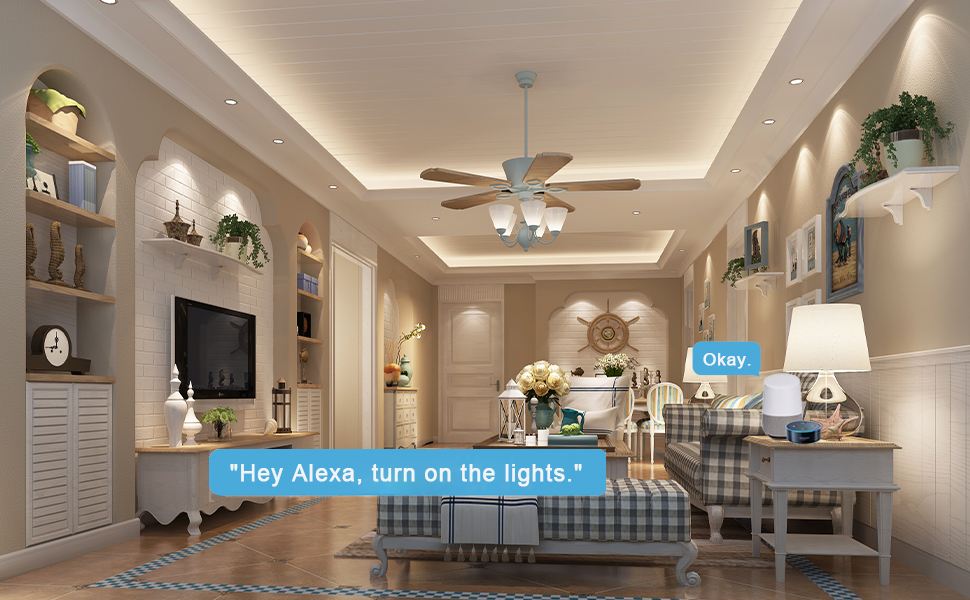
Image: A smartphone displaying the eWeLink app interface, illustrating remote control of the smart light socket.
5.3 Voice Control Integration (Alexa/Google Home)
- Open Smart Assistant App: Open the Amazon Alexa app or Google Home app on your mobile device.
- Enable Skill/Link Account:
- For Alexa: Go to "Skills & Games" and search for "eWeLink Smart Home". Enable the skill and link your eWeLink account.
- For Google Home: Go to "Works with Google" and search for "eWeLink Smart Home". Link your eWeLink account.
- Discover Devices: Once linked, ask your smart assistant to "Discover devices" or manually initiate device discovery in the app.
- Control with Voice: You can now control your light socket using voice commands (e.g., "Alexa, turn on Living Room Light" or "Hey Google, turn off Living Room Light").

Image: Smart speakers (Amazon Echo Dot and Google Home Mini) demonstrating voice control integration with the smart light socket.
6. Operating Instructions
6.1 App Control (eWeLink APP)
- Remote On/Off: Open the eWeLink app. Tap on the device name to turn the light on or off from anywhere with an internet connection.
- Timer Function:
- Access the timer settings within the device's control interface in the app.
- Set schedules for automatic on/off times (e.g., turn on at dusk, turn off at dawn).
- Configure countdown timers for temporary operation.
- Group Control:
- In the eWeLink app, create groups of multiple smart bulb sockets.
- Control all devices within a group simultaneously with a single command (e.g., turn all living room lights off).
- Device Sharing: Share control of your smart bulb sockets with family members through the eWeLink app, allowing multiple users to manage the lights.

Image: A visual representation of the timer function, showing lights turning off at 11 PM and turning on at 7 AM.
6.2 Voice Control
Once integrated with Amazon Alexa or Google Home, use simple voice commands to control your lights:
- "Alexa, turn on [Device Name]."
- "Alexa, turn off [Device Name]."
- "Hey Google, turn on [Device Name]."
- "Hey Google, turn off [Device Name]."
6.3 Optional Remote Control
If you have purchased a compatible 433MHz RF remote control separately, you can pair it with the smart socket for local control. Refer to the remote control's instructions for pairing procedures. This allows for control even without Wi-Fi connectivity.

Image: A hand holding a remote control, illustrating its use for individual or group control of lights.
7. Maintenance
- Cleaning: Disconnect power before cleaning. Wipe the smart socket with a dry, soft cloth. Do not use liquid cleaners or abrasive materials.
- Firmware Updates: Periodically check the eWeLink app for available firmware updates for your device to ensure optimal performance and security.
- Bulb Replacement: Always turn off power to the fixture before replacing the light bulb in the smart socket.
8. Troubleshooting
- Problem: Device cannot connect to Wi-Fi / App setup fails.
- Check Wi-Fi Band: Ensure your Wi-Fi network is 2.4GHz. The device does not support 5GHz Wi-Fi. If you have a dual-band router, temporarily disable the 5GHz band or ensure the 2.4GHz band has a distinct name.
- Wi-Fi Signal Strength: Ensure the smart socket is within range of your Wi-Fi router.
- Router Settings: Check your router's settings for any restrictions (e.g., MAC filtering) that might prevent new devices from connecting.
- Reset Device: Refer to the eWeLink app or product documentation for instructions on how to reset the smart socket to factory settings and re-enter pairing mode.
- App Version: Ensure your eWeLink app is updated to the latest version.
- Problem: Voice control (Alexa/Google Home) is not working.
- eWeLink Account Link: Verify that your eWeLink account is correctly linked to your Alexa or Google Home app.
- Device Discovery: Ask your smart assistant to "Discover devices" again.
- Device Name: Ensure the device name in eWeLink is simple and easily recognizable by your smart assistant. Avoid special characters.
- Internet Connection: Confirm that both your smart assistant device and the smart socket have an active internet connection.
- Problem: Light bulb does not turn on/off.
- Power Supply: Check if the light fixture has power.
- Bulb Compatibility: Ensure you are using a compatible bulb type (LED, CFL, fluorescent). Incandescent, halogen, or tungsten bulbs are not supported.
- Bulb Functionality: Test the light bulb in a different, known-working fixture to ensure the bulb itself is not faulty.
- Socket Connection: Ensure both the smart socket and the light bulb are screwed in firmly.
9. Warranty and Support
Bkiyougo is committed to providing quality products and customer satisfaction. For any questions, technical assistance, or warranty inquiries, please contact Bkiyougo customer support through the platform where you purchased the product or refer to the official Bkiyougo website for contact information.
Bkiyougo aims to provide perfect after-sales service and will do its best to solve customer problems.
For more information about Bkiyougo products, visit the Bkiyougo Store on Amazon.