1. Introduction
The OCRUSTAR Universal Remote Control Adapter (Model EKX5-L) transforms your iPhone with a Lightning plug into a versatile universal remote. This compact adapter allows you to control a wide range of infrared-enabled household appliances directly from your smartphone, simplifying your home entertainment and appliance management.
Compatible Devices:
- TVs, Set Top Boxes, Air Conditioners, Projectors
- Ott-Boxes, DVDs, Amplifiers, SLRs
- Fans, IR Switches, Water Heaters, Electric Heaters
- Air Cleaners, Robot Vacuums, Blinds
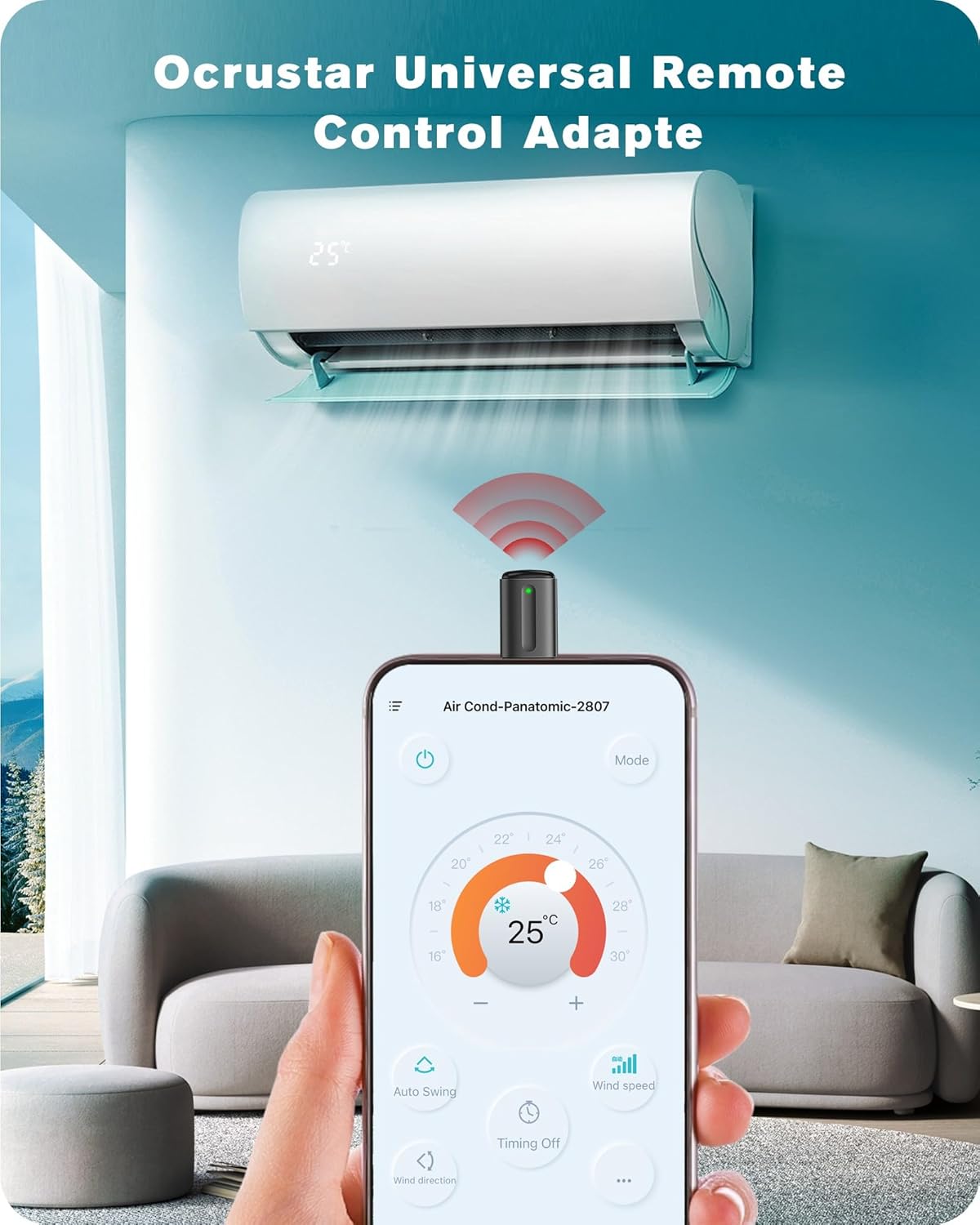
Image: The OCRUSTAR adapter plugged into an iPhone, displaying the app interface used to control an air conditioner.
2. Setup Guide
2.1 Package Contents
Before you begin, ensure all items are present:
- 1x Universal Remote Adapter (Lightning Plug iOS)
- 1x User Guide
- 1x Key Ring
- 1x Leather Case
2.2 App Installation
- Locate the QR code in the included user guide or on the product packaging.
- Scan the QR code with your iPhone's camera.
- Follow the link to download the official OCRUSTAR Remote App from the App Store. Important: If presented with multiple language options after scanning, select the English version for clear instructions.
- Install the app on your iPhone.
2.3 Connecting the Adapter
- Insert the OCRUSTAR Universal Remote Control Adapter into your iPhone's Lightning port.
- Ensure the adapter is fully seated in the port. A small LED indicator on the adapter will illuminate, signifying it is powered and ready.

Image: The OCRUSTAR Universal Remote Control Adapter, showing its compact design and Lightning connector.
2.4 Adding a Device
- Open the OCRUSTAR Remote App.
- Tap the 'Add Device' or '+' icon within the app.
- Select the type of appliance you wish to control (e.g., TV, AC, DVD).
- Choose the brand of your appliance from the provided list.
- Follow the on-screen instructions to test and pair the remote codes. This usually involves pointing the adapter towards the appliance and pressing a test button until the appliance responds.
- Once a working code is found, save the device profile.

Image: The OCRUSTAR app interface displaying options to select different device types for control.
3. Operating Instructions
3.1 Basic Control
Once a device is added, select it from the app's main screen. The app will display a virtual remote control interface specific to that device type. Point your iPhone (with the adapter) towards the appliance and use the on-screen buttons to control functions such as:
- Power: Turn devices on/off.
- Volume: Adjust audio levels for TVs, sound systems.
- Channels: Change TV or set-top box channels.
- Temperature: Adjust settings for air conditioners or heaters.
- Input/Source: Switch between different inputs on TVs or amplifiers.
3.2 Advanced Features
The OCRUSTAR Remote App may offer additional features depending on the device type, such as:
- Customizable Layouts: Arrange buttons for frequently used functions.
- Macro Functions: Program a sequence of commands to execute with a single tap.
- Learning Function: If a device is not listed, the adapter may be able to learn commands from its original remote. Refer to the app's help section for detailed instructions on this feature.

Image: The OCRUSTAR app showing an air conditioner control panel, demonstrating temperature and mode adjustments.
4. Maintenance
4.1 Cleaning
To maintain optimal performance and appearance:
- Gently wipe the adapter with a soft, dry cloth.
- Avoid using liquid cleaners, solvents, or abrasive materials, as these can damage the device.
4.2 Storage and Protection
The adapter comes with a protective silicone case and a key ring for convenience and durability:
- Always store the adapter in its provided leather case when not in use to protect it from dust, scratches, and minor impacts.
- Attach the key ring for easy portability, ensuring the adapter is always accessible.
- Avoid exposing the adapter to extreme temperatures, direct sunlight, or high humidity.

Image: Detailed view of the OCRUSTAR adapter highlighting its LED working indicator, protective silicone case, and key ring attachment.
5. Troubleshooting
If you encounter issues with your OCRUSTAR Universal Remote Control Adapter, refer to the following common problems and solutions:
| Problem | Possible Cause / Solution |
|---|---|
| Adapter not detected by iPhone/App. | Ensure the adapter is fully inserted into the Lightning port. Check if the adapter's LED indicator is lit. Restart the app or your iPhone. |
| Appliance does not respond to commands. | Ensure the adapter is pointed directly at the appliance's IR receiver. Verify that the correct device type and brand profile are selected in the app. Try different remote codes within the app's device setup. Ensure there are no obstructions between the adapter and the appliance. |
| App screen rotation issues. | If the app's screen orientation becomes stuck after the phone locks, try closing and reopening the app. Ensure your iPhone's screen rotation lock is not enabled if you desire rotation. |
| Device functions incorrectly after pairing (e.g., AC settings changed). | Remove the device profile from the app and re-add it, carefully selecting the correct brand and testing codes. If issues persist, consult the appliance's original manual for specific IR command details or try a different remote code. |
| Difficulty understanding initial setup instructions. | When scanning the QR code for the app, ensure you select the English language option if prompted. If the physical user guide is in a foreign language, refer to this digital manual for English instructions. |
6. Specifications
| Feature | Detail |
|---|---|
| Model Number | EKX5-L |
| Connector Type | Lightning |
| Color | Black |
| Number of Ports | 1 |
| Compatible Devices | TVs, Set Top Boxes, Air Conditioners, Projectors, Ott-Boxes, DVDs, Amplifiers, SLRs, Fans, IR Switches, Water Heaters, Electric Heaters, Air Cleaners, Robot Vacuums, Blinds |
| Item Weight | 0.352 ounces |
| Package Dimensions | 3.46 x 3.11 x 0.47 inches |
| Manufacturer | SHENZHEN YILIANKE TECHNOLOGY CO., LTD |

Image: The OCRUSTAR adapter's small form factor, illustrating its dimensions for portability.
7. Warranty and Support
7.1 Warranty Information
OCRUSTAR provides the following assurances for your product:
- 30-Day Money Back Guarantee: If you are not satisfied with your purchase, you may return it within 30 days for a full refund.
- 18-Month Hassle-Free Exchanges: The product is covered by an 18-month warranty for exchanges in case of manufacturing defects or malfunctions.
7.2 Customer Support
For any questions, technical assistance, or warranty claims, please contact OCRUSTAR customer service through the platform where you purchased the product. Our friendly after-sales service team is available to assist you.