
1. Introduction
Thank you for choosing the Avylet RC06 10.26-inch 4K Touch Screen Portable Car Stereo. This manual provides essential information for the proper installation, operation, and maintenance of your device. Please read this manual thoroughly before use to ensure optimal performance and safety. Keep this manual for future reference.
2. Product Overview
The Avylet RC06 is a versatile 10.26-inch portable car stereo designed to enhance your driving experience with advanced features. It offers a 4K touch screen display, wireless connectivity for Apple CarPlay and Android Auto, loop recording capabilities, and multiple audio output options.
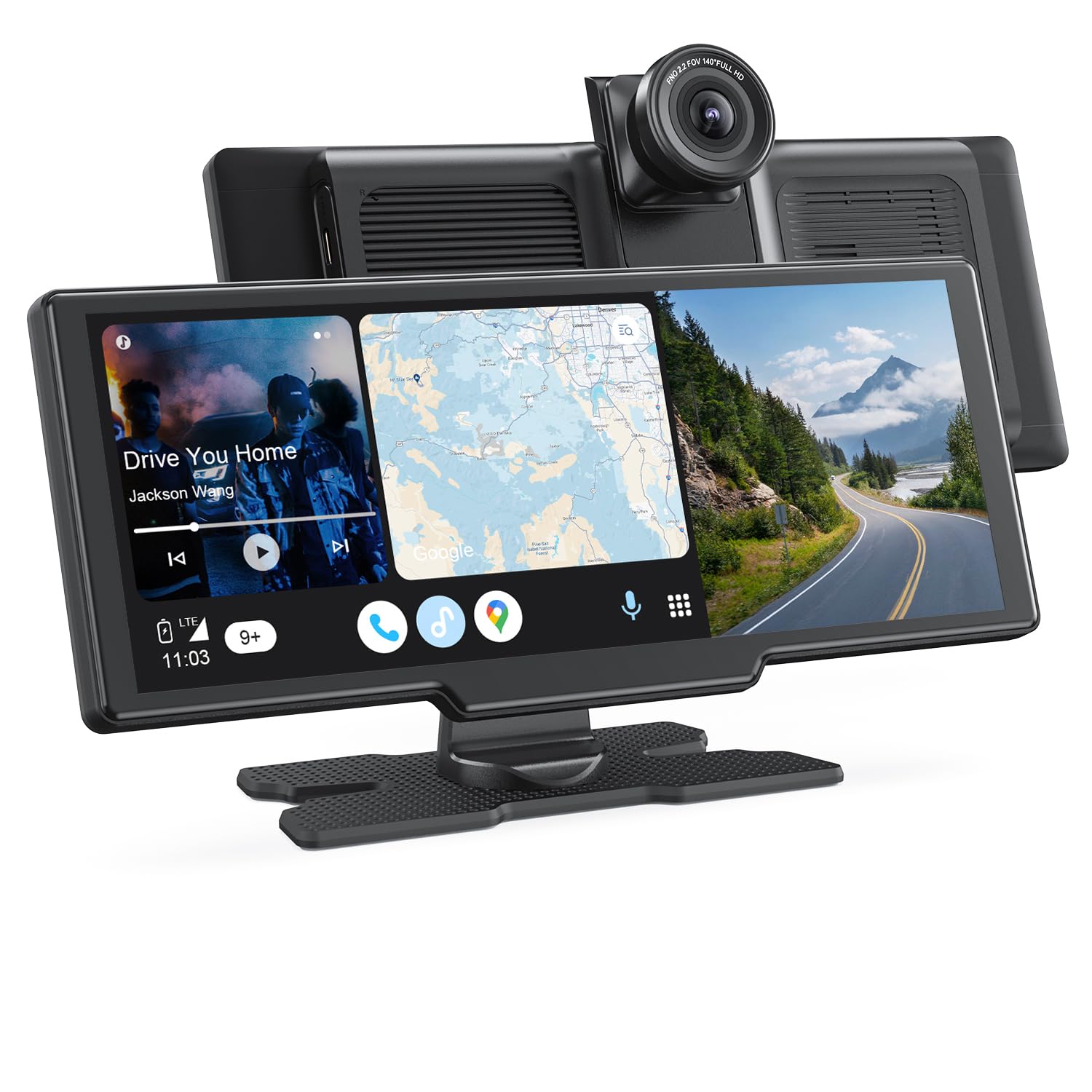
Figure 2.1: Avylet RC06 Portable Car Stereo with highlighted features. This image illustrates the device mounted on a dashboard, displaying a smartphone-like interface with icons for various functions including navigation, music, and communication. Key features such as Reverse Assistance, Apple CarPlay, Android Auto, Mirror Link, Bluetooth 5.0, Voice Control, Music Playback, Map Navigation, and Calling/Messaging are indicated around the device.
Key Features:
- 10.26-inch HD IPS Touchscreen: Large, clear display for easy interaction.
- Wireless Apple CarPlay & Android Auto: Seamless integration with your smartphone for navigation, music, and calls.
- Mirror Link: Display your phone screen directly on the car stereo.
- 4K Loop Recording: Continuous video recording for security and evidence.
- Bluetooth 5.0: Stable and fast wireless connectivity for audio and calls.
- Voice Control: Hands-free operation for safer driving.
- Multiple Audio Output Modes: AUX, FM Transmitter, and Bluetooth to car speakers.
- Reverse Assistance: Supports connection to a reverse camera (camera not included).
3. Setup
3.1. Installation
- Choose Mounting Location: Select a suitable flat surface on your dashboard that does not obstruct your view or interfere with airbags.
- Attach Suction Cup Mount: Securely attach the provided suction cup mount to the chosen location. Ensure the surface is clean and dry for optimal adhesion.
- Mount the Device: Slide the Avylet RC06 onto the mount until it clicks into place. Adjust the viewing angle for optimal visibility.
- Connect Power: Plug the car charger into your vehicle's 12V power outlet (cigarette lighter socket) and connect the other end to the device's power input.
- Route Cables: Carefully route all cables to avoid interference with driving controls and to maintain a tidy appearance.
3.2. Initial Power On
Once connected to power, the device should automatically power on when the vehicle starts. Follow the on-screen prompts for initial setup, including language selection and time zone settings.
4. Operating Instructions
4.1. Wireless Connectivity (Apple CarPlay / Android Auto / Mirror Link)
The Avylet RC06 supports wireless connection to your smartphone for enhanced functionality.

Figure 4.1: Wireless Connection Diagram. This diagram illustrates how various smartphone features connect wirelessly to the Avylet RC06. It shows Apple CarPlay and Android Auto connecting to the device, as well as Apple Airplay and Android Cast for mirroring content from phones to the stereo screen.
- Enable Bluetooth & Wi-Fi: On your smartphone, ensure both Bluetooth and Wi-Fi are enabled.
- Pair Device: On the Avylet RC06, navigate to the 'Bluetooth' settings and search for your phone. Pair the devices.
- Activate CarPlay/Android Auto: Once paired, the device will prompt you to activate Apple CarPlay or Android Auto. Follow the on-screen instructions.
- Mirror Link: For Mirror Link functionality, select the 'Mirror Link' option on the device and follow the specific instructions for your phone's operating system.
4.2. Navigation & Voice Control
Utilize your smartphone's navigation apps and voice assistants directly through the Avylet RC06.

Figure 4.2: Navigation & Voice Control in use. This image shows the Avylet RC06 mounted on a car dashboard, displaying a map for navigation. A smartphone is mounted just below the stereo. Examples of voice commands like "Hey Siri, Call Eliza's mobile" and "OK Google, Send a message to Liam" are overlaid, demonstrating hands-free operation for navigation, calling, messaging, and music.
- Navigation: Access your preferred navigation app (e.g., Google Maps, Apple Maps, Waze) via Apple CarPlay or Android Auto. The map will be displayed on the 10.26-inch screen.
- Voice Control: Activate your phone's voice assistant (Siri for Apple, Google Assistant for Android) by saying the wake word (e.g., "Hey Siri" or "OK Google") or by pressing the voice control button on the screen. You can then issue commands for navigation, calls, messages, and music playback.
4.3. Audio Output Modes
The Avylet RC06 offers flexible options for audio output to your car's speakers.

Figure 4.3: Four Audio Output Modes. This diagram illustrates the different ways audio can be played from the Avylet RC06. It shows the device's built-in speaker, connection via AUX cable to car speakers, transmitting audio via FM frequency to the car's radio, and wireless Bluetooth connection to the car's speakers.
- Built-in Speaker: The device has a built-in speaker for basic audio output.
- AUX to Car Speakers: Connect an AUX cable from the Avylet RC06 to your car's AUX input for direct audio transmission to your car's sound system.
- FM Transmitter: Select an unused FM frequency on the Avylet RC06 and tune your car's radio to the same frequency to transmit audio wirelessly.
- Bluetooth to Car Speakers: If your car stereo supports Bluetooth audio input, pair the Avylet RC06 with your car's Bluetooth system to play audio through your car speakers.
4.4. Touch Screen Operation
The 10.26-inch HD IPS touchscreen provides a responsive and clear interface.

Figure 4.4: 10.26-inch HD IPS Touchscreen. This close-up image focuses on the screen of the Avylet RC06, emphasizing its 10.26-inch size, HD IPS technology, 1600x600 resolution, and 2.5D screen curvature. The screen displays a vibrant, abstract background.
- Navigation: Swipe, tap, and pinch to navigate menus and maps.
- Brightness Adjustment: Adjust screen brightness manually through the settings menu or set it to automatically adjust based on a schedule.
4.5. Loop Recording
The device features loop recording, which continuously records video in segments. When the storage card is full, the oldest files are automatically overwritten by new recordings. This ensures continuous recording without manual intervention.
5. Maintenance
5.1. Cleaning
- Screen: Use a soft, lint-free cloth specifically designed for electronic screens. Dampen the cloth slightly with water or a screen cleaner if necessary. Avoid harsh chemicals or abrasive materials.
- Body: Wipe the device body with a soft, dry cloth. Do not use liquid cleaners directly on the device.
5.2. General Care
- Avoid exposing the device to extreme temperatures, direct sunlight for prolonged periods, or excessive moisture.
- Do not attempt to disassemble or repair the device yourself. This may void the warranty.
- Ensure all cables are securely connected but not strained.
6. Troubleshooting
Common Issues and Solutions:
- Device not powering on:
- Check if the power cable is securely connected to both the device and the car's 12V outlet.
- Ensure the car's 12V outlet is functioning (test with another device).
- No audio output:
- Verify the selected audio output mode (AUX, FM, Bluetooth) is correctly configured.
- Check volume levels on both the device and your car stereo.
- If using FM, ensure the frequency is clear and matches your car radio.
- Wireless CarPlay/Android Auto not connecting:
- Ensure Bluetooth and Wi-Fi are enabled on your smartphone.
- Delete previous pairings on both the device and your phone, then attempt to re-pair.
- Restart both the Avylet RC06 and your smartphone.
- Touchscreen unresponsive:
- Restart the device.
- Ensure the screen is clean and free of debris.
7. Specifications
| Brand | Avylet |
| Model Name | RC06 |
| Screen Size | 10.26 inches |
| Display Type | HD IPS Touchscreen |
| Screen Resolution | 1600 x 600 |
| Video Capture Resolution | 2160p (4K) |
| Control Method | Touch |
| Mounting Type | Dashboard mount with suction cup support |
| Compatible Vehicle Type | Automobile, Minivan |
| Frame Rate | 24, 30, 60 fps |
| Color | Black |
| Batteries Included | No |
8. Warranty and Support
Avylet products are designed for reliability and performance. For information regarding warranty coverage, technical support, or service inquiries, please refer to the warranty card included with your product or visit the official Avylet support website. Please have your model number (RC06) and purchase details ready when contacting support.