
1. Product Overview
This manual provides instructions for the MekedeTech Android Car Radio Stereo, specifically designed as an upgrade head unit for Mazda 5 vehicles manufactured between 2010 and 2015. This unit features an Android 12 operating system, an 8-Core CPU, 6GB RAM, and 128GB ROM, offering enhanced performance and storage. It includes a 9-inch IPS touch screen with 1280x720 HD resolution, integrated Wireless CarPlay and Android Auto, 4G LTE connectivity, Wi-Fi, Bluetooth 5.0, built-in GPS navigation, and a DSP sound system for superior audio quality.

Image 1.1: MekedeTech Android Car Radio Stereo displaying the CarPlay interface.
2. Package Contents
Before installation, please verify that all components are present in the package:
- Main Head Unit (Machine)
- Dash Kit (specific for Mazda 5 2010-2015)
- Power Cable + Canbus Box
- RCA Cable
- Reversing Camera Cable
- USB Cables (x3)
- Microphone (MIC)
- GPS Antenna
- 4G Antenna
- Audio OUT Cable

Image 2.1: All components included in the MekedeTech Android Car Radio Stereo package.
3. Setup and Installation
The MekedeTech Android Car Radio Stereo is designed for a plug-and-play installation in Mazda 5 models from 2010 to 2015. All necessary accessories, including the dash kit and wiring, are provided for a seamless upgrade.
3.1. Pre-Installation
- Ensure the vehicle's ignition is off and the battery is disconnected before beginning installation.
- Carefully remove the original car radio stereo and dashboard trim. Refer to your vehicle's service manual for specific instructions on removing the factory unit.
3.2. Wiring Connections
Connect the provided power cable, RCA cable, reversing camera cable, and USB cables to the corresponding ports on the new head unit and the vehicle's wiring harness. The Canbus box should be integrated as per the wiring diagram to ensure proper communication with the vehicle's systems.
3.3. Cooling Fan Setup
For optimal performance and to prevent overheating, ensure the cooling fan is properly connected and activated. Follow these steps:
- Connect: Ensure the cooling fan is physically connected to the designated port on the head unit.
- Settings: Navigate to the device settings on the head unit: Settings > Device > Sound.
- Activate AMP: Locate and enable the 'AMP ON' option within the device settings.
- Verification: The cooling fan should now be operational, helping to maintain normal operating temperatures.
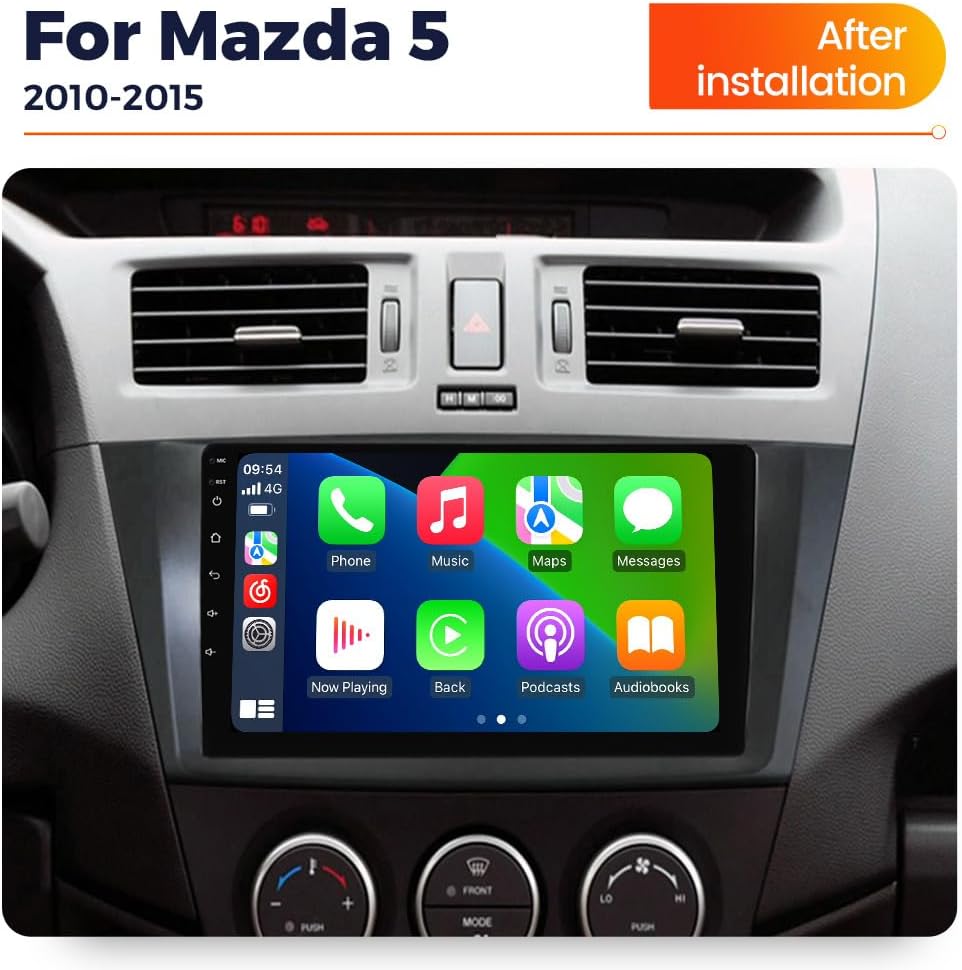
Image 3.1: Before and after installation of the MekedeTech Android Car Radio Stereo in a Mazda 5 dashboard.

Image 3.2: Details of the 8-core CPU, memory, and cooling fan setup instructions.
4. Operating Instructions
4.1. Basic Operation
- Power On/Off: Press and hold the power button (usually located on the front panel) to turn the unit on or off.
- Volume Control: Adjust volume using the physical buttons or the on-screen controls.
- Navigation: Use the touch screen to navigate through menus and applications.
- Steering Wheel Controls: The unit supports original steering wheel control functions, allowing you to switch songs, channels, and adjust volume without removing your hands from the steering wheel.
4.2. Wireless CarPlay and Android Auto
The unit features built-in Wireless CarPlay (for iOS devices) and Wired Android Auto (for Android devices), providing seamless integration with your smartphone.
Wireless CarPlay (iOS System) Connection Steps:
- Connect BT: On your iPhone, go to Bluetooth settings and pair with the car stereo's Bluetooth.
- Click on "Car Link": On the car stereo, open the "Car Link" application.
- Wait for Connection: The system will automatically connect to CarPlay. (CarPlay can also be connected via USB Cable for wired connection).
Wireless Android Auto (Android System) Connection Steps:
- Connect BT: On your Android phone, go to Bluetooth settings and pair with the car stereo's Bluetooth.
- Click on "Car Link": On the car stereo, open the "Car Link" application.
- Wait for Connection: The system will automatically connect to Android Auto. (Android Auto can also be connected via USB Cable for wired connection).

Image 4.1: Visual guide for connecting Wireless CarPlay and Android Auto.
4.3. 4G LTE and Wi-Fi Connectivity
The unit supports 4G LTE connectivity. Insert a 4G SIM card into the designated slot to access the internet anytime. Alternatively, you can connect to the internet via Wi-Fi hotspot.
4.4. Bluetooth 5.0
Bluetooth 5.0 provides high-quality audio for calls and music streaming from your paired devices.
4.5. DSP Sound System
The built-in Digital Signal Processor (DSP) enhances audio quality, offering a multi-dimensional surround sound experience.
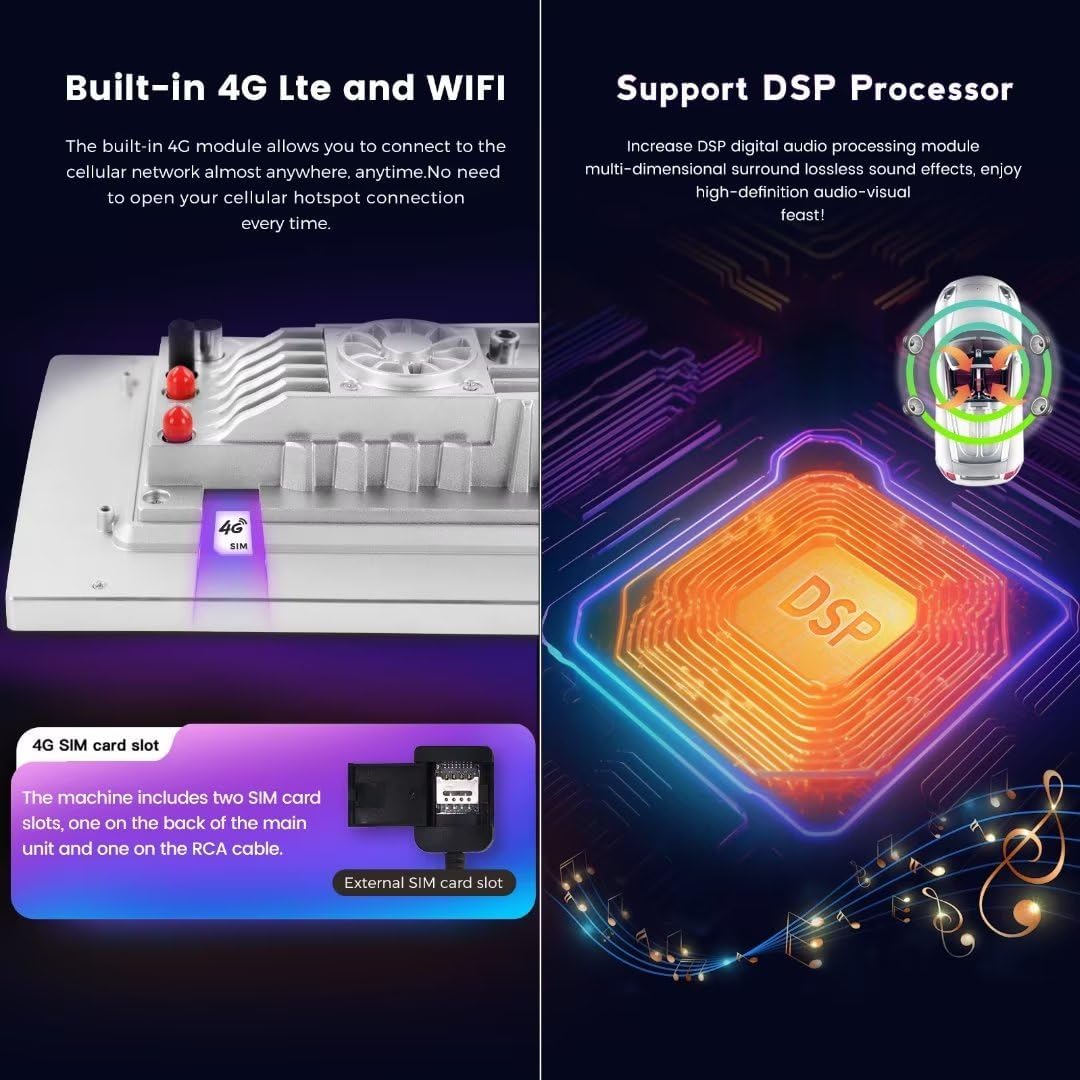
Image 4.2: Features of 4G LTE connectivity and the DSP sound processor.
5. Maintenance
To ensure the longevity and optimal performance of your MekedeTech Android Car Radio Stereo, follow these maintenance guidelines:
- Screen Cleaning: Use a soft, lint-free cloth to gently wipe the touch screen. Avoid abrasive cleaners or harsh chemicals that could damage the display.
- Software Updates: Periodically check for and install available software updates to ensure the system runs efficiently and has the latest features and security patches.
- Environmental Conditions: Avoid exposing the unit to extreme temperatures, direct sunlight for prolonged periods, or excessive moisture.
- Connection Checks: Occasionally inspect all cable connections to ensure they are secure and free from damage.
6. Troubleshooting
If you encounter issues with your car stereo, refer to the following common troubleshooting steps:
- No Power: Check all power connections. Ensure the vehicle's battery is connected and charged. Verify the fuse for the stereo is intact.
- No Sound or Intermittent Sound: Check speaker wire connections. Ensure the volume is not muted or set too low. If using Bluetooth or CarPlay/Android Auto, ensure the connection is stable. A system restart may resolve temporary audio glitches.
- Touch Screen Unresponsive: Perform a system restart. If the issue persists, a factory reset might be necessary (note: this will erase all user data and settings).
- Wireless CarPlay/Android Auto Lagging or Disconnecting: Ensure your phone's software is up to date. Check for strong Bluetooth and Wi-Fi signals. Try reconnecting the device. For Android Auto, ensure the app is updated on your phone.
- GPS Not Working: Ensure the GPS antenna is properly installed and has a clear view of the sky. Check GPS settings within the unit.
- Temperature Display Issues (e.g., Celsius/Fahrenheit): Check the unit's system settings for temperature display options. If not available, this may be a software limitation.
- Screen Mirroring Issues: If screen mirroring requires an additional app, ensure the app is correctly installed and configured on both the head unit and your mobile device.
If problems persist after attempting these steps, please contact customer support.
7. Specifications
| Feature | Detail |
|---|---|
| System | Android 12 OS |
| CPU | 8-Core A53 1.8GHz |
| Memory | 6GB RAM, 128GB ROM |
| Display Size | 9 Inches |
| Display Resolution | 1280x720 IPS HD Touch Screen |
| Power Output | 4*50W |
| Connectivity | 4G LTE, Wi-Fi, Bluetooth 5.0 |
| Special Features | Wireless CarPlay, Wireless Android Auto, Built-in GPS Navigation, DSP Sound System, Steering Wheel Control Support |
| Audio Format Support | APE/FLAC/WAV/MP3/WMA etc. |
| Video Format Support | MKV/RMVB/AVI/MP4/MDV etc. |
| Picture Format Support | PNG/JPEG/JPG/GIF/WBMP/BNP etc. |
| Vehicle Service Type | Car |
| Mounting Type | Dashboard Mount |
| Compatible Vehicles | Mazda 5 (2010, 2011, 2012, 2013, 2014, 2015) |
8. Warranty Information
The MekedeTech Android Car Radio Stereo comes with a 1-Year Warranty from the date of purchase. This warranty covers manufacturing defects and malfunctions under normal use. Please retain your proof of purchase for warranty claims. The warranty does not cover damage caused by improper installation, misuse, accidents, or unauthorized modifications.
9. Customer Support
For further assistance, technical support, or warranty inquiries, please contact MekedeTech customer service through the following channels:
- Refer to the contact information provided with your product packaging.
- Visit the official MekedeTech store on Amazon: MekedeTech Amazon Store
When contacting support, please have your product model number (8-Core 6+128G) and purchase details readily available.
