
Introduction
Thank you for choosing the MoKo Bluetooth AZERTY Keyboard. This manual provides detailed instructions to help you set up, operate, and maintain your keyboard, ensuring optimal performance with your Microsoft Surface Pro device. Please read this manual thoroughly before use.
Compatibility
This keyboard is specifically designed for the following Microsoft Surface Pro models:
- Surface Pro 7 Plus (2021)
- Surface Pro 7 (2019)
- Surface Pro 6
- Surface Pro 5 (Pro 2017)
- Surface Pro 4
- Surface Pro 3
The keyboard dimensions are approximately 29.5 cm (11.6 inches) in length, 21.7 cm (8.54 inches) in width, and 0.6 cm (0.23 inches) in height, providing a similar typing experience to official Surface Pro keyboards.
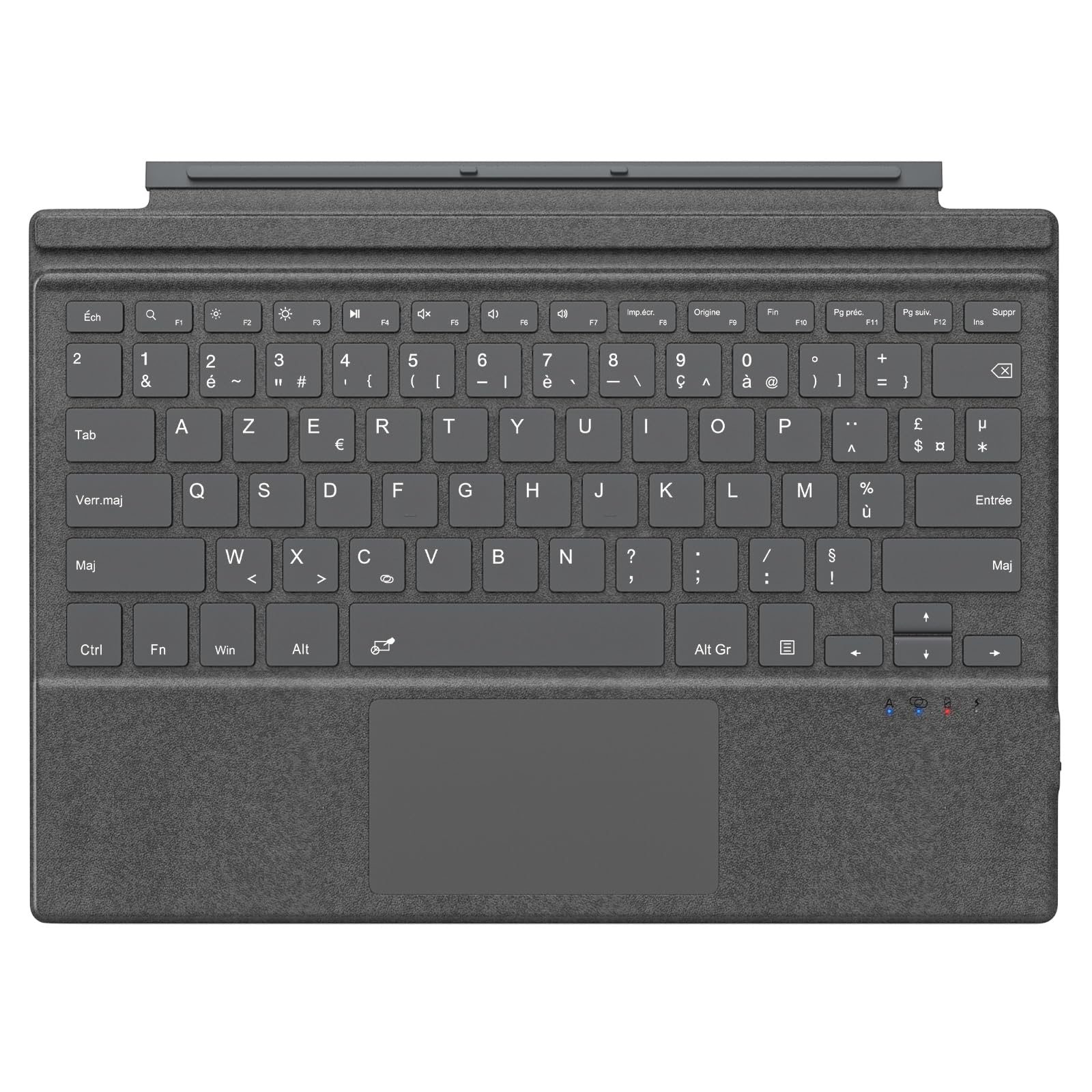
Image: The MoKo Bluetooth AZERTY Keyboard shown with several Microsoft Surface Pro models, illustrating compatibility.
What's in the Box
Upon unpacking, please ensure all items are present:
- MoKo Bluetooth AZERTY Keyboard
- USB Charging Cable
Setup
1. Charging the Keyboard
The keyboard is equipped with a built-in 520mAh lithium battery. Before initial use, or when the battery is low, charge the keyboard using the provided USB cable.
- Connect the small end of the USB charging cable to the charging port on the keyboard.
- Connect the larger end of the USB cable to a USB power source (e.g., computer, wall adapter).
- The charging indicator light will illuminate. Once fully charged, the light may change color or turn off.
A full charge provides approximately 25 hours of continuous use.

Image: A close-up view of the keyboard's charging port with a USB cable connected, indicating the charging process.
2. Bluetooth Pairing
To connect your keyboard to your Surface Pro:
- Ensure the keyboard is charged and powered on.
- On your Surface Pro, go to Settings > Devices > Bluetooth & other devices.
- Turn on Bluetooth.
- Press the Fn key and the C key simultaneously on the keyboard to enter pairing mode. The Bluetooth indicator light on the keyboard will flash.
- On your Surface Pro, click Add Bluetooth or other device > Bluetooth.
- Select "MoKo Keyboard" (or similar name) from the list of available devices.
- Follow any on-screen prompts to complete the pairing process. The Bluetooth indicator light on the keyboard will stop flashing once connected.
The keyboard can be used attached to your Surface Pro or detached for flexible positioning. The effective Bluetooth connection range is approximately 10 meters (33 feet).

Image: A Surface Pro tablet with the MoKo keyboard detached, illustrating the wireless Bluetooth connection capability.
Operating Instructions
Keyboard Layout and Keys
This keyboard features an AZERTY layout with 105 keys, providing a full-size typing experience. The keys utilize a scissor-switch mechanism for comfortable and responsive typing.

Image: A detailed view of the keyboard's AZERTY layout, highlighting the scissor-switch keys and integrated trackpad.
Trackpad Functionality
The integrated trackpad allows for precise navigation and control of your Surface Pro. To activate or deactivate the trackpad, press the Fn key and the Spacebar simultaneously.
Note: Please remove any protective film from the trackpad surface before use to ensure proper functionality.
Adjustable Typing Angles
The keyboard's design allows for two different typing angles, providing an ergonomic and comfortable experience whether you are working on a desk, lap, or other surface.

Image: A Surface Pro with the keyboard attached, demonstrating the two possible ergonomic typing angles.
Power Management
Automatic Sleep Mode
To conserve battery life, the keyboard will automatically enter sleep mode after 10 minutes of inactivity. The Bluetooth connection will automatically disconnect during this period.
Reconnecting After Sleep
To wake the keyboard and re-establish the Bluetooth connection, simply press any key. The keyboard will automatically attempt to reconnect to the last paired device.

Image: An illustration of the keyboard's power management, including automatic sleep mode and USB-C charging.
Maintenance
To ensure the longevity and optimal performance of your MoKo keyboard, follow these maintenance guidelines:
- Cleaning: Use a soft, dry, lint-free cloth to clean the keyboard surface. For stubborn dirt, slightly dampen the cloth with water or a mild cleaning solution. Avoid excessive moisture.
- Storage: When not in use, store the keyboard in a cool, dry place away from direct sunlight and extreme temperatures.
- Avoid Liquids: Do not expose the keyboard to liquids. It is not waterproof.
- Handle with Care: Avoid dropping the keyboard or subjecting it to strong impacts.
Troubleshooting
If you encounter issues with your keyboard, refer to the following common solutions:
| Problem | Solution |
|---|---|
| Keyboard does not turn on | Ensure the keyboard is charged. Connect it to a power source using the USB cable. |
| Unable to pair via Bluetooth | 1. Ensure the keyboard is in pairing mode (Fn + C). 2. Make sure Bluetooth is enabled on your Surface Pro. 3. Delete any previous keyboard pairings on your Surface Pro and try again. 4. Ensure the keyboard is within the 10-meter range. |
| Keyboard disconnects frequently | 1. Ensure the keyboard is charged. 2. Avoid placing obstacles between the keyboard and your Surface Pro. 3. Reconnect the Bluetooth connection manually if needed. |
| Trackpad not responding | 1. Ensure the trackpad is activated (Fn + Spacebar). 2. Remove any protective film from the trackpad surface. 3. Restart the keyboard and try again. |
| Keys are not responding | 1. Ensure the keyboard is properly connected via Bluetooth. 2. Check battery level and charge if necessary. 3. Restart your Surface Pro and the keyboard. |
Specifications
| Feature | Detail |
|---|---|
| Brand | MoKo |
| Model Name | Clavier Français |
| Model Number | B0CPLZXMFK |
| Connectivity Technology | Bluetooth |
| Keyboard Description | Integrated |
| Special Feature | Ergonomic |
| Color | Grey |
| Keyboard Layout | AZERTY |
| Number of Keys | 105 |
| Switch Type | Scissor Switch |
| Power Source | Battery Powered (520mAh Lithium) |
| Product Dimensions (L x W x H) | 29.5 cm x 21.7 cm x 0.6 cm (11.6 x 8.54 x 0.23 inches) |
| Item Weight | 10.93 Ounces |
| Material | ABS (Acrylonitrile Butadiene Styrene) |
| Compatible OS | Windows (Minimum Windows 10) |

Image: A technical diagram illustrating the precise dimensions of the MoKo Bluetooth AZERTY Keyboard.
Warranty and Support
For warranty information or technical support, please refer to the documentation provided with your purchase or contact MoKo customer service directly through their official website or the retailer where the product was purchased.


