Introduction
This user manual provides essential information for the safe and effective operation of your aiprotablet Kids Tablet. Please read this manual thoroughly before using the device and retain it for future reference. This 7-inch Android 15 tablet is designed for children, featuring robust parental controls, a durable shockproof case, and a focus on educational and entertaining content.
What's in the Box
- aiprotablet Kids Tablet (Rose)
- Protective Silicone Case
- USB-C Cable
- User Manual

Image: The aiprotablet Kids Tablet in Rose color, showcasing its protective case and vibrant display.
Product Overview
Familiarize yourself with the tablet's physical components and controls.

Image: A detailed diagram highlighting the front-facing camera, power button, headphone jack, volume controls, rear camera, flash, SD card slot, speaker, and rotatable bracket on the tablet.
- Front-facing camera: Located above the screen, used for video calls and selfies.
- Power button: On the top right side, used to turn the tablet on/off or put it to sleep.
- Headphone jack: On the top right side, for connecting wired headphones.
- Volume + / Volume -: On the right side, to adjust audio volume.
- Rear camera: On the back, used for taking photos and videos.
- Flash: Next to the rear camera, for improved lighting in photos.
- SD card slot: On the left side, for expanding storage with a microSD card.
- Speaker: On the bottom right of the back, for audio output.
- Bracket: Rotatable stand on the back for hands-free viewing.
Setup
Initial Power On
To power on the tablet, press and hold the Power button located on the top right side until the screen illuminates. The tablet will boot up to the main interface.
Connecting to Wi-Fi
A Wi-Fi connection is required for downloading apps, browsing the internet, and accessing online content.
- From the home screen, swipe down from the top to open the Quick Settings panel.
- Tap the Wi-Fi icon to enable Wi-Fi.
- Tap and hold the Wi-Fi icon to go to Wi-Fi settings.
- Toggle "Use Wi-Fi" to the ON position.
- Select your desired Wi-Fi network from the list.
- Enter the Wi-Fi password if prompted, then tap "Connect".
- Once connected, the network name will show "Connected".
Video: Demonstrates how to connect the tablet to a Wi-Fi network, including navigating to settings and entering the password. (Creator: Seller)
Setting up Parental Controls
The tablet features a parental control mode to manage content, set educational goals, and limit screen time.
- From the Kids Space interface, tap the "Quit" button (often an apple icon with a face).
- Enter the default parent password "0000" and confirm.
- This will exit the Kids Space and take you to the standard Android interface.
- To re-enter Kids Space, locate the iWawa app icon and tap it.
- Within the parental control settings (accessed from the standard Android interface or by tapping the parent icon in Kids Space), you can:
- Filter content based on age.
- Set educational goals.
- Manage screen time limits.
- Whitelist or blacklist websites and applications.
Video: Illustrates how to exit the Kids Space using the parent password and how to re-enter, demonstrating the basic navigation for parental controls. (Creator: Seller)

Image: The tablet displaying its advanced parental control interface, allowing customization of profiles for children.
Operating Instructions
Navigating the Interface
The tablet runs on Android 15 OS, offering a user-friendly interface. Swipe left or right on the home screen to access different pages of apps. Use the navigation buttons at the bottom of the screen (Back, Home, Recent Apps) for quick navigation.
Using Pre-installed Apps
The tablet comes preloaded with the Google Kids Space app and the iWawa software, offering a variety of age-appropriate content.
- Google Kids Space: Provides a curated library of apps, books, and videos suitable for children. Requires a Google account setup by a parent.
- iWawa: Offers a collection of educational games and activities. A Wi-Fi connection is required for some features within iWawa to function correctly.
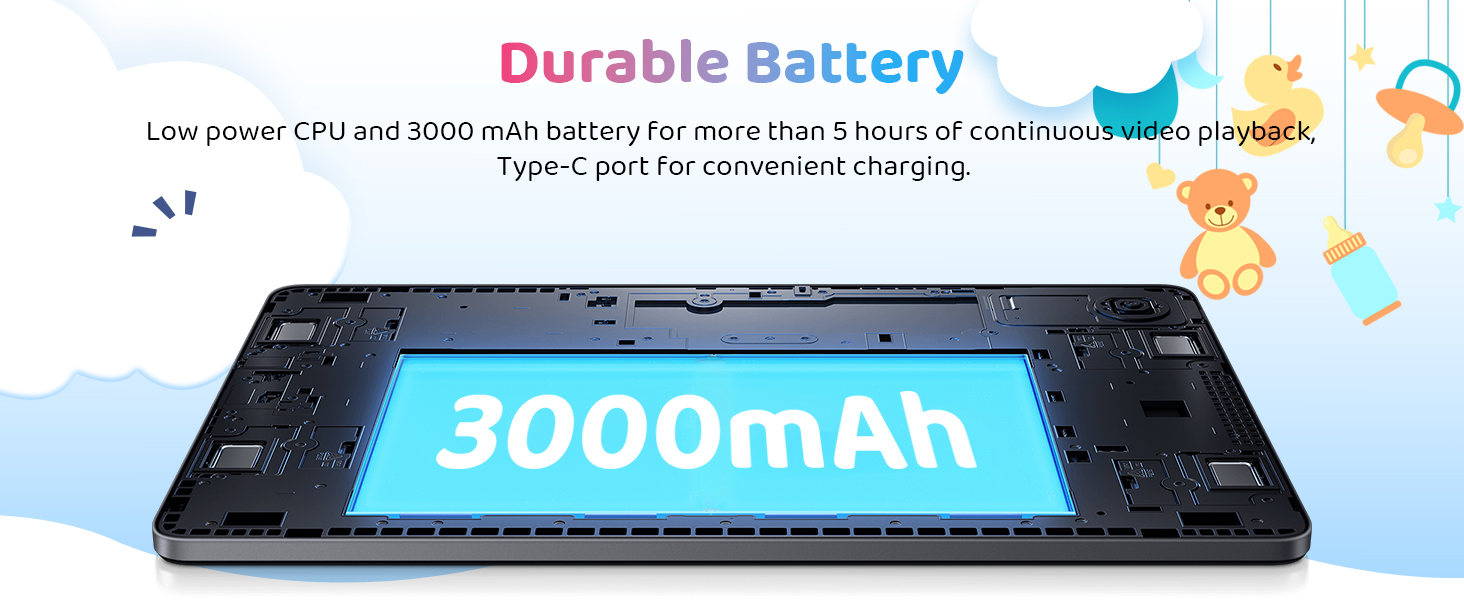
Image: A child happily using the aiprotablet Kids Tablet, illustrating the "Children's Park" feature with Google Kids Space.
Downloading Apps
Additional educational and entertainment apps can be downloaded from the Google Play Store. Ensure parental controls are configured to manage app downloads.
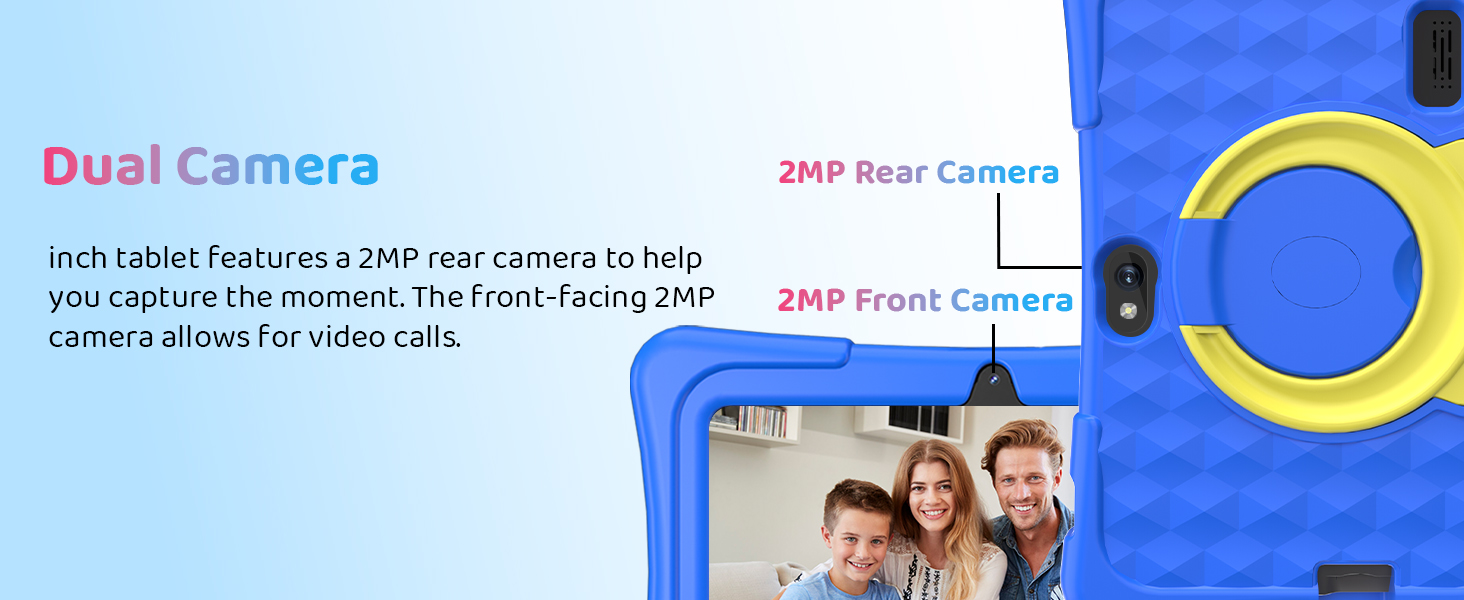
Image: The tablet screen displaying various app icons, indicating the ability to explore and download more applications.
Features
Display
The tablet features a 7-inch 1024x600 IPS touchscreen, providing clear and vibrant visuals for an enhanced viewing experience.

Image: The tablet showcasing its upgraded IPS display with a dazzling screen and clear resolution.
Performance & Storage
Equipped with an Android 15 OS and an RK3562 quad-core processor, the tablet offers smooth performance. It includes 8GB of memory (3GB physical + 5GB virtual) and 32GB of flash memory. Storage can be expanded up to 1TB via the micro SD card slot.

Image: A visual representation of the Rockchip RK3562 processor, emphasizing the tablet's upgraded and powerful internal components.
Connectivity
The tablet supports 2.4GHz and 5GHz Wi-Fi for stable and fast connections, along with Bluetooth 5.0 for connecting wireless accessories.
Cameras
It features dual 2MP cameras (front and rear) for capturing moments and facilitating video calls.
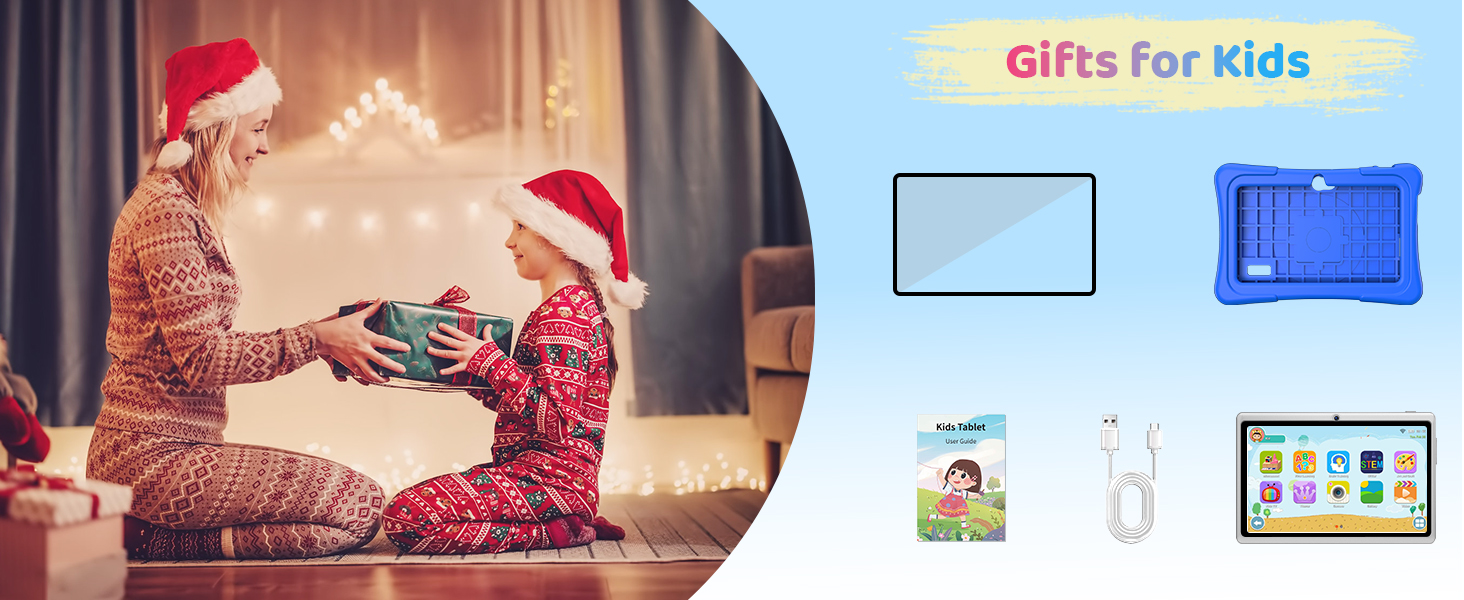
Image: A close-up view of the tablet highlighting the positions of the 2MP front and rear cameras.
Battery Life
The upgraded 3000mAh battery provides over 5 hours of continuous video playback, ensuring extended use for learning and entertainment.
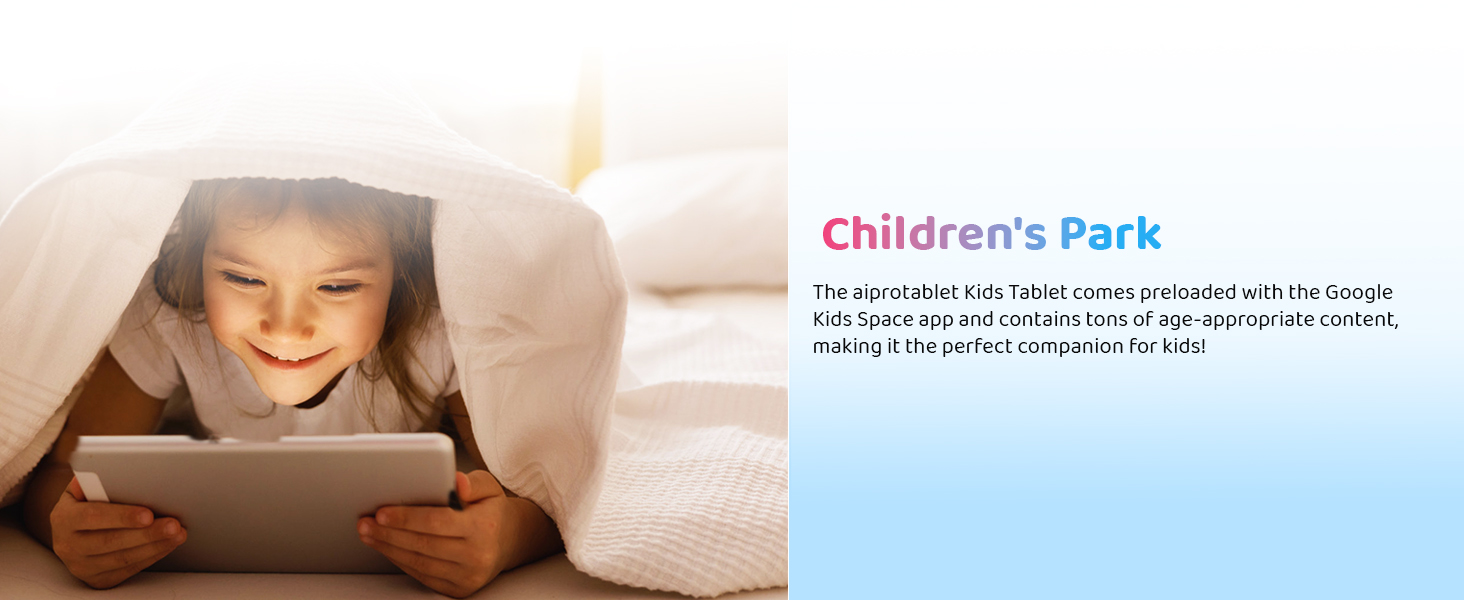
Image: An internal diagram of the tablet emphasizing its 3000mAh durable battery and Type-C charging port.
Protective Case & Stand
The tablet comes with a soft and durable silicone case designed to resist accidental drops, bumps, and scratches. The integrated rotatable stand allows for vertical or horizontal positioning, enhancing comfort during use.

Image: A child playing with the tablet, demonstrating the effectiveness of its exclusive kid-proof case in absorbing shock.
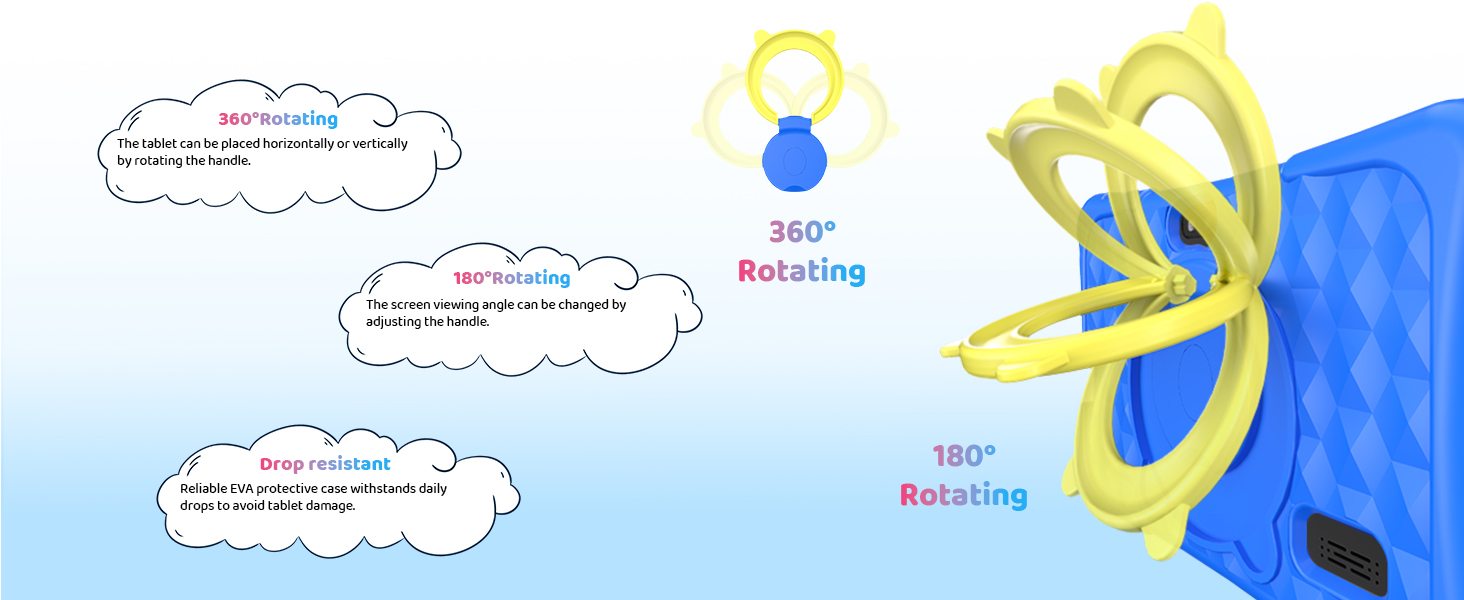
Image: A diagram illustrating the 360-degree rotating capability of the tablet's stand and its drop-resistant features.
Maintenance
Charging
Use the provided USB-C cable to charge the tablet. Connect the USB-C end to the tablet's charging port and the other end to a compatible USB power adapter (not included) or computer. A full charge typically takes approximately 3-4 hours.
Cleaning
To clean the screen, use a soft, lint-free cloth. For the case, a damp cloth with mild soap can be used. Avoid using harsh chemicals or abrasive materials.
Storage
Store the tablet in a cool, dry place away from direct sunlight and extreme temperatures. When not in use for extended periods, ensure the battery is charged to at least 50% to maintain battery health.
Troubleshooting
| Problem | Possible Solution |
|---|---|
| Tablet does not turn on. | Ensure the tablet is charged. Connect to a power source for at least 30 minutes before attempting to power on again. |
| Wi-Fi connection issues. | Check if Wi-Fi is enabled in settings. Restart your Wi-Fi router. Ensure you are within range of the Wi-Fi signal. Re-enter the Wi-Fi password to confirm accuracy. |
| Apps are slow or crashing. | Close unused apps running in the background. Clear app cache from Settings > Apps. Ensure sufficient storage space is available. Restart the tablet. |
| Parental controls not working as expected. | Verify parental control settings are correctly configured. Ensure the tablet is connected to the internet for updates to parental control features. |
| Screen is unresponsive. | Perform a forced restart by holding the power button for 10-15 seconds. Ensure the screen is clean and dry. |
Specifications
| Feature | Detail |
|---|---|
| Model Number | SC7731E |
| Operating System | Android 15 |
| Screen Size | 7 Inches |
| Screen Resolution | 1024x600 IPS |
| Processor | RK3562 Quad-Core |
| Memory (RAM) | 8GB (3GB + 5GB virtual) |
| Storage (ROM) | 32GB Flash Memory |
| Expandable Storage | Up to 1TB via Micro SD Card Slot |
| Wi-Fi Connectivity | 2.4GHz & 5GHz (WiFi 5) |
| Bluetooth | Bluetooth 5.0 |
| Cameras | Dual 2MP (Front & Rear) |
| Battery Capacity | 3000mAh |
| Average Battery Life | 5 Hours (video playback) |
| Dimensions (LxWxH) | 7 x 5 x 0.5 inches |
| Item Weight | 1.61 pounds |
Warranty and Support
For warranty information, technical support, or service inquiries, please refer to the contact information provided with your purchase or visit the official aiprotablet website. Keep your purchase receipt as proof of purchase for warranty claims.


