
AULA S12ProB
AULA S12Pro Wired Gaming Mouse User Manual
Model: S12ProB
Introduction
Thank you for choosing the AULA S12Pro Wired Gaming Mouse. This manual provides detailed instructions for setting up, operating, and maintaining your new gaming mouse. Please read this manual thoroughly before use to ensure optimal performance and longevity of your device.
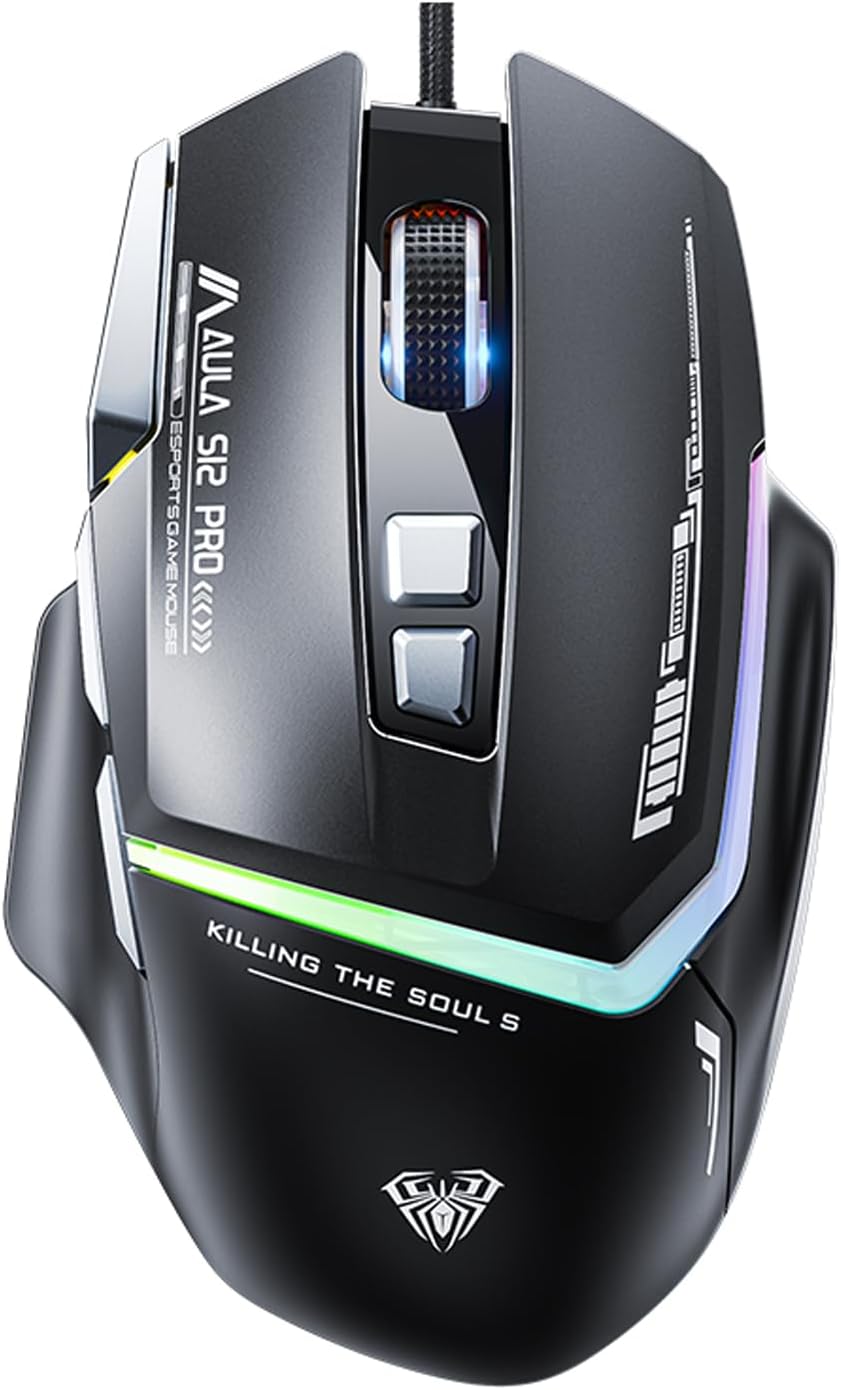
Image: Front view of the AULA S12Pro Wired Gaming Mouse, showcasing its ergonomic design and RGB lighting.
Package Contents
- AULA S12Pro Wired Gaming Mouse x1
- User Manual x1
Product Overview
The AULA S12Pro is a high-performance wired gaming mouse designed for precision and comfort. It features 8 programmable buttons, adjustable DPI settings up to 12800, and customizable RGB backlighting.
Key Features:
- Professional Gaming Mouse: High-end optical engine for precise positioning, with a maximum DPI of 12800, 7000 fps frame rate, 60 inch/s speed, and 20g acceleration. Includes a side firepower button and macro programmable buttons via software.
- 6 Adjustable DPI Levels: Easily switch between 1200/1600/2400/4800/7200/12800 DPI to suit various tasks and games. Polling rate is 1000Hz.
- RGB Gaming Mouse: Features 13 RGB lighting effects. Lighting can be turned off. Press and hold the DPI button for 3 seconds to change the light mode. Press and hold DPI + forward/back button to switch LED modes.
- Ergonomic Design: Designed with a thumb rest and a high-low bending arc for comfortable long-term use, reducing fatigue.
- Programmable Side Buttons: All macro buttons are customizable. Three side buttons are conveniently placed for thumb access, enhancing gameplay.
- Wide Compatibility: Plug and play. Compatible with Windows, Mac OS, and Linux systems. Supports PC, Mac laptop, Desktop, Computer, PS4, PS5, and Xbox.
- Durable Construction: 50 million keystroke test ensures long-lasting button performance. Features a durable braided cable with an anti-interference ring.

Image: The AULA S12Pro mouse positioned next to a laptop keyboard, highlighting its "Wired Esports Game Mouse" features, 12800DPI, flowing light effect, and ergonomic design.

Image: Close-up of the AULA S12Pro mouse demonstrating its RGB backlight effect, with a note that RGB lights have 13 adjustable lighting effects.
Setup Guide
System Requirements:
- Operating System: Windows 7/8/10/XP/VISTA, Mac OS, Linux
- Available USB 2.0 port
Installation:
- Connect the Mouse: Plug the USB connector of the AULA S12Pro gaming mouse into an available USB 2.0 port on your computer.
- Driver Installation (Plug and Play): The mouse is plug-and-play. Your operating system will automatically detect and install the necessary drivers. No manual driver installation is typically required.
- Software Installation (Optional): For advanced customization, including macro programming and button remapping, you may download the official AULA S12Pro software from the manufacturer's website. Follow the on-screen instructions for software installation.

Image: The underside of the AULA S12Pro mouse, highlighting its high-end optical engine for accurate positioning.
Operating Instructions
Button Functions:
| Button | Function |
|---|---|
| Left Button | Standard click function. |
| Right Button | Standard right-click function. |
| Scroll Wheel | Scroll up/down, middle click. |
| DPI + Button | Increases DPI sensitivity (cycles through 1200/1600/2400/4800/7200/12800 DPI). |
| DPI - Button | Decreases DPI sensitivity (cycles through 12800/7200/4800/2400/1600/1200 DPI). |
| Forward Button | Navigates forward in web browsers/folders. Programmable. |
| Back Button | Navigates backward in web browsers/folders. Programmable. |
| Firepower Button | Dedicated button for rapid fire or custom macro. Programmable. |
Adjusting DPI:
Use the DPI + and DPI - buttons located on the top of the mouse to cycle through the 6 available DPI settings: 1200, 1600, 2400, 4800, 7200, and 12800 DPI. The current DPI setting is often indicated by the RGB lighting pattern or color (refer to software for specific indicators).
Customizing RGB Lighting:
- To change the RGB lighting effect, press and hold the DPI button for 3 seconds.
- To switch between different LED modes, press and hold the DPI + Forward/Back button simultaneously.
- To turn off the lighting, refer to the optional software settings.
Macro Programming (via Software):
For advanced users, the AULA S12Pro mouse supports macro definition programming. Download and install the official AULA software to access these features. The software allows you to:
- Customize keybinds for all 8 buttons.
- Create and assign complex macros for gaming or productivity.
- Set up different configurations (e.g., office, game, multimedia) and switch between them using the "Configure ToggleKeys" function within the software.

Image: The AULA S12Pro mouse on a desk with a laptop, illustrating its capability for customized combo moves and macro definition programming.
Maintenance and Care
- Cleaning: Use a soft, dry cloth to clean the mouse. For stubborn dirt, a slightly damp cloth can be used, but ensure no liquid enters the mouse. Do not use harsh chemicals or abrasive cleaners.
- Cable Care: Avoid sharp bends or excessive pulling on the braided cable to prevent damage.
- Storage: Store the mouse in a cool, dry place away from direct sunlight and extreme temperatures.
- Avoid Drops: Protect the mouse from drops and impacts, which can damage internal components.
Troubleshooting
| Problem | Possible Cause | Solution |
|---|---|---|
| Mouse not responding | Loose USB connection, faulty USB port, driver issue. |
|
| Cursor movement is erratic or jumpy | Dirty optical sensor, unsuitable mouse pad surface. |
|
| Buttons not working or programmable features not active | Software not installed/configured, button malfunction. |
|
| RGB lighting not working or stuck | Software conflict, power issue, hardware malfunction. |
|
Specifications
| Feature | Detail |
|---|---|
| Product Name | Wired Gaming Mouse |
| Brand | AULA |
| Model | S12ProB |
| Color | S12Pro-black |
| Handedness | Right Handed |
| DPI Settings | 1200-1600-2400-4800-7200-12800 DPI |
| Tracking Speed | 60 inches/sec |
| Polling Rate | 1000Hz |
| Connection Method | USB 2.0 interface |
| Number of Buttons | 8 (Programmable) |
| Cable Length | 1.6m |
| Material | ABS |
| System Support | Mac OS, Windows 7/8/10/XP/VISTA, Linux |
| Equipment Support | USB interface PC/Mac/Laptop/Desktop/Computer/PS4/PS5/Xbox |
| Product Dimensions | 5 x 2.99 x 1.57 inches |
| Item Weight | 7.1 ounces |
Warranty and Support
AULA products are designed for durability and performance. For warranty information and technical support, please refer to the official AULA website or contact your retailer. Keep your purchase receipt as proof of purchase for warranty claims.
For further assistance, you may visit the AULA Store online: AULA Official Store
Related documentsS12ProB


Ask a question about this manual
Ask about setup, troubleshooting, compatibility, parts, safety, or missing instructions. Manuals+ will review the question and use this page’s manual context to help answer it.