
1. Introduction
The Loftie Alarm Clock is a smart device designed to enhance your sleep and wake-up experience. It integrates an alarm clock, sound machine, Bluetooth speaker, and night light into one unit, aiming to reduce reliance on smartphones for sleep-related functions. This manual provides comprehensive instructions for setting up, operating, and maintaining your Loftie Alarm Clock.

Image 1.1: Front view of the Loftie Alarm Clock displaying the time 7:35 AM.
2. Product Overview
The Loftie Alarm Clock combines multiple functionalities to support a healthy sleep routine. Key features include customizable alarms, a built-in sound machine, Bluetooth connectivity, and a gentle night light.
2.1 Key Features
- Two-Phase Alarm System: Gentle chime followed by a louder tone for a gradual wake-up.
- Integrated Sound Machine: Over 100 sleep sounds, including white noise, nature sounds, and guided meditations.
- Bluetooth Speaker: Stream audio from your devices.
- Night Light: Warm, gentle light, adjustable and syncable with alarms.
- Blackout Mode: Keeps screen and light off while alarms remain active.
- Offline Mode: Operates without Wi-Fi after initial setup.
- App Control: Optional control via the Loftie app (iOS or Android).

Image 2.1: Overview of the Loftie Alarm Clock's primary features, including customizable alarms, Bluetooth, sound machine, and night light.
2.2 Components and Controls
The Loftie Alarm Clock features intuitive controls located on its top surface.

Image 2.2: Top view of the Loftie Alarm Clock, highlighting the Snooze, Arrow, and Select buttons.
- Snooze Button: Press once to turn the nightlight on or off. Hold to activate Blackout Mode, which turns off the display.
- Arrow Buttons: Used to navigate through menus and options. Hold to adjust volume.
- Select Button: Turns off an active alarm. Also used to pause and play audio content.

Image 2.3: Detailed view of the Snooze Button and its functions.

Image 2.4: Detailed view of the Arrow Buttons for navigation and volume control.

Image 2.5: Detailed view of the Select Button for alarm dismissal and audio control.
3. Setup Instructions
Follow these steps for the initial setup of your Loftie Alarm Clock:
- Power On: Connect the Loftie Alarm Clock to a power source using the provided adapter.
- Download App: Download the Loftie app from the iOS App Store or Google Play Store on your smartphone.
- Initial Pairing: Open the Loftie app and follow the on-screen instructions to pair your device. This requires a 2.4 GHz Wi-Fi connection and Bluetooth to be enabled on your phone.
- Wi-Fi Connection: The app will guide you through connecting your Loftie to your home Wi-Fi network.
- Time Synchronization: Once connected, the clock will automatically synchronize its time.
- Optional Offline Mode: After successful setup and time synchronization, you can enable Offline Mode via the clock's settings if you prefer to use it without a continuous Wi-Fi connection.
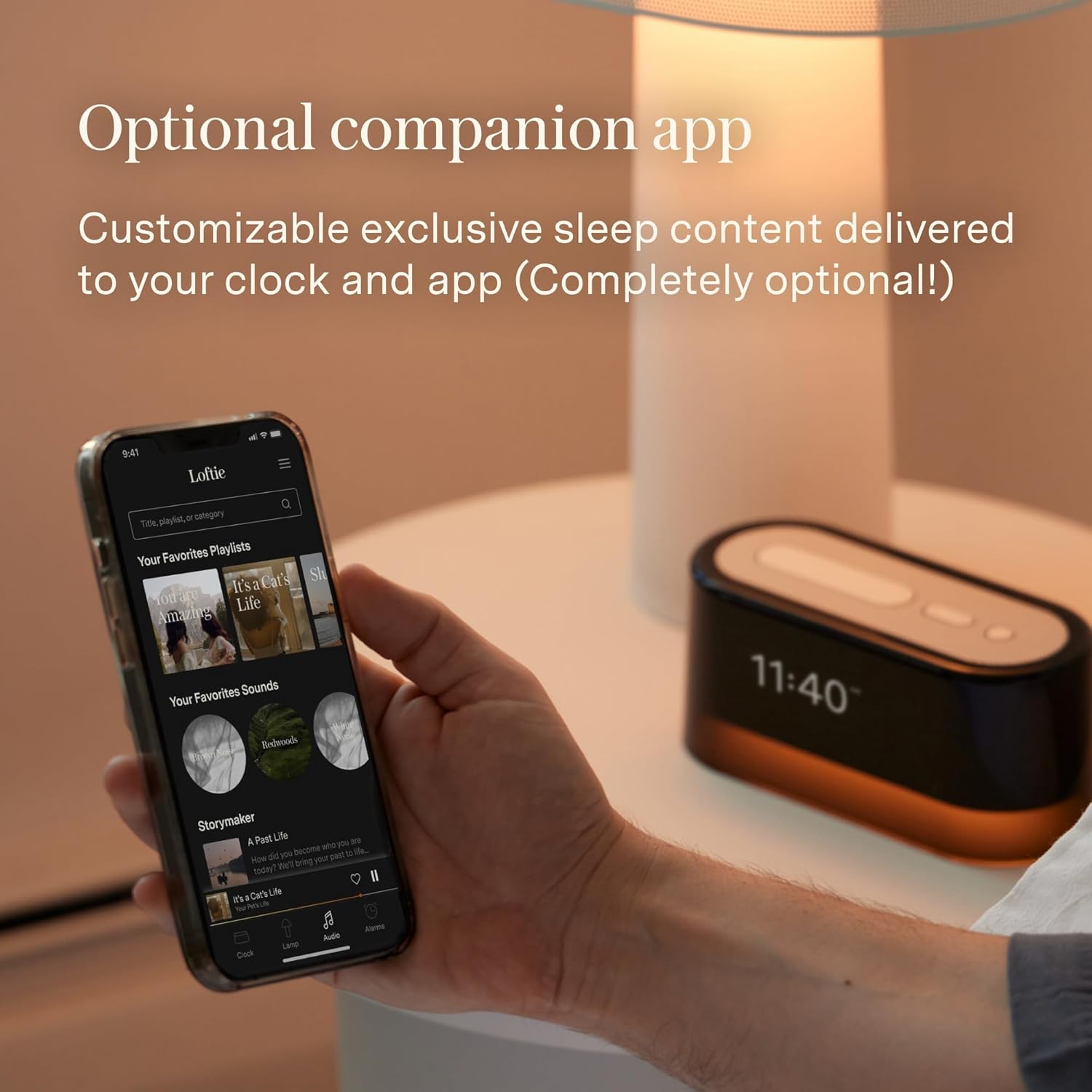
Image 3.1: The Loftie Alarm Clock can be controlled and set up using its companion mobile application.
4. Operating Instructions
4.1 Setting Alarms
- Navigate to the 'Alarms' menu on the clock using the Arrow Buttons.
- Select 'Add New Alarm' and set your desired wake-up time.
- Choose your preferred alarm sound and volume. The Loftie uses a two-phase alarm system: a gentle chime followed by a louder tone.
- Alarms can also be set and managed through the Loftie app.

Image 4.1: The Loftie Alarm Clock provides a gentle alternative to jarring phone alarms.
4.2 Using the Sound Machine
- Access the 'Sounds' menu using the Arrow Buttons.
- Browse through over 100 available sleep sounds, including white noise, nature sounds, and guided meditations.
- Select a sound to begin playback. You can set a sleep timer for automatic shutdown.

Image 4.2: The Loftie offers a wide selection of original sleep sounds and audio tracks.
4.3 Bluetooth Speaker Functionality
- Navigate to the 'Bluetooth' option in the clock's menu.
- Enable Bluetooth pairing mode on the Loftie.
- On your smartphone or other device, search for and connect to the 'Loftie' device.
- Once connected, you can stream audio directly to the Loftie Alarm Clock. Note that the device does not support headphone jacks.

Image 4.3: The Loftie's speaker is engineered to deliver high-quality sound for sleep and relaxation.
4.4 Night Light and Blackout Mode
- Night Light: Press the Snooze Button once to toggle the warm, gentle night light on or off.
- Blackout Mode: Hold the Snooze Button to activate Blackout Mode. This turns off the display and night light while keeping alarms active, ideal for a completely dark sleeping environment.

Image 4.4: The Loftie's nightlight provides a warm, gentle illumination.
4.5 Offline Mode
After the initial setup with Wi-Fi, you can enable Offline Mode through the clock's settings. In this mode, the Loftie Alarm Clock will function independently without an active Wi-Fi connection, maintaining time and active alarms. Content updates and app control will require Wi-Fi to be re-enabled.

Image 4.5: The dimmable display allows quick viewing of time and features without the app.
5. Maintenance
- Cleaning: Use a soft, dry cloth to clean the exterior of the Loftie Alarm Clock. Avoid abrasive cleaners or solvents.
- Liquid Exposure: Do not expose the device to water or other liquids. It is not waterproof.
- Temperature: Operate the device within normal room temperatures. Avoid extreme heat or cold.
- Battery: The device includes a 9V battery. If replacement is needed, ensure it is a compatible 9V battery.
6. Troubleshooting
| Issue | Possible Cause | Solution |
|---|---|---|
| Clock loses time or disconnects from Wi-Fi. | Unstable Wi-Fi connection, device interference, or software issue. | Ensure the clock is within Wi-Fi range. Restart your router. Reconnect the clock via the Loftie app. Check for software updates. |
| Alarm does not sound. | Alarm not set, volume too low, or Blackout Mode active without audible alarm. | Verify alarm settings and volume. Check if Blackout Mode is enabled and adjust settings if necessary. |
| Cannot connect to Bluetooth. | Loftie not in pairing mode, device too far, or previous connection interference. | Ensure Loftie is in Bluetooth pairing mode. Move your device closer. Forget previous Bluetooth connections and try again. |
| Display is off. | Blackout Mode is active. | Press and hold the Snooze Button to exit Blackout Mode. |
| Buttons are unresponsive. | Temporary software glitch. | Unplug the device from power for 30 seconds, then plug it back in to perform a soft reset. |
7. Specifications
| Feature | Detail |
|---|---|
| Brand | Loftie |
| Model Number | LOFTIE -CLOCK |
| Color | Peach |
| Display Type | Digital |
| Style | Modern |
| Special Features | Nightlight, Special Alarm |
| Product Dimensions | 6.5"W x 2.7"H |
| Power Source | Battery Powered (with AC adapter) |
| Room Type | Bedroom |
| Shape | Rectangular |
| Indoor/Outdoor Usage | Indoor |
| Material | Polycarbonate (PC) |
| Frame Material | Plastic |
| Batteries Included | Yes (1 x 9V battery) |
| Mounting Type | Tabletop |
| Item Weight | 1.57 pounds (0.71 Kilograms) |
| Radio Bands Supported | 2.4 GHz |
| UPC | 850051264100 |
8. Warranty and Support
For warranty information and customer support, please refer to the official Loftie website or contact their customer service directly. The Loftie Alarm Clock includes core functions without a subscription. An optional Loftie+ membership is available, offering additional content such as custom wind-down routines, extended sleep tracks, and exclusive bedtime stories. This membership starts at $5.99/month after a free trial and is accessible via the Loftie app.

Image 8.1: The Loftie Alarm Clock can be controlled directly on the device or through the companion app.

