
Minolta MND65-WK
Minolta MND65 Digital Camera User Manual
Model: MND65-WK
Introduction
The Minolta MND65 Digital Camera is designed for capturing high-quality photos and videos in a compact, portable form. This manual provides essential information for setting up, operating, maintaining, and troubleshooting your camera. Please read this manual thoroughly before using your camera to ensure optimal performance and longevity.
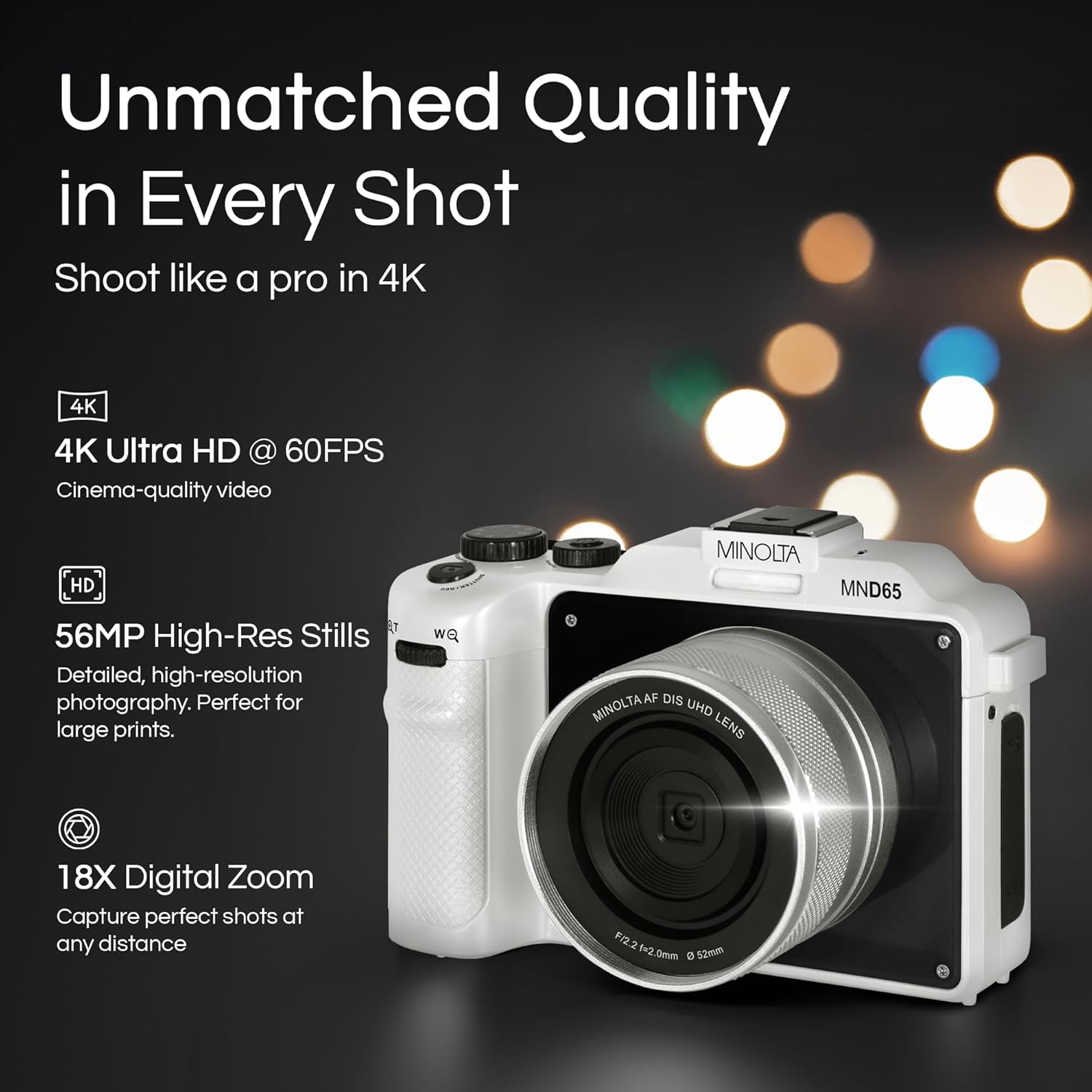
Figure 1: Front view of the Minolta MND65 Digital Camera.
What's in the Box
Verify that all items are present in the package:
- Minolta MND65 Digital Camera
- Protective Pouch
- USB Cable
- Lithium-Ion Battery
- Wrist Strap
- Memory Card (16GB)
- AC Adaptor
- Lens Cap & Keeper
- Screwdriver + Screws (for faceplates)
- 2 Replaceable Faceplates (Black and Teal)
Setup Guide
1. Battery Installation
- Locate the battery compartment cover on the bottom of the camera.
- Slide the cover latch to open the compartment.
- Insert the Lithium-Ion battery according to the polarity indicators (+/-).
- Close the battery compartment cover securely until it clicks into place.
2. Memory Card Installation
- Open the memory card slot cover, usually located near the battery compartment or on the side.
- Insert the provided SD memory card with the metal contacts facing the front of the camera until it clicks.
- Close the memory card slot cover.
- Note: Ensure the camera is powered off before inserting or removing the memory card.
3. Charging the Battery
- Connect the USB cable to the camera's USB port.
- Connect the other end of the USB cable to the AC adaptor.
- Plug the AC adaptor into a power outlet.
- The charging indicator light will illuminate. It will turn off or change color when charging is complete.
- A full charge typically takes approximately 2-3 hours.
4. Attaching the Wrist Strap
Thread the wrist strap through the strap lug on the side of the camera and secure it to prevent accidental drops.
5. Customizing Faceplates
Your camera comes with replaceable faceplates (Black and Teal) and a screwdriver kit for customization.
- Using the provided screwdriver, carefully remove the small screws securing the current faceplate.
- Gently detach the faceplate.
- Align the desired new faceplate and secure it with the screws. Do not overtighten.

Figure 2: Customizing your camera with replaceable faceplates.
Operating Your Camera
Camera Controls Overview

Figure 3: Rear view of the camera showing LCD and control buttons.
- Power Button: Turns the camera on/off.
- Shutter Button: Press halfway to focus, fully to capture a photo or start/stop video recording.
- Mode Dial/Button: Selects shooting modes (e.g., Photo, Video, Playback).
- Menu Button: Accesses camera settings and options.
- Navigation Buttons (Up/Down/Left/Right): Navigate menus and adjust settings.
- OK/Set Button: Confirms selections.
- Zoom Lever: Controls the 18X digital zoom.
- LCD Screen: 3.0" IPS display for framing shots, reviewing images, and navigating menus.
Taking Photos
- Turn on the camera using the Power button.
- Select Photo mode using the Mode button/dial.
- Frame your shot using the 3.0" LCD screen.
- Press the Shutter button halfway to activate autofocus. The focus indicator will confirm focus.
- Press the Shutter button fully to capture the 56MP image.
- Images are saved in JPEG or RAW format, as selected in the settings.
Recording Videos
- Turn on the camera.
- Select Video mode.
- Frame your scene.
- Press the Shutter button fully to start recording 4K 60FPS video. A recording indicator will appear on the screen.
- Press the Shutter button fully again to stop recording.
Using the Selfie Lens
The Minolta MND65 features a dedicated front-facing selfie lens for easy self-portraits and vlogging.
- Activate the selfie lens mode (refer to your camera's on-screen menu for specific activation steps, usually a dedicated button or menu option).
- The camera will switch to the front-facing lens, and the LCD screen will display your reflection.
- Frame your selfie or video.
- Press the Shutter button to capture.

Figure 4: The dedicated selfie lens for convenient self-portraits.
Wi-Fi Connectivity and File Transfer
The built-in Wi-Fi allows for wireless transfer of photos and videos to your smartphone or tablet.
- Download the official Minolta camera app to your mobile device (available on iOS and Android app stores).
- On the camera, navigate to the Wi-Fi settings in the menu and enable Wi-Fi.
- On your mobile device, connect to the camera's Wi-Fi network (SSID and password will be displayed on the camera screen).
- Open the Minolta app. You can now browse, transfer, and share your media wirelessly.
Maintenance
Cleaning the Camera
- Use a soft, lint-free cloth to clean the camera body. For stubborn dirt, slightly dampen the cloth with water.
- For the lens, use a lens brush to remove dust, then a lens cleaning cloth with a specialized lens cleaning solution if necessary. Avoid touching the lens surface with your fingers.
- Clean the LCD screen with a soft, dry microfiber cloth.
- Do not use organic solvents or strong chemical cleaners.
Battery Care
- Store the battery in a cool, dry place when not in use.
- Avoid fully discharging the battery frequently to prolong its lifespan.
- If storing for an extended period, charge the battery to about 50% capacity.
Storage
- When not in use, store the camera in its protective pouch to shield it from dust and scratches.
- Avoid storing the camera in areas with extreme temperatures, high humidity, or direct sunlight.
- Remove the battery if the camera will not be used for an extended period.
Troubleshooting
| Problem | Possible Cause | Solution |
|---|---|---|
| Camera does not power on. | Battery is depleted or incorrectly inserted. | Charge the battery fully. Reinsert the battery correctly. |
| Cannot take photos/record videos. | Memory card is full, locked, or not inserted. | Delete unnecessary files, unlock the memory card, or insert it correctly. |
| Images are blurry. | Camera shake, incorrect focus, or dirty lens. | Hold the camera steady. Ensure autofocus locks before shooting. Clean the lens. |
| Wi-Fi connection fails. | Incorrect password, camera Wi-Fi not enabled, or app issue. | Verify Wi-Fi password. Ensure camera Wi-Fi is active. Restart camera and mobile app. |
| Green screen appears on LCD. | Software/hardware malfunction. | Power cycle the camera. If the issue persists, contact customer support. |
| Poor image/video quality (not 56MP/4K). | Incorrect resolution settings. | Check camera settings to ensure 56MP for photos and 4K for video are selected. |
If you encounter issues not listed here or if the suggested solutions do not resolve the problem, please contact Minolta Customer Support.
Specifications
| Model Name | MND65-WK |
| Photo Sensor Resolution | 56 MP |
| Video Resolution | 4K (2160p) at 60 FPS |
| Digital Zoom | 18x |
| Screen Size | 3 Inches (IPS LCD) |
| Connectivity | Wi-Fi |
| Supported File Formats | JPEG, RAW (Images); MP4 (Video) |
| Image Stabilization | Digital |
| Photo Sensor Technology | CMOS |
| Battery Type | Lithium Ion |
| Minimum Focal Length | 18 Millimeters |
| Maximum Aperture | 2.8 Millimeters |
| Flash Modes | Auto Flash |
| Storage Media | SD Card (Class 10, U1 recommended) |
Warranty Information
The Minolta MND65 Digital Camera comes with a Limited 1 Year Manufacturer Warranty. This warranty covers defects in materials and workmanship under normal use. It does not cover damage caused by misuse, accident, unauthorized modification, or external causes such as drops or liquid damage.
Please retain your proof of purchase for warranty claims. For detailed terms and conditions, refer to the warranty card included in your product packaging or visit the official Minolta website.
Customer Support
For technical assistance, warranty service, or general inquiries regarding your Minolta MND65 Digital Camera, please contact Minolta Customer Support.
- Website: Visit the official Minolta website for FAQs, software updates, and support resources.
- Email: Refer to your product packaging or the official website for customer service email addresses.
- Phone: Refer to your product packaging or the official website for customer service phone numbers.
When contacting support, please have your camera model number (MND65-WK) and proof of purchase available.
Related documentsMND65-WK


Ask a question about this manual
Ask about setup, troubleshooting, compatibility, parts, safety, or missing instructions. Manuals+ will review the question and use this page’s manual context to help answer it.