
ADATA Premier
ADATA Premier 512GB microSDXC Memory Card User Manual
Comprehensive instructions for your ADATA Premier 512GB microSDXC A1 UHS-I CL10 Memory Card with SD Adapter.
1. Product Overview
The ADATA Premier 512GB microSDXC A1 UHS-I Class 10 V10 Memory Card is a high-speed storage solution designed for mobile phones, tablets, and other compatible mobile devices. It offers a substantial 512GB capacity, allowing for extensive storage of applications, photos, and videos. The card is A1 qualified, enhancing app performance on Android devices, and supports read speeds up to 100MB/sec. It comes with a full-size SD adapter for broader compatibility and ease of use with various devices.

Image 1: ADATA Premier 512GB microSDXC Memory Card.
Key Features:
- 512GB Storage Capacity: Ample space for high-resolution photos, 4K videos, and applications.
- A1 Performance Rating: Optimized for faster app loading and performance on Android smartphones and tablets.
- UHS-I Class 10 V10: Ensures smooth Full HD and 4K video recording and playback.
- High Read Speed: Up to 100MB/sec for quick data transfers.
- Included SD Adapter: Provides compatibility with devices that use standard SD card slots.
- Durable Design: Features X-ray proof, temperature proof, and magnetic resistance for enhanced data security.
2. Setup and Installation
This section guides you through the proper installation of your ADATA microSDXC card into compatible devices.
2.1 Inserting the microSD Card into a Device
- Identify the microSD Slot: Locate the microSD card slot on your smartphone, tablet, or other compatible device. Refer to your device's user manual if unsure.
- Orient the Card: Hold the microSD card with the gold contacts facing down (or as indicated by your device's slot design).
- Insert the Card: Gently push the microSD card into the slot until it clicks into place. Do not force the card.
- Verify Installation: Your device should recognize the new storage. You may receive a notification or see the storage listed in your device's settings.
2.2 Using the SD Adapter
The included SD adapter allows you to use your microSDXC card with devices that have a standard SD card slot, such as digital cameras, laptops, or desktop computers.

Image 2: ADATA microSDXC Memory Card with its full-size SD Adapter.
- Insert microSD into Adapter: Slide the microSD card into the designated slot on the side of the SD adapter until it locks securely.
- Insert Adapter into Device: Insert the SD adapter (with the microSD card inside) into the SD card slot of your computer or camera.
- Access Data: Your device will now recognize the card, allowing you to transfer files, view photos, or record data.
Note: Ensure the write-protection switch on the side of the SD adapter is in the "unlocked" position if you intend to write data to the card.
3. Operating Instructions
The ADATA Premier microSDXC card is designed for seamless operation across various applications.
3.1 Data Storage and Transfer
- File Management: Use your device's file manager or connect to a computer to transfer photos, videos, music, and documents to and from the card.
- High-Speed Performance: With read speeds up to 100MB/sec, large files can be transferred efficiently.
3.2 App Storage (A1 Rating)
The A1 Application Performance Class rating means the card is optimized for running applications directly from the memory card, providing faster app launch times and smoother performance on compatible Android devices.
- Android Devices: In your Android device settings, you can often move installed applications to the microSD card to free up internal storage.
- Benefits: This improves device performance by offloading app data and allows for more internal storage for other critical functions.
3.3 Video Recording (V10 Rating)
The V10 Video Speed Class ensures a minimum sustained write speed of 10MB/s, making it suitable for recording Full HD (1080p) video without dropped frames.
- Compatible Devices: Ideal for use in smartphones, tablets, action cameras, and drones for recording high-quality video.

Image 3: ADATA microSDXC card in use with multiple electronic devices.
4. Maintenance and Care
To ensure the longevity and optimal performance of your ADATA microSDXC card, follow these maintenance guidelines:
- Safe Removal: Always safely eject the card from your device before physically removing it to prevent data corruption.
- Physical Protection: Store the card in its protective case or the SD adapter when not in use to prevent physical damage to the contacts or card body.
- Environmental Protection: The card is designed to be X-ray proof, temperature proof, and magnetic resistant. However, avoid exposing it to extreme conditions unnecessarily.
- Regular Backups: Periodically back up important data from your microSD card to another storage medium (e.g., computer hard drive, cloud storage) to prevent data loss.
- Avoid Formatting: Only format the card when necessary, as formatting erases all data. If formatting is required, use your device's built-in formatting utility or a reliable computer utility.
5. Troubleshooting
If you encounter issues with your ADATA microSDXC card, consider the following troubleshooting steps:
- Card Not Recognized:
- Ensure the card is fully inserted into the slot.
- Try inserting the card into a different compatible device or using the SD adapter with a computer to rule out a device-specific issue.
- Check if the SD adapter's write-protection switch is in the "unlocked" position if using the adapter.
- Clean the gold contacts on the card with a soft, dry, lint-free cloth.
- Slow Performance:
- Ensure your device supports UHS-I speeds. Older devices may not fully utilize the card's speed capabilities.
- Avoid filling the card to its maximum capacity, as this can sometimes affect performance.
- If using for app storage, ensure your Android device is optimized for A1 performance.
- Data Corruption/Errors:
- Always safely eject the card before removal.
- Run a disk check or error-checking utility on a computer to scan for and repair bad sectors.
- If issues persist, back up any recoverable data and then format the card.
- Card Capacity Incorrect:
- Some devices or operating systems may display slightly less than the advertised capacity due to formatting overhead. This is normal.
6. Specifications
| Feature | Detail |
|---|---|
| Brand | ADATA |
| Model Name | Premier |
| Memory Storage Capacity | 512 GB |
| Flash Memory Type | Micro SDXC |
| Secure Digital Association Speed Class | Class 10, UHS-I, V10, A1 |
| Read Speed | Up to 100 MB/s |
| Write Speed | 50.0 MB/s (typical, based on V10 rating) |
| Special Features | Temperature Proof, X-Ray Proof, Magnetic Resistant |
| Compatible Devices | Smartphones, Tablets, Action Cameras, Drones, etc. |
| Color | Black |
| Item Weight | 9.07 g (0.32 ounces) |
| Package Dimensions | 4.53 x 3.94 x 0.02 inches |
| Manufacturer | Adata |
| UPC | 842243030518 |
| Item Model Number | 842243030518 |
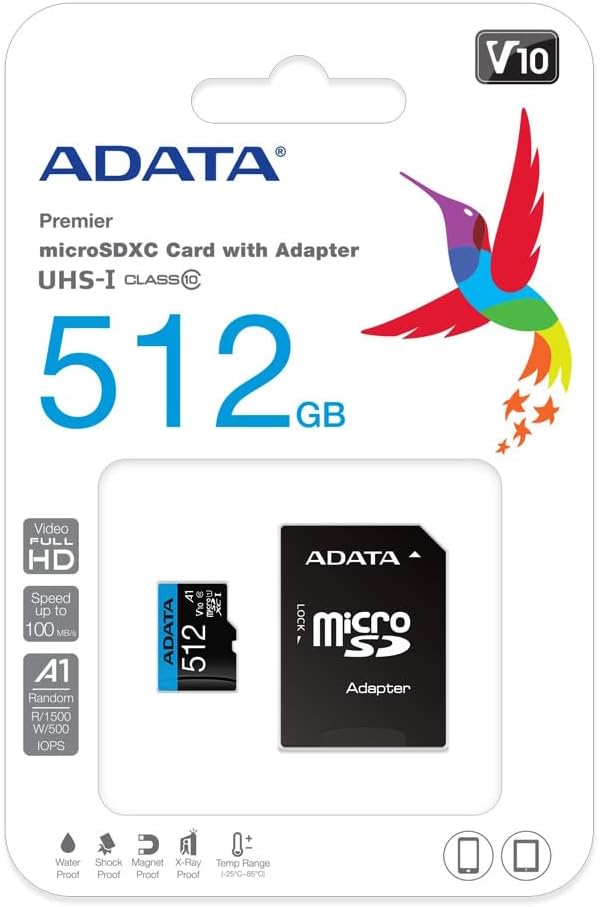
Image 4: Retail packaging of the ADATA Premier microSDXC Memory Card.
7. Warranty and Support
ADATA offers a Lifetime Warranty for this product, ensuring long-term reliability and customer satisfaction.
- Warranty Type: Lifetime Warranty
- Support: For technical assistance, warranty claims, or further inquiries, please visit the official ADATA website or contact their customer support.
8. Product Videos
Watch the official product video for more information on the ADATA 512GB microSDXC card.
Video 1: Official product video showcasing the features and benefits of the 512GB microSD card. This video highlights its storage capacity, speed, and compatibility with various devices.
Related documentsPremier


Ask a question about this manual
Ask about setup, troubleshooting, compatibility, parts, safety, or missing instructions. Manuals+ will review the question and use this page’s manual context to help answer it.