
Grimtron VT02
Grimtron Biometric Gun Safe (Model VT02) Instruction Manual
Comprehensive guide for setup, operation, and maintenance of your Grimtron Biometric Gun Safe.
Introduction
This manual provides detailed instructions for the installation, operation, and maintenance of your Grimtron Biometric Gun Safe, Model VT02. Please read this manual thoroughly before using the safe to ensure proper function and security.
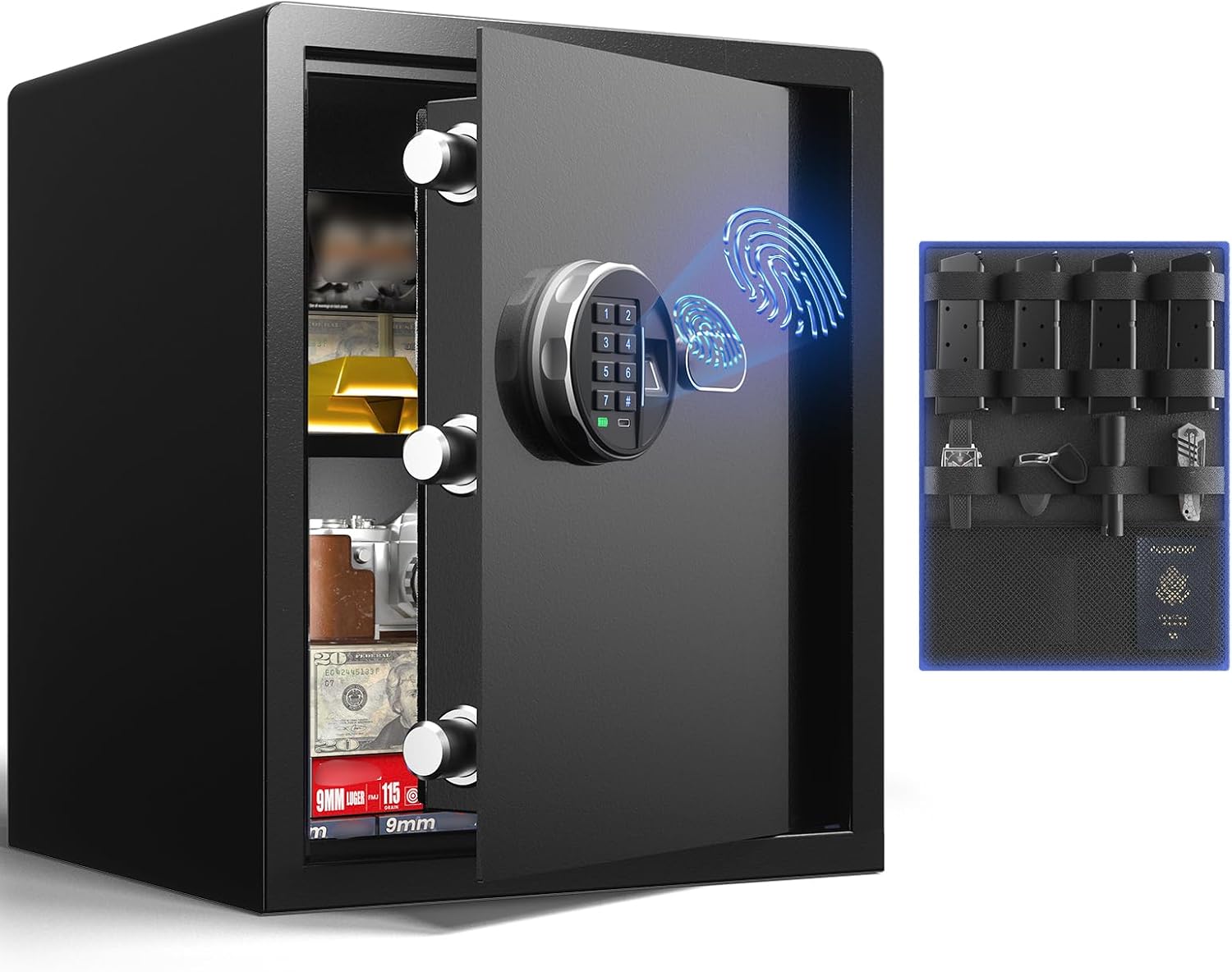
Image: The Grimtron Biometric Gun Safe, Model VT02, with its door open, revealing the interior storage compartments and the biometric keypad on the exterior.
Package Contents
Verify that all items listed below are included in your package:
- Grimtron Biometric Gun Safe (Model VT02)
- Door Organizer x 1
- Expansion Screws x 4
- Emergency Keys x 2
- Storage Rack x 1
- User Manual x 1
- USB Cable x 1

Image: All components included with the Grimtron Biometric Gun Safe, including the safe itself, emergency keys, door organizer, gun rack, expansion screws for mounting, user manual, and USB cable.
Specifications
| Brand | Grimtron |
| Model Number | VT02 |
| Product Dimensions | 12.99"D x 13.78"W x 16.54"H |
| Capacity | 1.71 Cubic Feet |
| Lock Type | Biometric, Key, Keypad |
| Material | Alloy Steel |
| Item Weight | 32.2 Pounds |
| Power Source | 4 AA Batteries (not included) |
| Special Features | Storage Rack, Door Organizer, Backlit Keypad, Silent Mode |
Security Features
The Grimtron Biometric Gun Safe is constructed with robust materials and advanced locking mechanisms to ensure the security of your valuables.
- Tamper-Proof Construction: Features a heavy door and thick walls made of alloy steel.
- Strong Locking Bolts: Equipped with 20mm door bolts for enhanced resistance against prying attempts.
- Advanced Biometric Sensor: High-resolution sensor with a response time of less than 0.3 seconds, storing up to 30 fingerprints.
- Secure Keypad: Supports 3-8 digit passwords with 6.7 million permutations, featuring a backlit keypad for visibility in low light.
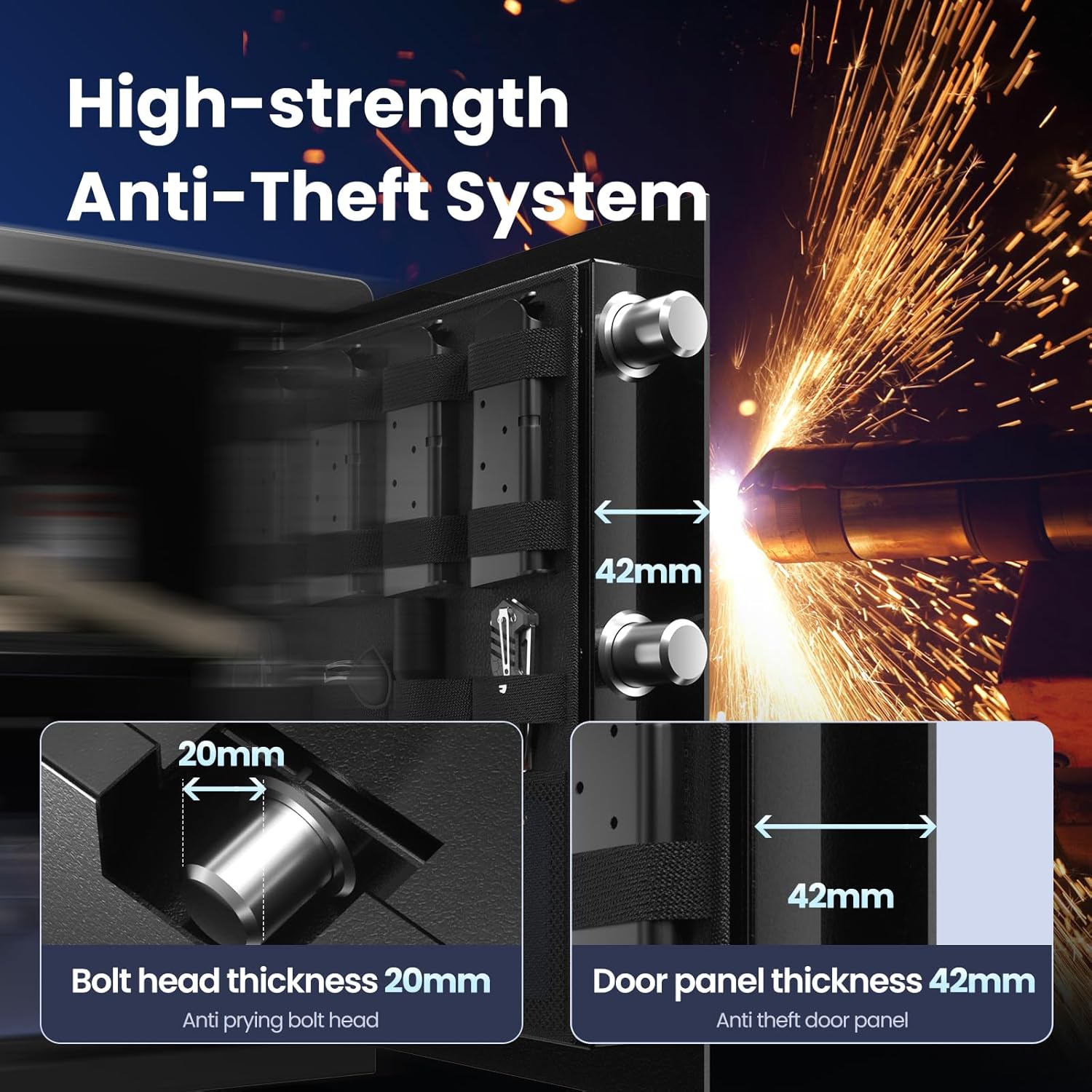
Image: A detailed view of the safe's robust anti-theft system, featuring 20mm bolt heads and a 42mm thick door panel for enhanced security.
Storage Features
The safe is designed for organized storage of multiple handguns and other valuables.
- Gun Rack: Includes a dedicated gun rack for secure storage of firearms.
- Door Organizer: A convenient organizer on the inside of the door provides pockets for car keys, flashlights, multiple magazines, passports, and other small items.
- Removable Shelf: A movable shelf allows for flexible space utilization and categorized storage.
- Interior Lighting: Features internal LED lights for clear visibility of contents.

Image: The Grimtron Biometric Gun Safe interior, showcasing its 1.71 cubic feet capacity with organized storage for items like documents, cash, and firearms.
Setup
1. Battery Installation
The safe requires 4 AA batteries for operation (not included). Ensure the safe is unlocked before proceeding.
- Open the safe door.
- Locate the battery compartment on the inside of the door. It is typically covered by a pouch or panel.
- Remove the pouch/panel. You may need a small screwdriver to unscrew the cover.
- Insert 4 AA batteries, ensuring correct polarity (+/-).
- Replace the battery cover and any removed pouches/panels.
Video: Instructions for installing 4 AA batteries into the Grimtron safe's internal battery compartment.
Important Notes:
- Use alkaline or carbon batteries. Other battery types may cause malfunction.
- Do not mix old and new batteries.
- The safe cannot be powered by rechargeable batteries.
- Do not attempt to charge any batteries inside the safe.
2. Initial Unlocking (First Use)
For the first use, the safe is typically unlocked using the emergency key. Locate the keyhole, usually hidden behind the Grimtron logo plate on the front panel. Insert one of the provided emergency keys and turn it to unlock the safe.
3. Mounting the Safe
The safe can be securely mounted to a wall or floor using the included expansion screws. This enhances security and prevents unauthorized removal.
- Choose a suitable location for mounting (e.g., wardrobe, bedside, closet).
- Mark the drilling points through the pre-drilled holes inside the safe.
- Drill pilot holes at the marked locations.
- Align the safe with the drilled holes and secure it using the expansion screws.

Image: A three-step diagram illustrating how to secure the safe using expansion screws, showing the process from marking points to final fastening.

Image: Examples of the Grimtron safe's versatile placement options within a home, including bedside, wardrobe, closet, and corner installations.
Operating Instructions
1. Setting the Password
You can set a password between 3 and 8 digits. Only one password can be active at a time. Repeating the setting process will overwrite the existing password.
- With the safe door open, press and release the SET button located inside the battery compartment.
- The keypad will illuminate. Enter your desired 3-8 digit password.
- Press and release the # button to confirm.
- Test the new password immediately to ensure it was set successfully.
Video: Step-by-step guide on how to set a new password for the Grimtron Biometric Gun Safe.
Note:
- If the new password does not unlock the safe, the indicator RED light will flash 5 times, indicating that the new password has not been set successfully.
- The SET button and # button cannot be used as part of the digits in your password.
2. Setting Fingerprints
The biometric sensor can store up to 30 fingerprints. For optimal accuracy, scan your finger from different angles.
- With the safe door open, press and hold the SET button until the indicator light turns blue.
- Place your finger on the fingerprint sensor. The light will flash.
- Lift and place your finger again, slightly adjusting the angle each time. Repeat this process multiple times (typically 3-5 times) until the indicator light turns green, confirming successful registration.
- Repeat for additional fingerprints, up to 30.
3. Unlocking the Safe
The Grimtron safe offers multiple quick access methods:
- Fingerprint Access: Place your registered finger on the biometric sensor. The safe will unlock in less than 1 second if the fingerprint is recognized.
- Keypad Access: Enter your 3-8 digit password followed by the # button.
- Emergency Key: Slide the Grimtron logo plate to reveal the keyhole. Insert and turn the emergency key.
- External Power (USB-C): If batteries are depleted, connect a Type-C cable to the emergency port and a power source. Once the indicator lights up green, you can use either your password or fingerprint to unlock the safe.

Image: A visual guide demonstrating four ways to access the safe: using a password, an emergency key, a fingerprint scan, or external power via a USB-C cable.
Video: A demonstration of the biometric and keypad access methods, highlighting the quick unlocking time and internal features like the gun rack and door organizer.
4. Silent Mode
Activate silent mode to disable keypad sounds for discreet access.
- To turn on Silent Mode: Press and hold the 1 button until the indicator light turns GREEN.
- To turn off Silent Mode: Repeat the same step (press and hold the 1 button until the indicator light turns GREEN).
Video: Instructions on how to activate and deactivate the silent mode feature on the safe's keypad.
Maintenance
- Battery Replacement: Replace all 4 AA batteries when the low battery indicator appears on the keypad. Do not wait for complete battery depletion to avoid being locked out.
- Cleaning: Wipe the exterior of the safe with a soft, damp cloth. Avoid abrasive cleaners or solvents that could damage the finish or electronic components.
- Keypad and Sensor: Keep the keypad and fingerprint sensor clean and dry for optimal performance.
- Emergency Keys: Store emergency keys in a secure location outside the safe.
Troubleshooting
| Problem | Possible Cause | Solution |
|---|---|---|
| Safe does not open with password/fingerprint. | Low or dead batteries. Incorrect password/fingerprint. | Replace batteries. Use emergency key or external USB-C power. Re-enter correct password or re-scan registered fingerprint. |
| Keypad/Fingerprint sensor unresponsive. | Batteries are completely dead. | Use the emergency key to open the safe and replace batteries. Alternatively, use external USB-C power to activate the keypad/sensor. |
| Cannot set new password/fingerprint. | Incorrect procedure followed. | Review the "Setting the Password" or "Setting Fingerprints" sections and repeat the steps carefully. Ensure the safe is unlocked when attempting to set. |
| Safe is locked and batteries are dead/keys are lost. | No power, no access. | Use the external USB-C power feature to provide temporary power and unlock the safe using your password or fingerprint. |
Video: Demonstration of using the emergency USB-C port to power the safe when batteries are low or depleted, allowing access via keypad or fingerprint.
Note:
- The emergency port can only provide power to the safe. It cannot be used to charge the safe's batteries.
Warranty and Support
For warranty information, technical support, or assistance with your Grimtron Biometric Gun Safe, please refer to the contact information provided in your User Manual or visit the official Grimtron website.
Keep your Spare Key Service Card in a safe place, separate from the safe, as it may be required for key replacement services.
Related documentsVT02


Ask a question about this manual
Ask about setup, troubleshooting, compatibility, parts, safety, or missing instructions. Manuals+ will review the question and use this page’s manual context to help answer it.