
Introduction
The SP CONNECT Moto Stem Mount Pro is designed for securely attaching your smartphone to Supersport motorcycles. Crafted from high-quality CNC machined aircraft aluminum, this mount provides a robust yet lightweight solution for integrating your SP Connect Phone Case. It features an adjustable head for optimal viewing angles and an integrated vibration damping system to protect your device during rides.
What's in the Box
- SP Connect Moto Stem Mount Pro
Setup and Installation
Follow these steps to correctly install your Moto Stem Mount Pro on your motorcycle.
- Prepare the Stem: Ensure the stem hole of your motorcycle is clean and free from obstructions. The mount is designed for stem holes with a diameter suitable for the expanding mechanism.
- Insert the Mount: Carefully insert the Moto Stem Mount Pro into the stem hole. The expanding mechanism should fit snugly.
- Secure the Mount: Use the provided tool to tighten the screw at the base of the mount. This expands the mechanism, securing the mount firmly within the stem. Do not overtighten.

Image: The Moto Stem Mount Pro securely installed in the motorcycle's steering stem.
- Adjust Height (if applicable): The mount offers an extension of approximately 26mm. Adjust the height as needed before final tightening.

Image: A diagram illustrating the 26mm extension capability of the mount for customized positioning.
- Final Position Adjustment: The adjustable holder head allows for flexible positioning. Loosen the adjustment screw, set your desired vertical and horizontal angle, and then re-tighten the screw to lock the position.

Image: The Moto Stem Mount Pro installed on a green motorcycle, ready for phone attachment.
Operating Instructions
Once the mount is installed, attaching and using your smartphone is straightforward.
- Attach Phone Case: Align your SP Connect Phone Case with the mount's locking mechanism. Place the phone case onto the mount and rotate it 90 degrees clockwise until it locks securely into place. You should feel a distinct click.
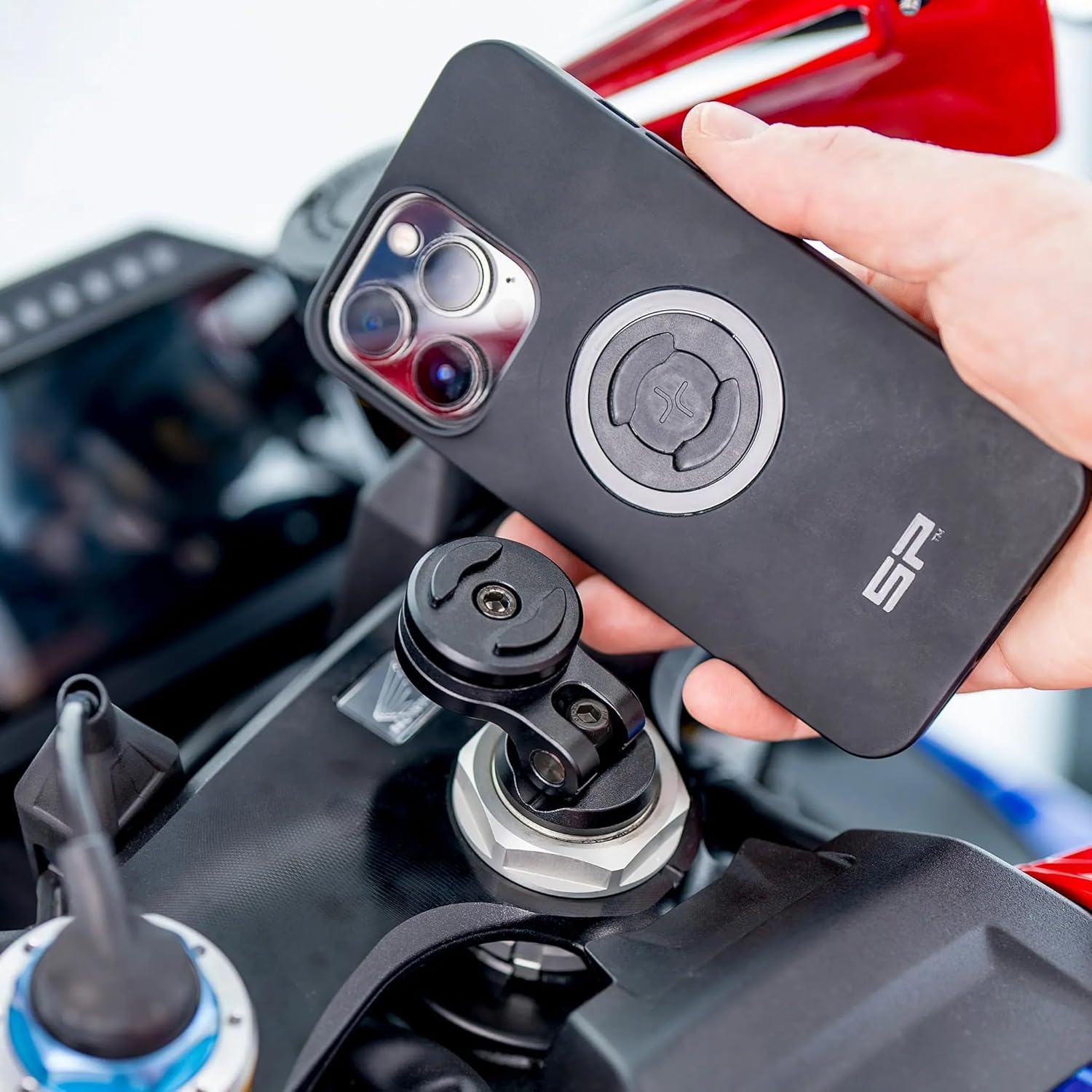
Image: A hand demonstrating the attachment of an SP Connect phone case to the mount.
- Verify Secure Attachment: Gently tug on the phone to ensure it is firmly locked to the mount before riding.
- Adjust Viewing Angle: If you need to change the phone's angle, loosen the adjustment screw on the mount head, reposition the phone, and then re-tighten the screw.
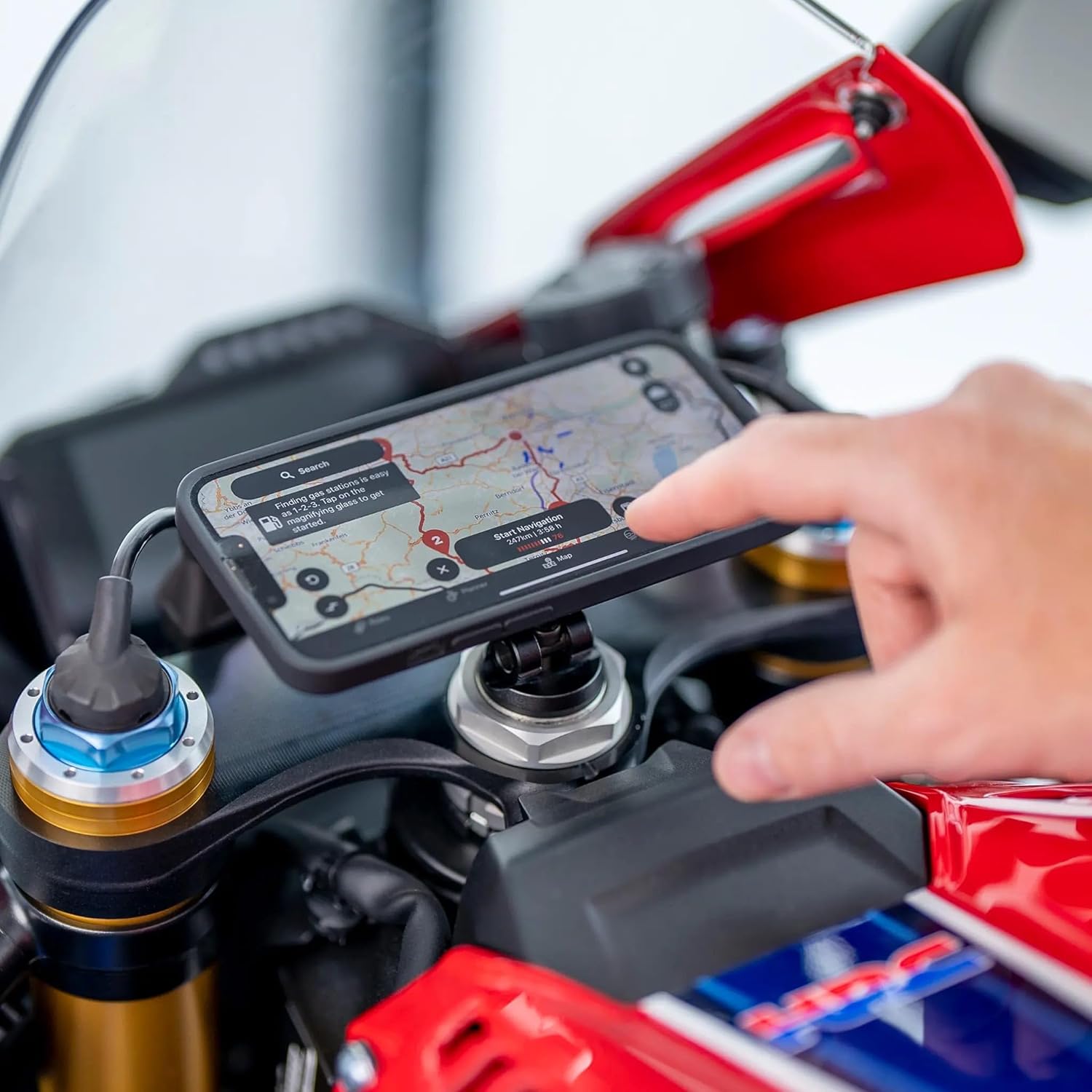
Image: A smartphone displaying a navigation application, securely mounted and visible on the motorcycle.

Image: Side profile of the mounted smartphone, illustrating its secure and ergonomic placement.

Image: The smartphone mounted on a green motorcycle, providing a clear view of the screen.

Image: A map application displayed on the mounted smartphone, indicating its use for navigation.
Maintenance
Proper maintenance ensures the longevity and reliable performance of your Moto Stem Mount Pro.
- Cleaning: Wipe the mount with a soft, damp cloth to remove dust and dirt. Avoid abrasive cleaners or solvents that could damage the finish.
- Inspection: Periodically check all screws and connections to ensure they are tight. Re-tighten if necessary, but do not overtighten.
- Storage: If not in use for extended periods, store the mount in a clean, dry place away from direct sunlight and extreme temperatures.
Troubleshooting
If you encounter issues with your Moto Stem Mount Pro, refer to the following common problems and solutions.
- Mount feels loose in the stem:
- Ensure the expansion screw is sufficiently tightened.
- Verify that the mount diameter is compatible with your motorcycle's stem hole.
- Phone does not lock securely:
- Ensure the SP Connect Phone Case is correctly aligned with the mount and rotated 90 degrees clockwise until it clicks.
- Check for any debris or obstruction in the locking mechanism of both the mount and the phone case.
- Excessive vibration:
- While the mount has integrated vibration damping, extreme road conditions or motorcycle vibrations may still be felt. Ensure the mount is installed as securely as possible.
- Consider using an additional vibration dampening module if available and compatible with your setup.
Specifications
| Brand | SP CONNECT |
| Model Name | Moto Stem |
| Model Number | SPC52849 |
| Color | Black |
| Compatible Devices | Smartphones (with SP Connect Phone Case) |
| Mounting Type | Vehicle Mount (Motorcycle Stem) |
| Material | CNC Machined Aircraft Aluminum (Mount), Polyester (Enclosure Material) |
| Item Dimensions | 3.94 x 3.94 x 3.94 inches |
| Item Weight | 0.13 Kilograms |
| Water Resistance Level | Water Resistant |
Warranty and Support
The SP CONNECT Moto Stem Mount Pro comes with a 12-month warranty from the date of purchase, covering manufacturing defects.
For technical support, warranty claims, or any questions regarding your product, please visit the official SP CONNECT website or contact their customer service directly. Ensure you have your proof of purchase and product model number (SPC52849) ready when contacting support.


