
1. Overview
The Akko 5075B Plus Air is a 75% layout mechanical keyboard designed for versatility and performance. It features a gasket mount structure, hot-swappable switches, and PBT dye-sub keycaps, offering a customizable and durable typing experience. With tri-mode connectivity (wired USB-C, 2.4GHz wireless, and Bluetooth 5.0), it provides seamless compatibility across various devices, including Mac and Windows systems. The integrated programmable RGB backlighting and a multi-function knob enhance both aesthetics and usability.
2. Key Features
- 75% Mac-Themed Layout: Compact design with Cherry profile Mac keycaps, optimized for Mac systems.
- Hot-Swappable Sockets: Premium 5-pin hot-swappable sockets allow for easy customization of mechanical switches without soldering.
- Durable PBT Dye-Sub Keycaps: Keycaps are highly durable and resistant to wear, fading, and oil buildup, ensuring longevity. Includes extra Windows replacement keycaps.
- Tri-mode Connection: Supports Bluetooth 5.0, 2.4GHz wireless, and wired Type-C connectivity for broad device compatibility (computers, tablets, mobile devices).
- Programmable RGB Backlit: Features built-in RGB backlighting with customizable light animation effects (per-key RGB supported) via the Akko Cloud Driver.
- Multi-function Knob: The knob controls brightness and volume and can be programmed using the Akko Cloud Driver.

Image: Akko 5075B Plus Air keyboard showcasing its minimalist Mac-themed design and keycaps.
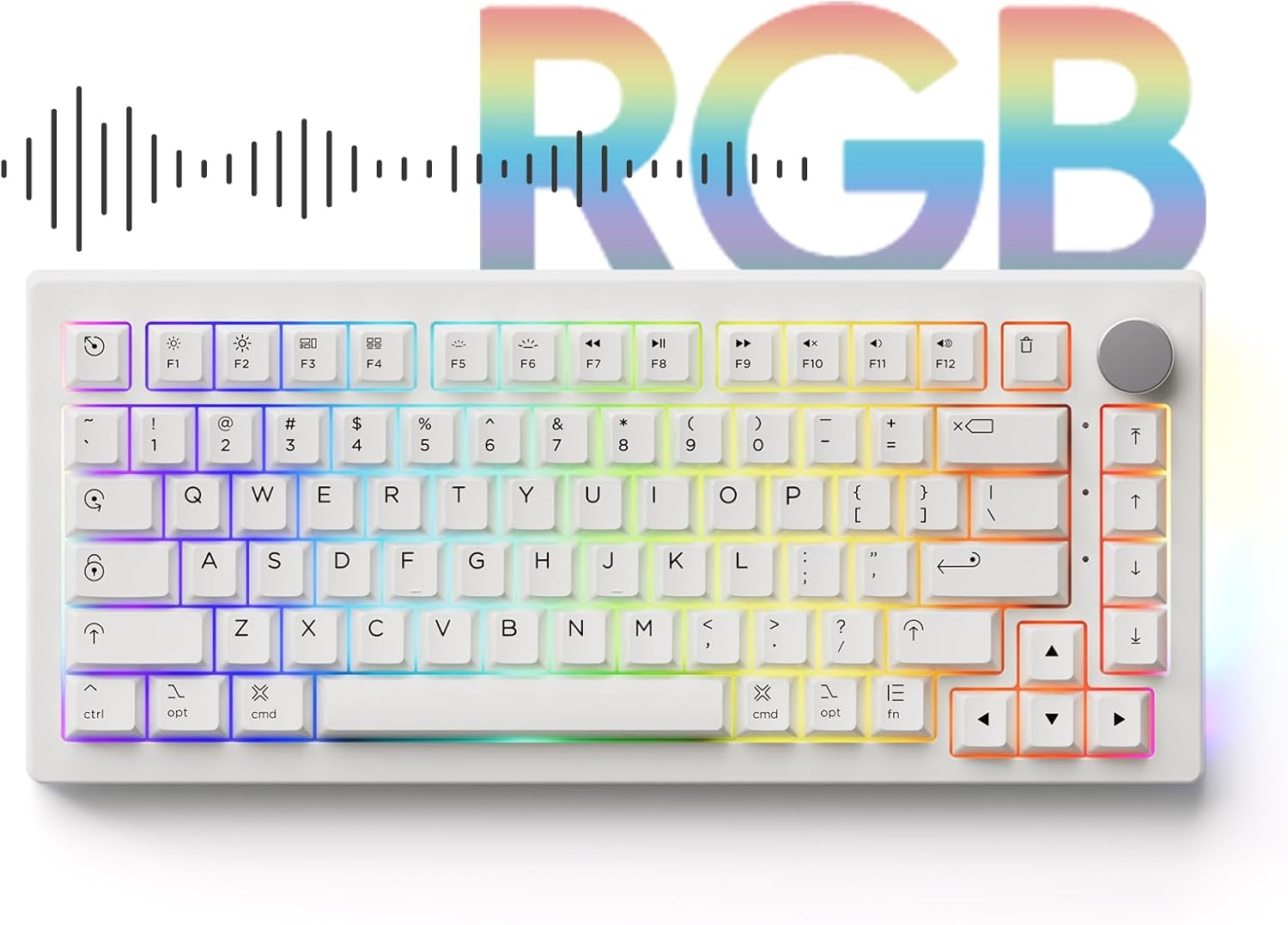
Image: The keyboard illuminated with vibrant RGB backlighting, highlighting its customizable lighting effects.
3. Package Contents
Upon unboxing your Akko 5075B Plus Air keyboard, please ensure all the following items are present:
- Akko 5075B Plus Air Mechanical Keyboard
- USB-C Cable
- User Manual
- Keycap Puller
- Key Switch Puller
- USB Wireless Dongle (2.4GHz receiver)
- Extra Windows replacement keycaps

Image: The Akko 5075B Plus Air keyboard and its included accessories, such as the USB-C cable, keycap puller, and wireless dongle, neatly packaged.
4. Setup
4.1. Connectivity Options
The Akko 5075B Plus Air keyboard offers three modes of connection:
- Wired (USB-C): Connect the keyboard directly to your device using the provided USB-C cable. This mode also charges the internal 3000mAh battery.
- 2.4GHz Wireless: Insert the USB wireless dongle into your device's USB port. The keyboard will automatically connect.
- Bluetooth 5.0: Enable Bluetooth on your device and put the keyboard into Bluetooth pairing mode. Select the keyboard from your device's Bluetooth settings to connect.

Image: Visual representation of the keyboard's versatile connectivity options: Bluetooth, wired USB-C, and 2.4GHz wireless.
5. Operating Modes
5.1. Mac/Windows Mode Switch
The keyboard features a physical switch on the bottom to toggle between Mac and Windows operating system modes. Ensure the switch is set to the correct mode for optimal key functionality and layout.

Image: The underside of the keyboard, highlighting the switch for selecting between Mac and Windows compatibility modes.
5.2. Adjustable Feet
The keyboard is equipped with two-way adjustable feet on its underside, allowing you to set your preferred typing angle for ergonomic comfort.
5.3. Multi-function Knob
The knob located on the top right of the keyboard serves as a versatile control for adjusting brightness and volume. It can also be customized for other functions via the Akko Cloud Driver software.

Image: A detailed view of the multi-function knob, used for volume and brightness control, located on the top right of the keyboard.
6. Customization
6.1. Hot-Swappable Switches
The Akko 5075B Plus Air features 5-pin hot-swappable sockets, allowing users to easily change mechanical switches without soldering. This enables personalization of typing feel and sound.

Image: A close-up demonstrating the hot-swappable socket, with a switch being removed, illustrating the ease of customization.
6.2. PBT Dye-Sub Keycaps
The keyboard comes with high-quality PBT dye-sublimated keycaps. This manufacturing process ensures that the legends on the keycaps are highly durable, resistant to fading, and will not become oily over time, unlike traditional ABS keycaps.

Image: A diagram detailing the Cherry Profile keycap heights and shapes, providing insight into the ergonomic design.
6.3. RGB Backlighting
The Akko 5075B Plus Air features per-key RGB backlighting, offering extensive customization options for lighting effects and colors. Users can configure various lighting schemas and animations through the Akko Cloud Driver software.
7. Maintenance
- Cleaning: Regularly clean the keyboard with a soft, dry cloth. For deeper cleaning, remove keycaps using the provided keycap puller and use compressed air to clear debris.
- Switch/Keycap Replacement: Utilize the included keycap and switch pullers for safe removal and installation of components. Ensure proper alignment when reinserting.
- Battery Care: To prolong battery life, avoid fully discharging the 3000mAh battery frequently. Charge the keyboard when the battery indicator is low.
8. Troubleshooting
- Connectivity Issues: If the keyboard fails to connect, ensure it is in the correct operating mode (Mac/Win switch) and connection mode (wired, 2.4GHz, Bluetooth). For wireless connections, check dongle insertion or Bluetooth pairing status.
- RGB Not Working/Incorrect: Verify that the Akko Cloud Driver software is installed and updated. Check lighting settings within the software. Ensure the keyboard is receiving sufficient power if using wired mode.
- Keys Not Responding: For hot-swappable switches, try reseating the affected switch. If the issue persists, consider replacing the switch. Ensure no debris is lodged under the keycap.
- Knob Functionality: If the knob is not responding, check its settings in the Akko Cloud Driver. Ensure it is not physically obstructed.
9. Specifications
| Model Number | AKKO-PC75B-Plus-S-Air |
| Layout | 75% (83 Keys) |
| Connectivity | USB-C Wired, 2.4GHz Wireless, Bluetooth 5.0 |
| Keycap Material | PBT Dye-Sub |
| Keycap Profile | Cherry Profile |
| Switches | Akko V3 Piano Pro Switch (Hot-Swappable) |
| Backlighting | RGB (Programmable) |
| Battery Capacity | 3000mAh Lithium Ion |
| Item Weight | 2.92 pounds |
| Package Dimensions | 14.92 x 8.74 x 2.2 inches |
10. Warranty and Support
Akko products are manufactured to high quality standards. For information regarding warranty coverage, technical support, or service inquiries, please refer to the official Akko website or contact their customer support directly. Keep your purchase receipt as proof of purchase may be required for warranty claims.


