
siaviala S2
siaviala S2 14" IPS Triple Monitor Laptop Screen Extender User Manual
Model: S2
Brand: siaviala
1. Product Overview
The siaviala S2 Laptop Screen Extender is a 14-inch IPS triple monitor designed to expand your laptop's display capabilities, significantly boosting productivity. It features 1080P Full HD resolution and supports various display modes including extended, duplicate, mirroring, landscape, and portrait.
This portable monitor system is engineered for ease of use, offering plug-and-play functionality without the need for additional drivers. It is compatible with a wide range of laptops (13-17.3 inches) and devices, including gaming consoles and Type-C phones, across multiple operating systems.

Image: The siaviala S2 Triple Laptop Screen Extender in use, showcasing its multi-screen setup.
2. What's in the Box
Upon opening your siaviala S2 package, please ensure all the following components are present:
- Laptop Screen Extender (S2 Unit) x 1
- USB-C to USB-C Cable x 2
- USB-A to USB-C Cable x 2
- HDMI to USB-C Cable x 2
- Carrying Bag x 1
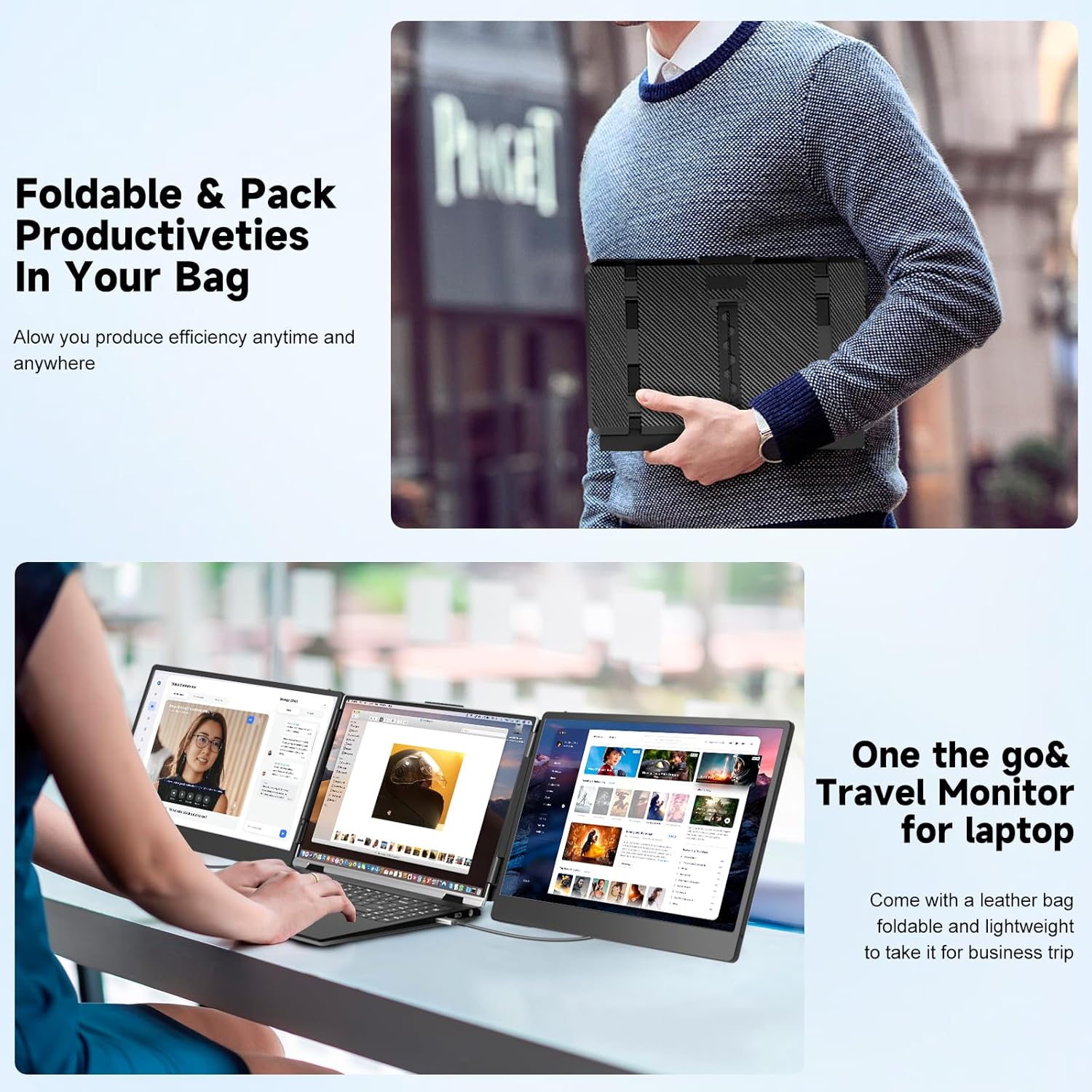
Image: The portable design of the S2 extender, showing it being packed into its carrying bag along with the necessary cables.
3. Setup Guide
The siaviala S2 is designed for easy plug-and-play setup, requiring no driver installation. Follow these steps to connect your screen extender:
Connection Options:
- Option 1: Two Full-featured USB-C Interfaces
If your laptop has two full-featured USB-C ports, connect the S2 directly to your laptop using two USB-C to USB-C cables (one for each screen).
- Option 2: Two HDMI + Two USB-A Interfaces
Connect the screen extender to your laptop using an HDMI to USB-C cable for the display signal and a USB-A to USB-C cable for power for each screen.
- Option 3: One Full-featured USB-C and One HDMI + USB-A Interface
If your laptop has one full-featured USB-C port, a USB-A port, and an HDMI port, use a USB-C to USB-C cable to connect one extender. For the second extender, use an HDMI to USB-C cable for display and a USB-A to USB-C cable for power.
All necessary cables are included in the package for these connection methods.

Image: Visual guide for connecting the S2 extender to your laptop using different port configurations.
4. Operating Instructions
The siaviala S2 offers versatile display modes to enhance your workflow and viewing experience.
Display Modes:
- Extended Mode: Expand your desktop across three screens for enhanced multitasking.
- Duplicate/Mirror Mode: Synchronize content across all screens, ideal for presentations or sharing.
- Landscape & Portrait Mode: Adjust screen orientation to suit your content needs.

Image: Key display features of the S2, highlighting its IPS panel and Full HD capabilities.
You can individually adjust brightness, contrast, and other display parameters for each screen to optimize your viewing experience.
Compatibility:
The S2 is compatible with laptops ranging from 13 to 17.3 inches and supports a wide array of devices and operating systems:
- Laptops: 13" to 17.3" (Note: Excludes Apple M1/M2/M3 chip laptops; compatible with M1 Pro/Max, M2 Pro/Max).
- Gaming Consoles: PS4, PS5, XBOX, Nintendo Switch.
- Mobile Devices: Type-C phones.
- Operating Systems: Windows, MacOS, ChromeOS, Linux, Android.

Image: Overview of the S2's broad compatibility with different platforms and devices.
Usage Scenarios:
The siaviala S2 is ideal for various applications, enhancing productivity and collaboration:
- Meetings and Video Conferences
- Live Broadcasts
- App Development
- Travel and Remote Work
- Data Analysis and Spreadsheet Management

Image: Examples of how the S2 extender can be utilized in different work and personal environments.
Product Demonstration Video:
Video: A demonstration of the S2 Triple Laptop Portable Monitor, highlighting its portability and ease of setup for various display modes.
5. Maintenance
To ensure the longevity and optimal performance of your siaviala S2 Laptop Screen Extender, follow these maintenance guidelines:
- Cleaning: Use a soft, lint-free cloth to gently wipe the screen surfaces. For stubborn smudges, slightly dampen the cloth with water or a screen-safe cleaning solution. Avoid harsh chemicals or abrasive materials.
- Storage: When not in use, fold the extender and store it in the provided carrying bag to protect it from dust, scratches, and impacts.
- Handling: Always handle the extender with care. Avoid dropping it or applying excessive force to the screens or hinges.
- Cables: Inspect cables regularly for any signs of wear or damage. Replace damaged cables immediately to prevent connectivity issues.
6. Troubleshooting
If you encounter issues with your siaviala S2, please refer to the following common troubleshooting steps:
- No Display on Screen(s):
- Ensure all cables (USB-C, HDMI, USB-A) are securely connected to both the extender and your laptop.
- Verify that your laptop's ports are functioning correctly. Try connecting another device to the same ports.
- Check your laptop's display settings (e.g., Windows Display Settings, macOS System Preferences > Displays) to ensure the external monitors are detected and configured for "Extend" or "Duplicate" mode.
- If using USB-A for power, ensure sufficient power is being supplied. Some laptops may require an external power adapter for the extender if their USB-A ports do not provide enough power.
- Restart your laptop with the extender connected.
- Flickering or Unstable Display:
- Check cable connections for looseness.
- Ensure the cables are not damaged. Try using different cables if available.
- Reduce the display resolution of the external monitors in your laptop's display settings to see if it resolves the issue.
- Screens Not Orienting Correctly (Landscape/Portrait):
- Adjust the orientation settings for each monitor in your operating system's display preferences.
- Compatibility Issues with M1/M2/M3 MacBooks:
- Please note that this extender is not compatible with Apple M1/M2/M3 chip laptops. It is compatible with M1 Pro/Max and M2 Pro/Max chips.
If these steps do not resolve your issue, please contact siaviala customer service for further assistance.
7. Technical Specifications
| Feature | Specification |
|---|---|
| Model Number | S2 |
| Screen Size | 14 Inches |
| Resolution | 1920 x 1080 Pixels (FHD 1080p) |
| Panel Type | IPS |
| Aspect Ratio | 16:9 |
| Brightness | 300 Candela (Nits) |
| Product Dimensions | 1.5 x 8 x 5 inches |
| Item Weight | 2 pounds |
| Power Voltage | 5 Volts |
| Total USB Ports | 1 (on the main unit for connectivity) |
| Screen Surface | Glossy |
| Manufacturer | Shenzhen Baijiayoupu Technology Co., Ltd |
8. Warranty and Support
siaviala is committed to providing high-quality products and excellent customer service. For any inquiries, technical support, or warranty claims, please contact our customer service team.
- Customer Service: We offer 24-hour customer service to assist you with any problems or questions you may have.
- User Manuals: For detailed information and additional guides, you can refer to the official PDF user manuals:
We appreciate your purchase and are here to ensure your satisfaction with the siaviala S2 Laptop Screen Extender.
Related documentsS2


Ask a question about this manual
Ask about setup, troubleshooting, compatibility, parts, safety, or missing instructions. Manuals+ will review the question and use this page’s manual context to help answer it.