
PWAY USB2.0 2x4
PWAY USB 2.0 Switch User Manual
Model: USB2.0 2x4
1. Introduction
This manual provides detailed instructions for the setup, operation, and maintenance of your PWAY USB 2.0 Switch. This device allows two computers to share up to four USB 2.0 peripheral devices, such as keyboards, mice, printers, and scanners, efficiently and seamlessly.

Image: The PWAY USB 2.0 Switch, a compact black device with four USB-A ports on the front and two input ports for computers on the back, along with a power input. Two USB cables are shown connected to the input ports, and a white button is visible on the top for switching between computers.
2. Key Features
- USB 2.0 Connectivity: Supports up to four USB 2.0 peripheral devices.
- Two Computer Sharing: Allows two computers to share the connected USB devices.
- High-Speed Data Transfer: Supports data transfer rates up to 5Gbps (backward compatible with USB 1.1).
- One-Button Switching: Easy switching between connected computers with a single button press.
- LED Indicators: Clearly shows which computer is currently active.
- Plug and Play: No driver installation required for operation.
- Wide Compatibility: Compatible with Windows, Mac, and Linux operating systems.
3. Package Contents
Please check the package for the following items:
- PWAY USB 2.0 Switch (Model: USB2.0 2x4)
- USB-A to USB-A Cables (typically 2 included for connecting computers)
- Micro-USB to USB Power Cable (for optional external power, if needed for high-power devices)
- User Manual (this document)
4. Setup Instructions
Follow these steps to set up your PWAY USB 2.0 Switch:
- Connect Computers: Use the provided USB-A to USB-A cables to connect the "PC IN-1" and "PC IN-2" ports on the switch to the USB ports on your two computers (PC1 and PC2).
- Connect Peripherals: Plug your USB peripheral devices (keyboard, mouse, printer, scanner, USB flash drives, etc.) into the "USB-1", "USB-2", "USB-3", and "USB-4" ports on the front of the switch.
- Optional Power Connection: If you are connecting high-power USB devices (e.g., external hard drives), connect the Micro-USB power cable to the "DC 5V" port on the switch and then to a 5V USB power adapter (not included) or a powered USB port. For most low-power devices like keyboards and mice, external power is not required.
- Verify Connection: Once connected, the LED indicator for the active computer (PC1 or PC2) will light up.

Image: A visual representation of the PWAY USB 2.0 Switch setup. Two computers (labeled "Input") are shown connected to the switch, and four peripheral devices (keyboard, mouse, webcam, USB drive, labeled "Output") are connected to the switch's USB ports. This illustrates how the switch allows two computers to share these devices.
5. Operating Instructions
Using the PWAY USB 2.0 Switch is straightforward:
- Switching Computers: To switch control of the connected USB devices from one computer to the other, simply press the large white button on the top of the switch.
- LED Indicators: The green LED next to "PC1" or "PC2" will illuminate to indicate which computer currently has control of the USB peripherals.
- Plug and Play: The switch is plug-and-play, meaning no software or drivers are needed. Your operating system should automatically detect the connected peripherals when you switch.
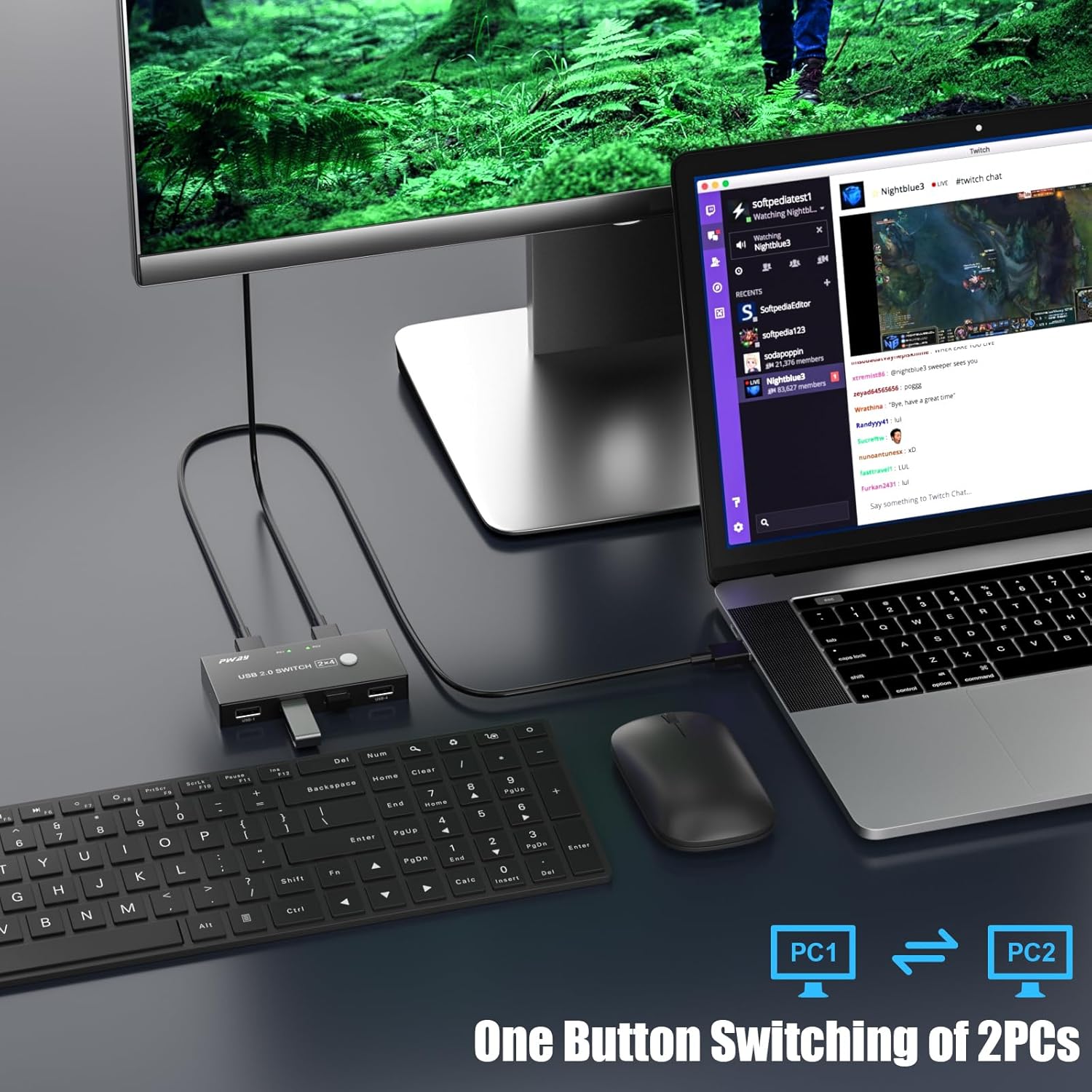
Image: A user at a desk with a laptop and an external monitor, demonstrating the use of the PWAY USB 2.0 Switch. The switch is placed on the desk, and the user's hand is near the switching button, illustrating the ease of switching between PC1 and PC2.
6. Maintenance
To ensure the longevity and optimal performance of your PWAY USB 2.0 Switch, follow these simple maintenance guidelines:
- Cleaning: Use a soft, dry cloth to clean the exterior of the device. Do not use liquid cleaners or aerosols.
- Environment: Keep the switch in a dry environment, away from direct sunlight, excessive heat, and moisture.
- Handling: Avoid dropping the device or subjecting it to strong impacts.
- Cable Management: Ensure cables are not excessively bent or tangled, which can damage them over time.
7. Troubleshooting
If you encounter issues with your PWAY USB 2.0 Switch, refer to the following common problems and solutions:
| Problem | Possible Cause | Solution |
|---|---|---|
| Devices not recognized after switching. | Loose cable connection, insufficient power, operating system issue. |
|
| Switch button unresponsive. | Power issue, internal malfunction. |
|
| Slow data transfer speeds. | Using USB 1.1 devices, cable quality, computer USB port issue. |
|
8. Product Specifications
| Feature | Detail |
|---|---|
| Model | USB2.0 2x4 |
| Brand | PWAY |
| USB Ports | 4 x USB 2.0 Type-A (for peripherals) |
| Computer Inputs | 2 x USB 2.0 Type-A (for computers) |
| Data Transfer Rate | Up to 5Gbps (USB 2.0 compatible) |
| Compatibility | Windows, Mac OS, Linux, Chrome OS |
| Power Input | DC 5V (Micro-USB, optional for high-power devices) |
| Operation Mode | Manual Push Button |
| Dimensions | 6.77 x 5.51 x 2.64 inches (Package Dimensions) |
| Weight | 9.14 ounces (Package Weight) |
| Material | Copper (Contact Material) |
9. Warranty Information
PWAY products are designed for reliability and performance. This product comes with a standard manufacturer's warranty. For specific warranty terms and conditions, please refer to the warranty card included in your product packaging or visit the official PWAY website. Keep your purchase receipt as proof of purchase for warranty claims.
10. Customer Support
For technical assistance, troubleshooting beyond this manual, or warranty inquiries, please contact PWAY customer support through their official website or the contact information provided in your product packaging.
Visit the official PWAY Store: PWAY Amazon Store
Ask a question about this manual
Ask about setup, troubleshooting, compatibility, parts, safety, or missing instructions. Manuals+ will review the question and use this page’s manual context to help answer it.