
1. Introduction
The cuarko Wireless CarPlay Adapter is designed to convert your vehicle's existing wired Apple CarPlay system into a wireless experience. This device eliminates the need for physical cable connections to your iPhone, providing a seamless and convenient way to access CarPlay features such as navigation, music, and phone calls. Its innovative design incorporates a durable glass panel, a robust aluminum frame, and a high-quality nylon braided cable for enhanced longevity and performance.

Image: The cuarko Wireless CarPlay Adapter, shown in white with a glass panel and aluminum frame, connected to a braided cable. A USB-A connector and a USB-C adapter are also visible, highlighting its versatile connectivity options.
2. What's in the Box
- Wireless CarPlay Adapter (Main Unit)
- USB-A to USB-C Adapter
- Quick Guide
- User Manual (this document)
- Warranty Card
3. Product Features and Design
The cuarko Wireless CarPlay Adapter is engineered with advanced materials and a user-centric design to ensure optimal performance and durability.
- Glass Panel: Features a sleek glass panel that provides a premium aesthetic and a smooth touch. This design also contributes to efficient heat dissipation, protecting the internal circuitry.
- Aluminum Frame: Encased in a super-strong aluminum frame, the adapter is designed to withstand daily use and provide maximum protection against damage.
- Nylon Braided Cable: The integrated cable is constructed with a durable nylon braided jacket, tested to endure over 16,000 bends, ensuring long-term reliability. Its 3cm extended length allows for flexible placement within your vehicle.
- LED Indicator: An integrated LED light provides direct visual feedback on the adapter's operational status.
- Compact Design: The adapter boasts an ultra-compact and sleek form factor, designed to keep your car interior neat and tidy.

Image: A detailed view of the adapter highlighting its innovative materials, including the glass panel for superb touch and appearance, an LED indicator for status, enhanced heat dissipation, a durable nylon braided cable, and a strong aluminum frame.

Image: A visual comparison illustrating the compact size of the cuarko Wireless CarPlay Adapter (Gen 3) compared to older, larger generations, emphasizing its space-saving design.
4. Compatibility
This wireless CarPlay adapter is designed for broad compatibility, but specific requirements must be met for proper functionality:
- Vehicle Compatibility: Your car must have a factory-installed wired Apple CarPlay system. The adapter is compatible with over 800 vehicle models from 2015 onwards.
- Device Compatibility: Compatible with Apple iPhones 6 and above, running iOS 10 and later. This adapter is NOT compatible with Android devices or other operating systems.
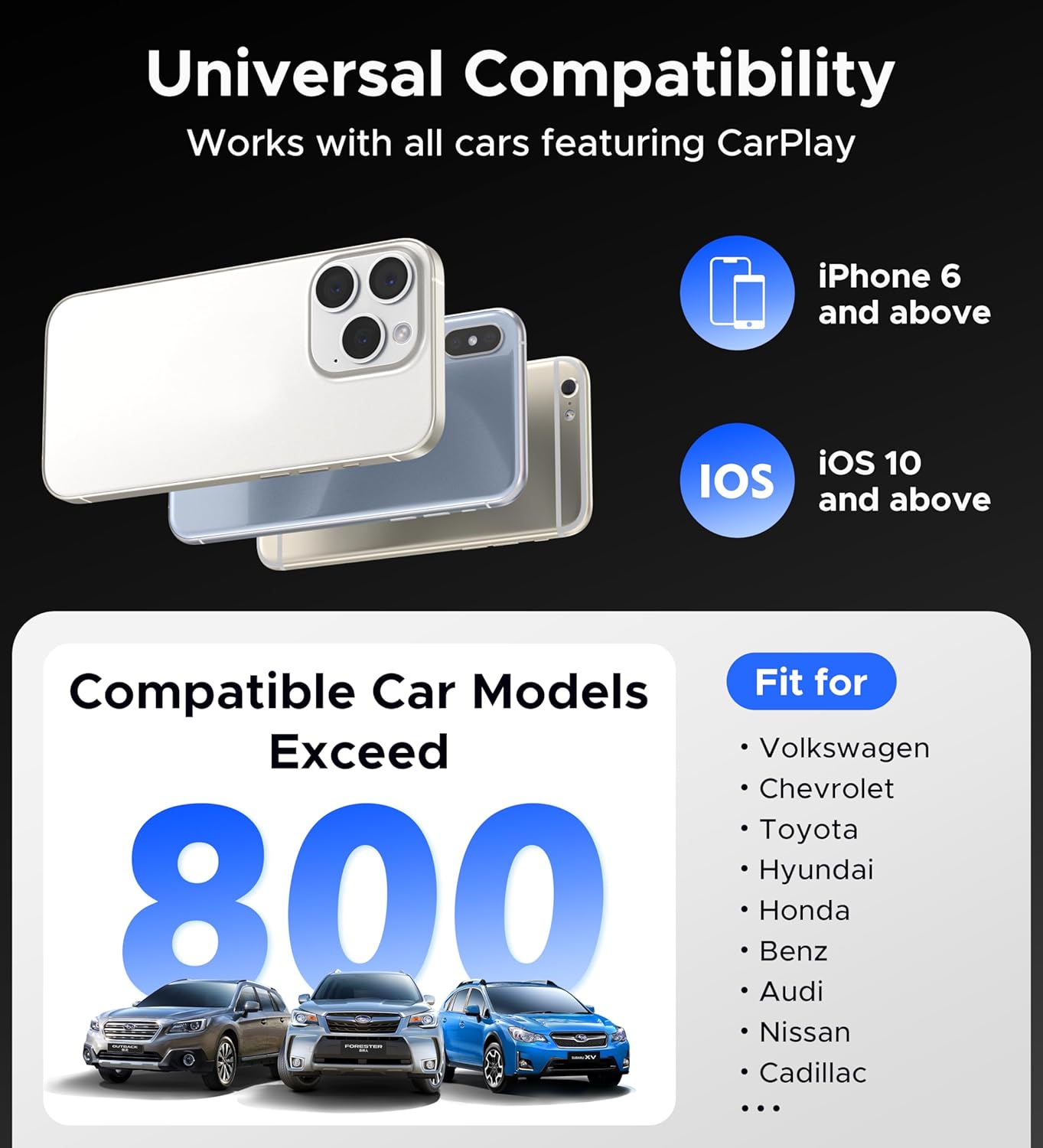
Image: A graphic illustrating the universal compatibility of the adapter, specifying iPhone 6 and newer, iOS 10 and newer, and compatibility with over 800 car models that feature wired CarPlay.
5. Setup Instructions
The cuarko Wireless CarPlay Adapter offers a simple plug-and-play setup. Follow these steps for initial pairing:
- Connect the Adapter: Plug the cuarko Wireless CarPlay Adapter into your car's USB port that supports wired CarPlay. If your car has a USB-C port, use the included USB-A to USB-C adapter.
- Activate Wi-Fi and Bluetooth on iPhone: On your iPhone, navigate to Settings, then ensure both Wi-Fi and Bluetooth are turned on. Do not connect to any Wi-Fi networks at this stage.
- Pair via Bluetooth: On your iPhone's Bluetooth settings, locate and select the Bluetooth device named "Smart Dongle-xxxx" (the "xxxx" will be a unique identifier for your adapter). Confirm the pairing request on your iPhone.
- Initiate CarPlay: Once paired, your iPhone will automatically connect to your car's CarPlay system wirelessly. You can now use CarPlay as usual.
After the initial pairing, the adapter will automatically reconnect to your iPhone every time your car's engine starts, provided your iPhone's Bluetooth and Wi-Fi are enabled.

Image: A visual representation of the three-step setup process: enabling Wi-Fi and Bluetooth on the iPhone, pairing the device via Bluetooth, and then automatically connecting to CarPlay.
6. Operating Instructions
Once connected, the cuarko Wireless CarPlay Adapter allows you to utilize all standard CarPlay functions wirelessly, maintaining the original resolution and sound quality without signal loss or delay.
- Navigation: Access your preferred navigation apps (e.g., Apple Maps, Google Maps, Waze) directly on your car's display.
- Music and Audio: Stream music, podcasts, and audiobooks from your iPhone through your car's sound system. The adapter is designed to restore the original audio quality.
- Phone Calls: Make and receive calls hands-free using your car's microphone and speakers.
- Siri Voice Control: Activate Siri for voice commands, allowing you to control CarPlay functions without taking your hands off the wheel.
- Original Car Controls: The adapter seamlessly integrates with your car's existing control methods, including touchscreen, OEM knob controls, and steering wheel buttons.

Image: A visual demonstrating how the adapter allows users to retain original car controls, including voice commands via Siri, touchscreen interaction, OEM knob control, and steering wheel button functionality.

Image: An in-car view of the CarPlay interface displaying music playback, emphasizing the adapter's ability to restore the original audio quality.
7. Maintenance
To ensure the longevity and optimal performance of your cuarko Wireless CarPlay Adapter, follow these simple maintenance guidelines:
- Cleaning: Gently wipe the adapter with a soft, dry cloth. Avoid using harsh chemicals or abrasive materials, which can damage the glass panel or aluminum frame.
- Temperature: Store and operate the adapter within typical automotive interior temperatures. Avoid exposing it to extreme heat or cold, as this can affect electronic components.
- Physical Protection: While the aluminum frame provides robust protection, avoid dropping the device or subjecting it to strong impacts.
- Cable Care: Do not excessively bend or twist the nylon braided cable at sharp angles, despite its durability, to prevent internal wire damage.
8. Troubleshooting
If you encounter issues with your cuarko Wireless CarPlay Adapter, please refer to the following common solutions:
- Adapter Not Connecting/Starting Up:
- Ensure your car has a factory-installed wired CarPlay system.
- Verify that your iPhone is running iOS 10 or later and is an iPhone 6 or newer model.
- Check that the adapter is securely plugged into the car's USB port. Try a different USB port if available.
- Ensure Wi-Fi and Bluetooth are enabled on your iPhone.
- Try unplugging the adapter and plugging it back in.
- Restart your iPhone and/or your car's infotainment system.
- Intermittent Connection or Lag:
- Ensure there are no other strong Wi-Fi or Bluetooth interference sources nearby.
- Keep your iPhone close to the adapter for optimal signal strength.
- Check for firmware updates for the adapter. Some adapters may have a web interface for updates (refer to the Quick Guide or contact support for specific instructions).
- If experiencing audio or call delays, try re-pairing the device.
- No Sound or Distorted Audio:
- Check the volume levels on both your iPhone and your car's infotainment system.
- Ensure no other Bluetooth audio devices are connected to your iPhone.
- Re-pair the adapter with your iPhone.
If these steps do not resolve the issue, please contact cuarko customer support for further assistance.
9. Specifications
| Feature | Detail |
|---|---|
| Model Number | cuarko-BY960Q |
| Item Weight | 2.39 ounces (approx. 67.7 grams) |
| Package Dimensions | 6.1 x 2.76 x 0.67 inches (approx. 15.5 x 7 x 1.7 cm) |
| Color | White |
| Connector Type | USB Type A (includes USB-A to USB-C adapter) |
| Compatible Devices | iPhone 6 and above, running iOS 10 and above |
| Compatible Vehicles | Cars with factory-installed wired CarPlay (from 2015), over 800 models |
| Manufacturer | Shenzhen Boyi Electronics Co., LTD. |
| First Available Date | December 13, 2023 |
10. Warranty and Support
cuarko is committed to providing high-quality products and excellent customer service.
- Warranty Period: The cuarko Wireless CarPlay Adapter comes with a 12-month warranty from the date of purchase.
- Lifetime Support: We provide top-notch lifetime support for any issues or questions you may have regarding your product.
- Contact Us: For any inquiries, technical assistance, or warranty claims, please contact cuarko customer support. We aim to respond to all inquiries within 18 hours. Refer to the Warranty Card or Quick Guide included in your package for specific contact details.