
Introduction
This manual provides comprehensive instructions for the safe and efficient operation of your Fockety Handheld Inkjet Printer. Please read this manual thoroughly before using the device to ensure proper setup, usage, and maintenance. Retain this manual for future reference.

Figure 1: Front view of the Fockety Handheld Inkjet Printer. This image displays the main unit with its HD LED user interface panel, which is central for navigating menus and selecting print options.
1. Setup
1.1 Unpacking and Component Check
Carefully unpack all items from the box. Verify that all components listed below are present and undamaged.
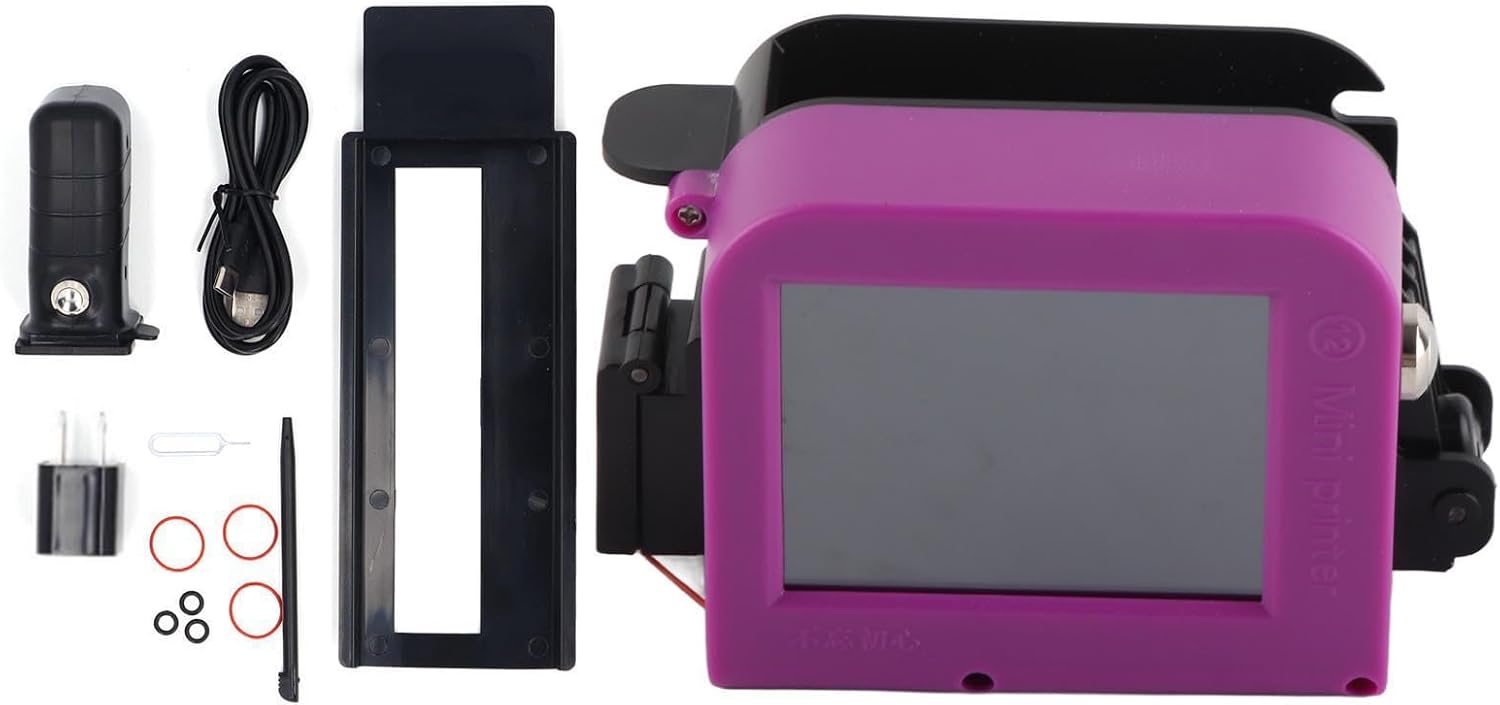
Figure 2: Included Components. This image displays the complete set of items: the handheld inkjet printer, charging head, USB cable, writing pen, detachable handle, an additional accessory, various rubber rings, a card pin, and the user manual.
Included Components:
- Handheld Inkjet Printer
- Charging Head
- USB Cable
- Writing Pen
- Handle
- Accessory (unspecified)
- Rubber Rings (various sizes)
- Card Pin
- User Manual
1.2 Charging the Device
Before initial use, fully charge the printer. Connect the provided USB cable to the printer's charging port and the charging head, then plug into a power outlet. The charging port is typically located on the side of the device.

Figure 3: Side view of the printer. This image illustrates the location of the power button (silver circular button) and the USB charging port, used for charging the device.
1.3 Installing the Ink Cartridge
The ink cartridge is typically not included with the printer and must be purchased separately. Compatible ink cartridge types include HT01, AT01, or HP45. To install:
- Locate the ink cartridge housing area on the printer.
- Open the protective cover or latch.
- Carefully insert the compatible ink cartridge into the slot until it clicks into place.
- Close the protective cover or latch.

Figure 4: Ink Cartridge Housing. An angled view of the printer, focusing on the section where the ink cartridge is inserted. This area is designed to securely hold the compatible ink cartridge during operation.
1.4 Attaching the Handle
If desired, attach the provided handle to the printer for improved grip and control during handheld operation. Align the handle with the designated slots on the printer and secure it firmly.
2. Operating Instructions
2.1 Powering On/Off
- Power On: Press and hold the power button (refer to Figure 3) for a few seconds until the HD LED UI panel illuminates.
- Power Off: Press and hold the power button again until the device shuts down.
2.2 Navigating the HD LED UI Panel
The HD LED UI panel (refer to Figure 1) allows you to access various functions and settings. Use the touch screen or physical buttons (if present) to navigate through menus, select options, and input text or images for printing.
2.3 Loading Print Content
The printer supports various content types for printing, such as text, numbers, dates, and simple graphics. Content can typically be loaded via:
- Direct Input: Using the on-screen keyboard on the HD LED UI panel.
- USB Transfer: Connecting the printer to a computer via USB to transfer files (e.g., images, text files).
Follow the on-screen prompts to select and prepare your desired content for printing.
2.4 Printing Process
Once your content is loaded and ready:
- Ensure the ink cartridge is properly installed and has sufficient ink.
- Select the 'Print' option from the UI panel.
- Position the printer's print head directly above the surface you wish to print on.
- Initiate printing (usually by pressing a dedicated print button or confirming on the screen).
- Important: When printing, move the printer smoothly and consistently from left to right across the surface for correct image and text orientation. Moving the printer from right to left will result in a mirrored or backward print.
- Maintain a consistent speed and pressure for optimal print quality.
3. Maintenance
3.1 Cleaning the Print Head
Regular cleaning of the print head is essential to prevent clogging and ensure clear prints. Use a lint-free cloth lightly dampened with isopropyl alcohol to gently wipe the print head surface. Do not use excessive force or abrasive materials.
3.2 Storing the Ink Cartridge
When the printer is not in use for extended periods, it is recommended to remove the ink cartridge and store it in its original protective clip or a sealed container to prevent drying. Follow the ink cartridge manufacturer's storage recommendations.
3.3 General Device Cleaning
Wipe the exterior of the printer with a soft, dry cloth to remove dust and debris. Avoid using harsh chemicals or solvents that could damage the device's casing or screen.
4. Troubleshooting
| Problem | Possible Cause | Solution |
|---|---|---|
| Printer not powering on | Low battery; faulty charging cable/head; device malfunction. | Ensure the device is fully charged. Try a different USB cable or charging head. If the issue persists, contact customer support. |
| Prints are mirrored or backward | Incorrect printing direction. | Always move the printer from left to right across the surface when printing to ensure correct orientation. |
| Poor print quality (faded, streaky, incomplete) | Low ink; clogged print head; incorrect print settings; uneven movement during printing. | Check ink levels and replace the cartridge if necessary. Clean the print head (refer to Section 3.1). Verify print settings on the UI panel. Ensure smooth and consistent movement during printing. |
| Device is unresponsive or frozen | Software glitch; temporary error. | Perform a soft reset by pressing and holding the power button until the device shuts down, then restart. If unresponsive, allow the battery to fully drain and then recharge. |
| No ink cartridge included | Ink cartridges are often sold separately. | Purchase a compatible ink cartridge (HT01, AT01, or HP45) separately. |
5. Specifications
| Feature | Detail |
|---|---|
| Model Number | Focketyofh3i4augg-11 |
| ASIN | B0CPC4W6SK |
| Manufacturer | Fockety |
| Item Weight | 1.1 pounds |
| Package Dimensions | 10.39 x 10.28 x 3.62 inches |
| Batteries Required | No (device is rechargeable) |
| Included Components | Handheld Inkjet Printer, Charging Head, Cable, Writing Pen, Handle, Accessory, Rubber Ring, Card Pin, Manual |
6. Warranty & Support
For detailed warranty information, please refer to the documentation provided with your purchase. If you encounter any issues not covered in this manual or require technical assistance, please contact Fockety customer service through the retailer where the product was purchased or visit the official Fockety support website.
Please have your product model number (Focketyofh3i4augg-11) and ASIN (B0CPC4W6SK) ready when contacting support.