
1. Product Overview
The POCREATION Wireless HDMI Display Dongle Adapter is designed to mirror content from your mobile devices, laptops, or PCs to a larger display such as a TV, monitor, or projector. It supports 4K streaming and various mirroring protocols including Miracast, AirPlay, and DLNA, providing a wireless solution for presentations, entertainment, and educational purposes.

Image: The Wireless HDMI Display Dongle Adapter connected to a television, displaying content mirrored from a smartphone.

Image: A close-up of the compact Wireless HDMI Display Dongle Adapter, highlighting its design and connectors.
2. Package Contents
Please verify that all items are present in your package:
- POCREATION Wireless HDMI Display Dongle Adapter
- USB Power Cable (for Micro-USB power input)
- User Manual (this document)

Image: The Wireless HDMI Display Dongle Adapter shown with its accompanying USB power cable.
3. Setup Guide
Follow these steps to set up your Wireless HDMI Display Dongle Adapter:
- Connect to Display: Plug the HDMI connector of the dongle into an available HDMI port on your TV, monitor, or projector.
- Connect Power: Connect the Micro-USB end of the provided USB power cable to the dongle's power input port. Plug the USB-A end into a USB power adapter (5V/1A recommended, not included) or an available USB port on your display device. Ensure the dongle receives stable power.
- Select HDMI Input: Use your display's remote control to select the corresponding HDMI input source to which the dongle is connected. You should see the dongle's startup screen.
- Connect to Wi-Fi:
- On the dongle's startup screen, you will see a Wi-Fi network name (SSID) and password.
- On your smartphone, tablet, or computer, connect to this Wi-Fi network.
- Open a web browser on your device and enter the IP address displayed on the dongle's screen (e.g., 192.168.x.x).
- In the dongle's web interface, select "Internet" or "Wi-Fi Setup" and choose your home Wi-Fi network. Enter your home Wi-Fi password to connect the dongle to the internet.
- Once connected, the dongle will display its own Wi-Fi network name and password, along with instructions for mirroring.

Image: The dongle connected to a TV, ready for screen mirroring from a smartphone.
4. Operating Instructions
The dongle supports Miracast, AirPlay, and DLNA protocols for screen mirroring. Ensure your device is connected to the same Wi-Fi network as the dongle or directly to the dongle's Wi-Fi network (if applicable).
4.1. For Android Devices (Miracast/Google Home)
Most Android devices support Miracast or a similar screen casting feature. The exact name may vary by device manufacturer (e.g., "Smart View," "Screen Mirroring," "Cast," "Wireless Display").
- Ensure your Android device is connected to the same Wi-Fi network as the dongle.
- Go to your Android device's settings and look for "Connected devices," "Bluetooth & device connection," or "Display."
- Find and select "Cast," "Screen Mirroring," or "Wireless Display."
- Select the dongle's name from the list of available devices to begin mirroring.
4.2. For iOS Devices (AirPlay)
For Apple devices (iPhone, iPad, Mac), use the AirPlay feature:
- Ensure your iOS device is connected to the same Wi-Fi network as the dongle.
- Swipe down from the top-right corner (or up from the bottom for older models) to open Control Center.
- Tap "Screen Mirroring" or "AirPlay Mirroring."
- Select the dongle's name from the list to start mirroring your screen.
4.3. For Windows PCs (Miracast)
For Windows 10/11 PCs that support Miracast:
- Ensure your PC is connected to the same Wi-Fi network as the dongle.
- Press the Windows key + K.
- Select the dongle's name from the list of available wireless displays.
4.4. DLNA (Digital Living Network Alliance)
DLNA allows you to stream media content (photos, videos, music) from a DLNA-compatible app on your device to the dongle without mirroring the entire screen.
- Open a DLNA-compatible media player app on your device.
- Look for a "Cast" or "DLNA" icon within the app (often a screen with a Wi-Fi symbol).
- Select the dongle from the list of available devices to stream your media.

Image: High-resolution content from a smartphone displayed on a TV via the dongle.

Image: Examples of dongle usage for efficient office presentations and mobile gaming/live streaming.

Image: Further usage examples including watching TV on a large screen and parent-child education/online courses.
5. Maintenance
- Cleaning: Use a soft, dry cloth to clean the dongle. Do not use liquid cleaners or aerosols.
- Storage: Store the device in a cool, dry place away from direct sunlight and extreme temperatures.
- Firmware Updates: Periodically check the dongle's web interface (using the IP address from the setup screen) for available firmware updates to ensure optimal performance and compatibility.
6. Troubleshooting
| Problem | Possible Cause | Solution |
|---|---|---|
| No display on TV/monitor. | Incorrect HDMI input selected, insufficient power, loose connection. |
|
| Cannot connect to Wi-Fi or unstable connection. | Incorrect Wi-Fi password, dongle too far from router, Wi-Fi interference. |
|
| Screen mirroring not working. | Device not compatible, incorrect mirroring protocol, network issues. |
|
| Poor video quality or lag. | Weak Wi-Fi signal, network congestion, distance from router. |
|
7. Specifications
| Feature | Detail |
|---|---|
| Brand | POCREATION |
| Model Name | POCREATIONa5qcxyhevs |
| Connectivity Technology | HDMI |
| Connector Type | HDMI |
| Resolution | 1080p, 4K |
| Supported Internet Services | Netflix, Hulu, Amazon Prime Video (via mirrored device) |
| Form Factor | TV Stick / Dongle |
| Color | Black |
| Compatible Devices | Television, Smartphone, Personal Computer, Laptop, Tablet |
| Item Weight | 2.82 ounces |
| Package Dimensions | 5.31 x 5.2 x 1.5 inches |
| Special Features | Multifunction, Dual-Band 2.4G/5G WiFi |
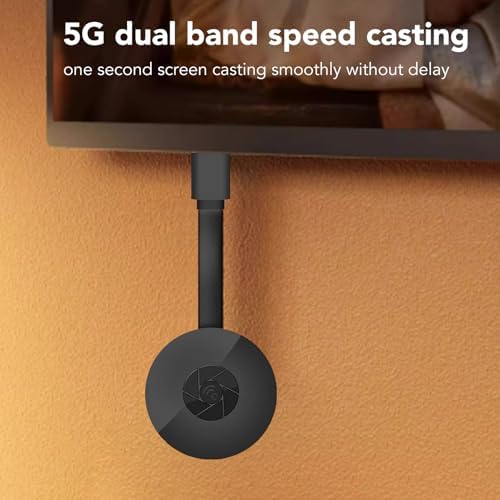
Image: The dongle highlighting its 5G dual-band speed casting capability for smooth, low-latency streaming.
8. Warranty & Support
For detailed warranty information, please refer to the documentation included with your purchase or contact POCREATION customer support directly. Keep your proof of purchase for warranty claims.
If you encounter any issues not covered in this manual or require further assistance, please contact POCREATION customer support through their official website or the retailer where the product was purchased.