1. Introduction
The Acer Nitro V 15 (Model: ANV15-51-51H9) is a high-performance gaming laptop designed to deliver an immersive and responsive experience. Featuring a 13th Gen Intel Core i5-13420H Processor and NVIDIA GeForce RTX 4050 Laptop GPU, it is built for demanding games and creative tasks. This manual provides essential information for setting up, operating, maintaining, and troubleshooting your new laptop.
2. What's in the Box
- Acer Nitro V 15 Gaming Laptop
- AC Adapter
- Power Cord
3. Setup Guide
3.1 Initial Power-Up
- Connect the AC adapter to the laptop's DC-in jack (refer to image below for port location).
- Plug the power cord into a grounded electrical outlet.
- Open the laptop lid and press the power button located on the keyboard.
- Follow the on-screen instructions to complete the Windows 11 Home setup.
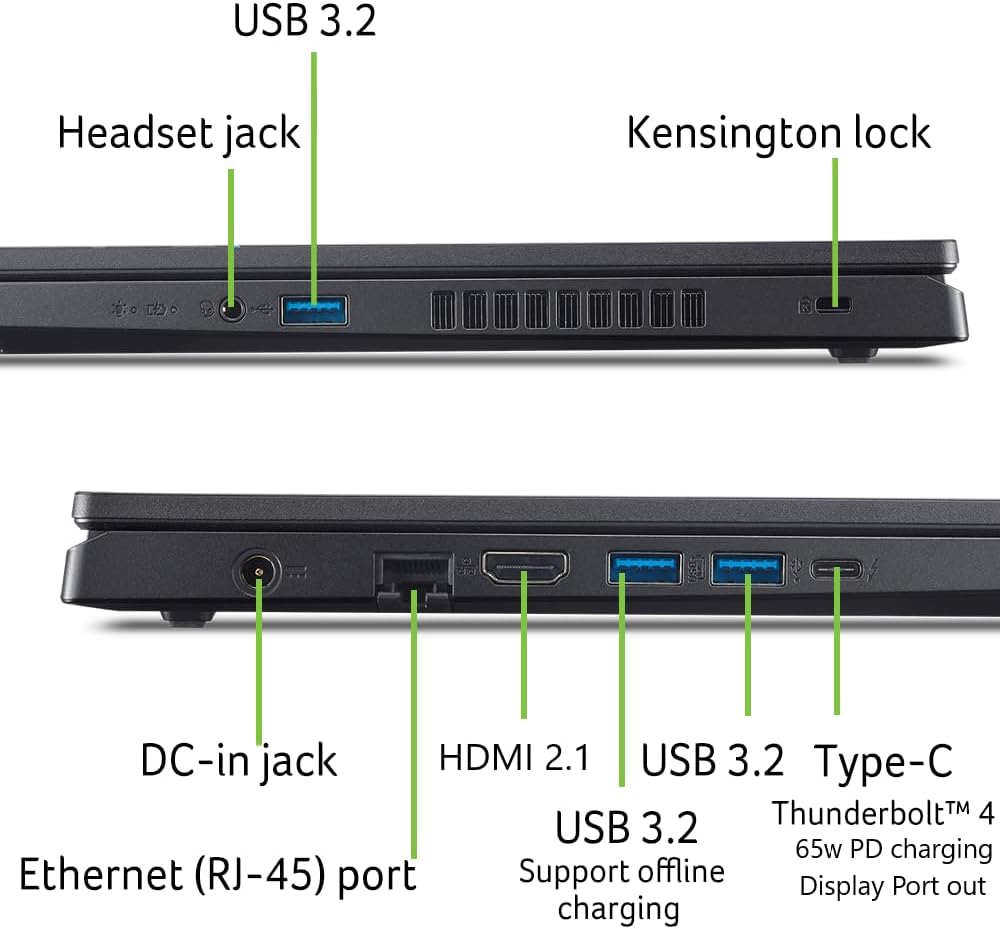
Figure 3.1: Laptop Ports Overview. The DC-in jack is located on the left side of the laptop, next to the Ethernet port.
3.2 Connecting Peripherals
Utilize the various ports available to connect your gaming peripherals and external devices:
- USB 3.2 Ports: Connect gaming mice, keyboards, and external storage devices.
- Thunderbolt 4 (Type-C): For high-speed data transfer, power delivery (65W PD charging), and video output to compatible displays.
- HDMI 2.1: Connect to external monitors or TVs for extended display.
- Ethernet (RJ-45): For a stable wired internet connection.
- Headset Jack: Connect your gaming headset for audio input and output.
4. Operating Your Laptop
4.1 Performance Features
Your Acer Nitro V 15 is equipped with powerful components for optimal gaming and multitasking:
- Processor: 13th Gen Intel Core i5-13420H for robust processing power.
- Graphics: NVIDIA GeForce RTX 4050 Laptop GPU with DLSS 3 technology for enhanced visuals and frame rates.
- Display: 15.6" Full HD IPS display with a 144Hz refresh rate for smooth, tear-free visuals.
- Cooling: Innovative dual-fan cooling system with effective exhaust to maintain optimal temperatures during intense use.
- Connectivity: Wi-Fi 6 for fast wireless internet and Gigabit Ethernet for stable wired connections.
- Audio & Webcam: DTS:X Ultra Audio, AI-powered PurifiedVoice noise reduction, and PurifiedView AI-powered webcam for clear communication.
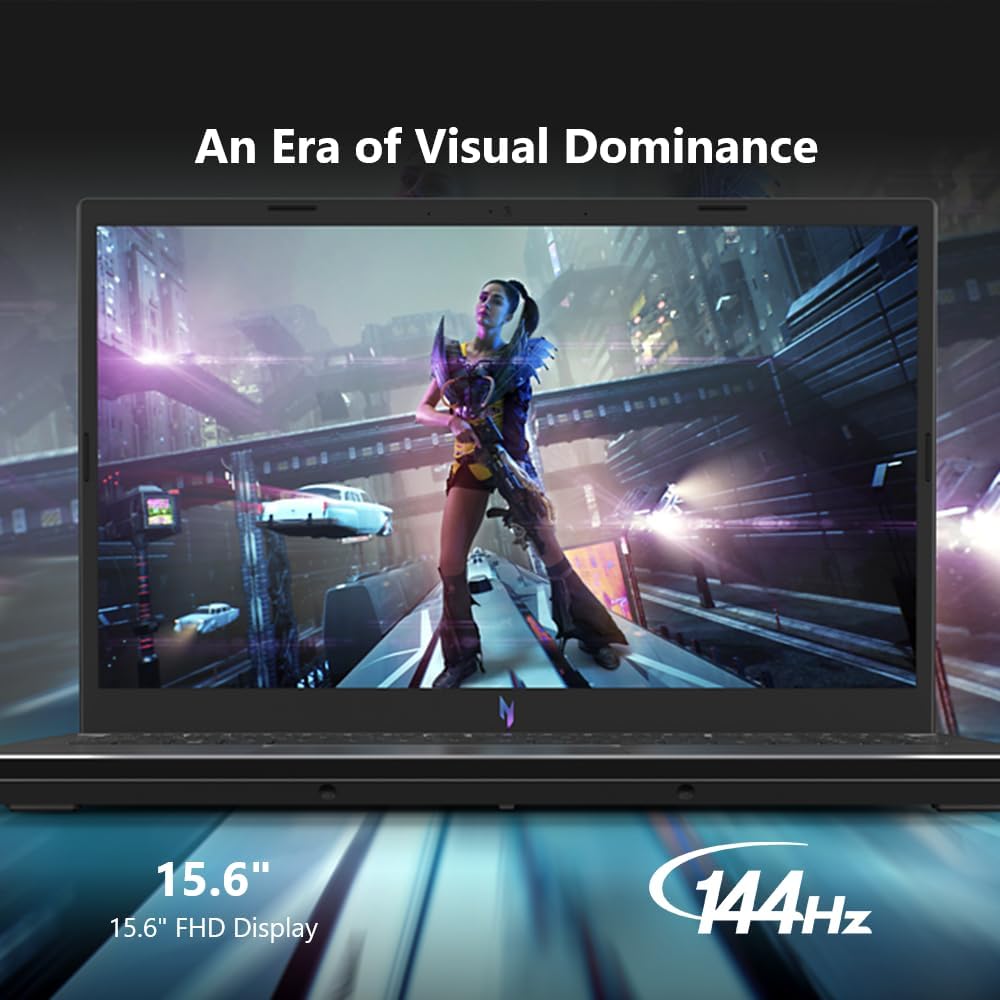
Figure 4.1: High-Refresh Rate Display. The 144Hz display ensures smooth gameplay and visuals.
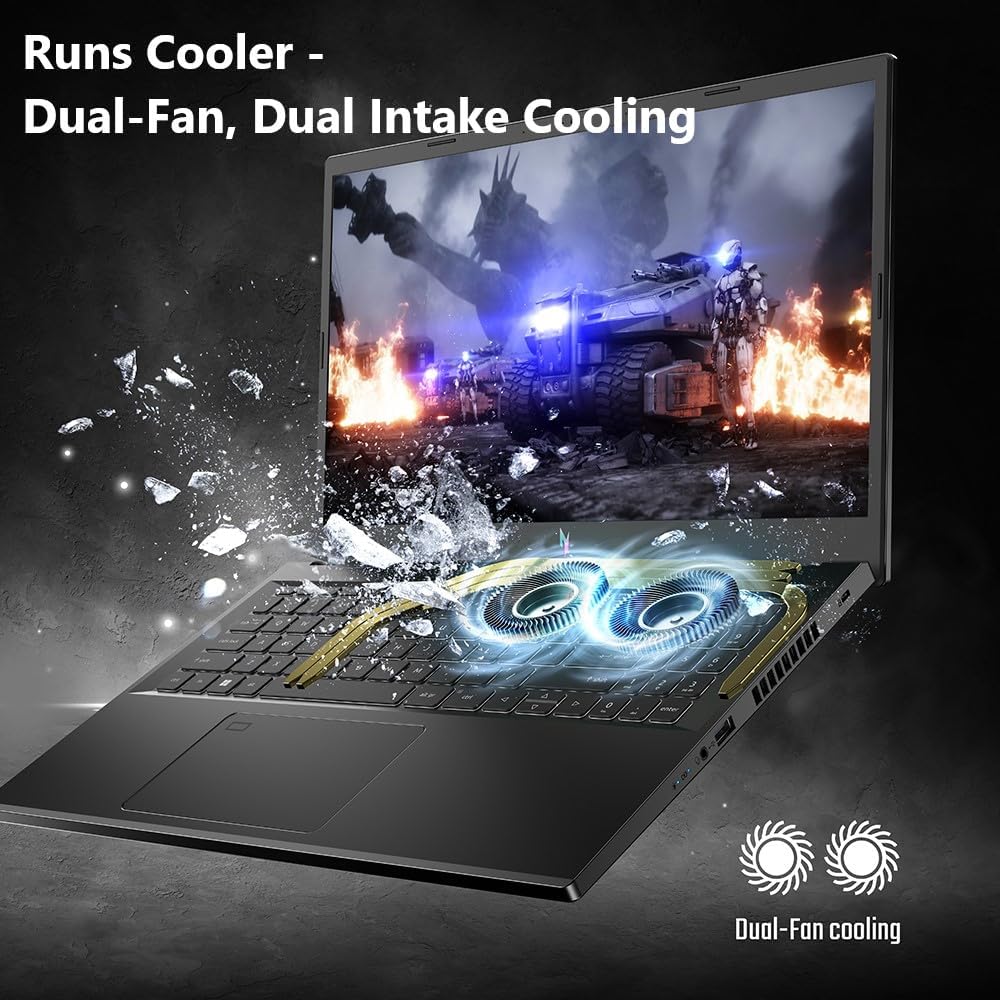
Figure 4.2: Dual-Fan Cooling System. The laptop features dual fans for efficient heat dissipation.
4.2 NitroSense Software
Customize and monitor your laptop's performance using the pre-installed NitroSense software. This utility allows you to:
- Monitor internal temperatures (CPU, GPU).
- Adjust fan speeds for optimal cooling.
- Fine-tune performance settings for different usage scenarios (e.g., gaming, productivity).
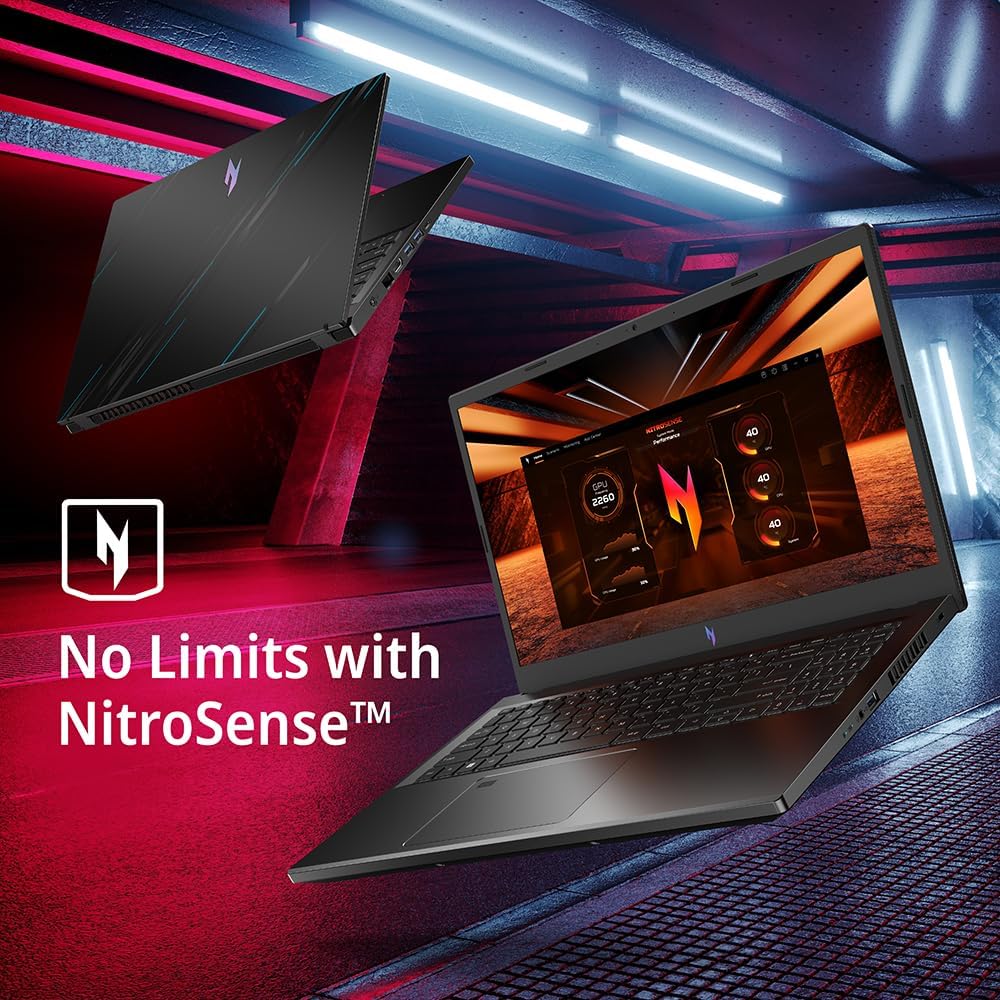
Figure 4.3: NitroSense Interface. Manage your laptop's performance and cooling settings.
4.3 Keyboard and Touchpad
The laptop features a backlit keyboard for comfortable typing and gaming in low-light conditions. The touchpad supports multi-touch gestures for intuitive navigation.

Figure 4.4: Backlit Keyboard. The keyboard features backlighting for visibility in various lighting conditions.
5. Maintenance
5.1 Cleaning
- Use a soft, lint-free cloth to clean the screen. Avoid harsh chemicals.
- Gently wipe the keyboard and chassis with a microfiber cloth.
- Ensure vents are clear of dust and debris to maintain optimal airflow.
5.2 Software Updates
Regularly update your operating system (Windows 11 Home) and drivers (especially graphics drivers) to ensure optimal performance and security. You can check for updates via Windows Update and Acer's official support website.
5.3 Battery Care
To prolong battery life:
- Avoid extreme temperatures.
- Do not fully discharge the battery frequently.
- If storing the laptop for an extended period, charge the battery to around 50% before turning it off.
6. Troubleshooting
6.1 No Power
- Ensure the AC adapter is securely connected to both the laptop and the power outlet.
- Try a different power outlet.
- Check the power indicator light on the laptop.
6.2 Display Issues
- If the screen is black, try pressing Fn + F6 to toggle the display.
- Ensure external monitors are properly connected and powered on.
- Update graphics drivers.
6.3 Performance Slowdown
- Close unnecessary background applications.
- Check for and install system and driver updates.
- Monitor temperatures using NitroSense; ensure cooling vents are clear.
6.4 Connectivity Problems
- For Wi-Fi issues, restart your router and the laptop.
- Ensure Wi-Fi is enabled (Fn + F5).
- For wired connections, check the Ethernet cable and router settings.
7. Specifications
| Feature | Specification |
|---|---|
| Brand | Acer |
| Model Name | Nitro V (ANV15-51-51H9) |
| Screen Size | 15.6 Inches |
| Screen Resolution | 1920 x 1080 pixels (FHD) |
| Refresh Rate | 144Hz IPS |
| Processor | 13th Gen Intel Core i5-13420H |
| RAM | 8GB DDR5 (4800 MHz) |
| Hard Drive | 512GB Gen 4 SSD (PCIE x 4) |
| Graphics Coprocessor | NVIDIA GeForce RTX 4050 (6GB GDDR6 Dedicated) |
| Operating System | Windows 11 Home |
| Wireless Type | Bluetooth, Wi-Fi 6 (802.11ax) |
| USB Ports | 4 (including Thunderbolt 4 Type-C) |
| HDMI | HDMI 2.1 |
| Item Weight | 4.66 pounds |
| Dimensions (LxWxH) | 14.26 x 0.93 x 9.44 inches |
| Average Battery Life | 3 Hours (usage dependent) |
8. Warranty and Support
Your Acer Nitro V 15 laptop comes with a standard manufacturer's warranty. Please refer to the warranty card included in your product packaging for specific terms and conditions. For technical support, driver downloads, and service inquiries, please visit the official Acer support website or contact their customer service.
You can find more information and support at the Acer Store on Amazon.


