
Product Overview
The goobay 65265 DisplayPort cable is engineered for high-performance video and audio transmission, supporting resolutions up to 8K at 60Hz (UHD) and data rates of 32.4 Gbit/s. Its robust construction, featuring a flexible textile cable and gold-plated connectors, ensures durability and reliable signal integrity. This cable is an ideal solution for connecting PCs, laptops, and graphics cards to TVs or monitors, providing a smooth and razor-sharp visual experience for gaming, streaming, and professional applications.

Image: The goobay 65265 DisplayPort cable, showcasing its braided textile design and gold-plated connectors, with a label indicating 8K Ultra HD @60Hz support.

Image: An illustration highlighting key features of the DisplayPort cable, including support for 8K Ultra HD, 4K Ultra HD, robust bend protection, 2.0m cable length, and aluminum plugs.
Specifications
| Feature | Detail |
|---|---|
| Brand | goobay |
| Model Number | 65265 |
| Connection Type | DisplayPort |
| Cable Type | DisplayPort |
| Cable Length | 2 meters |
| Data Transfer Rate | 32.4 Gbit/s |
| Supported Video Standards | 8K@60Hz (UHD), 4K@144Hz, 2K@240Hz, DSC 1.2, FreeSync, G-Sync, HDCP 2.2, Dynamic HDR |
| Audio Support | 32 audio channels, DTS-HD Master Audio |
| Connector Material | Gold-plated |
| Housing Material | Aluminum |
| Cable Jacket | Braided textile |
| Color | Sharkskin Grey |
| Bend Protection | Yes |
| Compatible Devices | Monitor, Laptop, Personal Computer |
Setup
The goobay 65265 DisplayPort cable is designed for simple plug-and-play connectivity. Follow these steps to set up your connection:
- Identify Ports: Locate the DisplayPort output on your source device (e.g., PC, laptop, graphics card) and the DisplayPort input on your display device (e.g., monitor, TV, projector).
- Connect Cable: Gently insert one end of the goobay DisplayPort cable into the DisplayPort output of your source device. Ensure it is fully seated.
- Connect to Display: Insert the other end of the cable into the DisplayPort input of your display device. Ensure a secure connection.
- Power On Devices: Turn on both your source device and your display device. The display should automatically detect the signal.
- Adjust Settings (if necessary): If the display does not automatically show the correct resolution or signal, navigate to your device's display settings (e.g., Windows Display Settings, macOS System Preferences) and select the appropriate resolution and refresh rate.

Image: A diagram illustrating the high compatibility of the DisplayPort cable with various devices, including TVs, projectors, laptops, monitors, and desktop PCs, all featuring a DisplayPort socket.

Image: A setup showing a laptop connected to an external monitor via the DisplayPort cable, illustrating its use for gaming and streaming applications.
Operating
Once connected, the goobay 65265 DisplayPort cable operates automatically, providing high-quality video and audio transmission. Key operational aspects include:
- High Resolution Support: The cable supports resolutions up to 8K (7680x4320) at 60Hz, 4K (3840x2160) at 144Hz, and 2K (2560x1440) at 240Hz, ensuring crisp and detailed visuals.
- Smooth Performance: With Display Stream Compression 1.2 (DSC) and a bandwidth of 32.4 Gbit/s, the cable minimizes screen tearing and stuttering, providing a smooth experience for fast-paced gaming and high-definition video.
- Advanced Features: It supports FreeSync and G-Sync technologies for adaptive synchronization with compatible displays, HDCP 2.2 for protected content playback, and Dynamic HDR for enhanced contrast and color.
- Audio Transmission: The cable transmits up to 32 uncompressed digital audio channels and supports various common audio formats, including DTS-HD Master Audio.
- Backward Compatibility: The cable is backward compatible with DisplayPort 1.3 and earlier versions, allowing it to work with a wide range of devices.

Image: A view from behind a monitor connected to a laptop via the DisplayPort cable, illustrating its role in achieving smooth image playback.
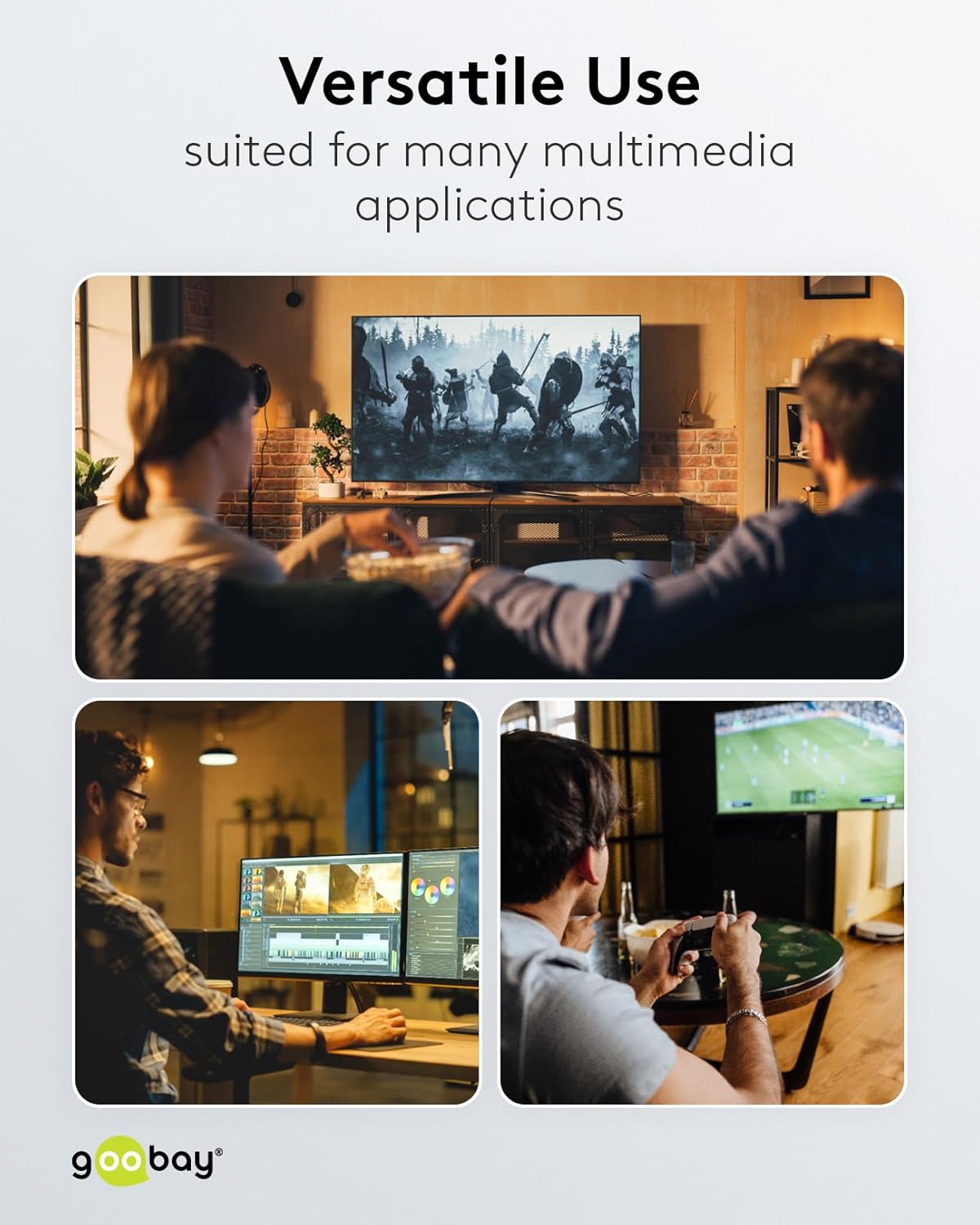
Image: Three panels demonstrating the versatile use of the DisplayPort cable: watching movies on a large TV, professional video editing on a dual-monitor setup, and casual gaming.
Maintenance
To ensure the longevity and optimal performance of your goobay 65265 DisplayPort cable, follow these simple maintenance guidelines:
- Handle with Care: Always grasp the connector housing when plugging or unplugging the cable. Avoid pulling directly on the cable itself, as this can damage the internal wires or connectors.
- Avoid Sharp Bends: While the cable features integrated bend protection and a flexible textile sheath, extreme or sharp bends should be avoided to prevent internal damage and maintain signal integrity.
- Keep Clean: Periodically wipe the cable and connectors with a soft, dry, lint-free cloth to remove dust and debris. Do not use liquid cleaners directly on the connectors.
- Proper Storage: When not in use, coil the cable loosely. Avoid tight coiling or kinking, which can stress the internal conductors. Store it in a clean, dry place away from extreme temperatures.
- Inspect Regularly: Occasionally check the connectors and cable for any signs of wear, damage, or corrosion. If any damage is observed, discontinue use.

Image: A hand holding the DisplayPort cable near the connector, highlighting the integrated bend protection designed for an extended service life.

Image: The DisplayPort cable wrapped around a kettlebell, demonstrating its extreme durability thanks to its braided textile sheath.
Troubleshooting
If you encounter issues with your goobay 65265 DisplayPort cable, try the following troubleshooting steps:
- No Signal/Black Screen:
- Ensure both ends of the DisplayPort cable are securely connected to the source and display devices.
- Verify that both devices are powered on and functioning correctly.
- Check the input source on your monitor/TV to ensure it is set to the correct DisplayPort input.
- Try restarting both the source device and the display.
- Test the cable with another DisplayPort-compatible device or a different cable if available, to isolate the issue.
- Flickering/Intermittent Signal:
- Ensure the cable is not bent sharply or kinked, which can damage internal wires.
- Reduce the resolution or refresh rate in your display settings to see if the issue persists. High resolutions/refresh rates require stable connections.
- Check for electromagnetic interference from other electronic devices.
- Update your graphics card drivers to the latest version.
- Incorrect Resolution/Refresh Rate:
- Access your operating system's display settings (e.g., Windows Display Settings, macOS System Preferences) and manually select the desired resolution and refresh rate.
- Ensure your graphics card and display both support the desired resolution and refresh rate.
- Verify that the cable is rated for the resolution and refresh rate you are attempting to use (this goobay cable supports up to 8K@60Hz).
- No Audio:
- Check your computer's sound settings to ensure the DisplayPort output is selected as the default audio device.
- Ensure the display device has built-in speakers or is connected to external speakers.
- Adjust the volume on both your computer and your display.
Warranty and Support
For warranty information or technical support regarding your goobay 65265 DisplayPort cable, please refer to the official goobay website or contact their customer service. Keep your purchase receipt as proof of purchase for any warranty claims.


