
GL.iNet GL-MT6000
Contents
GL.iNet GL-MT6000 (Flint 2) WiFi 6 Router User Manual
Model: GL-MT6000
1. Introduction
Welcome to the user manual for your GL.iNet GL-MT6000 (Flint 2) WiFi 6 Router. This document provides essential information for setting up, operating, maintaining, and troubleshooting your device. The GL-MT6000 is designed to deliver high-speed, reliable wireless connectivity with advanced features for home and small office environments, including multi-gigabit ports, robust VPN capabilities, and parental controls.

Image: The GL.iNet GL-MT6000 (Flint 2) WiFi 6 Router, a black rectangular device with four external antennas.
2. Package Contents
Please verify that all items listed below are included in your package:
- 1 x GL-MT6000 Router (Flint 2)
- 1 x User Manual
- 1 x Power Adapter (US Plug)
- 1 x Ethernet Cable
- Converters (Based on your shipping country, if applicable)

Image: A visual representation of the package contents, including the router, user manual, power adapter, Ethernet cable, and international power converters.
3. Product Features and Overview
The GL-MT6000 (Flint 2) router offers a range of features designed for high performance and network security:
- WiFi 6 Standard: Supports Wi-Fi 6 (802.11ax) with speeds up to 6 Gbps for smoother 4K streaming, gaming, and video calls. Features DDR4 1GB RAM and eMMC 8GB storage.
- High-Speed Gaming: Equipped with 8-stream Wi-Fi 6 technology for stable and high-speed connections during intense online gaming.
- Rapid VPN Speeds: Achieves WireGuard VPN speeds up to 900Mbps and OpenVPN speeds up to 190Mbps, providing secure and private browsing.
- AdGuard Home Support: Allows for DNS-based ad blocking and tracking prevention, offering a cleaner browsing experience.
- Mass Device Connectivity: High storage capacity supports over a hundred connected devices, suitable for smart homes and DIY users.
- Multi-Gigabit Ports: Includes 2 x 2.5G Multi-Gig Ports (WAN/LAN) and 4 x 1G Ethernet Ports for flexible wired connectivity.
3.1. Enhanced Security with VPN
The router comes preinstalled with VPN capabilities, supporting both OpenVPN and WireGuard protocols for secure data transmission. This allows users to choose from over 30 VPN service providers to enhance their online privacy and security.

Image: The GL.iNet GL-MT6000 router on a wooden surface, with logos for OpenVPN, WireGuard, Cloudflare, and IPv6, highlighting its security features and VPN speeds.
3.2. Lightning-Fast WiFi 6
Experience superior wireless performance with WiFi 6 technology, delivering combined speeds of up to 5952 Mbps (1148 Mbps on 2.4GHz and 4804 Mbps on 5GHz). This ensures smooth streaming, gaming, and browsing even with multiple devices connected.

Image: The GL.iNet GL-MT6000 router on a desk setup with a monitor, illustrating its high-speed WiFi capabilities with speed indicators for 2.4GHz and 5GHz bands.
3.3. Versatile Ethernet Ports
The GL-MT6000 is equipped with two 2.5G multi-gigabit ports (one WAN, one configurable WAN/LAN) and four 1G LAN ports, providing ample connectivity options for high-bandwidth devices and a robust wired network.

Image: A rear view of the GL-MT6000 router highlighting its various ports: DC 12V power input, 2.5G WAN port, 2.5G WAN/LAN port, four 1G LAN ports, and a Reset button.
3.4. Bark Parental Control
The router supports Bark Parental Control, enabling users to manage and filter online content for children. This feature provides a web interface for blocking unwanted tracking and filtering digital advertisements, ensuring a safer online environment. Note: This feature may require a subscription to Bark.
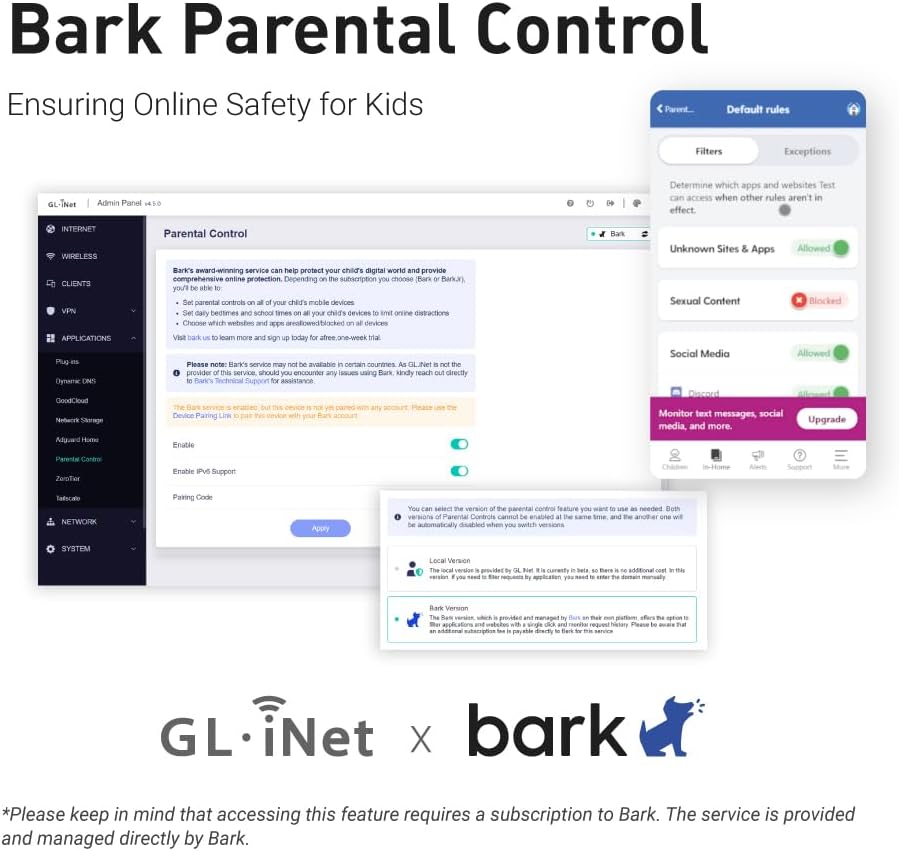
Image: A screenshot of the GL.iNet Admin Panel showing the Bark Parental Control interface, with options for filtering content and monitoring online activity.
4. Setup Guide
Follow these steps to set up your GL.iNet GL-MT6000 router:
- Connect Power: Connect the included power adapter to the router's DC 12V port and plug it into a power outlet.
- Connect to Internet (WAN): Connect your modem or existing network's Ethernet cable to the router's 2.5G WAN port.
- Connect to Computer (LAN): Connect your computer to one of the router's LAN ports (1G Ethernet ports) using the provided Ethernet cable. Alternatively, you can connect wirelessly to the router's default Wi-Fi network (SSID and password are usually found on a sticker on the router).
- Access Admin Panel: Open a web browser on your connected computer and navigate to the router's default IP address (e.g., http://192.168.8.1). Follow the on-screen instructions to complete the initial setup, including setting a new administrator password and configuring your Wi-Fi network.
- Firmware Update: It is highly recommended to update the router's firmware upon initial setup to ensure optimal performance and access to the latest features and security patches. Navigate to the firmware update section within the Admin Panel.
Note: An initial setup video tutorial may be available on the product's Amazon page or the GL.iNet official website for visual guidance.
5. Operating Instructions
5.1. Accessing the Web Admin Panel
To manage your router's settings, access the web Admin Panel by opening a web browser and entering the router's IP address (default: http://192.168.8.1). Log in with your administrator password.
5.2. Basic Network Configuration
- Wi-Fi Settings: Configure your Wi-Fi network name (SSID), password, and security type (WPA2/WPA3). You can set up separate networks for 2.4GHz and 5GHz bands.
- Guest Network: Create a separate guest Wi-Fi network to provide internet access to visitors without compromising your main network's security.
- WAN Settings: Configure your internet connection type (DHCP, Static IP, PPPoE) based on your Internet Service Provider (ISP) requirements.
- LAN Settings: Adjust the router's internal IP address range and DHCP server settings if needed.
5.3. Advanced Features
- VPN Client/Server: Configure the router to connect to a VPN service (client mode) or act as a VPN server to access your home network remotely.
- AdGuard Home: Enable and configure AdGuard Home for network-wide ad and tracker blocking.
- QoS (Quality of Service): Prioritize network traffic for specific applications or devices to ensure smooth performance for critical tasks like gaming or video calls.
- Parental Control: Utilize the Bark Parental Control features to manage internet access and content for connected devices.
6. Maintenance
- Firmware Updates: Regularly check for and install the latest firmware updates from the GL.iNet website or through the router's Admin Panel. Firmware updates often include performance improvements, new features, and security patches.
- Physical Cleaning: Keep the router in a well-ventilated area. Periodically clean dust from the vents using a soft brush or compressed air to prevent overheating.
- Restarting: If you experience network issues, try restarting the router by unplugging the power adapter for 10 seconds and then plugging it back in.
- Backup Configuration: It is advisable to back up your router's configuration settings before performing major changes or firmware updates.
7. Troubleshooting
| Problem | Possible Solution |
|---|---|
| No Internet Connection |
|
| Slow Wi-Fi Speed |
|
| Cannot Access Admin Panel |
|
| VPN Not Connecting |
|
8. Specifications
| Feature | Detail |
|---|---|
| Brand | GL.iNet |
| Model Name | Flint 2 (GL-MT6000) |
| Wireless Standard | 802.11ax (WiFi 6), 802.11ac, 802.11n, 802.11g, 802.11b |
| Frequency Band Class | Dual-Band (2.4 GHz & 5 GHz) |
| Max. Wireless Speed | Up to 6 Gbps (1148 Mbps on 2.4GHz + 4804 Mbps on 5GHz) |
| Ethernet Ports | 2 x 2.5G Multi-Gig Ports (WAN/LAN), 4 x 1G Ethernet Ports (LAN) |
| RAM / Storage | DDR4 1GB / eMMC 8GB |
| Special Features | QoS, Guest Mode, Access Point Mode, Internet Security, OpenVPN, WireGuard, AdGuard Home, Parental Control |
| Compatible Devices | Gaming Console, Personal Computer, Mobile Devices, Smart Home Devices |
| Recommended Uses | Home, Gaming, Business |
9. Warranty and Support
The GL.iNet GL-MT6000 router comes with a 2-year warranty. For technical support, firmware downloads, and additional resources, please visit the official GL.iNet website or contact their customer support. Keep your purchase receipt for warranty claims.
GL.iNet Official Website: www.gl-inet.com
Ask a question about this manual
Ask about setup, troubleshooting, compatibility, parts, safety, or missing instructions. Manuals+ will review the question and use this page’s manual context to help answer it.