
Introduction
This manual provides essential information for setting up, operating, and maintaining your Amazon Basics 24-inch FHD 1080p monitor. Please read these instructions carefully before use and retain them for future reference.

The Amazon Basics 24-inch FHD 1080p monitor, featuring a sleek design and integrated speakers.
Setup
1. Unboxing and Component Check
Carefully remove all components from the packaging. Ensure all items listed below are present:
- Monitor Display
- Monitor Stand Base
- Monitor Stand Neck
- Power Adapter
- HDMI Cable
- User Manual (this document)

Included accessories: stand base, stand neck, power adapter, and HDMI cable.
2. Stand Assembly
- Attach the stand neck to the stand base. Secure it with the screw provided, usually located on the underside of the base.
- Carefully attach the assembled stand to the back of the monitor panel. Ensure it clicks securely into place or is fastened with screws if applicable.
IMPORTANT: Remove the protective film (with the date code) from the panel surface before use. This film protects against scratches during shipping.
3. Connecting to a Device
The monitor supports HDMI and DisplayPort (DP) connections. It also features integrated speakers and VESA compatibility for wall mounting.
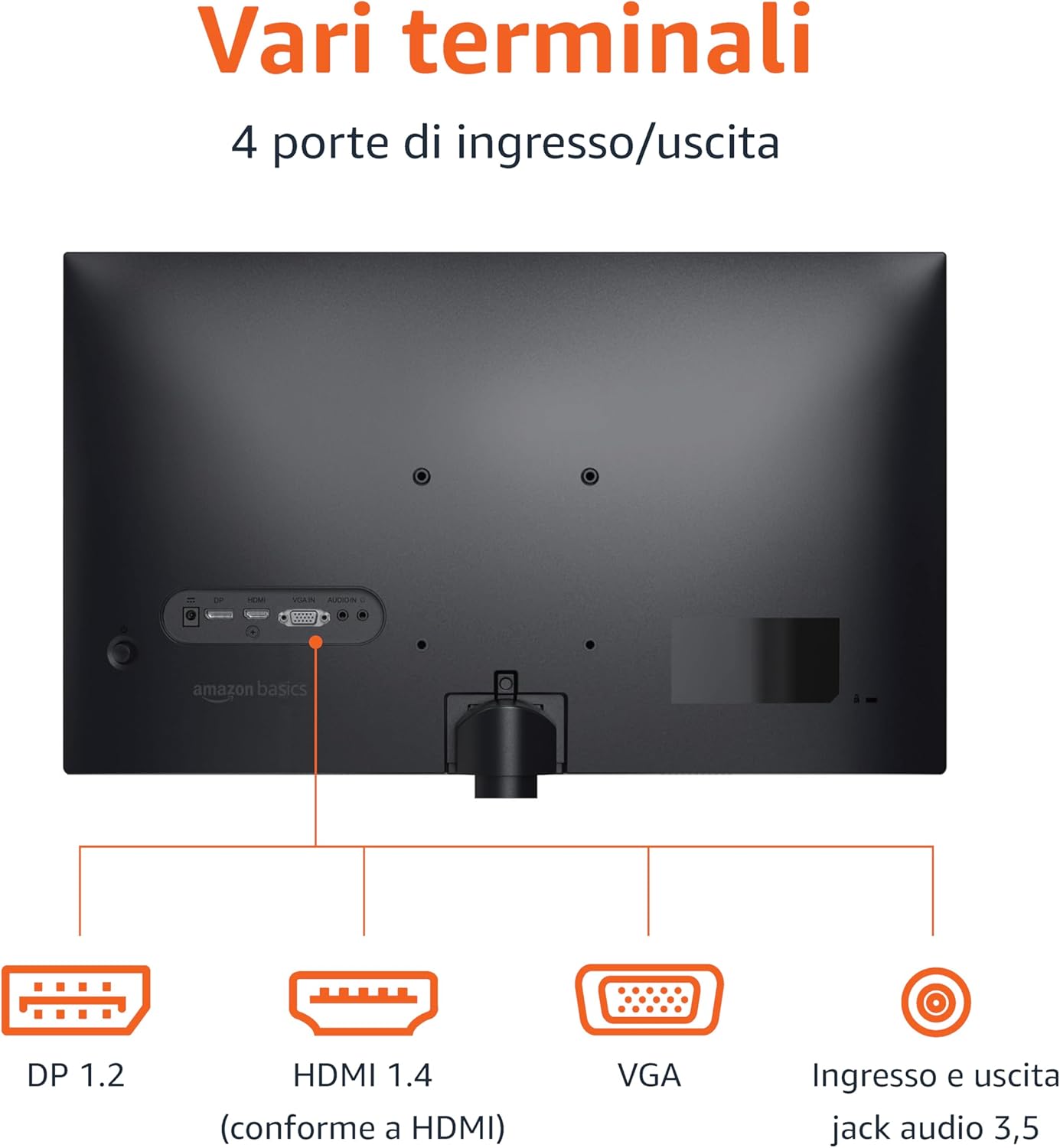
Rear panel connections: DP 1.2, HDMI 1.4, VGA, and 3.5mm audio input/output ports.
- HDMI Connection: Connect one end of the HDMI cable to the HDMI port on your computer or device and the other end to the HDMI 1.4 port on the monitor.
- DisplayPort (DP) Connection: Connect one end of the DP cable (not included) to the DP port on your computer or device and the other end to the DP 1.2 port on the monitor.
- VGA Connection: Connect one end of the VGA cable (not included) to the VGA port on your computer or device and the other end to the VGA port on the monitor.
- Audio Connection: If using a VGA connection or an external audio source, connect a 3.5mm audio cable from your device's audio output to the monitor's audio input.
- Power Connection: Connect the power adapter to the monitor's power input, then plug the adapter into a power outlet.
4. VESA Mounting (Optional)
This monitor is VESA compatible, allowing it to be mounted on a wall or an adjustable arm. Refer to your VESA mount's instructions for installation. Ensure the mount supports the monitor's weight and VESA pattern.

The monitor stand allows for tilt adjustment from -5° to 20°.
Operating Instructions
1. Power On/Off
Press the power button, usually located on the bottom right or rear of the monitor, to turn it on or off. The power indicator light will illuminate when the monitor is on.
2. On-Screen Display (OSD) Menu
Use the control buttons (typically located on the bottom right or rear) to navigate the OSD menu. The OSD allows you to adjust various settings:
- Brightness/Contrast: Adjust image luminance and contrast levels.
- Color Settings: Modify color temperature, hue, and saturation.
- Input Selection: Manually switch between HDMI, DisplayPort, and VGA inputs.
- Audio Settings: Control volume for the built-in speakers or connected headphones.
- Picture Mode: Select preset display modes (e.g., Standard, Movie, Game).
- Refresh Rate: Ensure your device is configured to output at 100Hz for the smoothest experience. This setting is usually adjusted in your computer's display settings.
3. Built-in Speakers
The monitor includes integrated speakers for audio output. Adjust the volume through the OSD menu or your connected device's audio controls.
Maintenance
1. Cleaning the Screen
- Always turn off the monitor and unplug the power cord before cleaning.
- Use a soft, lint-free cloth slightly dampened with water or a specialized screen cleaner.
- Do not spray cleaner directly onto the screen.
- Avoid using abrasive cleaners, waxes, or solvents.
2. General Care
- Keep the monitor away from direct sunlight, heat sources, and excessive dust.
- Ensure proper ventilation around the monitor.
- Do not place heavy objects on the monitor or its cables.
Troubleshooting
| Problem | Possible Solution |
|---|---|
| No Power |
|
| No Signal / Blank Screen |
|
| Flickering or Distorted Image |
|
| No Audio from Built-in Speakers |
|
Specifications
| Feature | Detail |
|---|---|
| Brand | Amazon Basics |
| Model Number | C24M2020DEU |
| Screen Size | 24 Inches |
| Resolution | FHD 1080p (1920 x 1080) |
| Refresh Rate | Max 100 Hz |
| Panel Type | IPS |
| Aspect Ratio | 16:9 |
| Contrast Ratio | 1500:1 |
| Screen Surface | Glossy |
| Connectivity | HDMI, DisplayPort (DP), VGA |
| Special Features | Built-in Speakers, VESA Compatible |
| Weight | 3 Kilograms |
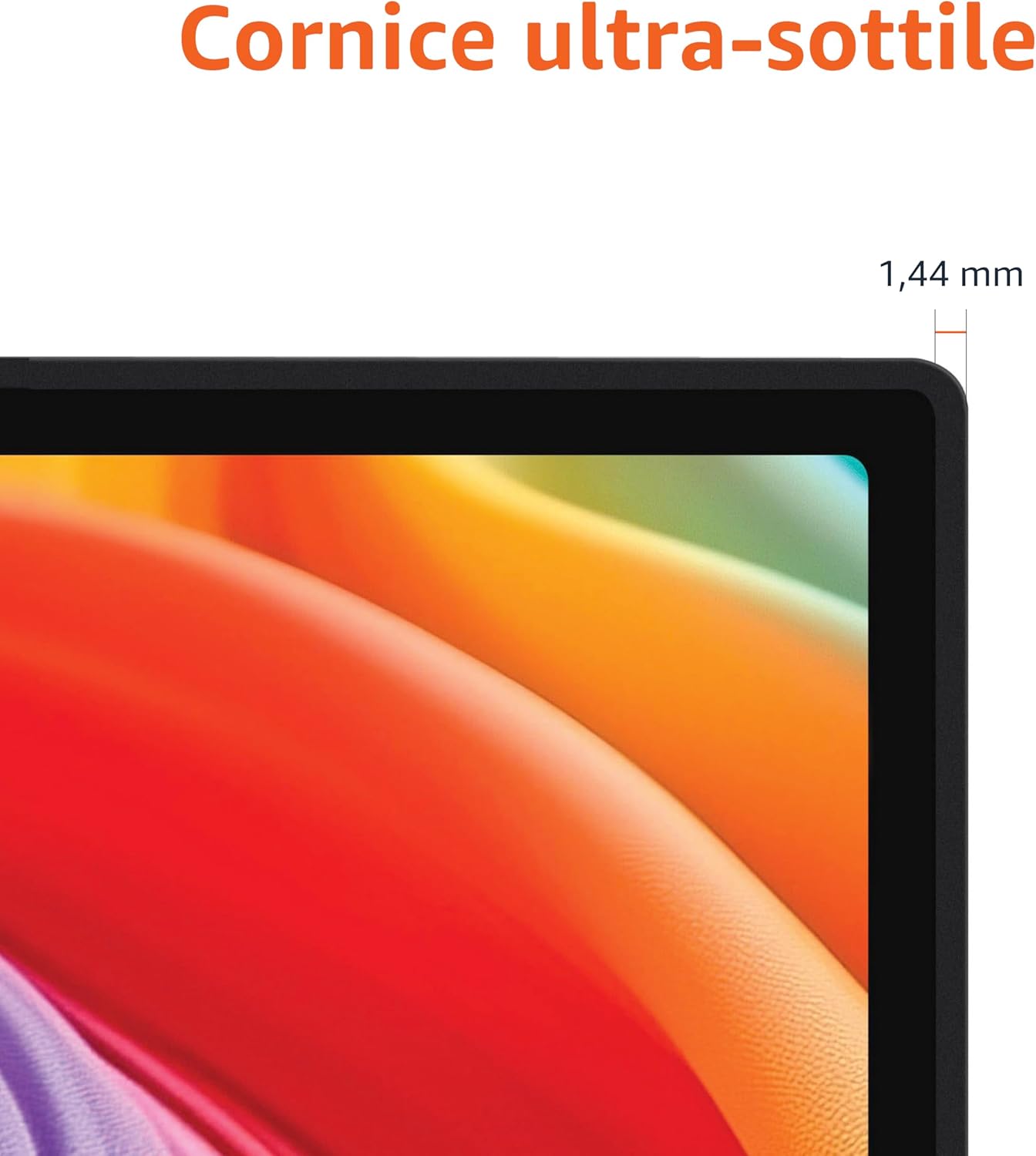
Approximate monitor dimensions (width x height x depth).
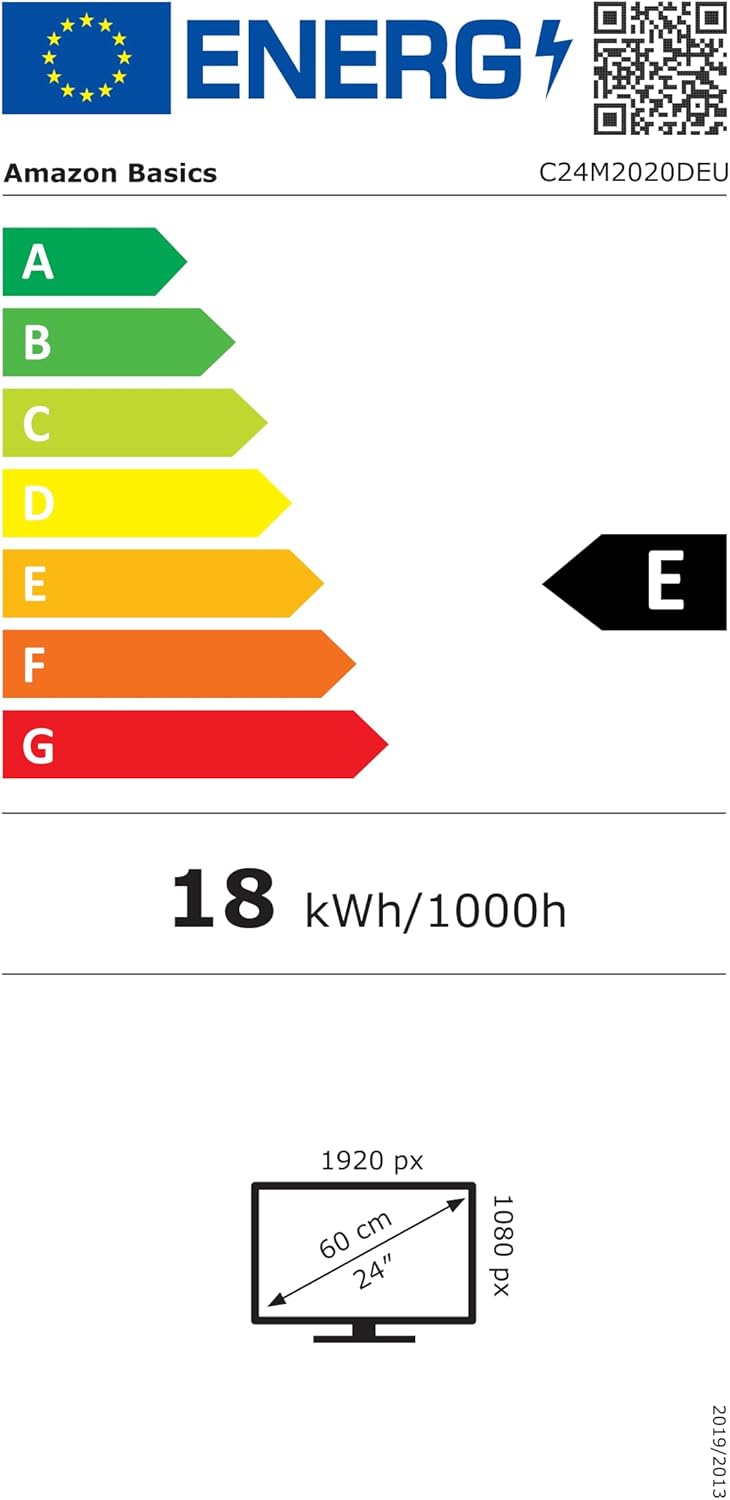
EU Energy Label for model C24M2020DEU. For more details, visit the EPREL database.
Warranty Information
This product comes with a 1-year limited warranty. For specific terms and conditions, please refer to the warranty documentation provided with your purchase or contact Amazon Basics customer support.
Support
For technical assistance, troubleshooting, or warranty claims, please contact Amazon Basics customer support through the Amazon website or your purchase platform.
You can also refer to the official Amazon Basics store for additional product information and support resources: Amazon Basics Store


