
Introduction
This manual provides comprehensive instructions for the setup, operation, and maintenance of your surmen G1000 Backlit Full Size Office Keyboard. Designed for both office and gaming use, this keyboard features a durable metal panel, silent membrane keys, and vibrant blue backlighting. Please read this manual thoroughly to ensure optimal performance and longevity of your device.
What's in the Box
- surmen G1000 Keyboard
- Keycap Puller
Setup
The surmen G1000 keyboard is designed for simple plug-and-play functionality, requiring no additional drivers for most operating systems.
- Connect the Keyboard: Locate an available USB-A port on your computer (PC or Laptop). Insert the USB connector of the keyboard firmly into the USB port.
- System Recognition: Your operating system (Windows 2000 / 10/8/7 / ME / XP / VISTA, MAC) should automatically detect and install the necessary drivers. This process may take a few moments.
- Ready for Use: Once the installation is complete, the keyboard will be ready for immediate use.

Figure 1: Surmen G1000 keyboard connected via USB.
Operating Instructions
Key Features
- 104 Keys Full-Size Layout: Includes a dedicated number pad for enhanced productivity.
- Silent Membrane Switches: Designed for quieter typing with a better tactile response.
- Metal Panel: Durable aluminum alloy panel for enhanced longevity.
- 26 Keys Anti-Ghosting: Ensures accurate response even when multiple keys are pressed simultaneously during gaming.
- Win Lock Function: Prevents accidental presses of the Windows key during intense gaming sessions.

Figure 2: Silent membrane switches provide a quiet and responsive typing experience.
Backlighting Control
The G1000 keyboard features stunning blue backlighting with adjustable modes.
- Turn Backlight On/Off: Press FN + SL (Scroll Lock) to toggle the backlight on or off.
- Adjust Brightness: The backlight has multiple brightness levels. Use the dedicated function keys (if available, or cycle through modes with FN+SL) to adjust.
- Backlight Modes: The keyboard supports static and breathing backlight modes. Refer to the keyboard's specific key combinations for cycling through these modes (often FN + Page Up/Page Down or similar).

Figure 3: Toggle backlighting with FN + SL.
Multimedia Hotkeys
The keyboard includes 12 media hotkeys accessible via the Function (FN) key, allowing quick access to various functions without interrupting your workflow or game.
| Key Combination | Function |
|---|---|
| FN + F1 | Music Player |
| FN + F2 | Decrease Volume |
| FN + F3 | Increase Volume |
| FN + F4 | Mute |
| FN + F5 | Stop Playback |
| FN + F6 | Previous Track |
| FN + F7 | Play/Pause |
| FN + F8 | Next Track |
| FN + F9 | Open Email |
| FN + F10 | Open Homepage |
| FN + F11 | Open My Computer |
| FN + F12 | Open Calculator |

Figure 4: Multimedia hotkeys for quick access to common functions.
Indicator Lights
The keyboard features indicator lights for Caps Lock, Num Lock, and Win Lock status.
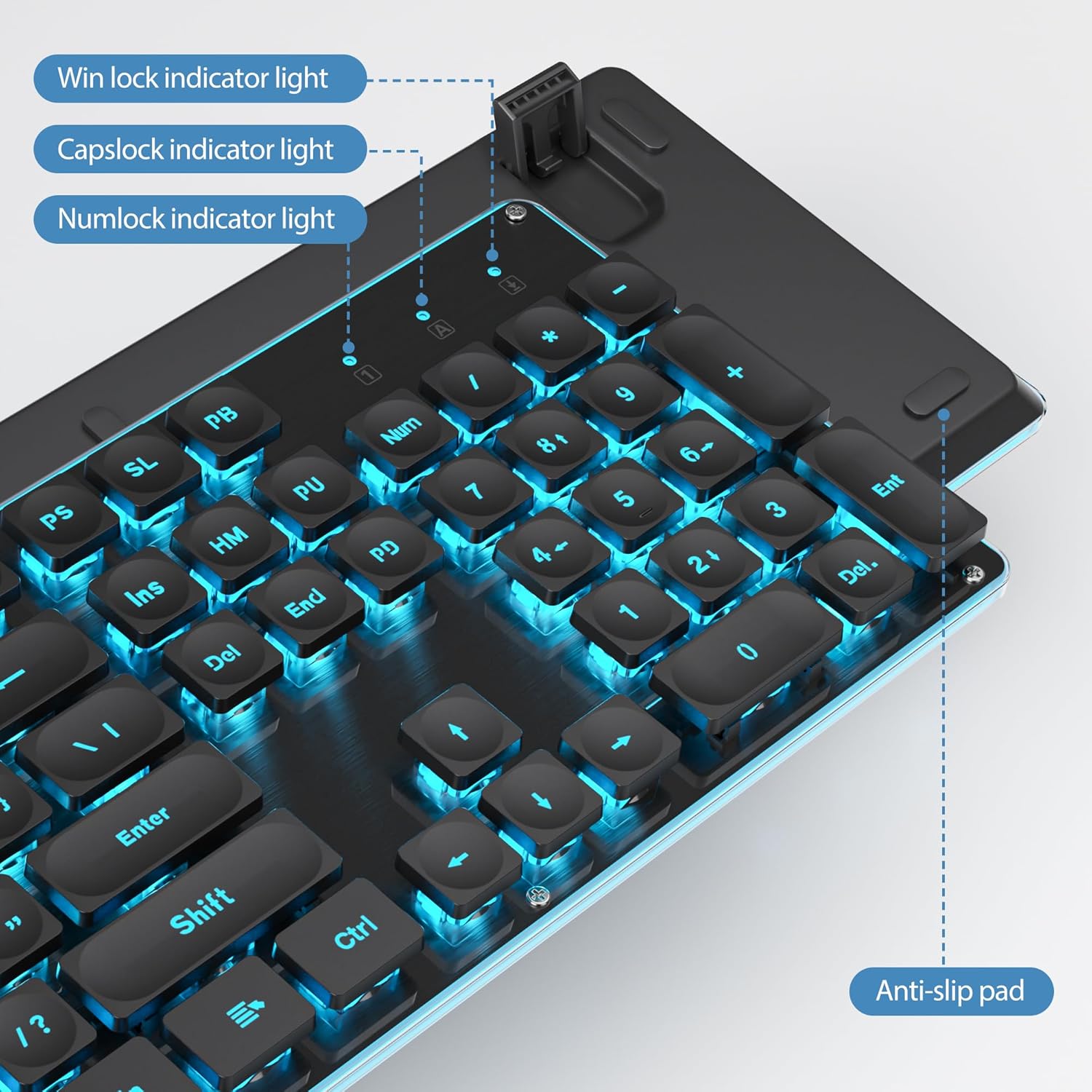
Figure 5: Indicator lights for keyboard status.
Product Overview Video
Video 1: A brief overview demonstrating the shinethrough full-size keyboard and its backlighting.
Maintenance
- Cleaning: To clean the keyboard, disconnect it from your computer. Use a soft, dry cloth to wipe down the keys and surface. For stubborn dirt, a slightly damp cloth can be used, ensuring no liquid enters the keyboard. The included keycap puller can be used to remove keycaps for deeper cleaning.
- Spill Resistance: The surmen G1000 keyboard features a water-resistant design. In case of accidental spills, quickly disconnect the keyboard, wipe off the liquid, and allow it to air dry completely before reconnecting. While water-resistant, it is not waterproof; avoid submerging the keyboard in liquid.

Figure 6: The keyboard features a water-resistant design for added durability.
Troubleshooting
| Problem | Possible Cause | Solution |
|---|---|---|
| Keyboard not responding. | Loose USB connection, faulty USB port, driver issue. | Ensure USB cable is securely plugged in. Try a different USB port. Restart your computer. |
| Backlight not turning on. | Backlight is off, software glitch. | Press FN + SL to toggle the backlight. Unplug and replug the keyboard. |
| Keys are not quiet enough. | Expectations vs. membrane switch sound profile. | While designed for quiet operation, membrane keyboards still produce some sound. This is normal for the product type. |
| Certain keys (e.g., Windows key) not working. | Win Lock enabled, manufacturing defect. | Check if Win Lock is enabled (often indicated by a light or specific key combination). If a key is physically misaligned (e.g., upside down as mentioned in a review), this indicates a manufacturing defect. Contact customer support for assistance. |
Specifications
| Feature | Detail |
|---|---|
| Brand | surmen |
| Model Number | G1000 |
| Keyboard Type | Full Size Office Keyboard (104 Keys) |
| Switch Type | Silent Membrane |
| Connectivity | USB Wired (USB-A) |
| Backlighting | Blue Backlit |
| Panel Material | Metal Panel (Aluminum alloy) |
| Anti-Ghosting | 26 Keys Anti-Ghosting |
| Special Features | Backlit, Foldable, Hotkeys and Media Keys, Lightweight, Spill Proof |
| Compatible Devices | Laptop, PC |
| Operating System Support | Windows 2000 / 10/8/7 / ME / XP / VISTA, MAC |
| Product Dimensions | 17.1 x 5.2 x 1.2 inches (17.1"L x 5.2"W x 1.2"H) |
| Item Weight | 1.52 pounds |
| Manufacturer | GTSP |
| Date First Available | November 30, 2023 |
Warranty and Support
For warranty information or technical support, please contact the manufacturer, GTSP, or the seller from whom you purchased the product. Refer to your purchase documentation for specific warranty terms and contact details.
You can also visit the official surmen Store on Amazon for more product information and support resources.

