1. Introduction and Overview
The aphqua A96-2 is a versatile 9.26-inch portable car stereo designed to bring modern connectivity to any vehicle. It supports wireless and wired Apple CarPlay and Android Auto, offering seamless integration with your smartphone for navigation, music, messaging, and voice control. Additionally, it features phone mirroring, multiple audio output options, and a high-definition backup camera for enhanced safety and convenience.
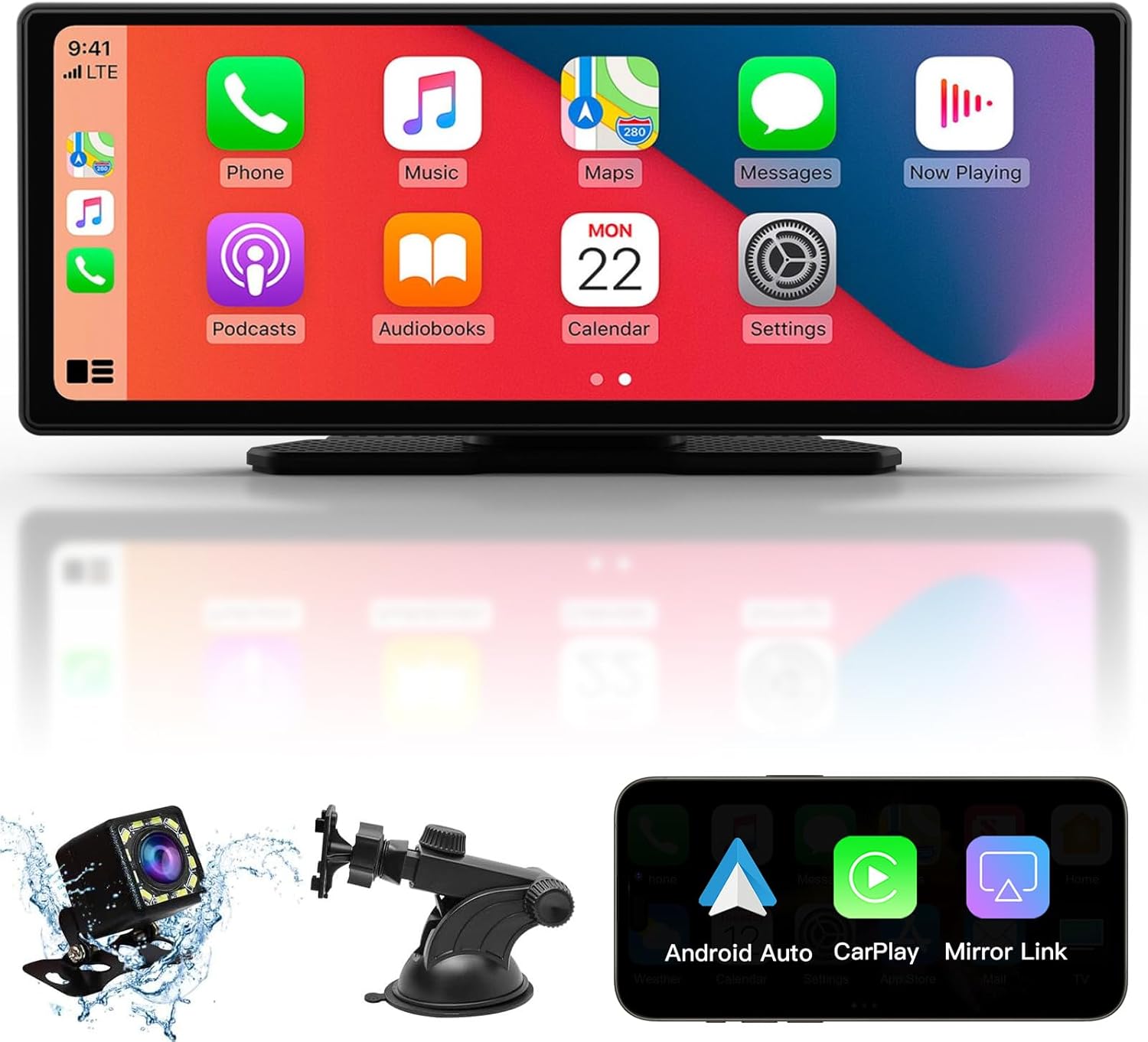
Figure 1: APHQUA A96-2 Portable Car Stereo with included backup camera and mounting options.
2. Package Contents
Before you begin, please ensure all items are present in your package:
- 9.26-inch Portable Car Stereo Display
- Suction Cup Mount
- Self-Adhesive Bracket
- 3.5mm Audio Cable (AUX)
- Car Charger (Cigarette Lighter Power Adapter with USB charging port)
- Reversing Camera (High-definition)
- Suction Cup Gasket
- User Manual

Figure 2: Visual representation of all components included in the package.
3. Setup and Installation
The APHQUA A96-2 is designed for easy installation and is compatible with 99% of car models. It is powered by a cigarette lighter, making setup straightforward.
3.1 Mounting the Display
- Choose your preferred mounting method: the 360-degree rotatable suction cup mount for windshields or the self-adhesive bracket for dash consoles.
- Clean the chosen surface thoroughly to ensure a secure attachment.
- Attach the display to the mount and secure the mount to your desired location.
3.2 Power Connection
- Plug the car charger into your vehicle's cigarette lighter socket.
- Connect the power cable from the car charger to the Type-C 5V input port on the side of the A96-2 display.
- The cigarette lighter head also includes a USB charging port for your mobile phone.
3.3 Connecting the Backup Camera
To utilize the backup camera feature:
- Install the high-definition rear camera at the back of your vehicle.
- Connect the camera cable to the 'Cam in 2.5mm' port on the side of the A96-2 display.
- Ensure proper wiring for power and signal to the camera according to the detailed instructions in the included User Manual.

Figure 3: Overview of power connection and device ports.
4. Operating Instructions
The APHQUA A96-2 offers various functionalities for an enhanced driving experience.
4.1 Wireless/Wired CarPlay & Android Auto
This portable carplay screen is compatible with both wireless and wired CarPlay/Android Auto. Your smartphone will automatically connect to the in-car CarPlay screen upon entry (for wireless) or via USB connection (for wired).
- Wireless Connection: Ensure Bluetooth and Wi-Fi are enabled on your phone. The device will appear in your phone's Bluetooth settings. Pair and follow on-screen prompts.
- Wired Connection: Use a high-quality USB data cable to connect your phone to the USB port on the A96-2 display.
Once connected, you can access your smartphone's map navigation, music, video, and other features directly on the 9.26-inch display.

Figure 4: Wireless/Wired CarPlay and Android Auto interface.

Figure 5: Step-by-step guide for Wireless Apple CarPlay connection.

Figure 6: Step-by-step guide for Wireless Android Auto connection.

Figure 7: Wired CarPlay connection via USB cable.
4.2 Phone Mirroring (Android/iOS)
The device supports wireless/wired mirror link with your mobile phone. This allows you to display your phone's screen content, including apps like YouTube and TikTok (Netflix is not supported), directly on the 9.26-inch display.
- Wired Mirror: Connect via the USB jack.
- Wireless Mirror: For iOS, turn off Bluetooth and Wi-Fi in settings, then connect to the car stereo's Wi-Fi and select 'Screen Mirroring' from your phone's control center.

Figure 8: Steps for iOS Mirror Link.
4.3 Audio Output Options
The A96-2 offers four ways to output audio to your car's sound system:
- Bluetooth: Recommended method. Wirelessly connect the carplay screen to your car stereo via Bluetooth for high-quality sound.
- Built-in Speaker: The device has a high-quality built-in speaker for direct audio output.
- AUX Connection: Connect the A96-2 to your car stereo using the included 3.5mm AUX cable for direct audio transmission.
- FM Transmission: Transmit audio through FM channels. Ensure the device's FM channel is consistent with an unoccupied FM channel on your car radio.

Figure 9: Diagram illustrating the four audio output methods.

Figure 10: Bluetooth audio connection to car stereo.

Figure 11: Setting up FM Transmission for audio output.

Figure 12: Connecting via AUX cable.
4.4 Voice Control & GPS Navigation
The A96-2 features a built-in clear microphone and supports an external microphone (not included). Use Siri or Google Assistant for voice commands such as "Call", "GPS Navigation", "Send Message", etc. The device provides real-time intelligent car navigation by connecting with your smartphone through CarPlay or Android Auto.

Figure 13: Voice control and navigation interface.
4.5 Backup Camera Operation
When properly connected, the high-definition rear camera provides a clear view of the situation behind your car on the 9.26-inch screen, aiding in safe reversing. This feature is for auxiliary reversing and observation only; it does not record video.
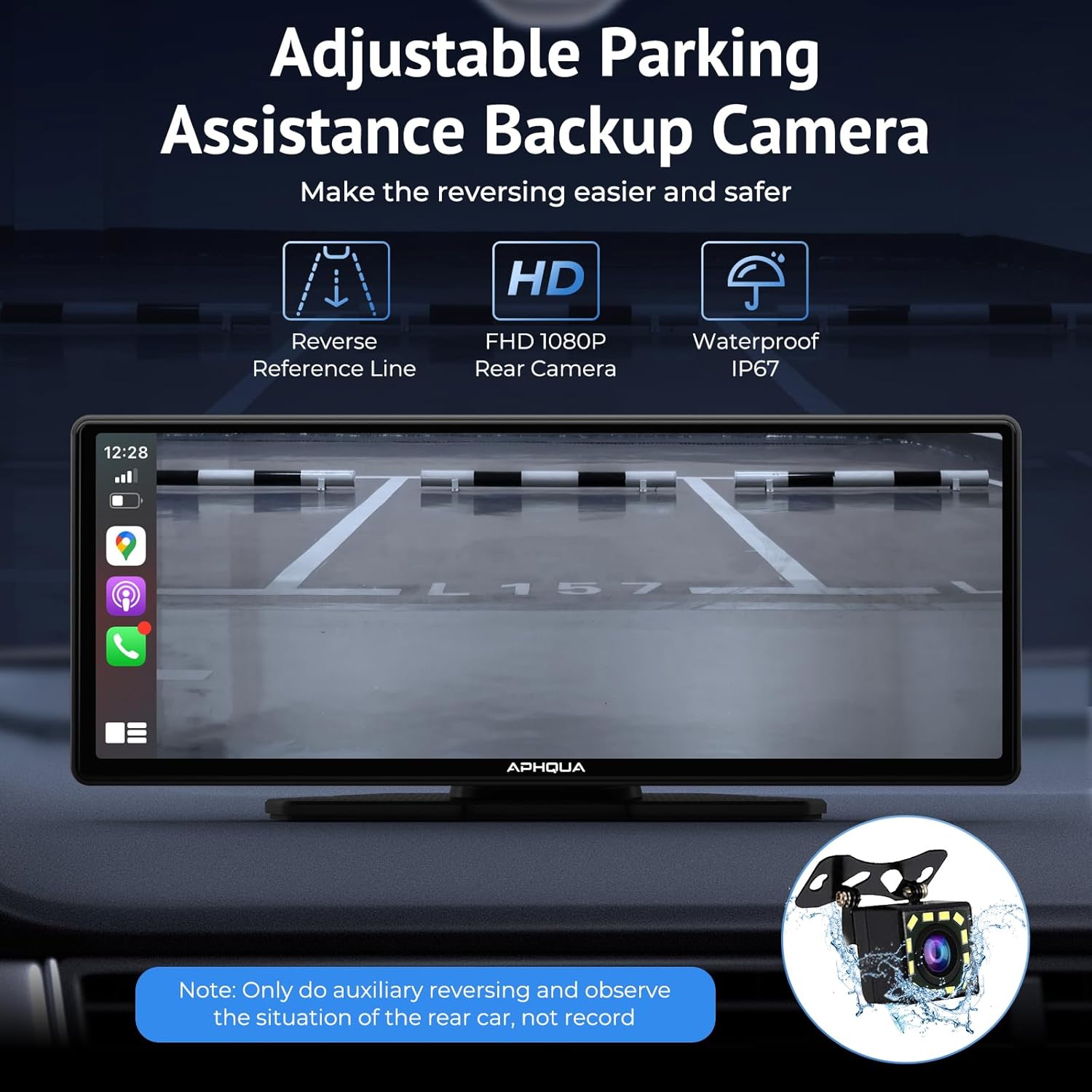
Figure 14: Backup camera view on the display.
4.6 Multimedia Playback
The A96-2 supports TF card and USB input for playing audio, video, and displaying photos directly on the screen.
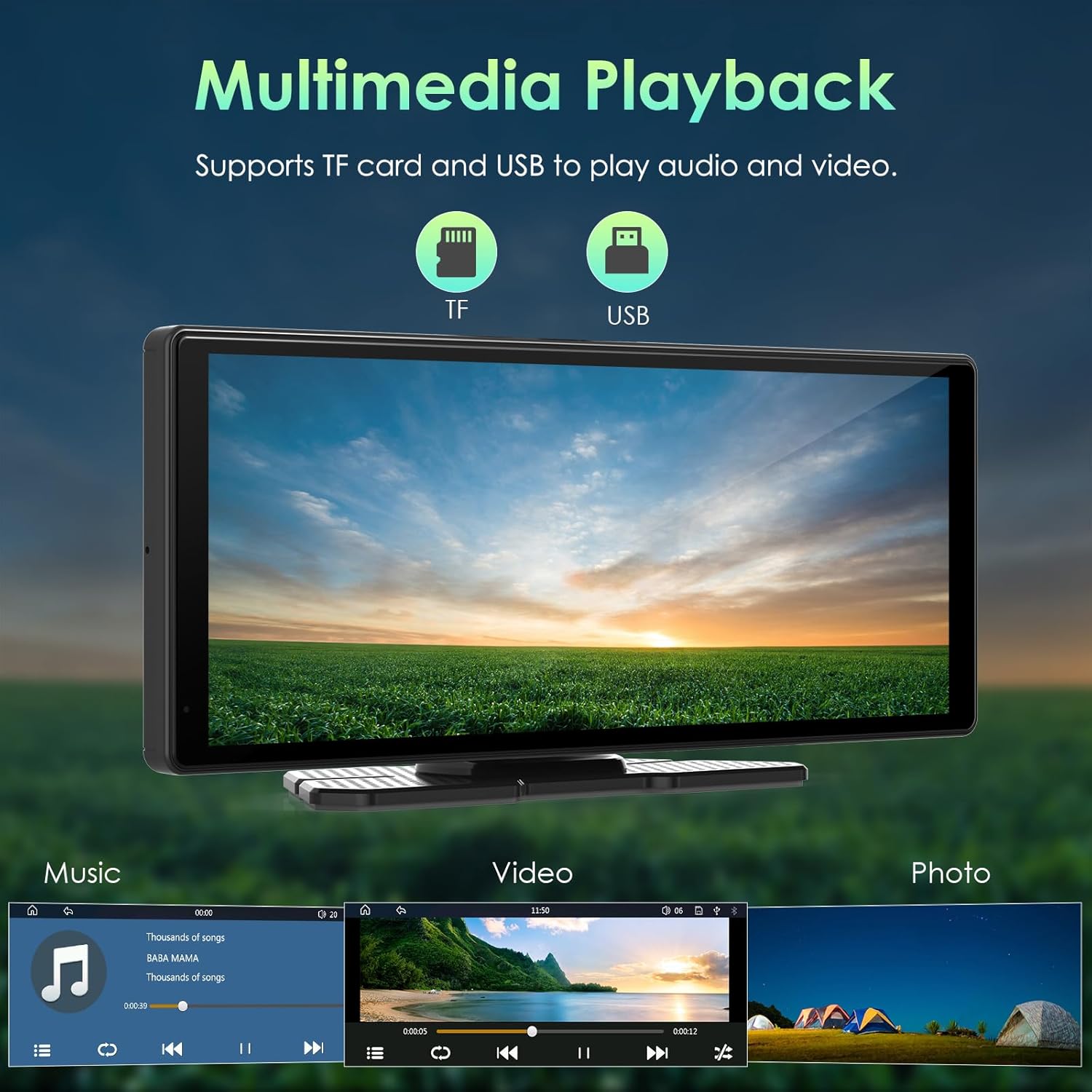
Figure 15: Multimedia playback interface.
5. Maintenance
To ensure the longevity and optimal performance of your APHQUA A96-2, follow these maintenance guidelines:
- Cleaning: Use a soft, dry cloth to clean the screen and exterior. Avoid abrasive cleaners or solvents.
- Temperature: Avoid exposing the device to extreme temperatures (hot or cold) for prolonged periods.
- Storage: When not in use, store the device in a cool, dry place away from direct sunlight.
- Cables: Handle all cables and connectors with care to prevent damage.
6. Troubleshooting
If you encounter issues with your APHQUA A96-2, please refer to the following common solutions:
- No Power: Ensure the cigarette lighter adapter is securely plugged in and your vehicle's power outlet is functioning. Check the power cable connection to the device.
- No Audio: Verify your chosen audio output method (Bluetooth, AUX, FM) is correctly configured on both the A96-2 and your car stereo. If using FM, ensure the frequency is clear and matches.
- CarPlay/Android Auto Disconnection: Ensure your phone's Bluetooth and Wi-Fi are stable. For iPhone users, if you've upgraded to iOS 18.0.1, restore the device to factory settings or restart your phone and reconnect to use CarPlay.
- Screen Unresponsive: Try restarting the device by pressing the power button.
- Backup Camera Not Displaying: Check all camera cable connections. Ensure the camera is receiving power and is properly installed.
For further assistance, please contact customer support.
7. Specifications
| Feature | Detail |
|---|---|
| Product Dimensions | 8.66 x 3.94 x 4.33 inches |
| Item Weight | 2.29 pounds |
| Model Number | A96-2 |
| Brand | aphqua |
| Connectivity Technology | Bluetooth |
| Controller Type | Google Assistant, iOS, Android |
| Compatible Devices | Smartphone, Speaker |
| Connector Type | 3.5mm Jack |
| Audio Output Mode | Stereo |
| Surround Sound Channel Configuration | 4.0 |
| Video Encoding | H.264, H.265/HEVC |
| Color | black |
8. Warranty and Support
APHQUA is committed to providing high-quality products and satisfactory services. We offer:
- 24-Hour Online Service: Responsive support for any inquiries.
- One-Year Return and Replacement: For accessories and product issues.
- Lifetime After-Sale Service: For products and accessories.
Additionally, APHQUA offers a unique service to customize the start screen logos for customers. You can send your favorite car logo or photo to customer service for personalization.

Figure 16: APHQUA's commitment to customer support.
9. Official Product Videos
No official seller videos were found for this product that meet the embedding criteria.