
1. Product Overview
The MekedeTech Android Car Radio Stereo is an advanced head unit designed to upgrade the infotainment system in compatible Mercedes-Benz SL R230 series vehicles. This unit features an 8-core CPU, 8GB RAM, and 128GB ROM, providing a responsive and powerful user experience. It includes a 9-inch IPS touch screen with 1280*720 resolution, built-in 4G LTE, WiFi, Bluetooth 5.0, Wireless CarPlay, and Android Auto capabilities.
Key Features:
- Android 12 Operating System
- 8-Core A53 1.8GHz CPU
- 8GB RAM + 128GB ROM
- 9-inch IPS Touch Screen (1280*720 HD)
- Built-in 4G LTE and WiFi Module
- Wireless CarPlay and Wired Android Auto
- Bluetooth 5.0 for calls and music streaming
- Integrated GPS Navigation
- DSP Sound System for enhanced audio quality
- Support for original steering wheel controls
2. Compatibility Check
Before installation, ensure your vehicle's original head unit configuration is compatible with this Android stereo. Refer to the image below to identify compatible and incompatible factory radio types.

Image: This image displays various Mercedes-Benz SL R230 dashboard configurations. The top two images show factory head units that are not compatible with this product, indicated by a red 'X'. The bottom two images show factory head units that are compatible, indicated by a green checkmark. Please compare your vehicle's current radio to these examples to confirm compatibility.
3. Setup and Installation
This Android car radio is designed for a plug-and-play installation in compatible Mercedes-Benz SL R230 models (2001-2007). All necessary accessories for installation, including a dash kit, power cable, RCA cable, reversing camera cable, and USB cables, are provided.
Important Note for Harman-Kardon or Bose Sound Systems:
If your vehicle is equipped with a Harman-Kardon or Bose sound system, an additional 6-meter cable is required for the audio to function correctly. This cable must be purchased separately. Failure to use this cable with these sound systems will result in no audio output.
Cooling Fan Setup:
The unit includes a cooling fan to manage heat during prolonged use, especially in warm climates. Proper setup of the cooling fan is crucial for optimal performance and longevity.
- Connect: Ensure the cooling fan is properly connected to the head unit.
- Settings Access: Navigate to the device settings on the head unit.
- Device Settings: Locate and select 'Device' from the main settings menu.
- AMP ON: Within the 'Device' settings, ensure the 'AMP ON' option is activated. This step is often necessary for the cooling fan to initiate operation.

Image: This diagram illustrates the cooling fan's physical connection to the head unit and the software setup steps. It shows how to navigate through the Android settings (Settings > Device > AMP ON) to activate the cooling fan. A comparison of 'High temperature' without a cooling fan versus 'Normal temperature' with a cooling fan is also depicted, highlighting its importance.
4. Operating Instructions
4.1. Power On/Off and Basic Navigation
Press and hold the power button to turn the unit on or off. The 9-inch IPS touch screen allows for intuitive navigation through menus and applications. Swipe, tap, and pinch gestures are supported.
4.2. Wireless CarPlay and Android Auto
The unit supports both wireless CarPlay (for iOS devices) and wired/wireless Android Auto (for Android devices), allowing seamless integration of your smartphone's features.
Connection Steps:
- Connect Bluetooth: On your smartphone, enable Bluetooth and pair it with the car stereo (e.g., 'CarBT').
- Launch Car Link: On the car stereo, open the 'Car Link' application.
- Wait for Connection: The system will automatically detect and connect to your smartphone for CarPlay or Android Auto.
For Android Auto, a wired connection via USB cable can also be used if preferred or if wireless connection issues occur.

Image: This image illustrates the user interface for Wireless CarPlay and Android Auto. It shows the main screen with various app icons (Phone, Messages, Music, Maps, etc.) and detailed connection steps for both iOS (Wireless Car-Play) and Android (Wireless Auto) systems, emphasizing the initial Bluetooth connection and then launching the 'Car Link' application.
4.3. 4G LTE and WiFi Connectivity
The unit features built-in 4G LTE and WiFi modules, enabling internet access directly from the head unit.
- 4G LTE: Insert a 4G SIM card into the designated slot to access cellular data. There are two SIM card slots: one on the back of the main unit and one on the RCA cable.
- WiFi: Connect to a WiFi hotspot (e.g., from your smartphone) to access the internet.
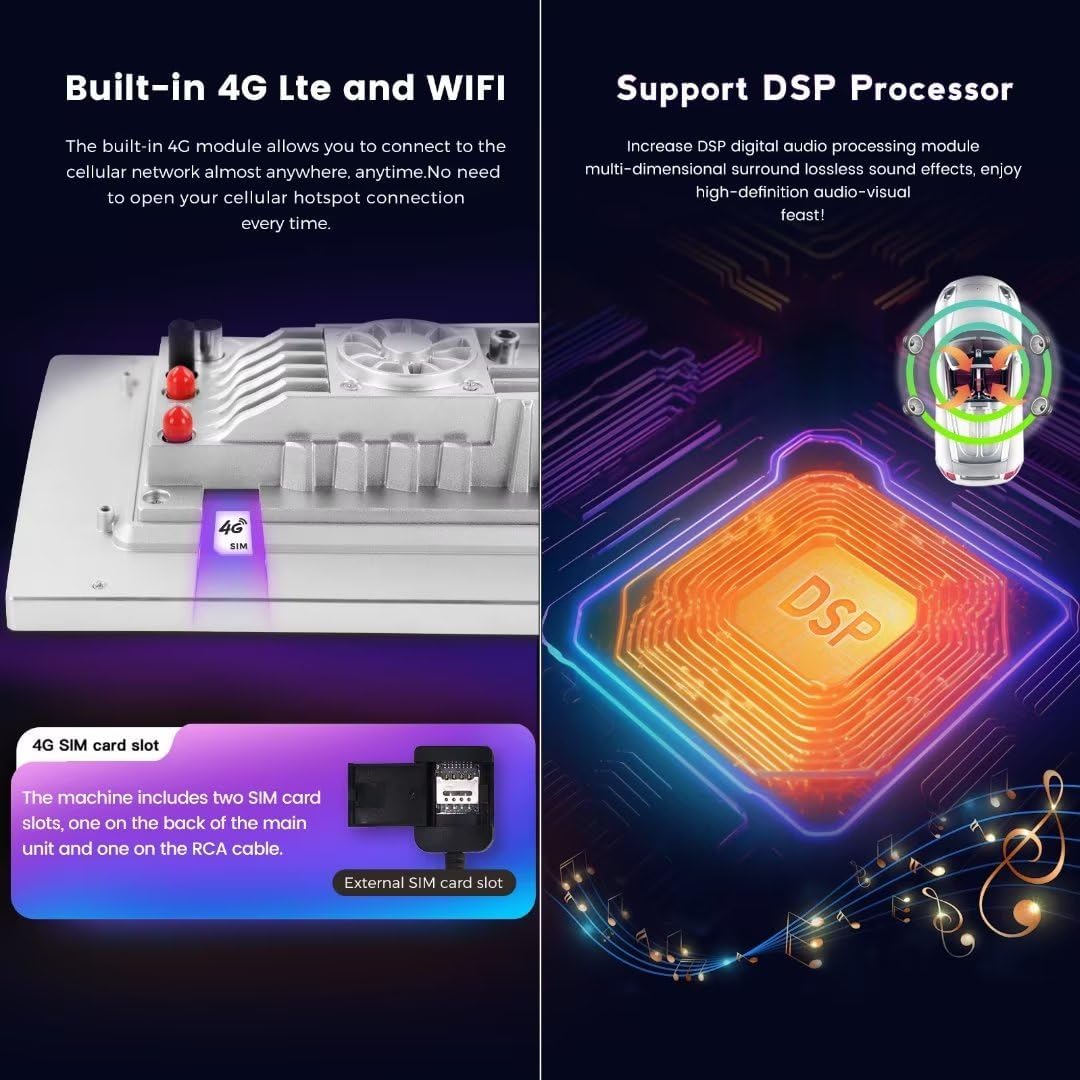
Image: This image highlights the built-in 4G LTE functionality, showing the location of the SIM card slot on the unit and an external SIM card slot on the RCA cable. It also visually represents the DSP (Digital Signal Processor) functionality, indicating multi-dimensional surround lossless sound effects for an enhanced audio-visual experience.
4.4. Bluetooth 5.0
Bluetooth 5.0 provides stable and high-quality connections for hands-free calling and audio streaming from your paired smartphone.
4.5. GPS Navigation
The unit comes with built-in GPS navigation and pre-installed maps. Access navigation applications directly from the main menu.
4.6. Steering Wheel Control
The system retains compatibility with your vehicle's original steering wheel control functions, allowing you to adjust volume, change tracks, and manage calls safely without taking your hands off the wheel.
5. Maintenance
5.1. Screen Cleaning
To clean the touch screen, use a soft, lint-free cloth slightly dampened with water or a screen-cleaning solution. Avoid abrasive materials or harsh chemicals that could damage the screen surface.
5.2. Software Updates
Periodically check for available software updates through the system settings. Updates can provide new features, performance improvements, and bug fixes. Ensure a stable internet connection during updates.
5.3. Cooling System
Ensure the cooling fan area is free from obstructions to allow for proper airflow. The cooling fan helps maintain optimal operating temperature, especially during extended use or in hot environments.
6. Troubleshooting
6.1. No Audio Output
- Harman-Kardon/Bose Systems: If your vehicle has a Harman-Kardon or Bose sound system, verify that the required 6-meter extension cable has been installed. Without this cable, audio will not function.
- Connections: Check all audio cable connections (RCA, power) to ensure they are securely seated.
- Volume: Ensure the volume is not muted or set to a very low level.
6.2. CarPlay/Android Auto Not Connecting
- Bluetooth: Confirm your phone's Bluetooth is on and successfully paired with the head unit.
- Car Link App: Ensure the 'Car Link' application is open on the head unit.
- Phone Settings: Check your phone's settings for CarPlay/Android Auto permissions.
- Wired Connection: For Android Auto, try connecting via a USB cable to rule out wireless issues.
6.3. No 4G LTE or WiFi Connection
- 4G LTE: Verify the SIM card is correctly inserted and activated with a data plan. Check signal strength.
- WiFi: Ensure the WiFi hotspot is active and broadcasting, and that the correct password has been entered.
6.4. Slow Performance
- Restart: Try restarting the head unit.
- Background Apps: Close unnecessary background applications.
- Storage: Ensure sufficient free storage space on the device.
7. Specifications
| Feature | Specification |
|---|---|
| Operating System | Android 12 OS |
| CPU | 8-Core A53 1.8GHz |
| Memory | 8GB RAM, 128GB ROM |
| Display | 9-inch IPS Touch Screen, 1280*720 HD Resolution |
| Power Output | 4*50W |
| Connectivity | 4G LTE, WiFi, Bluetooth 5.0, Wireless CarPlay, Wired Android Auto |
| Audio Formats | APE, FLAC, WAV, MP3, WMA |
| Video Formats | MKV, RMVB, AVI, MP4, MDV |
| Picture Formats | PNG, JPEG, JPG, GIF, WBMP, BNP |
| Special Features | DSP Sound System, GPS Navigation, Steering Wheel Control Support |
8. Warranty and Support
8.1. Product Warranty
This MekedeTech Android Car Radio Stereo comes with a 1-Year Warranty from the date of purchase. Please retain your proof of purchase for warranty claims.
8.2. Customer Support
For technical assistance, installation queries, or troubleshooting, please contact MekedeTech customer support. Our technical team is available to provide guidance and resolve any issues you may encounter.
Contact Information: Please refer to the contact details provided with your product packaging or visit the official MekedeTech website for support options.
