Introduction
This manual provides comprehensive instructions for the installation, operation, and maintenance of your CAMECHO 8 Core 4G+64G Android 13 Carplay & Android Auto 10.26'' Touchscreen Portable Car Stereo. Please read this manual thoroughly before using the device to ensure proper functionality and safety.
What's in the Box
Verify that all components are present upon unboxing:
- Charging Cable
- User Manual (this document)
- Bracket Fixing Sticker
- Mounting Bracket
- AUX Cable
- The Power Cord
- GPS Antenna
- CAMECHO 10.26'' Touchscreen Portable Car Stereo Unit

Specifications
| Feature | Detail |
|---|---|
| Display Size | 10.3 Inches |
| Resolution | 1600 x 720 |
| Operating System | Android 13 |
| Processor | 8-Core |
| RAM | 4GB |
| ROM | 64GB |
| Connectivity | Bluetooth, WiFi, GPS |
| Special Features | Wireless Apple CarPlay, Wireless Android Auto, Split Screen, FM Transmitter |
| Audio Output Modes | AUX, Built-in Speaker, FM Transmission |
| Mounting Type | Dashboard Mount |
| Compatible Voltage | 7-32V (suitable for cars, trucks, buses, etc.) |
| Product Dimensions | 26 x 12 x 11 inches |
| Item Weight | 2.2 pounds |
Setup and Installation
The CAMECHO portable car stereo is designed for easy installation, typically within 5 minutes. It supports a wide voltage range (7-32V) for compatibility with various vehicle types.
Mounting the Unit
- Choose a Location: Select a suitable flat surface on your dashboard that does not obstruct your view or interfere with vehicle controls.
- Attach Mounting Bracket: Secure the adjustable angle mounting bracket to the chosen location using the provided bracket fixing sticker. Ensure the surface is clean and dry before applying the sticker for optimal adhesion.
- Attach Stereo Unit: Slide the CAMECHO stereo unit onto the mounting bracket until it clicks securely into place. Adjust the angle for optimal viewing.
Power Connection
- Connect the provided power cord to the power input port on the stereo unit.
- Plug the other end of the power cord into your vehicle's 12V power outlet (cigarette lighter socket).
- The unit should power on automatically or can be turned on using the power button.
GPS Antenna Connection
- Connect the GPS antenna to the designated GPS port on the unit.
- Position the GPS antenna in a location with a clear view of the sky for optimal signal reception.

Operating Instructions
Initial Setup and Wi-Fi Connection
- Upon first power-on, the unit will guide you through initial setup steps.
- Navigate to the settings menu to connect to a Wi-Fi network (e.g., your mobile hotspot) for internet access. This enables app downloads, streaming, and online navigation.

Wireless Apple CarPlay & Android Auto
This device supports wireless Apple CarPlay and Android Auto, allowing seamless integration with your smartphone.
- Ensure Bluetooth and Wi-Fi are enabled on both your smartphone and the car stereo.
- On the car stereo, select the "CarPlay" or "Android Auto" icon.
- Follow the on-screen prompts to pair your smartphone via Bluetooth. Once paired, the system will automatically establish a Wi-Fi connection for CarPlay/Android Auto functionality.
- You can now access smartphone functions such as music, navigation, calls, and messages via the stereo's touchscreen or voice control.

GPS Navigation
The unit features built-in GPS for navigation. After connecting to Wi-Fi, you can use online mapping applications.
- Open your preferred navigation app (e.g., Google Maps) from the main menu.
- Enter your destination. The system provides real-time map data, multiple route planning options, and congestion warnings.
Audio Output Options
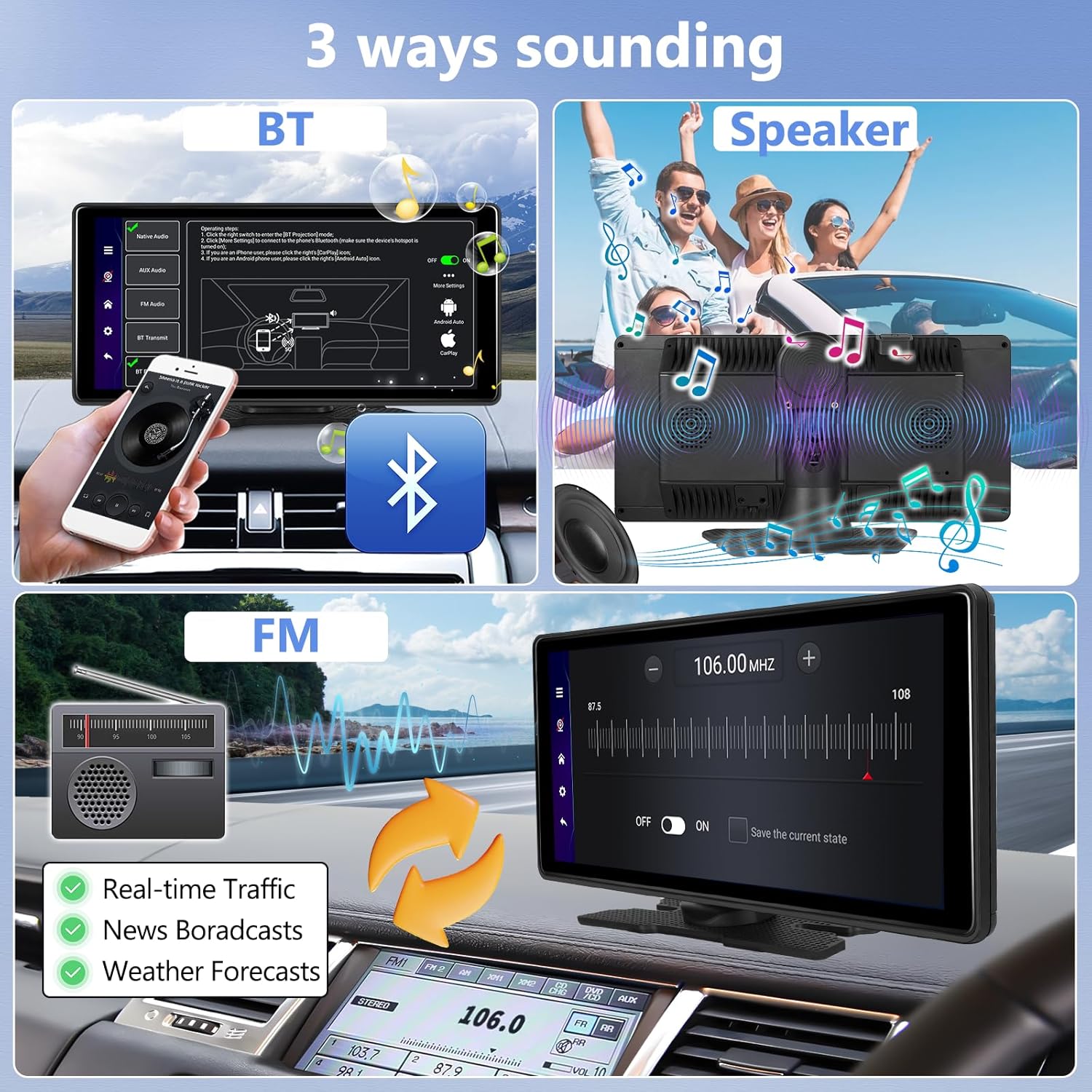
The stereo offers multiple ways to output audio:
- Built-in Speaker: The unit has an integrated stereo speaker for direct audio playback.
- Bluetooth Connection: Connect the stereo to your car's existing Bluetooth system for a lossless audio experience through your car's speakers.
- FM Transmission: Tune the stereo to an empty FM radio channel. Then, tune your car's FM radio to the same frequency to receive audio through your car's speakers.
- AUX Output: Use the provided AUX cable to connect the stereo's AUX output to your car's AUX input for wired audio transmission.

Split Screen Functionality
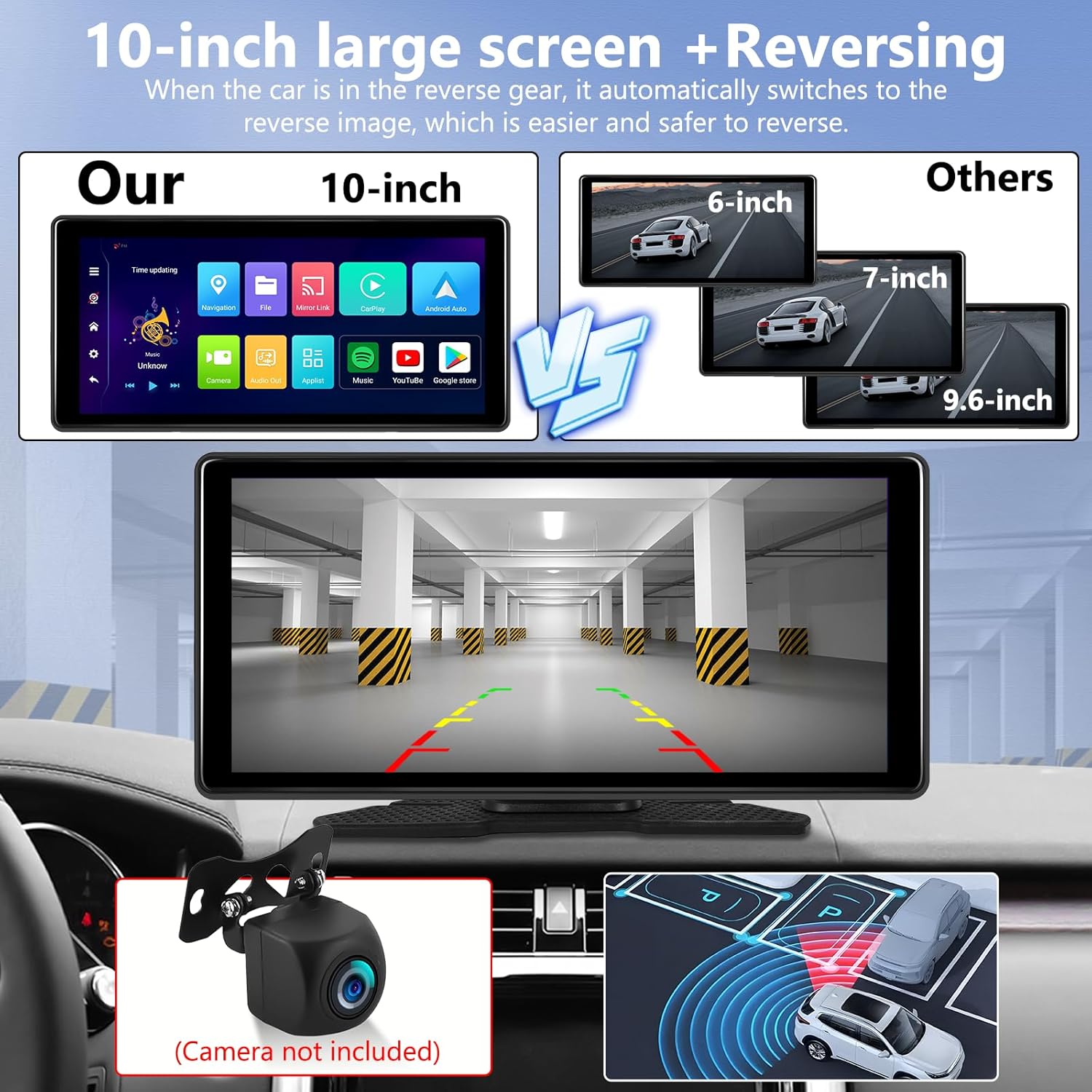
The split-screen feature allows you to run two applications simultaneously on the 10.26-inch display.
- To activate, open an application, then long-press the recent apps button or drag from the side (depending on UI settings) to select a second application for split-screen view.
Reversing Camera Input (Camera Not Included)
The unit supports an external reversing camera input. When the vehicle is shifted into reverse gear, the screen will automatically display the camera feed, enhancing safety during parking and maneuvering.

Maintenance
Regular maintenance ensures the longevity and optimal performance of your CAMECHO car stereo.
- Cleaning: Use a soft, dry, lint-free cloth to clean the touchscreen and exterior. For stubborn smudges, slightly dampen the cloth with water or a screen-safe cleaner. Avoid abrasive materials or harsh chemicals.
- Temperature: Avoid exposing the unit to extreme temperatures (very hot or very cold) for extended periods, as this can affect performance and lifespan.
- Connections: Periodically check all cable connections (power, AUX, GPS antenna) to ensure they are secure and free from damage.
- Software Updates: Check for available software updates through the unit's settings menu to ensure you have the latest features and performance improvements.
Troubleshooting
If you encounter issues with your CAMECHO car stereo, refer to the following common troubleshooting steps:
| Problem | Possible Cause / Solution |
|---|---|
| Unit does not power on. |
|
| No audio output. |
|
| GPS signal is weak or inaccurate. |
|
| CarPlay/Android Auto not connecting. |
|
| Unit freezes or is unresponsive. |
|
Warranty and Customer Support
CAMECHO is committed to providing excellent customer service and technical support.
- Warranty: The product comes with a 12-month replacement warranty.
- Money-Back Guarantee: A 30-day money-back guarantee is provided.
- Technical Support: Lifetime technical support is available.
- Contact: For any questions regarding installation or use, please contact CAMECHO customer service. Responses are typically provided within 24 hours.