
1. Introduction
The FLYINGVOICE G508 is a versatile Voice over Internet Protocol (VoIP) Analog Telephone Adapter (ATA) designed to provide seamless voice and data connectivity. It features 8 FXS ports, 1 Gigabit LAN port, and 1 Gigabit WAN port, offering 8 SIP lines for making calls. The G508 functions as a wire-speed NAT router and supports T.38 real-time fax and T.30 fax with G.711, ensuring reliable communication. This stand-alone device does not require a computer for internet calls and adheres to SIP industry standards, ensuring broad compatibility with various SIP devices and service providers. Its compact design, excellent voice quality, and robust feature set make it an optimal solution for IP voice and data needs.

Figure 1: Front view of the FLYINGVOICE G508 Analog Telephone Adapter, showing the power indicator and 8 phone line indicators.
2. Key Features
- Gigabit Ethernet Ports: Equipped with 2 x 10/100/1000M Ethernet ports (1 LAN, 1 WAN) for high-speed network connections and smooth data transfer, supporting up to 1,000 Mbps.
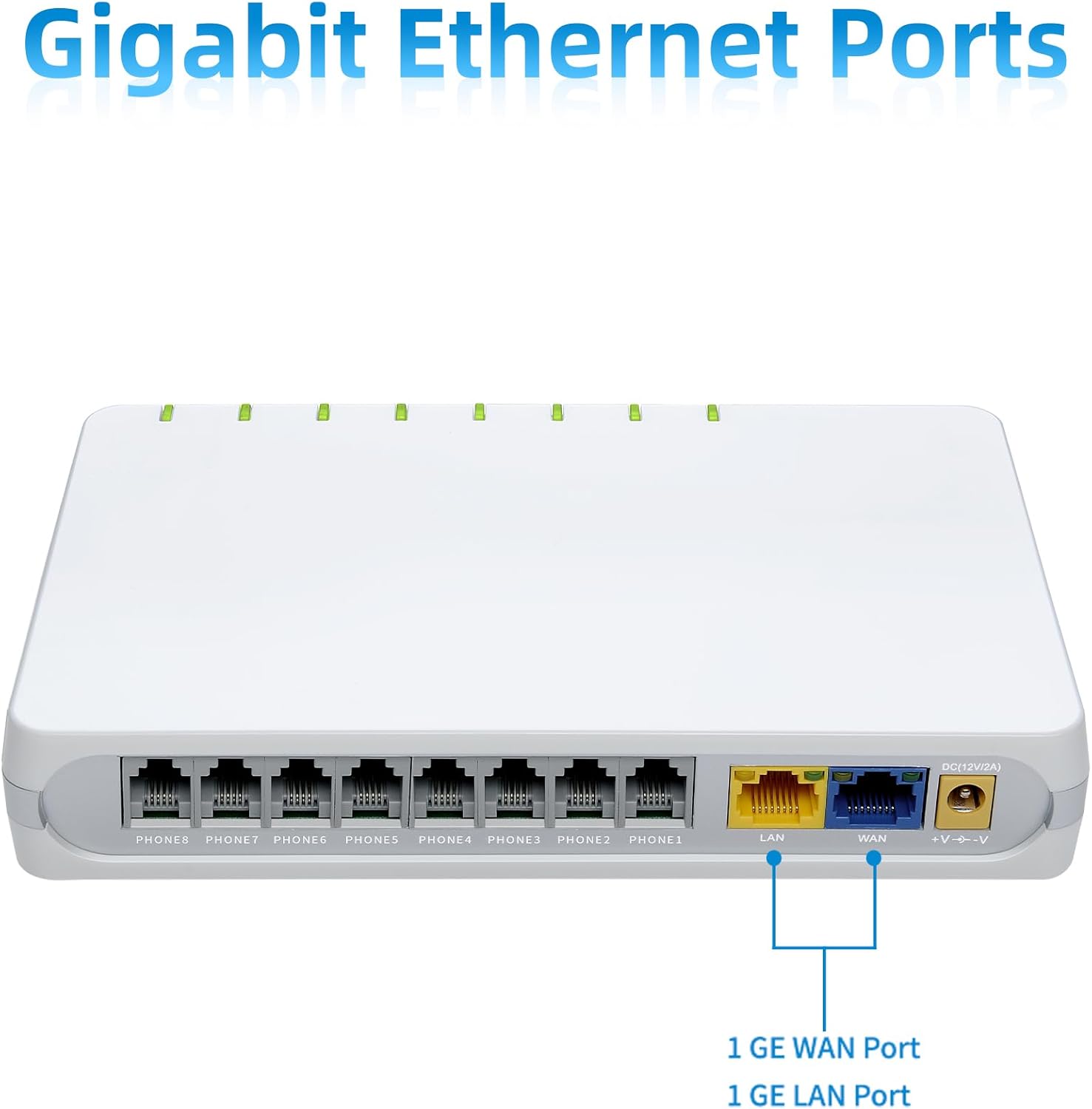
Figure 2: Rear view of the G508, highlighting the Gigabit LAN and WAN ports for high-speed network connectivity.
- All-in-one Adapter: Features 8 FXS ports and supports T.38, T.30, and G.711 fax standards, allowing connection of up to 8 SIP lines for calls and fax machines, optimizing equipment costs.

Figure 3: The G508 device surrounded by icons representing phone calls and fax capabilities, illustrating its all-in-one functionality.
- Stand-alone Device: Operates independently without the need for a personal computer to make Internet calls.

Figure 4: The G508 device with phone icons radiating outwards, symbolizing its ability to function independently for voice communication.
- Broad Compatibility: Based on SIP V2 standard, ensuring compatibility with most service providers for flexible VoIP network deployment.

Figure 5: The G508 device positioned above a blue oval containing "SIP V2", indicating its adherence to the SIP V2 standard for wide compatibility.
- Easy Management: Supports advanced management protocols such as SNMP and TR069 for simplified unified deployment and centralized management.

Figure 6: The G508 device with blue rectangles extending from it, labeled "TR069" and "SNMP", representing its easy management capabilities.
3. Setup Guide
Follow these steps to set up your FLYINGVOICE G508 ATA:
- Unpack the Device: Carefully remove the G508 ATA and all accessories from its packaging. Ensure all components are present: the G508 unit, power adapter, and Ethernet cable.
- Connect Power: Connect the provided power adapter to the DC 12V port on the rear of the G508 and plug the adapter into a standard electrical outlet. The 'POWER' indicator on the front panel should illuminate.
- Connect to Network:
- Connect an Ethernet cable from your broadband router or modem to the WAN port (blue) on the G508. This port provides internet access to the device.
- (Optional) If you need to connect a computer or another network device, use an Ethernet cable to connect it to the LAN port (yellow) on the G508. The G508 functions as a NAT router for devices connected to its LAN port.
- Connect Analog Devices: Connect your analog telephones or fax machines to the PHONE1 through PHONE8 (FXS) ports on the rear of the G508 using standard RJ11 telephone cables. Each port supports one analog device.
- Verify Indicators: Once connected, observe the LED indicators on the front panel. The 'POWER' LED should be solid green. The 'PHONE' LEDs will illuminate when a phone is connected and active. Network activity LEDs for LAN/WAN will flash during data transmission.
- Configuration (if required): For initial setup or advanced configurations (e.g., SIP account details, network settings), access the device's web-based management interface. Refer to the separate network configuration guide or contact your service provider for specific IP address and login credentials.
4. Operating Instructions
The FLYINGVOICE G508 is designed for straightforward operation once configured.
- Making Voice Calls:
Lift the handset of the analog telephone connected to any of the FXS ports. You should hear a dial tone. Dial the desired phone number. The G508 will route the call over the configured SIP lines via your internet connection.
- Receiving Voice Calls:
When an incoming call is received, the connected analog telephone will ring. Lift the handset to answer the call.
- Using Fax Machines:
Connect your fax machine to one of the FXS ports. The G508 supports T.38 real-time fax and T.30 fax with G.711, ensuring reliable fax transmission over IP networks. Operate your fax machine as usual for sending and receiving faxes.
- Network Routing:
The G508 functions as a wire-speed NAT router. Devices connected to the LAN port will receive IP addresses from the G508 and can access the internet through its WAN connection. This allows for basic network sharing capabilities.
5. Maintenance
Proper maintenance ensures the longevity and optimal performance of your G508 ATA.
- Cleaning: Gently wipe the device with a soft, dry cloth. Do not use liquid cleaners or aerosol sprays, as they may damage the unit.
- Ventilation: Ensure the device is placed in a well-ventilated area. Do not block the ventilation slots on the sides of the unit.
- Environmental Conditions: Avoid exposing the device to extreme temperatures, high humidity, or direct sunlight.
- Firmware Updates: Periodically check the FLYINGVOICE official website or consult your service provider for available firmware updates. Firmware updates can improve performance, add features, and enhance security.
- Remote Management (TR-069/SNMP): The G508 supports TR-069 and SNMP protocols, allowing your service provider or network administrator to remotely manage and monitor the device, including firmware updates and configuration changes.
6. Troubleshooting
If you encounter issues with your G508 ATA, refer to the following common troubleshooting steps:
| Problem | Possible Cause | Solution |
|---|---|---|
| No Power / Power LED Off | Power adapter not connected or faulty; power outlet issue. | Ensure power adapter is securely connected to the device and a working electrical outlet. Try a different outlet. |
| No Dial Tone on Phone | Phone not connected correctly; SIP registration failed; network issue. | Verify phone cable is securely plugged into an FXS port. Check network connection (WAN LED). Confirm SIP account registration status via web interface. Restart the G508. |
| Cannot Make/Receive Calls | SIP account not configured or registered; internet connectivity issue; firewall blocking VoIP traffic. | Check WAN LED for internet connection. Verify SIP account settings with your service provider. Ensure no firewall rules are blocking necessary VoIP ports (e.g., UDP 5060 for SIP, RTP ports). |
| Fax Transmission Issues | Network latency; T.38 not enabled/configured; fax machine settings. | Ensure T.38 is enabled and correctly configured on the G508 and with your service provider. Try reducing fax speed settings on the fax machine. Check network stability. |
| Slow Internet Speed on LAN Port | Network congestion; cable issue; G508 processing load. | Check your internet service provider's speed. Ensure you are using Gigabit Ethernet cables. Restart the G508 and connected devices. |
For advanced troubleshooting or issues not listed here, please consult your network administrator, service provider, or the FLYINGVOICE technical support team.
7. Specifications
| Feature | Detail |
|---|---|
| Model Number | G508 |
| FXS Ports | 8 |
| Ethernet Ports | 1 x Gigabit LAN, 1 x Gigabit WAN |
| SIP Lines | 8 |
| Fax Support | T.38 real-time fax, T.30 fax with G.711 |
| Routing Capability | Wire-speed NAT router |
| Management Protocols | SNMP, TR-069 |
| Dimensions (L x W x H) | 7.08 x 4.33 x 1.18 inches (18 x 11 x 3 cm) |
| Item Weight | 1.76 pounds (0.8 kg) |
| Color | White |
8. Warranty and Support
Warranty Information: Specific warranty terms and conditions for the FLYINGVOICE G508 Analog Telephone Adapter are typically provided at the point of purchase or can be found on the official FLYINGVOICE website. Please retain your proof of purchase for warranty claims.
Technical Support: For technical assistance, advanced configuration, or troubleshooting beyond this manual, please contact FLYINGVOICE customer support or your authorized reseller. You may also find additional resources and FAQs on the official FLYINGVOICE website.
FLYINGVOICE Official Website: www.flyingvoice.com


