
Garmin 010-02808-60
Contents
Garmin TacX NEO 3M Smart Trainer User Manual
Model: Tacx NEO 3M (010-02808-60)
Introduction
This manual provides essential information for the setup, operation, maintenance, and troubleshooting of your Garmin TacX NEO 3M Smart Trainer. The Tacx NEO 3M is a powerful direct-drive smart trainer designed to provide a realistic indoor cycling experience with built-in multidirectional movement and a state-of-the-art NEO magnet motor. It features an innovative virtual flywheel for simulating various road surfaces and seamlessly connects with popular training applications.
What's in the Box
- Tacx NEO 3M cycling trainer
- Front wheel support
- Power cable
- 3-month Tacx Premium voucher
- QR skewer
- Adapters for quick release (130 mm and 135 mm)
- Adapters for thru axle (142 x 12 and 148 x 12)
- Documentation
Setup
Follow these steps to set up your TacX NEO 3M Smart Trainer:
- Unpack Components: Carefully remove all items from the packaging and verify against the "What's in the Box" list.
- Position the Trainer: Place the trainer on a stable, level surface. Ensure adequate space around the trainer for safe operation.
- Install Front Wheel Support: Place the front wheel support under your bicycle's front wheel to level the bike.
- Attach Your Bicycle:
- For quick release bikes: Use the appropriate 130 mm or 135 mm QR skewer and adapters.
- For thru-axle bikes: Use the appropriate 142 x 12 or 148 x 12 thru-axle adapters.
- Securely mount your bike to the trainer's rear axle. The trainer comes with a pre-installed 11-speed cassette, ready for use.
- Connect Power: Connect the power cable to the trainer and then to a power outlet. The built-in LED indicator will illuminate.
- Initial Connection: The trainer is calibration-free and ready to ride once your bike is installed. For smart features, connect to your preferred training app via Bluetooth or Wi-Fi.

Figure 1: The TacX NEO 3M Smart Trainer ready for use with a bicycle.

Figure 2: The TacX NEO 3M Smart Trainer in its folded, compact state for easy storage or transport.
Operating Instructions
The TacX NEO 3M offers a highly realistic and interactive indoor cycling experience. Here's how to get the most out of your trainer:
- Multidirectional Movement: The built-in integrated motion plates provide a realistic riding feel. These can be toggled on and off as desired using the switches on the trainer's base.
- Virtual Flywheel & Road Feel: The innovative Tacx virtual flywheel simulates various road types, such as cobblestone and gravel. This feature is active when paired with the Tacx Training app or other compatible smart devices and training apps.
- Simulated Inclines & Descents: Experience realistic climbs up to a 25% gradient and descent simulation, allowing for targeted training.
- Power, Speed, and Cadence Measurement: The trainer provides reliable and consistent measurements of your power, speed, and cadence, with improved accuracy within 1% across a broad range of power outputs.
- LED Indicator: A built-in LED indicator changes color to show how hard you are pushing during your ride.
- App Integration: Seamlessly connect with popular training apps like the Tacx Training app, TrainerRoad, and Zwift. Your ride data will automatically upload to the Garmin Connect smart-device app.
- Stability: The well-balanced design ensures maximum stability, even during intense sprints up to 2200 watts.
- Calibration-Free: The NEO 3M smart trainer requires no calibration, making it ready to ride each time your bike is installed.

Figure 3: Detail of the toggle switch for activating or deactivating the multidirectional motion plates.
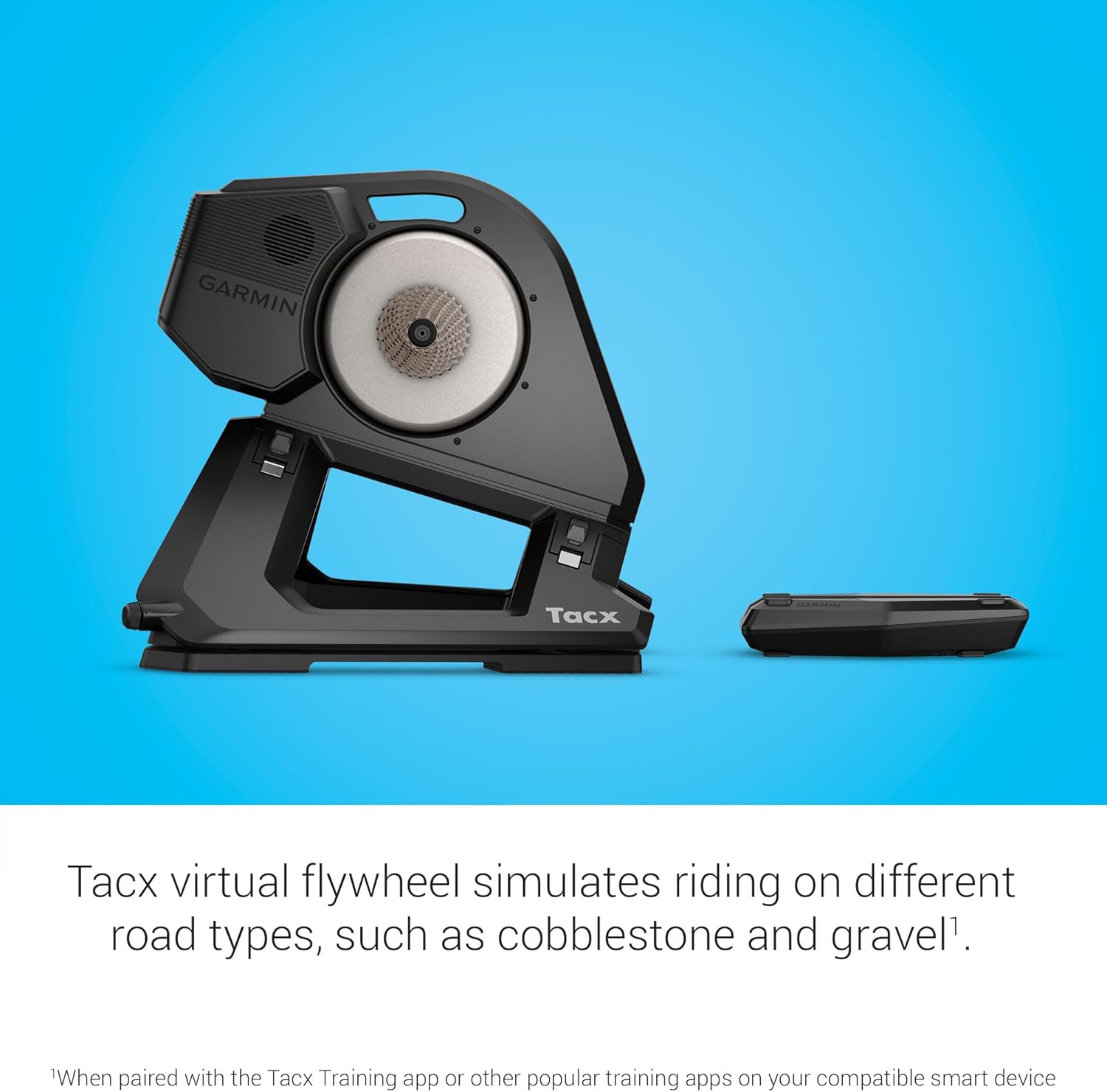
Figure 4: The Tacx Training app interface on a smartphone, demonstrating seamless integration.
Maintenance
Proper maintenance ensures the longevity and optimal performance of your TacX NEO 3M Smart Trainer:
- Cleaning: Regularly wipe down the trainer with a damp cloth to remove sweat and dust. Avoid using abrasive cleaners or solvents.
- Storage: When not in use, store the trainer in a dry, cool place. The trainer can be folded for compact storage.
- Cable Inspection: Periodically check the power cable for any signs of wear or damage. Replace if necessary.
- Firmware Updates: Keep the trainer's firmware updated through the Tacx Training app or Garmin Connect app to ensure the latest features and performance improvements.
Troubleshooting
If you encounter issues with your TacX NEO 3M, refer to the following common troubleshooting tips:
| Problem | Possible Cause | Solution |
|---|---|---|
| Trainer not powering on. | Power cable not connected, power outlet issue. | Ensure power cable is securely connected to the trainer and a working power outlet. Check the power outlet with another device. |
| No connection to training app. | Bluetooth/Wi-Fi off, app not detecting trainer, interference. | Ensure Bluetooth/Wi-Fi is enabled on your device. Restart the app and trainer. Move closer to the trainer or reduce wireless interference. |
| Unrealistic road feel. | Motion plates toggled off, app setting. | Check if the multidirectional motion plates are toggled on. Verify settings within your training application. |
| Inaccurate power readings. | No specific calibration needed for NEO 3M, but ensure stable connection. | Ensure the trainer is on a stable surface. Verify the latest firmware is installed. If issues persist, contact Garmin support. |
Specifications
| Feature | Detail |
|---|---|
| Brand | Garmin |
| Model Name | Tacx® NEO 3M Smart Trainer |
| Item Model Number | 010-02808-60 |
| Color | Black |
| Material | Plastic |
| Product Dimensions (L x W x H) | 23.4"L x 24.8"W x 31.5"H |
| Item Weight | 52 pounds |
| Resistance Mechanism | Magnetic |
| Max Power | 2200 watts |
| Max Incline | 25% |
| Accuracy | Within 1% |
| Connectivity Technologies | Bluetooth, Wi-Fi |
| Cassette Compatibility | Pre-installed 11-speed cassette (Shimano/SRAM compatible) |
| Axle Compatibility | Quick release (130 mm, 135 mm), Thru axle (142 x 12, 148 x 12) |
Warranty and Support
For warranty information, product registration, or technical support, please visit the official Garmin support website or contact their customer service. Keep your proof of purchase for any warranty claims.
Online Resources:
- Garmin Support Website: www.garmin.com/support
- Tacx Training App: Available on app stores for compatible smart devices.
- Garmin Connect App: Available on app stores for compatible smart devices.
Documents and downloads
Ask a question about this manual
Ask about setup, troubleshooting, compatibility, parts, safety, or missing instructions. Manuals+ will review the question and use this page’s manual context to help answer it.