
1. Introduction
The Cleyver HC95 is a wired headset designed for professional communication, offering clear audio and a noise-cancelling microphone. It features an integrated Busylight to indicate user availability and is optimized for various communication platforms, ensuring efficient and focused conversations.
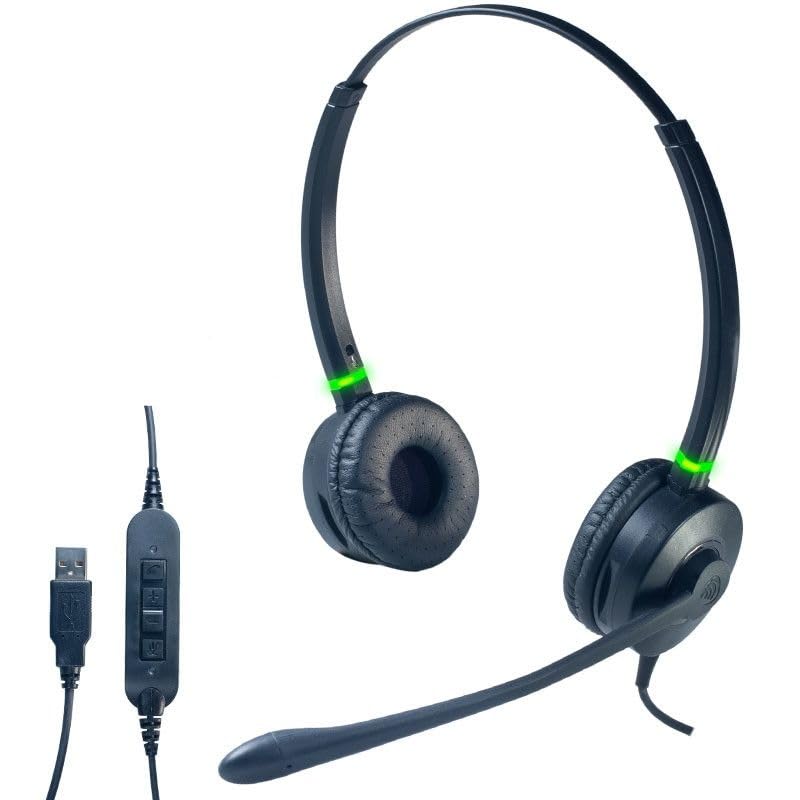
A front view of the Cleyver HC95 wired headset, highlighting its over-ear design and microphone boom.
2. Package Contents
Please check the box for the following items:
- Cleyver HC95 Wired Headset (with integrated USB-A cable)
- User Manual (this document)
3. Setup
- Connect the Headset: Plug the USB-A connector of the Cleyver HC95 headset into an available USB port on your computer.
- Automatic Installation: Your operating system (Windows, macOS, Linux) should automatically detect and install the necessary drivers. This may take a few moments.
- Select as Default Device: Once installed, navigate to your computer's sound settings and select the Cleyver HC95 as your default audio input (microphone) and output (speaker) device for calls and media.
- Software Configuration: For optimal performance with communication software (e.g., Microsoft Teams, Skype for Business, Zoom), ensure the Cleyver HC95 is selected as the audio device within the application's settings.

The inline control unit for the Cleyver HC95 headset, featuring buttons for call management, volume adjustment, and microphone mute, along with the USB-A connector.
4. Operating Instructions
4.1 Wearing the Headset
- Adjust the headband for a comfortable fit over your head.
- Position the earcups over your ears. The HC95 features an over-ear design for comfort during extended use.
- Rotate the microphone boom arm to position the microphone approximately 2-3 cm (1 inch) from the corner of your mouth for optimal voice pickup.
4.2 Inline Control Functions
The inline control unit provides easy access to essential call management features:
- Call Button: Press to answer or end a call.
- Volume Up (+): Press to increase the listening volume.
- Volume Down (-): Press to decrease the listening volume.
- Mute Button: Press to mute or unmute the microphone. An LED indicator on the control unit may show the mute status.
4.3 Busylight Functionality
The integrated Busylight on the earcups provides a visual indication of your call status to those around you.
- Green Light: Indicates you are available or on a call.
- Red Light: Indicates you are busy or in a meeting.

Headset with green Busylight, indicating availability.

Headset with red Busylight, indicating busy status.
5. Features
- Extreme Comfort: The lightweight design ensures a comfortable, pressure-free wearing experience, even during extended periods of use.
- Exceptional Sound Quality: Enjoy clear and crisp conversations thanks to wideband audio technology.
- Advanced Noise-Cancelling Microphone: The long boom microphone effectively reduces up to 80% of ambient background noise, making it ideal for use in noisy office environments.
- Acoustic Protection and Busylight Indicators: Built-in acoustic protection safeguards your hearing. Integrated luminous indicators on the earcups signal your availability to colleagues, minimizing interruptions.
- Optimized for Communication Software: The headset is pre-configured for efficient communication with platforms like Microsoft Skype for Business and Microsoft Teams. It also offers extended compatibility with various other softphones and operating systems.
6. Maintenance and Care
- Cleaning: Use a soft, dry cloth to clean the headset. For ear cushions, gently wipe with a slightly damp cloth and allow to air dry completely before use. Do not use harsh chemicals or abrasive cleaners.
- Storage: Store the headset in a cool, dry place away from direct sunlight and extreme temperatures. Avoid tangling the cable.
- Cable Care: Do not pull on the cable to disconnect the headset. Always grasp the USB connector. Avoid bending or twisting the cable excessively.
- Water Resistance: This headset is not water-resistant. Avoid exposure to liquids.
7. Troubleshooting
7.1 No Sound from Headset
- Ensure the headset is securely plugged into a USB port.
- Check your computer's sound settings to confirm the Cleyver HC95 is selected as the default output device.
- Verify the volume on the inline control unit and your computer is not muted or set too low.
- Test the headset on a different USB port or another computer to rule out port issues.
7.2 Microphone Not Working
- Ensure the microphone is not muted via the inline control unit or within your communication software.
- Check your computer's sound settings to confirm the Cleyver HC95 is selected as the default input device.
- Adjust the microphone gain/level in your computer's sound settings.
- Ensure the microphone boom arm is correctly positioned near your mouth.
7.3 Busylight Not Functioning
- Ensure the headset is properly connected and recognized by your computer.
- The Busylight functionality is often integrated with specific communication software (e.g., Microsoft Teams). Ensure the software is running and the headset is selected as the active device.
- Restart your communication software or computer.
8. Specifications
| Model Number | ODHC95USB |
| Brand | Cleyver |
| Connectivity Technology | Wired (USB-A) |
| Microphone | Noise-Cancelling Boom Microphone |
| Audio Quality | Wideband Audio |
| Control Method | Inline Remote Control, Voice Control |
| Ear Placement | Over-Ear (Circumaural) |
| Noise Control | Acoustic Isolation |
| Material | Stainless Steel, Aluminum |
| Color | Black |
| Compatible Devices | Softphone software including Skype for Business, Microsoft Teams, Cisco, Avaya, and 3CX |
| Water Resistance Level | Not Water Resistant |
9. Warranty and Support
For warranty information, technical support, or service inquiries, please refer to the documentation provided with your purchase or contact Cleyver customer support directly. Keep your proof of purchase for warranty claims.