1. Introduction
This manual provides essential information for the setup, operation, and maintenance of your MINISFORUM AI X1-255 Mini PC Barebone. Please read it thoroughly before using the device to ensure proper functionality and longevity.

Figure 1: MINISFORUM AI X1-255 Mini PC Barebone
2. What's in the Box
Carefully unpack your MINISFORUM AI X1-255 Mini PC Barebone and verify that all items listed below are included.
- MINISFORUM AI X1-255 Mini PC
- Power Adapter
- HDMI Cable
- Wall Mount Bracket with Screws
- M.2 to OCuLink Adapter Plate
- Instruction Manual

Figure 2: Included accessories with the Mini PC.
Video 1: An overview of the MINISFORUM AI X1-255 Mini PC and its included accessories.
3. Product Overview
3.1. Key Features
- Processor: AMD Ryzen 7 255 (8 cores/16 threads, Zen4 architecture, up to 4.9 GHz) with Radeon 780M graphics.
- Memory: Supports DDR5 SODIMM, up to 5600 MT/s, up to 64 GB.
- Storage: Dual M.2 2280 PCIe4.0x4 slots, each supporting up to 4 TB SSD.
- Display Output: HDMI/DP/USB4 (8K@60Hz/4K@120Hz) supporting up to 4 screens.
- Connectivity: 2.5G LAN, Wi-Fi 7, Bluetooth 5.4.
- Ports: Dual USB4 (40Gbps, PD 65-100W input, 15W external output), USB-A x 3, OCuLink port.
- Audio: Built-in microphone and dual speakers.
- Cooling: Large silent fan and heat pipe for efficient 65W thermal dissipation.

Figure 3: Key features and compact dimensions of the AI X1-255.
3.2. Front and Rear Interfaces
Familiarize yourself with the available ports for connecting peripherals and displays.
- Front: DMIC x 2, USB 3.2 Gen2 Type-A x 2, USB4 x 1 (data only), 3.5mm audio jack, Power button, Clear CMOS pinhole.
- Rear: DC 19V power input, 2.5G LAN, DP 2.0, OCuLink, USB4 x 1 (supports power and display), HDMI 2.1, USB 2.0 Type-A.

Figure 4: Detailed view of the front and rear ports.
4. Setup Guide
4.1. Initial Connection
- Connect your monitor(s) to the HDMI, DisplayPort, or USB4 outputs.
- Connect your keyboard and mouse to the available USB-A ports.
- For wired network access, connect an Ethernet cable to the 2.5G LAN port.
- Connect the power adapter to the DC 19V input port on the rear of the Mini PC, then plug it into a power outlet.
4.2. Power On
Press the power button located on the front of the Mini PC. The power indicator light will illuminate, and the system will begin to boot.
5. Operating Instructions
5.1. Multi-Display Setup
The AI X1-255 supports up to four independent displays for enhanced productivity.
- Connect monitors using the HDMI, DisplayPort, and two USB4 ports.
- Adjust display settings (resolution, orientation, arrangement) through your operating system's display settings.

Figure 5: Example of a 4-screen display setup for efficient work.
5.2. USB4 Functionality
The dual USB4 ports offer versatile connectivity:
- Up to 40Gbps data transmission speed for large file transfers and high-demand applications.
- Supports Power Delivery (PD) 65-100W for host power supply.
- Provides 15W external output power supply for compatible devices.
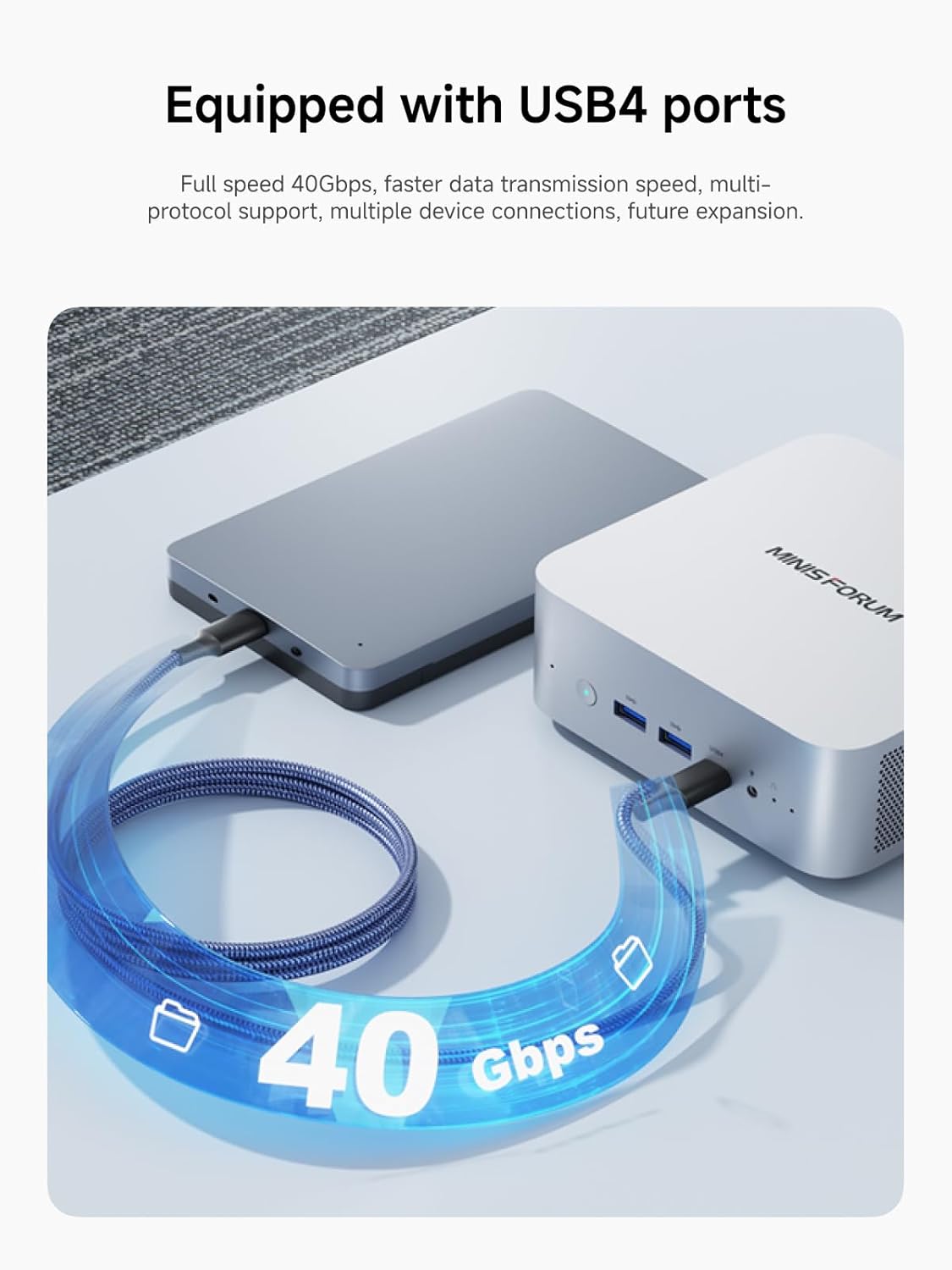
Figure 6: Connecting external devices via dual USB4 ports.
6. Maintenance & Upgrades
6.1. Memory and Storage Upgrades
The AI X1-255 is designed for easy upgrades of its memory and storage components.
- Memory: Supports DDR5 SODIMM, up to 5600 MT/s. Max capacity 64 GB (2x32GB).
- Storage: Two M.2 2280 PCIe4.0x4 slots, each supporting up to 4 TB SSD.

Figure 7: Internal view showing DDR5 memory and M.2 SSD slots.
Video 2: Installation guide for memory and storage in the AI X1-255.
6.2. OCuLink eGPU Connection
The OCuLink port allows connection to an external GPU (eGPU) for enhanced graphics performance. This requires sacrificing one M.2 2280 PCIe 4.0 SSD slot. The MINISFORUM DEG1 eGPU dock is compatible.
Note: Hot swapping is not supported for OCuLink connections.

Figure 8: Connecting an external GPU via OCuLink for improved graphics.
7. Performance & Thermal Management
The AI X1-255 features a powerful AMD Ryzen 7 255 processor and an efficient cooling system to maintain optimal performance.
- Processor: AMD Ryzen 7 255 (8 cores/16 threads, Zen4 architecture, 16 MB L3 cache, up to 4.9 GHz) with Radeon 780M graphics.
- Cooling: Large silent fan and heat pipe design ensures 65W stable thermal release. Full-load noise levels are kept below 45dB.
- Power Draw: Highly efficient, with low power consumption during idle and under load.

Figure 9: Processor specifications and performance benchmarks.

Figure 10: Cooling system design and thermal performance.
8. Gaming & Creative Work
The integrated AMD Radeon 780M graphics provide a smooth experience for light gaming and multimedia editing. With an OCuLink eGPU, the system's capabilities can be significantly expanded for demanding tasks.

Figure 11: Measured gaming fluency in various popular games.
9. Specifications
| Feature | Specification |
|---|---|
| Processor | AMD Ryzen 7 255 (8C/16T, up to 4.9 GHz) |
| Graphics Coprocessor | AMD Radeon 780M |
| Memory Type | DDR5 RAM (SODIMM) |
| Memory Speed | 5600 MHz |
| Hard Drive Interface | M.2 2280 PCIe4.0x4 (SSD) |
| Max Screen Resolution | 7680x4320 (8K) |
| USB 3.0 Ports | 2 (Type-A) |
| USB 2.0 Ports | 1 (Type-A) |
| USB4 Ports | 2 (40Gbps, PD input/output) |
| LAN | 2.5G Ethernet |
| Wireless | Wi-Fi 7, Bluetooth 5.4 |
| Item Weight | 2.75 pounds |
| Package Dimensions | 7.17 x 6.26 x 4.57 inches |
10. Troubleshooting
- No Display: Ensure all display cables are securely connected and the monitor is powered on. Try different display ports or cables.
- No Power: Verify the power adapter is correctly connected to the Mini PC and a working power outlet.
- System Unresponsive: Press and hold the power button for 5-10 seconds to force a shutdown, then restart. If issues persist, use the Clear CMOS pinhole.
- Driver Issues: After OS installation, ensure all drivers are updated from the manufacturer's support page or AMD's official website for optimal performance.
11. Warranty & Support
This product is covered by a standard manufacturer's warranty. For detailed warranty terms and conditions, please refer to the documentation included in your package or visit the official MINISFORUM website.
For technical support, driver downloads, or further assistance, please visit the MINISFORUM support page or contact their customer service.


