
1. Introduction
This manual provides essential information for the setup, operation, maintenance, and troubleshooting of your Lenovo ThinkCentre M900Z All-in-One Desktop Computer. Please read this manual thoroughly before using the device to ensure proper functionality and longevity.

Figure 1.1: Lenovo ThinkCentre M900Z All-in-One Desktop Computer with included keyboard and mouse.
2. What's in the Box
Verify that all the following items are included in your package:
- Lenovo ThinkCentre M900Z All-in-One Computer
- AC Adapter
- Keyboard
- Mouse
3. Setup
Follow these steps to set up your ThinkCentre M900Z All-in-One Desktop Computer:
- Unpack the Device: Carefully remove the computer and all accessories from the packaging.
- Position the Computer: Place the All-in-One computer on a stable, flat surface with adequate ventilation around it.
- Connect Peripherals:
- Connect the keyboard and mouse to the available USB 3.0 ports on the side or rear of the computer. Refer to Figure 3.1 and Figure 3.2 for port locations.
- Connect Power: Connect the AC adapter to the power input port on the rear of the computer, then plug the power cord into a wall outlet.
- Initial Boot-up: Press the power button located on the side of the computer (refer to Figure 3.3). The system will power on and begin the initial Windows setup process. Follow the on-screen instructions to complete the setup.

Figure 3.1: Side I/O Ports including USB 3.0, Headphone/Mic combo, and DVD Drive.

Figure 3.2: Rear I/O Ports including Power In, Ethernet, Display Port, and USB 3.0 ports.

Figure 3.3: Close-up of side buttons, including the power button, brightness controls, and microphone control.
4. Operating Instructions
Your Lenovo ThinkCentre M900Z runs on Windows 10 Pro, providing a familiar and efficient operating environment.
4.1 Power On/Off
- To Power On: Press the power button on the side of the unit (refer to Figure 3.3).
- To Power Off: Click the Start button in Windows, then select Power > Shut down. Alternatively, press and hold the power button for a few seconds to force a shutdown (not recommended for regular use).
4.2 Display Adjustment
The 23.8-inch FHD (1920 x 1080) display can be tilted for optimal viewing comfort. Gently adjust the screen angle as needed. Use the brightness buttons on the side of the unit (Figure 3.3) to adjust screen brightness.
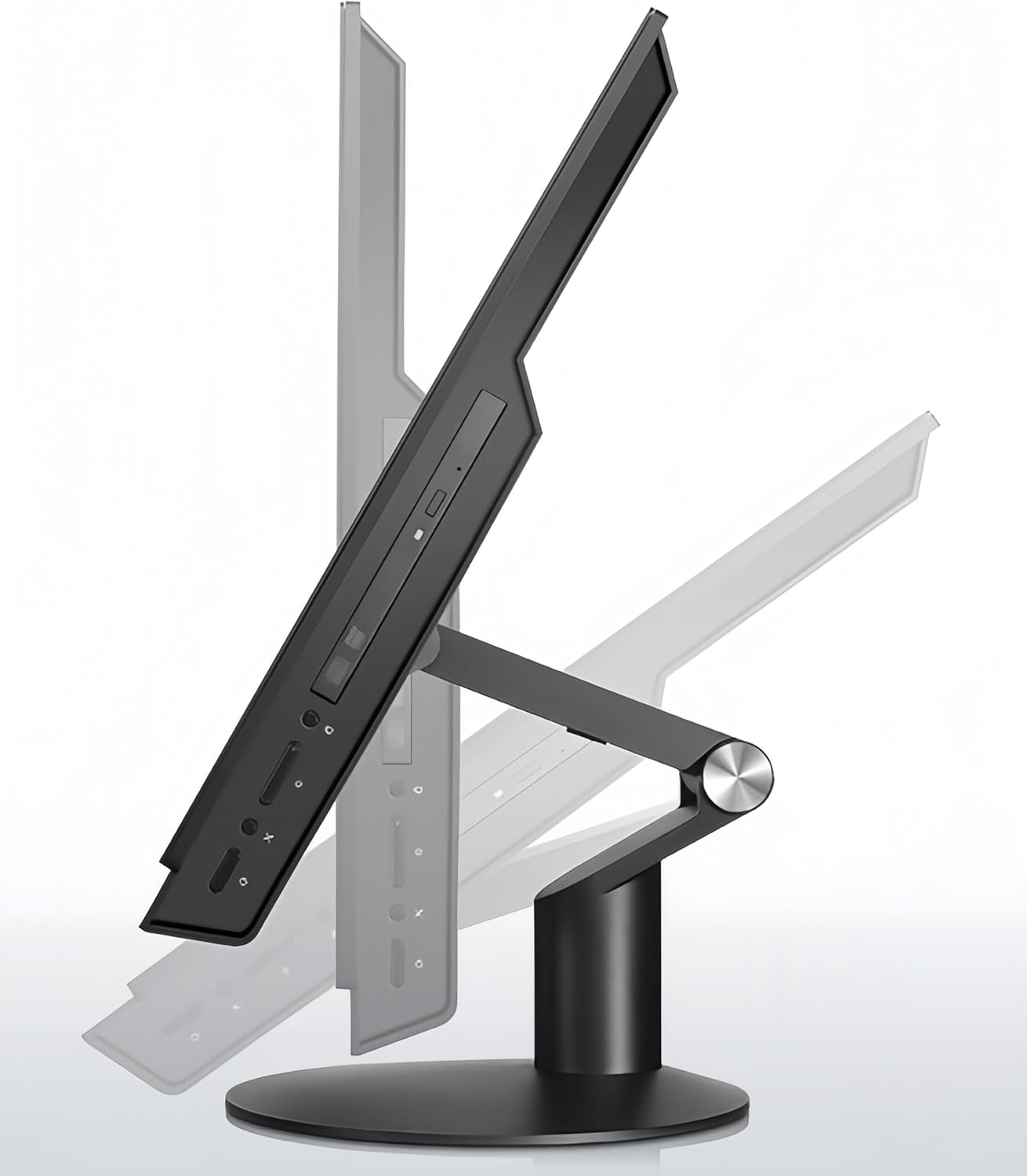
Figure 4.1: The ThinkCentre M900Z features a stand that allows for display tilt adjustment.
4.3 Optical Drive (DVD)
The integrated DVD drive is located on the side of the unit (Figure 3.1). Press the eject button next to the drive slot to open or close the tray for inserting or removing discs.
5. Maintenance
Regular maintenance helps ensure the longevity and optimal performance of your computer.
- Cleaning the Screen: Use a soft, lint-free cloth specifically designed for electronics. Dampen the cloth slightly with water or a screen-cleaning solution. Do not spray liquid directly onto the screen.
- Cleaning the Chassis: Wipe the exterior surfaces with a soft, damp cloth. Avoid abrasive cleaners or solvents.
- Ventilation: Ensure that the ventilation openings on the computer are not blocked. Proper airflow is crucial to prevent overheating.
- Software Updates: Regularly update your operating system and drivers to maintain security and performance.
6. Troubleshooting
This section addresses common issues you might encounter with your ThinkCentre M900Z.
| Problem | Possible Cause | Solution |
|---|---|---|
| Computer does not power on | No power supply; loose connections | Check power cable connection to the computer and wall outlet. Ensure the power adapter is functioning. |
| No display on screen | Computer is off; display settings issue | Ensure the computer is powered on. Adjust brightness using side buttons. If connected to an external display, ensure correct input is selected. |
| Keyboard/Mouse not responding | Loose connection; driver issue | Ensure USB cables are securely connected. Try connecting to a different USB port. Restart the computer. |
| System is slow or unresponsive | Too many applications running; low disk space | Close unnecessary applications. Check disk space and free up if needed. Restart the computer. |
7. Specifications
Key technical specifications for the Lenovo ThinkCentre M900Z All-in-One Desktop Computer:
| Feature | Specification |
|---|---|
| Processor | Intel Core i5-6500 (3.2GHz, up to 3.6GHz, 4 Cores, 6MB Cache) |
| RAM | 16GB DDR4 |
| Storage | 256GB SSD |
| Display | 23.8-inch FHD (1920 x 1080) |
| Graphics | Intel HD Graphics 530 (Integrated) |
| Operating System | Windows 10 Pro |
| Optical Drive | DVD |
| Side I/O Ports | 2 x USB 3.0, Headphone/Mic combo |
| Rear I/O Ports | 4 x USB 3.0, DisplayPort In/Out combo, RJ45 (Ethernet), AC Power In |
| Weight | Approximately 26 pounds (11.8 kg) |
| Color | Black |
8. Warranty and Support
For information regarding warranty coverage, technical support, and service for your Lenovo ThinkCentre M900Z, please refer to the documentation provided with your purchase or visit the official Lenovo support website. You may also contact the seller for specific details regarding renewed product warranties.


