
1. Introduction
This manual provides detailed instructions for the installation, operation, and maintenance of your BENEXMART Zigbee Hub T1. This smart home bridge is designed to connect various Tuya-compatible Zigbee devices, enabling centralized control and automation within your smart home ecosystem. Please read this manual thoroughly before use to ensure proper functionality and safety.
2. What's in the Box
Upon unpacking, please verify that all the following items are included:
- BENEXMART Zigbee Hub T1
- External Antenna
- USB Type-C Power Cable
- Ethernet Cable
- User Manual (this document)

Image: The BENEXMART Zigbee Hub T1 with its external antenna, power cable, and Ethernet cable.
3. Setup Instructions
Follow these steps to set up your Zigbee Hub T1:
- Connect the External Antenna: Gently screw the external antenna into the designated port on the hub. Ensure it is securely attached for optimal signal strength.
- Power On the Hub: Connect the provided USB Type-C power cable to the hub and then to a suitable power adapter (not included). The hub will power on.
- Connect to Network: Use the provided Ethernet cable to connect the hub's LAN port to your home router. A wired connection ensures stable communication.
- Download the App: Download and install the "Tuya Smart" or "Smart Life" app from your mobile device's app store.
- Add Device in App: Open the app, register or log in, and follow the in-app instructions to add a new device. Select "Gateway" or "Hub" and choose the Zigbee Gateway. The app will guide you through the pairing process.

Image: Illustration showing how to attach the external antenna to the hub.

Image: Close-up of the hub's ports, showing connections for the antenna, power (Type-C), and LAN.
Video: An unboxing and setup guide for the ZGMISMART Smart Tuya Zigbee Gateway, demonstrating the physical connections and initial app pairing process.
4. Operating Instructions
4.1. Device Pairing
Once the hub is set up and connected to the app, you can begin pairing your Tuya-compatible Zigbee devices. Refer to the individual device's manual for specific pairing instructions, which typically involve putting the device into pairing mode and then initiating a search within the Tuya Smart or Smart Life app.
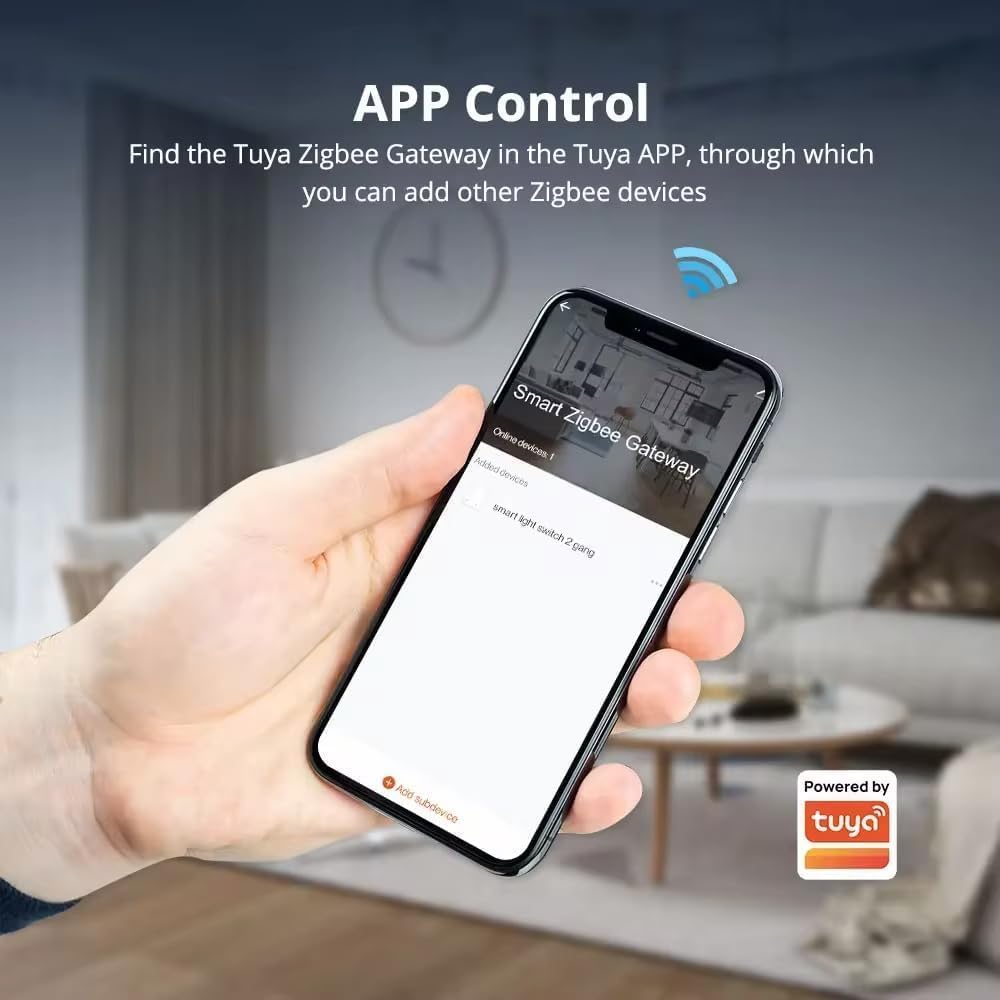
Image: Screenshot of the Tuya Smart Life app showing the "Smart Zigbee Gateway" and an option to "Add subdevice".
4.2. Group Control and Smart Scenes
The hub allows for unified control of multiple devices. You can group devices together and create smart scenes for automated actions. For example, a "Good Morning" scene could open blinds and turn on lights at a specific time.
- Group Devices: Combine multiple Zigbee devices (e.g., all lights in a room) for simultaneous control via the app.
- Create Scenes: Set up automated routines based on time, sensor triggers, or other conditions.

Image: A diagram showing the smart Zigbee gateway as a control center, enabling group control for various devices like smart curtains, lights, switches, and security systems.

Image: Two examples of intelligent linkage scenarios: one for a living room combining curtain, light, and gateway, and another for a bedroom combining sensor, switch, and gateway.
4.3. Voice Control Integration
The BENEXMART Zigbee Hub T1 supports voice control through Amazon Alexa and Google Home. Link your Tuya Smart or Smart Life account to your Alexa or Google Home app to control connected Zigbee devices using voice commands.

Image: Depiction of voice commands "Hey Google home, turn on the lights" and "Alexa, close the curtains" being used with Google Home and Amazon Echo devices, connected via the T1 hub.
5. Features
- Universal Zigbee Compatibility: Works with thousands of Tuya-compatible Zigbee devices, including smart lights, plugs, switches, and sensors.
- Easy Setup: Simple power-on, connect via Tuya App or Smart Life App, and add devices.
- Wired Ethernet Connection: Ensures a stable and reliable 10/100Mbps connection for your smart home system.
- External Antenna: Boosts signal strength and range, covering up to 2,000 sq. ft and improving penetration through walls and floors.
- Voice Control: Integrates with Amazon Alexa and Google Home for convenient voice commands.
- Smart Scenes & Schedules: Create custom scenes and up to 8 daily schedules for automated home control.
- Ultra-Low Standby Power Consumption: Energy-efficient design with ≤0.5W standby power.
- Durable Design: Operates reliably in extreme environments from -10°C to +45°C (14°F to 113°F) and up to 90% humidity (non-condensing).
6. Specifications
| Product Name | Tuya Zigbee Gateway |
| Product Model | T1 |
| Input Power | 5V ⎇ 1A (Direct Current) |
| Standby Power | ≤0.5W |
| Internet Port | 10/100Mbps Ethernet |
| Wireless Protocol | Zigbee |
| Working Temperature | -10°C ~ +45°C (14°F ~ 113°F) |
| Working Humidity | 10% to 90% RH (non-condensing) |
| Item Weight | 8.1 ounces |
| Product Dimensions | 3.9 x 3.9 x 1.1 inches |

Image: Visual representation of the hub's dimensions and a table summarizing its technical specifications.
7. Maintenance
- Cleaning: Use a soft, dry cloth to clean the hub. Do not use liquid cleaners or aerosols.
- Firmware Updates: Regularly check the Tuya Smart or Smart Life app for available firmware updates to ensure optimal performance and security.
- Placement: Place the hub in a central location within your home, away from large metal objects or other sources of interference, to maximize Zigbee signal range.
8. Troubleshooting
| Problem | Possible Cause | Solution |
|---|---|---|
| Hub not powering on | Power cable not connected properly or power adapter faulty. | Ensure the USB Type-C cable is securely connected. Try a different power adapter. |
| Hub not connecting to network | Ethernet cable loose, router issue, or network configuration problem. | Check Ethernet cable connection. Restart your router. Verify network settings in the app. |
| Zigbee devices not pairing | Device not in pairing mode, too far from hub, or interference. | Ensure the device is in pairing mode. Move the device closer to the hub. Remove potential sources of interference. Reset the device and try again. |
| Voice control not working | Incorrect linking with Alexa/Google Home, or device not recognized. | Verify that your Tuya Smart/Smart Life account is correctly linked to your voice assistant app. Ensure devices are discovered by the voice assistant. |
If you encounter persistent issues, please refer to the support section or contact customer service.
9. Warranty and Support
The BENEXMART Zigbee Hub T1 comes with a standard manufacturer's warranty. For specific warranty terms and conditions, please refer to the product packaging or the official BENEXMART website. For technical support, troubleshooting assistance, or warranty claims, please contact BENEXMART customer service through their official channels.
Online Support: Visit the BENEXMART store on Amazon: BENEXMART Store