
RemotesReplaced LT22-105DB
Instruction Manual for RemotesReplaced Remote Control
Compatible with SCHAUB LORENZ LT22-105DB
Introduction
This manual provides comprehensive instructions for the use and maintenance of your RemotesReplaced remote control, designed as a direct replacement for the original SCHAUB LORENZ LT22-105DB remote. It offers all the same functionality without requiring any complex setup.
Setup and First Use
Your RemotesReplaced remote control is designed for immediate use. No programming or code entry is required. Simply insert the batteries, and it will be ready to operate your device.
Inserting Batteries
- Locate the battery compartment on the back of the remote control.
- Slide the battery compartment cover downwards or press the latch to open it.
- Insert two (2) AAA batteries, ensuring the positive (+) and negative (-) terminals align correctly with the markings inside the compartment.
- Close the battery compartment cover securely.

Image: Rear view of the remote control, highlighting the battery compartment cover at the bottom.
Operating the Remote Control
The layout and functionality of this replacement remote mirror that of your original SCHAUB LORENZ LT22-105DB remote. Below is a general guide to common button functions.

Image: Front view of the RemotesReplaced remote control, displaying its full button layout from top to bottom.
Key Functions Overview
| Button Name | Function |
|---|---|
| POWER | Turns the device on or off. |
| MUTE | Mutes or unmutes the audio. |
| TV / SAT / DVD / AUX | Selects the input source (Television, Satellite, DVD, Auxiliary). |
| Number Buttons (0-9) | Direct channel selection or numerical input. |
| MENU | Accesses the device's main menu. |
| EXIT | Exits the current menu or function. |
| SHIFT | Activates secondary functions of certain buttons (if applicable). |
| SOURCE | Cycles through available input sources. |
| GUIDE / EPG | Displays the Electronic Program Guide. |
| Volume (+/-) | Adjusts the volume level. |
| Channel (P+/-) | Changes the channel up or down. |
| Navigation (Up, Down, Left, Right) & OK | Navigates through menus and confirms selections. |
| BACK | Returns to the previous screen or menu. |
| SLEEP | Sets a sleep timer for the device. |
| TV/DTV | Switches between analog and digital TV modes. |
| INFO | Displays information about the current program or input. |
| FAV | Accesses favorite channels list. |
| NET TV / SMART | Accesses smart TV features or internet applications. |
| Colored Buttons (Red, Green, Yellow, Blue) | Context-sensitive functions, often used in menus or interactive services. |
Note: Specific functions may vary slightly depending on your device model and its capabilities.
Maintenance and Care
Proper care will extend the life of your remote control.
- Cleaning: Use a soft, dry cloth to clean the remote. For stubborn dirt, slightly dampen the cloth with water. Avoid using harsh chemicals or abrasive cleaners.
- Battery Replacement: Replace batteries when the remote's responsiveness decreases or it stops functioning. Always replace both batteries at the same time with new ones of the same type (AAA).
- Storage: If the remote will not be used for an extended period, remove the batteries to prevent leakage and potential damage. Store in a cool, dry place.
- Environmental Considerations: Do not expose the remote to extreme temperatures, direct sunlight, or high humidity. Avoid dropping the remote or subjecting it to strong impacts.
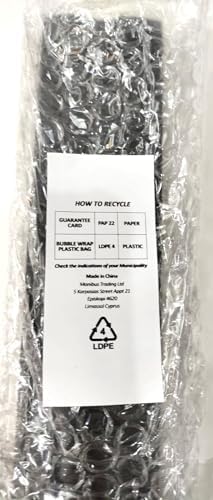
Image: The remote control wrapped in bubble wrap, with a small card detailing recycling information for the packaging materials (paper and plastic).
Troubleshooting
If you experience issues with your remote control, try the following steps:
- Remote Not Responding:
- Check if the batteries are inserted correctly with the correct polarity.
- Replace the batteries with new ones.
- Ensure there are no obstructions between the remote control and the device's infrared receiver.
- Make sure you are within the effective operating range of the device.
- Specific Buttons Not Working:
- This could indicate a low battery. Try replacing the batteries.
- Ensure the remote is pointed directly at the device.
- Device Not Responding to Any Remote Command:
- Verify that the device itself is powered on and functioning correctly.
- Try unplugging the device from power for a few minutes, then plugging it back in (a "soft reset").
If the issue persists after following these steps, please refer to the warranty and support information.
Specifications
| Feature | Detail |
|---|---|
| Model Compatibility | SCHAUB LORENZ LT22-105DB |
| Battery Type | 2 x AAA batteries (not included) |
| Item Weight | 120 Grams |
| Manufacturer | Linkwebb |
| ASIN | B0CP3TTSX5 |
| Country of Origin | China |
Warranty and Support
Your RemotesReplaced remote control is guaranteed for 1 year from the date of purchase. This warranty covers manufacturing defects and ensures the remote performs its intended functions.
RemotesReplaced has specialized in remote controls for nearly 20 years, providing reliable replacement solutions. For any support inquiries or warranty claims, please contact your retailer or refer to the contact information provided with your purchase.
Important Safety Information
This product is intended for use by adults or under adult supervision. Keep batteries out of reach of small children.

Image: A multi-language warning notice, featuring flags of the United Kingdom, France, Germany, Italy, and Spain, each accompanied by the phrase "To be used with adult supervision" translated into the respective language.
Ask a question about this manual
Ask about setup, troubleshooting, compatibility, parts, safety, or missing instructions. Manuals+ will review the question and use this page’s manual context to help answer it.