
1. Introduction
This manual provides essential information for the installation, operation, and maintenance of your Fortdows 10.4-inch Android 12 Car Stereo Radio. Please read this manual thoroughly before installation and use to ensure proper functionality and safety. Keep this manual for future reference.
2. Safety Information
- Professional Installation Recommended: Due to the complexity of car electrical systems, professional installation is highly recommended. Incorrect installation can damage the vehicle's electrical system or the stereo unit.
- Disconnect Battery: Always disconnect the vehicle's negative battery terminal before beginning any electrical work to prevent short circuits and damage.
- Wiring: Ensure all wiring connections are secure and properly insulated to prevent electrical hazards.
- Driving Safety: Do not operate the stereo's advanced features or watch videos while driving. Distracted driving can lead to accidents.
- Ventilation: Ensure the unit has adequate ventilation and is not obstructed by other components.
3. Package Contents
Verify that all items are present in the package:
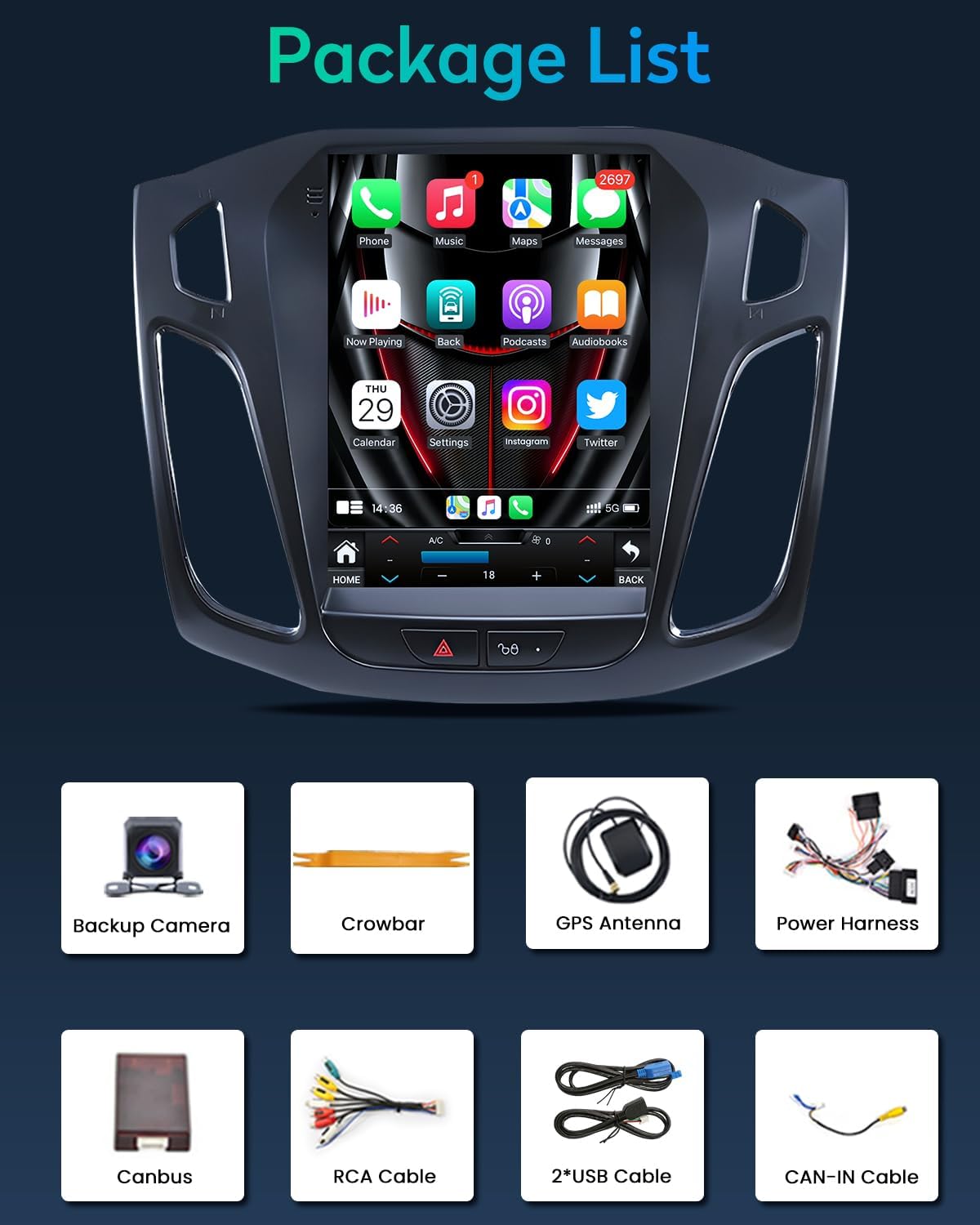
Figure 3.1: Package Contents - The image shows the main unit, backup camera, crowbar tool, GPS antenna, power harness, CANBUS module, RCA cables, two USB cables, and a CAN-IN cable.
- 1x Fortdows 10.4-inch Android 12 Car Stereo Unit
- 1x Power Harness
- 1x CAM-IN Cable (for rear camera)
- 1x Crowbar Tool (for panel removal)
- 1x GPS Antenna
- 1x CANBUS Module
- 1x RCA Cable Set
- 2x USB Cables
- 1x 1080P Backup Camera (if included in package)
4. Installation Guide
This section outlines the general installation process. Specific vehicle configurations may vary. Refer to your vehicle's service manual for detailed dashboard disassembly instructions.

Figure 4.1: Compatibility Diagram and Installed Unit - This image shows various Ford Focus dashboard configurations and indicates which ones are compatible with the stereo unit. The top image displays the new stereo successfully installed in a compatible dashboard.
4.1. Video Installation Guide
Video 4.1: Car Radio for Ford Focus Installation - This video provides a step-by-step visual guide for installing the car stereo in a Ford Focus. It covers removal of the original unit, wiring connections, and final assembly.
4.2. Step-by-Step Installation
- Preparation: Disconnect the vehicle's negative battery terminal. Use the provided crowbar tool to carefully pry open the dashboard trim around the original radio unit.
- Remove Original Unit: Unscrew the bottom two screws holding the dash kit. Gently pull out the dash kit and disconnect the emergency light cable. Unscrew the top four screws securing the original head unit. Carefully remove the original head unit and disconnect all wires from its back. Then, remove the original small screen and disconnect its display cable.
- Connect Power Harness: Connect the supplied power harness of the new car radio to the factory harness of your car.
- Connect CANBUS: Connect the CANBUS cable to the related CANBUS port of the head unit.
- Amplifier Control Wire: Locate the blue AMP wire from the amplifier control wires. Remove the protective cap from this wire. Then, locate the second red accessory wire of the power harness, burn off its surface insulation. Connect and swap the red accessory wire and the blue AMP wire. Use insulating tape to protect the connection of these two wires.
- Emergency Light Cable: Connect the emergency light cable of your car to the related port on the new radio's frame.
- Final Assembly: Carefully place the new car stereo unit into the dashboard opening. Secure it with screws. Reconnect the vehicle's negative battery terminal.
5. Basic Operation
- Power On/Off: Press and hold the power button (usually located on the front panel) to turn the unit on or off.
- Volume Control: Adjust the volume using the physical buttons or on-screen controls.
- Touchscreen Navigation: The unit features a responsive touchscreen. Tap icons to open applications, swipe to navigate menus, and use pinch-to-zoom gestures where applicable.
- Home Button: Press the Home button to return to the main interface.
- Back Button: Press the Back button to return to the previous screen or menu.
6. Key Features
6.1. High-Definition Display

Figure 6.1: QLED IPS 1024*768 Screen - This image illustrates the clarity and wide viewing angles of the 10.4-inch QLED IPS display, comparing its 1024x768 resolution to lower resolution screens.
The 10.4-inch QLED IPS display offers a resolution of 1024 * 768 HD, providing crisp, clear visuals for all multimedia content and navigation. The upgraded screen ensures a more colorful and high-definition picture with excellent detail and 178° viewing angles.
6.2. Wireless CarPlay & Android Auto

Figure 6.2: Wireless CarPlay & Android Auto Interface - This image shows the seamless integration of Apple CarPlay and Android Auto, displaying smartphone apps and functions directly on the car stereo screen.
Seamlessly integrate your smartphone with the car stereo using Wireless CarPlay and Android Auto. Access navigation, make calls, send messages, and enjoy your favorite music apps directly from the stereo display, enhancing convenience and safety.
6.3. DSP Sound Processing
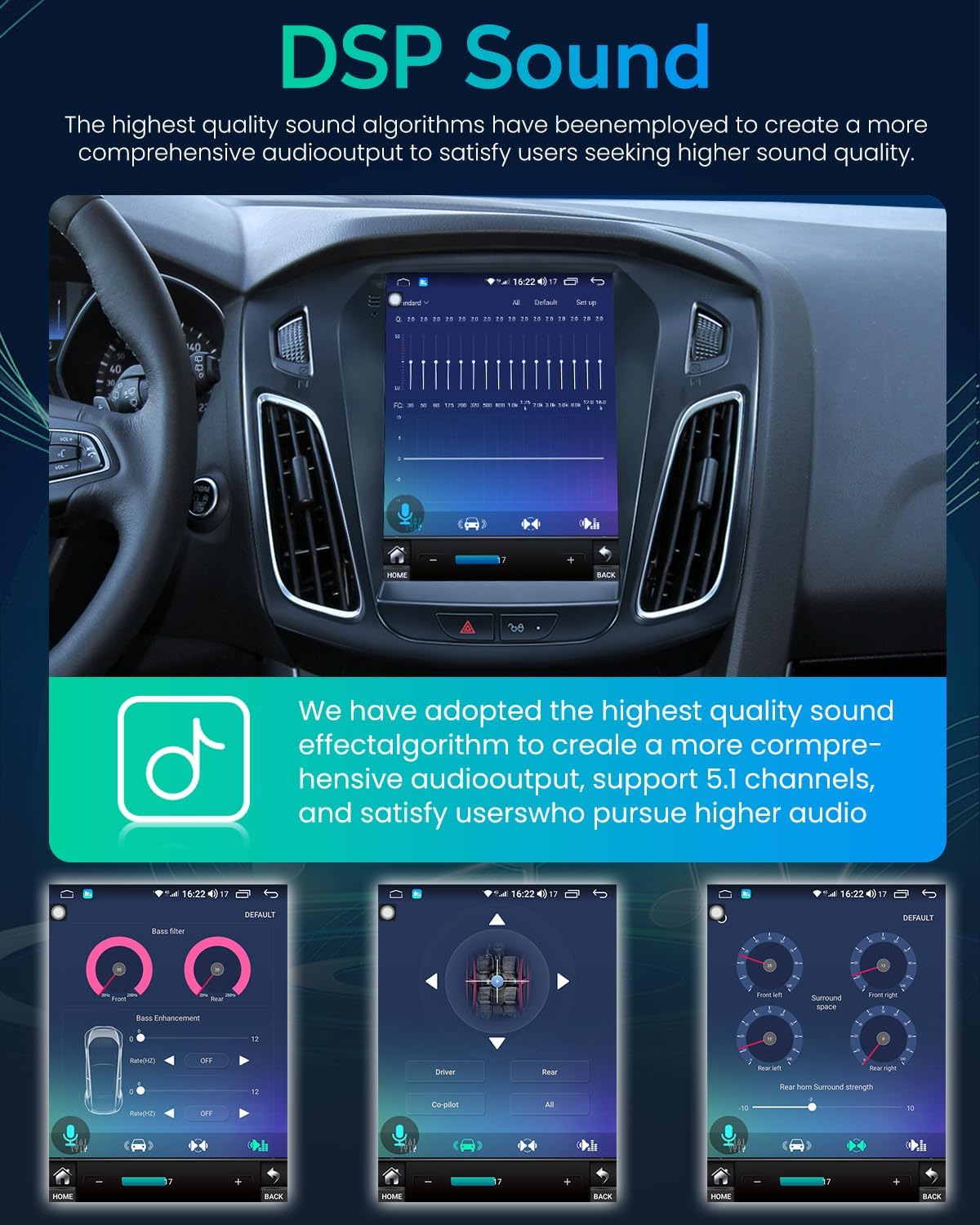
Figure 6.3: DSP Sound Settings - This image illustrates the Digital Signal Processing (DSP) interface, allowing users to customize audio output with 32-band equalization and sound field adjustments for optimal sound quality.
Experience enhanced audio performance with 32-band EQ support and Digital Signal Processing (DSP) technology. Customize sound output to your preferences, whether you prefer deep bass, clear highs, or balanced mids, making every drive enjoyable.
6.4. FM Radio

Figure 6.4: Bluetooth and FM Radio - This image shows the car stereo's interface for Bluetooth music playback and the FM radio tuner, indicating frequency display and station selection.
The built-in FM radio tuner allows you to enjoy your favorite radio broadcasts. With automatic scanning and digital tuning, finding and saving stations is simple.
6.5. Bluetooth & GPS Navigation

Figure 6.5: Bluetooth and GPS Navigation - This image displays the car stereo's capabilities for Bluetooth voice control, music playback, phone calls, and integrated GPS navigation with map display.
Connect your phone via Bluetooth for hands-free calling, music streaming, and voice control. The integrated GPS navigation system provides accurate directions and real-time traffic updates to help you reach your destination efficiently.
6.6. Steering Wheel Control (SWC)

Figure 6.6: Steering Wheel Control Interface - This image shows how the car stereo integrates with existing steering wheel controls, allowing drivers to manage calls, music, and navigation without taking their hands off the wheel.
The unit supports Steering Wheel Control (SWC), allowing you to adjust audio settings, change tracks, and make voice commands directly from your steering wheel, enhancing convenience and driving safety.
6.7. Rear Camera Support

Figure 6.7: Backup Camera Display - This image shows the car stereo screen displaying a 1080P backup camera feed with reversing reference lines, night vision, and a 170° viewing angle.
Enhance safety with support for a 1080P rear camera. The stereo automatically displays the rearview image when you engage reverse gear, providing a clear view of your surroundings with reference lines, night vision, and a 170° viewing angle.
6.8. WiFi Function and Mirror Link

Figure 6.8: WiFi Connectivity - This image illustrates the car stereo's WiFi capabilities, allowing users to download apps from the app store, stream music, and browse news.

Figure 6.9: Mirror Link Functionality - This image shows the Mirror Link feature, enabling users to cast their smartphone screen onto the car stereo for easier viewing and interaction.
Connect to WiFi to access online content, download applications from the app store, stream music, and browse the internet. The Mirror Link feature allows you to display your smartphone screen directly on the car stereo, enhancing functionality and content sharing.
7. Troubleshooting
If you encounter issues with your car stereo, refer to the following common troubleshooting steps:
- No Power: Check all power connections, ensuring they are secure. Verify the vehicle's fuse for the stereo is intact. Ensure the battery is properly connected.
- No Sound: Check speaker connections. Verify volume levels are not muted or set too low. Ensure the amplifier control wire is correctly connected if an external amplifier is used.
- Bluetooth Disconnection: Ensure your phone's Bluetooth is on and discoverable. Try unpairing and re-pairing the device. Restart both the stereo and your phone.
- CarPlay/Android Auto Not Connecting: Ensure your phone is compatible and the feature is enabled on both the phone and the stereo. Try restarting both devices. Check USB cable connection if using wired connection.
- Screen Unresponsive: Try restarting the unit. If the issue persists, a factory reset might be necessary (refer to the settings menu).
- GPS Signal Issues: Ensure the GPS antenna is properly installed and has a clear view of the sky.
For persistent issues, contact customer support.
8. Specifications
| Feature | Specification |
|---|---|
| Operating System | Android 12 |
| Display Size | 10.4 inches |
| Display Resolution | 1024 x 768 HD (QLED IPS) |
| RAM | 2GB |
| ROM (Internal Storage) | 64GB |
| Wireless Connectivity | 5G WiFi, Bluetooth |
| Special Features | Wireless Apple CarPlay, Android Auto, DSP (32EQ), FM Radio, Mirror Link, GPS Navigation, Steering Wheel Control (SWC), Rear 1080P Camera Support |
| Audio Output Mode | Stereo |
| Surround Sound Channel Configuration | 4.0 |
| Compatible Devices | Smartphone |
| Item Weight | 4.66 pounds |
| Package Dimensions | 15.24 x 13.66 x 5 inches |
9. Warranty and Support

Figure 9.1: Warranty and Customer Support Information - This image outlines the product's warranty, return policy, and contact details for customer assistance.
- Warranty: This product comes with a 1-Year Warranty.
- Return Policy: A 7-Day Return Policy is applicable. Returns on defects are accepted.
- Customer Support: For technical assistance, warranty claims, or any inquiries, please contact us via:
- Email: fortdows.cam@gmail.com
- Website: www.fancygod.com


