
Introduction
Thank you for choosing the Delux M700 PMW3389 RGB Lightweight Gaming Mouse. This manual provides essential information for setting up, operating, maintaining, and troubleshooting your new gaming mouse. Please read this manual carefully before use to ensure optimal performance and longevity of your device.
Setup
Follow these steps to set up your Delux M700 gaming mouse:
- Unpack the Mouse: Carefully remove the mouse from its packaging. Ensure all components are present.
- Connect to Computer: Plug the USB connector of the mouse cable into an available USB port on your computer. The mouse is plug-and-play, and your operating system should automatically detect and install the necessary drivers.
- Software Installation (Optional): For advanced customization, including DPI settings, RGB lighting effects, and macro programming for the 7 buttons, download the official Delux M700 software from the manufacturer's website. Follow the on-screen instructions for installation.

Image: The Delux M700 gaming mouse connected to a laptop, illustrating its top view with the honeycomb shell and vibrant RGB lighting.
Operating Instructions
The Delux M700 mouse is designed for intuitive use. Here are its primary functions:
- Left and Right Click: Standard mouse functions for selection and context menus.
- Scroll Wheel: Used for vertical scrolling. The scroll wheel also functions as a clickable middle button.
- DPI Adjustment Button: Located below the scroll wheel, this button allows you to cycle through different DPI (Dots Per Inch) sensitivity levels. The mouse supports adjustable DPI, with a default setting of 1600 DPI, allowing you to fine-tune cursor speed for various tasks and games.
- Side Buttons: The mouse features additional buttons on the side, typically used for 'forward' and 'back' navigation in web browsers or customizable functions in gaming software.
- RGB Lighting: The integrated RGB lighting provides dynamic visual effects. Lighting modes and colors can be customized using the dedicated software.
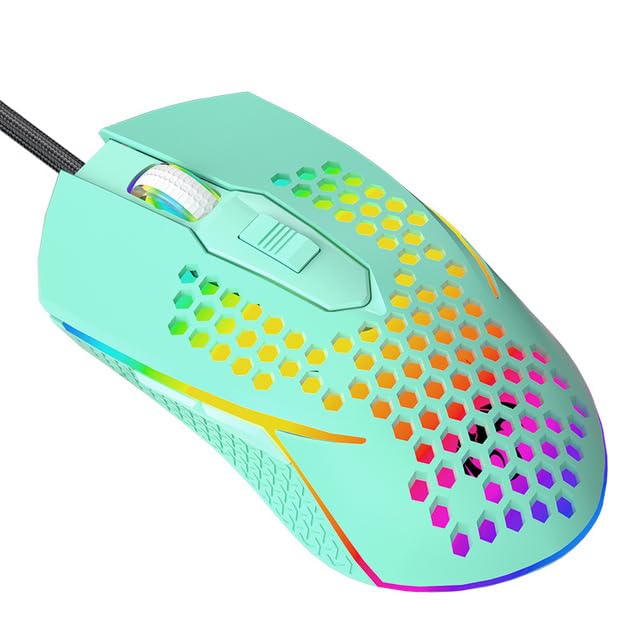
Image: A close-up view of the Delux M700 gaming mouse, highlighting its vibrant RGB lighting along the base and scroll wheel, and the ergonomic shape.
Maintenance
Proper maintenance ensures the longevity and performance of your mouse:
- Cleaning: Use a soft, dry cloth to wipe the surface of the mouse. For stubborn dirt, slightly dampen the cloth with water. Avoid using harsh chemicals or abrasive materials.
- Sensor Cleaning: Occasionally, use a cotton swab lightly dampened with isopropyl alcohol to gently clean the optical sensor on the underside of the mouse. Ensure no liquid enters the mouse.
- Cable Care: Avoid sharp bends or excessive pulling on the mouse cable to prevent damage. Store the cable neatly when not in use.
- Storage: Store the mouse in a clean, dry environment away from extreme temperatures and direct sunlight.
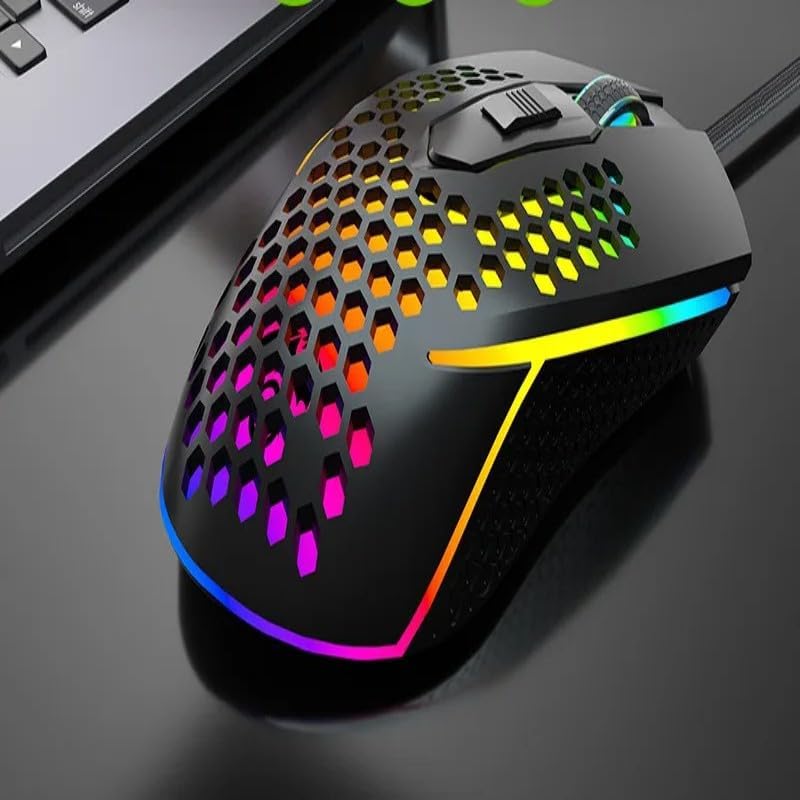
Image: The Delux M700 gaming mouse viewed from the side, clearly showing the lightweight honeycomb design on its shell and the subtle RGB glow.
Troubleshooting
If you encounter issues with your Delux M700 mouse, try the following solutions:
- Mouse Not Responding:
- Ensure the USB cable is securely plugged into a working USB port. Try a different USB port.
- Restart your computer.
- Check if the mouse works on another computer to rule out a system-specific issue.
- Cursor Movement is Erratic or Slow:
- Clean the optical sensor on the underside of the mouse.
- Ensure you are using the mouse on a suitable surface (e.g., a mouse pad).
- Adjust the DPI settings using the DPI button or the software.
- RGB Lighting Not Working:
- Verify that the mouse is properly connected to your computer.
- Check the mouse software for lighting settings and ensure they are enabled.
- If the issue persists, try reinstalling the mouse software.
- Buttons Not Functioning:
- Check the mouse software for any custom button assignments that might be interfering.
- Ensure no debris is lodged under the buttons.
Specifications
| Feature | Detail |
|---|---|
| Model | M700 PMW3389 |
| Sensor | PMW3389 Optical Sensor |
| Weight | 67 grams |
| Buttons | 7 (Programmable) |
| Scroll Wheels | 1 |
| DPI | Adjustable, up to 1600 DPI (as per product description, higher possible with sensor) |
| Connectivity | Wired (Soft Cable) |
| Design | Lightweight Honeycomb Shell |
| Lighting | RGB |
| Hand Orientation | Right-handed |
| Compatible Devices | Personal Computer |
Warranty and Support
Warranty: This product comes with a 12-month warranty from the date of purchase, covering manufacturing defects.
Support: If you encounter any issues with your product, such as defective or incorrect items, please do not hesitate to contact us. We are committed to providing support and will respond to your inquiries within 24 hours.
For further assistance, please refer to the contact information provided with your purchase or visit the official Delux support website.


