
Introduction
Thank you for choosing the Zienstar Wireless Gaming Mouse. This high-performance mouse features a unique transparent crystal shell, offering a futuristic aesthetic combined with advanced functionality. It supports tri-mode connectivity (wired USB, 2.4G wireless, and Bluetooth 5.0), provides silent clicks, and boasts vibrant RGB lighting. With its rechargeable battery and ergonomic design, it is engineered for comfort and precision in both gaming and office environments.

Image: The Zienstar Wireless Gaming Mouse, showcasing its transparent design and illuminated internal components with RGB lighting.

Image: An exploded view of the Zienstar mouse, illustrating its layered construction and internal components, highlighting the quality of design.
Product Components
Please ensure all the following components are present in your package:
- Zienstar Wireless Gaming Mouse (m22 White)
- USB-C Charging Cable (approx. 1.6m)
- 2.4G USB Receiver
- User Manual (this document)
Setup Guide
1. Charging the Mouse
The mouse comes with a built-in 650mAh lithium battery. Before first use, or when the battery is low, connect the provided USB-C charging cable to the mouse's Type-C port and the other end to a USB power source (e.g., computer USB port, wall adapter).
- Note: When the cable is connected, the mouse automatically switches to wired mode.
- Important: Ensure the cable is firmly plugged in until you hear a click, indicating a secure connection.

Image: The Zienstar mouse being charged via its Type-C port, highlighting its 650mAh rechargeable battery for long life.
2. Connecting the Mouse (Tri-Mode)
The Zienstar mouse offers three versatile connection modes: 2.4G Wireless, Bluetooth 5.0, and Wired.

Image: An illustration detailing the three connection methods: 2.4G wireless via USB receiver, wired connection using a USB to Type-C cable, and Bluetooth mode for mobile devices.
2.1. 2.4G Wireless Mode
- Locate the 2.4G USB receiver, usually stored in a compartment on the underside of the mouse.
- Plug the USB receiver into an available USB port on your computer.
- Turn on the mouse. The mouse should automatically connect to the receiver.
2.2. Bluetooth 5.0 Mode
- Ensure your device (PC, tablet, smartphone) has Bluetooth enabled.
- Switch the mouse to Bluetooth mode (refer to the switch on the underside of the mouse, if present, or the mode button).
- On your device, go to Bluetooth settings and search for new devices.
- Select "Zienstar Mouse" or a similar name from the list of available devices to pair.
2.3. Wired Mode
- Connect the provided USB-C cable to the mouse's Type-C port.
- Connect the USB-A end of the cable to an available USB port on your computer.
- The mouse will automatically operate in wired mode. No mode switching is required.
Operating Instructions
1. DPI Adjustment
The mouse features 5 adjustable DPI levels to suit your precision needs: 1200, 1600, 2000, 2400, and 3600 DPI. Use the DPI button (typically located behind the scroll wheel) to cycle through these settings. Each press will change the sensitivity.
2. RGB Lighting Control
The Zienstar mouse is equipped with 13 RGB lighting modes and 16.8 million colors to enhance your gaming or work atmosphere.
- Power On/Off Lights: There is a dedicated button on the bottom of the mouse. Long press this button to turn the RGB lights on or off.
- Switch Light Modes: Short press the same button on the bottom of the mouse to cycle through the different RGB lighting effects.
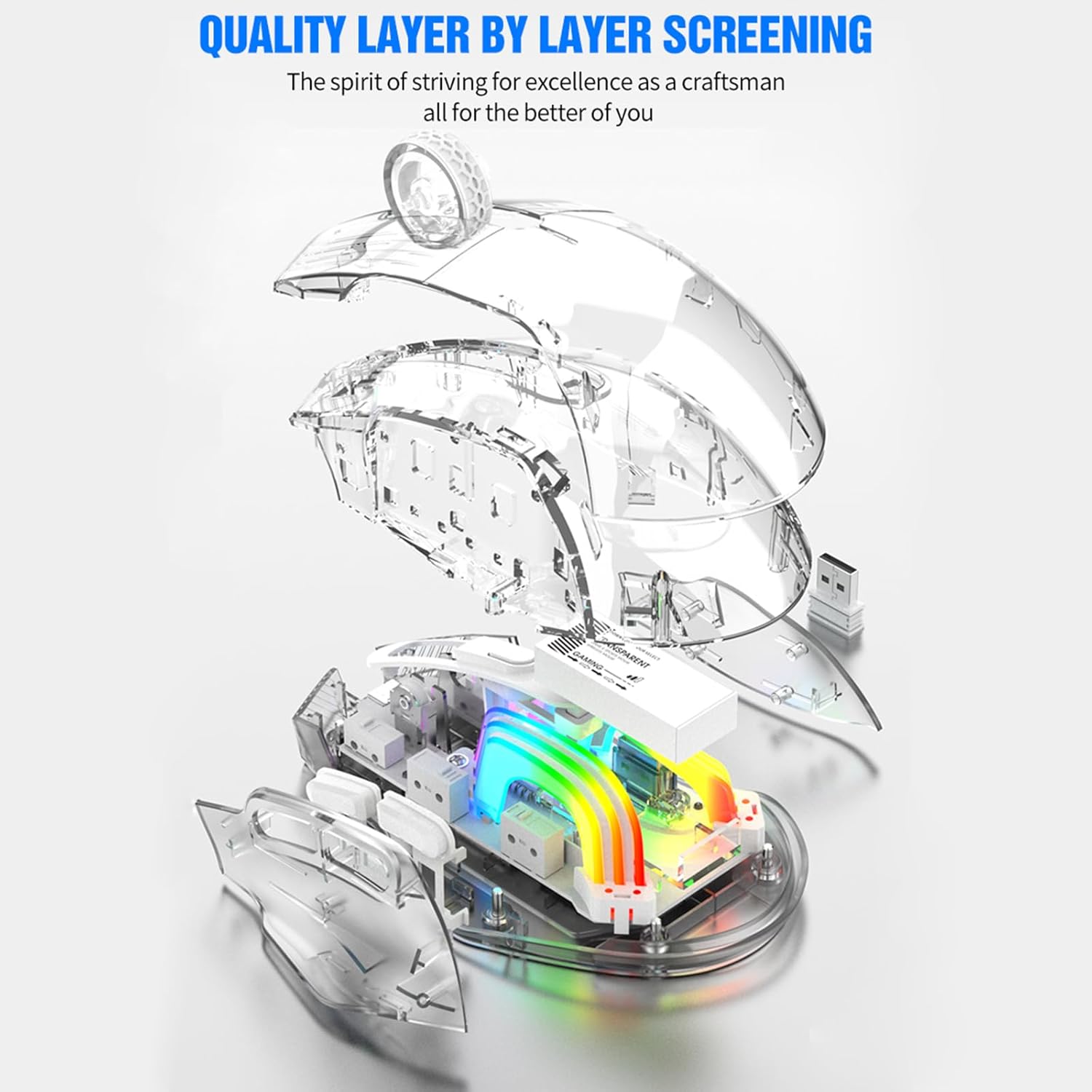
Image: The Zienstar mouse illuminated with vibrant RGB lighting, alongside an inset showing the location of the light effect switching button on its underside.
3. General Usage and Ergonomics
The mouse is designed with an ergonomic curve to provide comfortable and efficient use during extended periods of gaming or office work. Its silent click feature ensures a quiet environment. The oleophobic coating helps resist fingerprints and maintain a clean appearance.

Image: A side view of the Zienstar mouse, emphasizing its ergonomic shape and the transparent crystal shell that reveals internal components.
The Zienstar mouse offers wide compatibility with various devices and operating systems, making it a versatile tool for different setups.

Image: The Zienstar mouse displayed with various compatible devices including a Smart TV, All-in-one PC, Notebook, and a desktop PC, illustrating its wide compatibility.
Maintenance
Proper maintenance will extend the lifespan of your Zienstar mouse.
- Cleaning: Use a soft, dry, lint-free cloth to wipe the transparent shell and buttons. For stubborn smudges, slightly dampen the cloth with water. Avoid using harsh chemicals, abrasive cleaners, or solvents, as these can damage the surface.
- Battery Care: To preserve battery health, avoid fully discharging the mouse frequently. Charge it when the battery indicator suggests low power. Store the mouse in a cool, dry place if not used for extended periods.
- Storage: When not in use, store the mouse in a clean, dust-free environment. If using the 2.4G wireless mode, you can store the USB receiver in its designated slot on the mouse's underside to prevent loss.
Troubleshooting
If you encounter issues with your Zienstar mouse, please refer to the following common problems and solutions:
| Problem | Possible Cause | Solution |
|---|---|---|
| Mouse not responding in 2.4G wireless mode. | USB receiver not plugged in, mouse not powered on, low battery, interference. | Ensure receiver is firmly plugged into a working USB port. Turn on the mouse. Charge the mouse. Try a different USB port or move closer to the receiver. |
| Unable to pair via Bluetooth. | Mouse not in Bluetooth pairing mode, Bluetooth disabled on device, interference. | Switch the mouse to Bluetooth mode. Ensure Bluetooth is enabled on your device. Restart your device's Bluetooth. Try pairing again. |
| Mouse not working in wired mode. | Cable not fully inserted, faulty cable or USB port. | Ensure the USB-C cable is firmly plugged into both the mouse and the computer (listen for a click). Try a different USB port or cable. |
| RGB lights not working or stuck. | Lights turned off, software glitch. | Long press the light button on the bottom of the mouse to toggle lights. Short press to change modes. Restart the mouse. |
| Mouse cursor erratic or unresponsive. | Low battery, dirty sensor, unsuitable surface, incorrect DPI. | Charge the mouse. Clean the optical sensor on the bottom. Use on a clean, non-reflective mouse pad. Adjust DPI settings. |
Specifications
Detailed technical specifications for the Zienstar Wireless Gaming Mouse (m22 White):
| Feature | Detail |
|---|---|
| Model Number | m22 White |
| Connectivity Modes | Wired (USB-C), 2.4G Wireless, Bluetooth 5.0 |
| DPI Levels | 1200-1600-2000-2400-3600 (Adjustable) |
| RGB Lighting | 13 modes, 16.8 million colors |
| Battery Type | Built-in 650mAh Lithium-ion |
| Rated Voltage/Current | DC 5V/180mA |
| Polling Rate | 125-250-500-1000 Hz (Default: 500 Hz) |
| Max Speed | 60 inches/s |
| Frame Rate | 7000 FPS |
| Acceleration | 20 G |
| Switch Life | 20 million clicks |
| Cable Length | 1.6 m |
| Product Weight | Approx. 110 g |
| Mouse Dimensions (L x W x H) | 128 x 77 x 40 mm |
| Compatible Operating Systems | PC, Linux, Mac |
| Compatible Devices | Personal Computer, Tablet, Smartphone |
Warranty and Support
Zienstar products come with a standard manufacturer's warranty. Please refer to the packaging or the official Zienstar website for specific warranty terms and conditions.
For technical support, troubleshooting assistance, or warranty claims, please contact Zienstar customer service through their official website or the contact information provided with your purchase.
Online Resources: For additional information and FAQs, you may visit the Zienstar Brand Store on Amazon.