
OSALO OS 82ES 2nd Edition
OSALO Scientific Calculator User Manual
Brand: OSALO
Model: OS 82ES 2nd Edition
Introduction
Thank you for choosing the OSALO Scientific Calculator. This manual provides detailed instructions on how to set up, operate, and maintain your calculator. Designed for students and professionals, this calculator offers 252 functions to support a wide range of mathematical and scientific calculations.
Please read this manual carefully to ensure proper use and to maximize the functionality of your device.
Key Features
- 252 Functions: Comprehensive functions including fractions, matrix calculations, statistics, calculus, complex numbers, equations, standard deviation, vector calculations, permutations, and combinations.
- 2-Line Written Display: Input expressions and view results in a natural, textbook-like format.
- Brightness Adjustment: Optimize display visibility for various lighting conditions and reduce eye fatigue.
- Dual Power Source: Operates on both solar power and battery (LR44 included) for reliable, uninterruptible use.
- Multi-Replay Function: Easily recall and edit previously executed formulas.
- List-Based STAT-Data Editor: View and edit input data in list format for statistical analysis.
- Durable Design: Features ABS plastic keys with clear print and a curved edge for comfortable handling. Includes a slide-on hard case for protection.
- Lightweight and Portable: Compact design for easy carrying.

Image: Overview of the OSALO Scientific Calculator highlighting its 252 functions, including multi-replay, combination and permutation, statistics, fraction calculation, 9 variable memories, and the included slide-on hard case.
Setup
Battery Installation
Your OSALO Scientific Calculator comes with an LR44 battery pre-installed. The calculator also utilizes solar power for extended battery life and operation in well-lit environments.
- Ensure the calculator is turned OFF.
- Locate the battery compartment on the back of the calculator.
- Use a small screwdriver to open the battery compartment cover.
- If replacing, remove the old LR44 battery.
- Insert a new LR44 battery with the positive (+) side facing up.
- Replace the battery compartment cover and secure it with the screw.
Note: The solar panel assists in powering the calculator in sufficient light, reducing reliance on the battery.
Operating Instructions
Calculator Layout

Image: Detailed diagram of the OSALO Scientific Calculator showing the solar panel, extra large display, control keys, SHIFT key, MODE key, Power ON button, function keys, DEL (Delete) key, and ANS (Last Answer) key.
- ON Key: Press to turn the calculator on.
- OFF Key: Press SHIFT then AC to turn the calculator off.
- AC Key: Clears all calculations and returns to the initial display.
- DEL Key: Deletes the last entered character.
- SHIFT Key: Activates the secondary functions (indicated in yellow above the keys).
- ALPHA Key: Activates the alpha functions (indicated in red above the keys).
- MODE/SETUP Key: Changes the calculator's mode (e.g., COMP, STAT, TABLE) or settings.
Basic Operations
Enter numbers and operations as you would write them. Press = to get the result.
- Addition, Subtraction, Multiplication, Division: Use the +, -, ×, ÷ keys.
- Fractions: Use the a b/c key to input fractions. For mixed numbers, input integer, then a b/c, then numerator, then a b/c, then denominator.
- Powers and Roots: Use x² for square, SHIFT x² for square root, x³ for cube, SHIFT x³ for cube root, and x■ for custom powers.
Written Display and Natural Input/Output
The calculator features a 2-line display that shows expressions as they are written in textbooks, making complex calculations easier to understand and verify.
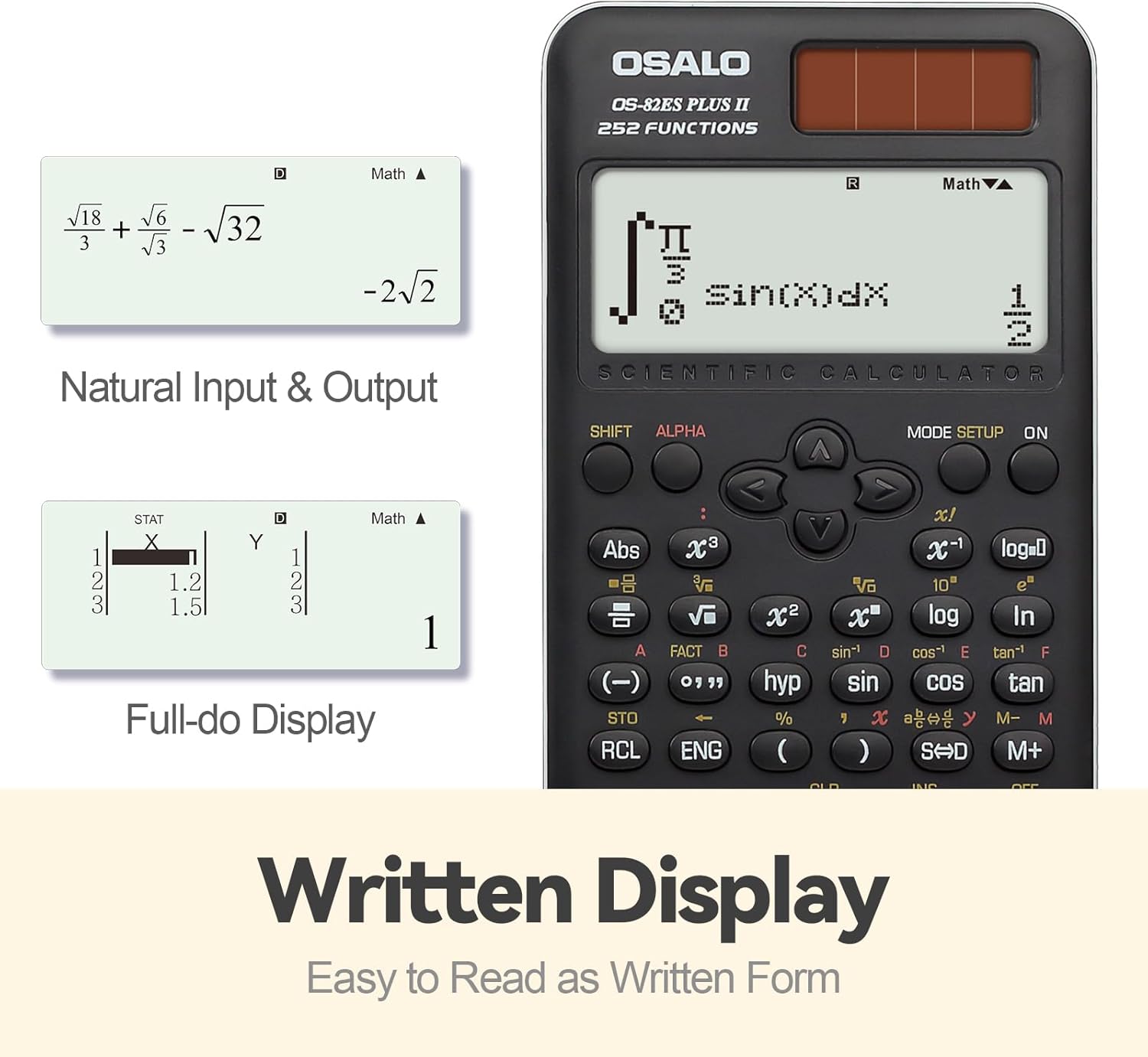
Image: Demonstrates the calculator's natural input and output display, showing complex expressions like integrals and square roots as they would appear in a textbook, along with a full-dot display for data entry.
Brightness Adjustment Function
You can adjust the screen brightness to suit your environment and reduce eye strain. Refer to the specific key combination for brightness adjustment, typically found in the SETUP menu or by pressing SHIFT followed by a specific key (e.g., MODE/SETUP and then navigating options).

Image: Comparison of the calculator display in dark (relieving visual fatigue) and bright (clear and intuitive) settings, illustrating the brightness adjustment function.
Advanced Functions (252 Functions)
The OSALO Scientific Calculator offers a wide array of advanced functions. To access these, you will often use the SHIFT key (for yellow functions) or the ALPHA key (for red functions) before pressing the desired function key.
- Trigonometric Functions: sin, cos, tan and their inverse functions (SHIFT sin-1, etc.).
- Logarithmic Functions: log (base 10) and ln (natural logarithm).
- Statistical Calculations:
- Press MODE/SETUP and select STAT mode.
- Enter your data using the list-based editor.
- Perform calculations for mean, standard deviation, regression analysis, etc.
- Complex Number Calculations: Access this mode via MODE/SETUP.
- Equation Solving: Use the Equation mode to solve linear equations, quadratic equations, etc.
- Permutations and Combinations: Use nPr and nCr functions.
- Memory Functions: Store and recall values using STO and RCL keys. The calculator supports 9 variable memories.
For detailed instructions on each specific function, please refer to the comprehensive user guide provided with your calculator, which covers all 252 functions in detail.
Maintenance
- Cleaning: Wipe the calculator with a soft, dry cloth. For stubborn dirt, slightly dampen the cloth with water. Do not use harsh chemicals or abrasive cleaners.
- Storage: Store the calculator in its slide-on hard case when not in use to protect it from dust, scratches, and impacts. Avoid exposing the calculator to extreme temperatures, humidity, or direct sunlight for prolonged periods.
- Battery Care: If the calculator will not be used for an extended period, it is recommended to remove the LR44 battery to prevent leakage.
Troubleshooting
| Problem | Possible Cause | Solution |
|---|---|---|
| Calculator does not turn on. | Low or dead battery; insufficient light for solar power. | Replace the LR44 battery. Ensure adequate lighting for solar operation. |
| Display is dim or unreadable. | Low battery; brightness setting too low. | Adjust display brightness using the brightness adjustment function. Replace battery if needed. |
| Incorrect calculation results. | Incorrect mode setting; input error; syntax error. | Check the current mode (e.g., DEG/RAD, COMP/STAT). Review your input. Clear the calculation and re-enter. |
| Calculator freezes or becomes unresponsive. | Temporary software glitch. | Press the ON key. If unresponsive, remove the battery for a few seconds and reinsert it to perform a hard reset. Note that this may clear memory. |
If you encounter issues not listed here, please refer to the full user guide or contact customer support.
Specifications
- Model: OS 82ES 2nd Edition
- Functions: 252
- Display: 2-Line Written Display, 10-digit mantissa / 2-digit exponential
- Power Source: Solar and LR44 Battery (included)
- Material: ABS Plastic
- Dimensions: Approximately 164 x 80 x 20 mm (6.46 x 3.15 x 0.79 inches)
- Weight: Approximately 141g (4.93 oz)
- Included Accessories: Slide-on hard case, User Guide (Five Languages Version)

Image: Visual representation of the calculator's dimensions (0.79"/20mm thickness, 3.15"/80mm width, 6.46"/164mm length) and net weight (4.9oz/140g).
Warranty and Support
For warranty information and customer support, please refer to the specific terms outlined in the full user guide included with your product. You may also visit the official OSALO website or contact their customer service directly for assistance with product inquiries, troubleshooting, or warranty claims.
Warning: Disassembly of the calculator should only be performed by qualified professionals.
Ask a question about this manual
Ask about setup, troubleshooting, compatibility, parts, safety, or missing instructions. Manuals+ will review the question and use this page’s manual context to help answer it.