
1. Product Overview
The Volam RC09B Car Stereo is a versatile in-car entertainment and safety system designed to enhance your driving experience. Featuring a 6.86-inch touch screen, it offers seamless integration with wireless Apple CarPlay and Android Auto, allowing access to navigation, music, calls, and messages directly from your smartphone. Equipped with a 2.5K front dash camera and support for a 1080p backup camera, it provides comprehensive recording capabilities for enhanced road safety. Its portable design ensures easy installation without requiring professional assistance.

Figure 1.1: Volam RC09B Car Stereo with included accessories, showcasing its main unit, dash camera, mounting bracket, and smartphone mirroring capabilities.
2. Key Features
- 6.86-inch Touch Screen: A clear and responsive display that does not obstruct driving vision. Supports audio recording and locked video playback.
- Dual Dash Camera System: Built-in 2.5K HD front camera and support for a 1080p backup camera. Enables split-screen viewing of front and rear driving conditions.
- Loop Recording & 64GB SD Card: Automatically overwrites older recordings (except locked files) when the included 64GB U3 SD card is full.
- Wireless Apple CarPlay & Android Auto: Connect your smartphone via Bluetooth and Wi-Fi for wireless access to navigation, messages, music, and calls using Siri/Google voice control.
- Mirror Link Functionality: Supports Apple Airplay and Android Cast to mirror any app from your phone, including streaming services like YouTube.
- Multiple Audio Output Options: Features Bluetooth 5.0 for stable connection, FM transmission, and an AUX cable input for streaming audio to your car's speakers.
- Flexible Installation: Portable design allows for quick installation (2-5 minutes) using an adjustable angle suction cup mount or self-adhesive brackets on the dashboard or windshield.
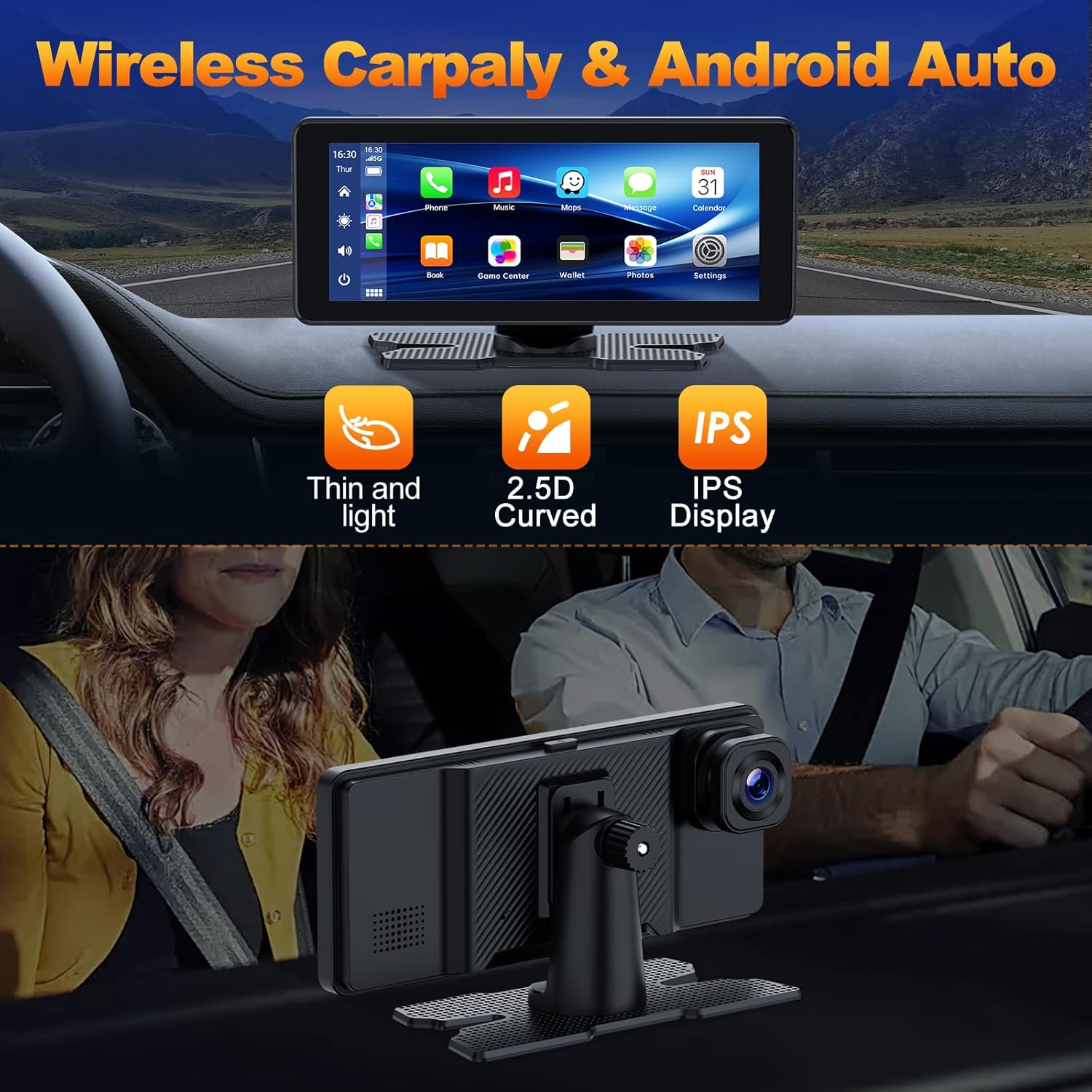
Figure 2.1: Display features including Wireless Carplay & Android Auto, thin design, 2.5D curved screen, and IPS display technology.

Figure 2.2: Split Screen Display functionality, showing simultaneous views from the front and rear dash cameras alongside the Carplay interface.

Figure 2.3: Wireless Carplay features, including navigation, voice assistant, music, and communication, enabled by 5GHz WiFi and Bluetooth 5.0.

Figure 2.4: Wireless Mirror Link functionality, supporting various entertainment applications from your smartphone.
3. Setup and Installation
3.1 Package Contents
Before installation, verify that all components are present in the package:
- Carplay unit with built-in 2.5K Front Camera
- Car Charge cable
- Sticker Bracket
- Suction Cup Bracket
- User Manual
- 1.5m AUX Cable
- 64GB U3 SD Card (pre-installed or included separately)

Figure 3.1: Packaging list and instructions for attaching the suction cup holder to the Carplay unit.
3.2 Mounting the Device
The Volam RC09B offers flexible mounting options for your dashboard or windshield. The installation process typically takes 2-5 minutes.
- Attach the Bracket: Insert the four buckles of the chosen bracket (suction cup or sticker) into the buckle groove on the back of the Carplay unit. Push down until you hear a "pop" sound, indicating it's securely fastened.
- Position the Device: Choose a suitable location on your dashboard or windshield that does not obstruct your driving view.
- Secure the Mount: If using the suction cup mount, press firmly on the flat surface and pull down on the suction cup latch to create a vacuum seal. If using the adhesive sticker bracket, ensure the surface is clean and dry before applying.
- Adjust Angle: Adjust the angle of the Carplay unit for optimal viewing. The suction cup mount allows for 360-degree rotation and telescopic regulation.

Figure 3.2: Various installation and use methods for the Carplay unit.
3.3 Power Connection
Connect the Carplay unit to your vehicle's power source using the provided car charger cable. Simply plug the Type-C end into the Carplay unit and the other end into your car's cigarette lighter socket.

Figure 3.3: Easy and convenient plug-and-play power connection.
4. Operating Instructions
4.1 Connecting to Car Audio
You can output audio from the Carplay unit to your car's speakers using one of the following methods:
- Bluetooth to Car Audio: Connect your phone to the Carplay unit via Bluetooth and Wi-Fi. Then, connect the Carplay unit to your car's audio system via Bluetooth.
- AUX Cable: Use the included AUX cable to connect the Carplay unit's AUX output to your car's AUX input jack.
- FM Transmission: Set the Carplay unit and your car radio to the same FM frequency to transmit audio wirelessly.

Figure 4.1: Methods for connecting the Carplay unit's audio to your car's sound system.
4.2 Wireless Apple CarPlay / Android Auto
To use wireless CarPlay or Android Auto:
- On the Carplay unit, select the Apple CarPlay or Android Auto icon.
- On your iPhone/Android phone, turn on Wi-Fi and Bluetooth.
- Search for the Carplay unit's Bluetooth name (e.g., "T86 xxxxx") on your phone and pair.
- Confirm the connection on both devices. Once connected, CarPlay or Android Auto will launch automatically.

Figure 4.2: Connection steps for Wireless Apple CarPlay and Android Auto.
4.3 Mirror Link (Apple Airplay / Android Cast)
To mirror your phone's screen to the Carplay unit:
- On the Carplay unit, select the Apple Airplay or Android Cast icon.
- For Apple Airplay: On your iPhone, turn on Wi-Fi, then go to Control Center and select "Screen Mirroring." Choose "SmartScreen" from the list.
- For Android Cast: Scan the QR code displayed on the Carplay unit to download the "TcLink" app. Open the app, select "Wi-Fi Direct" connection mode, and connect to the device name shown.

Figure 4.3: Connection steps for Apple Airplay and Android Cast (Mirror Link).
4.4 Dash Camera Functions
The built-in 2.5K front dash camera continuously records your driving. Key functions include:
- Loop Recording: Oldest unlocked footage is automatically overwritten when the SD card is full.
- Locked Video: Important footage can be manually locked to prevent overwriting.
- Audio Recording: The unit supports one-click audio recording.
- Playback: View recorded videos and photos directly on the 6.86-inch screen.
- Split Screen: Monitor front and rear camera views simultaneously with other functions like CarPlay.
5. Maintenance
To ensure the longevity and optimal performance of your Volam RC09B Car Stereo, follow these maintenance guidelines:
- Cleaning: Use a soft, dry cloth to clean the screen and exterior. For stubborn smudges, slightly dampen the cloth with water or a screen-safe cleaner. Avoid abrasive materials or harsh chemicals.
- Temperature: Avoid exposing the device to extreme temperatures (very hot or very cold) for extended periods, as this can affect battery life and screen performance.
- Storage: If storing the device for a long time, disconnect it from power and store it in a cool, dry place.
- SD Card: Periodically format the SD card (e.g., once a month) to maintain optimal recording performance and prevent data corruption. Back up any important locked videos before formatting.
6. Troubleshooting
| Problem | Possible Cause | Solution |
|---|---|---|
| Device does not power on. | No power supply; loose connection; faulty car charger. | Check car charger connection to both the device and the car's power outlet. Ensure the car's cigarette lighter socket is functional. |
| Wireless CarPlay/Android Auto not connecting. | Bluetooth/Wi-Fi off on phone; incorrect pairing; interference. | Ensure phone's Bluetooth and Wi-Fi are enabled. Forget previous pairings on both devices and try pairing again. Move phone closer to the unit. |
| No audio from car speakers. | Incorrect audio output setting; FM frequency mismatch; AUX cable issue. | Verify the audio output setting on the Carplay unit (Bluetooth, FM, AUX). If using FM, ensure the frequency matches your car radio. Check AUX cable connection. |
| Dash cam footage is blurry or low quality. | Protective film on lens; dirty lens; poor lighting conditions. | Remove any protective film from the camera lens. Clean the lens with a soft cloth. Ensure adequate lighting for optimal recording. Note that extreme low light conditions may affect clarity. |
| SD card error or not recording. | SD card full; corrupted card; incompatible card. | Format the SD card via the device settings. If issues persist, try a different compatible SD card (U3 recommended). |
7. Product Specifications
| Feature | Detail |
|---|---|
| Model Number | RC09B |
| Screen Size | 6.86 inches (Visible diagonal: 7" / 18 cm) |
| Front Camera Resolution | 2.5K (2560x1440) |
| Backup Camera Support | 1080p (external, not included) |
| Connectivity Technology | Bluetooth 5.0, Wi-Fi (5GHz) |
| Compatible Devices | Smartphone (iOS, Android) |
| Audio Output Mode | AUX, Speaker (built-in), Stereo, FM Transmission |
| Video Encoding | H.264 or H.265 |
| Product Dimensions | 10 x 3.9 x 5 inches (10"D x 3.9"W x 5"H) |
| Item Weight | 1.87 pounds |
| Color | Black2 |
| Manufacturer | Volam |
| First Available Date | November 27, 2023 |
8. Warranty and Support
Volam is committed to providing excellent customer service and product support for your RC09B Car Stereo.
- Warranty: The product comes with a 2-year warranty.
- Money-Back Guarantee: Enjoy a 30-day money-back guarantee from the date of purchase.
- Technical Support: Volam provides lifetime technical support for this product.
- Customer Service: For any inquiries or assistance, please contact Volam customer support. Responses are typically provided within 24 hours.
For further assistance, please refer to the contact information provided on the Volam official website or your purchase documentation.