
1. Introduction
The ComMarker B4 20W JPT Mopa Fiber Laser Engraving Machine is a versatile and high-precision tool designed for marking and engraving a wide range of materials. This machine supports both desktop and handheld operation, offering flexibility for various applications. Equipped with a JPT Mopa laser source, it is capable of color marking on stainless steel and titanium steel, as well as black and white marking on gold, silver, and aluminum. This manual provides essential information for the safe and effective use of your laser engraving machine, including setup, operation, maintenance, and troubleshooting.

Figure 1: ComMarker B4 20W JPT Mopa Fiber Laser Engraving Machine with included rotary axis.
2. Safety Information
Operating a laser engraving machine requires strict adherence to safety protocols to prevent injury and damage. Please read and understand all safety warnings before operating the device.
- Laser Radiation: This product is a Class 1 Laser Product (IEC 60825-1 Report Number: 2401T29446E-SF, FDA Accession No.: 2421067-000) with a power output of 1.95mW. Despite being Class 1, direct exposure to the laser beam or reflected beams can cause severe eye and skin damage. Always wear the provided 1064nm laser safety goggles during operation.
- Eye Protection: Always wear appropriate laser safety goggles (1064nm) when the machine is in operation. Ensure that all bystanders also wear protective eyewear.
- Material Safety: Do not engrave unknown materials. Some materials may produce hazardous fumes or ignite when exposed to laser radiation. Ensure proper ventilation in the work area.
- Flammable Materials: Keep flammable materials away from the laser engraving area. The laser can generate heat that may ignite combustible substances.
- Supervision: Never leave the machine unattended while it is operating.
- Stable Placement: Ensure the machine is placed on a stable, level surface to prevent tipping or movement during operation.
- Electrical Safety: Ensure the power supply matches the machine's requirements (110V). Do not operate with damaged cables or plugs.

Figure 2: Example of multi-language safety warnings, emphasizing the importance of protective eyewear and material handling.
3. Package Contents
Verify that all items listed below are included in your package. If any items are missing or damaged, please contact customer support.
- 1 x B4 JPT Mopa Laser Marking Machine
- 1 x 110mm x 110mm Lens
- 1 x 200mm x 200mm Lens
- 1 x Adapter
- 1 x Foot Switch
- 1 x Positioner
- 1 x Flash Drive (containing software and drivers)
- 1 x Rotary Axis
- 1 x Ruler
- 1 x Data Cable
- 1 x Allen Wrench Set
- 1 x 1064nm Goggles
- 2 x Paperboard (for testing)
- 2 x Steel Plate (for testing)
- 1 x Auxiliary Holder
- 1 x Material Package
4. Setup
4.1 Unpacking and Placement
- Carefully remove all components from the packaging.
- Place the laser engraving machine on a sturdy, level, and non-flammable surface. Ensure adequate space around the machine for ventilation and operation.
- Connect the power adapter to the machine and then to a grounded electrical outlet (110V).
- Connect the data cable from the machine to your computer.
4.2 Lens Installation
The machine comes with two lenses for different working areas: 110x110mm for higher accuracy and 200x200mm for larger engraving sizes. Select the appropriate lens for your task and carefully screw it into the laser head.
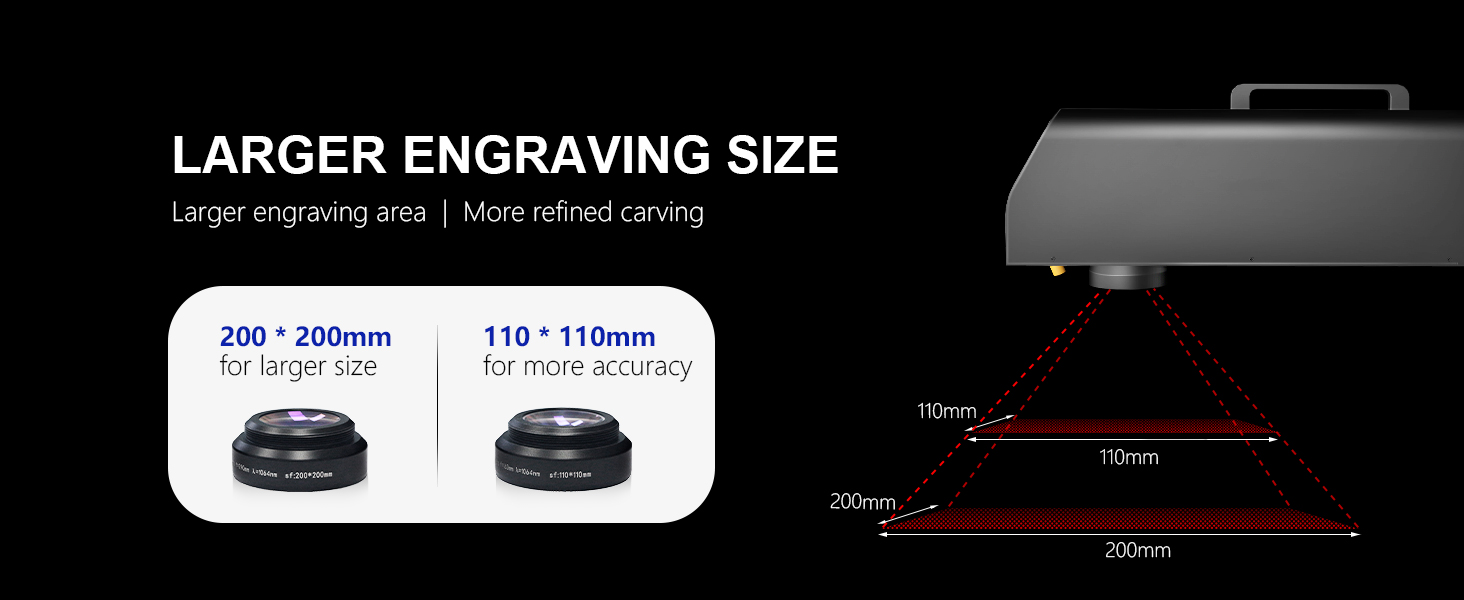
Figure 3: The machine includes two lenses: 110x110mm for precision and 200x200mm for larger areas.
4.3 Software Installation
The ComMarker B4 supports EZCAD (EZCad 2 provided) and LightBurn software. LightBurn is compatible with both Windows 7/8/10/11 and Mac operating systems (LightBurn license purchase may be required).
- Insert the provided flash drive into your computer.
- Follow the instructions on the flash drive to install the necessary drivers and your preferred engraving software (EZCAD or LightBurn).
- Ensure the software recognizes the laser machine after installation.

Figure 4: The ComMarker B4 supports LightBurn and EZCAD, compatible with various image formats like DXF, JPG, PLT, PNG, and AI.
5. Operating Instructions
5.1 Basic Engraving Process
- Power On: Turn on the laser engraving machine using the main power switch.
- Software Launch: Open EZCAD or LightBurn software on your computer.
- Design Import/Creation: Import your desired design (e.g., DXF, JPG, PLT, PNG, AI) or create a new one within the software.
- Material Placement: Place the material to be engraved on the working platform. Use the positioner if needed.
- Focus Adjustment: Adjust the laser head height to achieve optimal focus. The machine features electric lifting for precise height adjustment.
- Parameter Settings: Set engraving parameters such as laser power, speed, frequency, and pulse width according to the material type and desired effect. Refer to the software's material library or conduct test engravings on scrap material.
- Preview (Red Light): Use the red light preview function in the software to verify the engraving area on your material.
- Start Engraving: Ensure all safety precautions are in place, including wearing safety goggles. Initiate the engraving process from the software.

Figure 5: The ComMarker B4 features electric lifting for precise and easy adjustment of the laser head height.
5.2 Material Compatibility and Engraving Capabilities
The ComMarker B4 Mopa fiber laser engraver is designed for a wide range of materials and applications:
- Metals: Stainless Steel, Aluminum, Gold, Silver, Alloy, Brass, Steel.
- Non-metals: Most painted products, non-transparent plastics, leather, stone, acrylic, painted wood.
- Applications: Metal, Jewelry, Pens, Tags, Tumblers, Rings, and more.
It excels in:
- Color Marking: Capable of color marking on Stainless Steel and Titanium Steel.
- Black/White Marking: Produces black and white markings on Gold, Silver, and Aluminum.
- High Accuracy: Achieves 0.01mm precision for lively and detailed engravings.
- High Speed: Engraving speeds up to 10,000mm/s.

Figure 6: The ComMarker B4 Mopa is ideal for engraving a wide variety of materials, both metal and non-metal.

Figure 7: The machine offers exceptional engraving accuracy of 0.01mm, allowing for highly detailed results.
5.3 Using the Rotary Axis
The included rotary axis allows for 360° cylindrical engraving on items like rings, tumblers, and pens. Connect the rotary axis to the designated port on the machine and configure it within the engraving software according to the software's instructions.

Figure 8: The rotary axis enables 360° engraving on cylindrical objects, expanding creative possibilities.
5.4 Engraving Examples

Figure 9: Examples of color marking achieved with the ComMarker B4 Mopa.

Figure 10: Examples of standard laser marking on different materials.

Figure 11: Examples of advanced 2.5D engraving capabilities.
6. Maintenance
Regular maintenance ensures the longevity and optimal performance of your ComMarker B4 laser engraving machine.
- Cleaning the Lenses: The laser lenses are critical for engraving quality. Gently clean them with a lint-free cloth and lens cleaning solution specifically designed for optics. Avoid touching the lens surface with bare hands.
- Dust Removal: Regularly clean dust and debris from the machine's exterior and ventilation openings using a soft brush or compressed air. Ensure the machine is powered off and unplugged before cleaning.
- Work Area Cleanliness: Keep your work area clean and free of debris that could interfere with the machine's operation or pose a fire hazard.
- Cable Inspection: Periodically inspect all cables for signs of wear or damage. Replace any damaged cables immediately.
7. Troubleshooting
This section addresses common issues you might encounter and provides basic solutions. For more complex problems, please contact customer support.
| Problem | Possible Cause | Solution |
|---|---|---|
| Machine does not power on. | Power cable not connected; power outlet issue; machine fault. | Check power cable connection. Try a different outlet. Contact support if issue persists. |
| Laser not firing or weak engraving. | Incorrect focus; low power setting; dirty lens; laser source issue. | Adjust focus. Increase power setting in software. Clean the lens. Contact support. |
| Software does not detect machine. | USB cable disconnected; driver not installed; software error. | Ensure USB cable is securely connected. Reinstall drivers. Restart software and computer. |
| Engraving is distorted or inaccurate. | Unstable machine; incorrect material placement; software settings. | Ensure machine is on a stable surface. Secure material. Verify software settings (e.g., speed, frequency). |
8. Specifications
| Feature | Detail |
|---|---|
| Model | B4Mopa-20W+Rotary A |
| Manufacturer | ComMarker |
| Laser Power | 20W |
| Laser Source | JPT M7 (Mopa) |
| Working Area (with 2 lenses) | 110x110mm and 200x200mm |
| Motherboard | BJ JCZ |
| Voltage | 110V |
| Pulse Width | 2-500ns |
| Frequency | 0-4000kHz |
| Engraving Accuracy | 0.01mm |
| Engraving Speed | Up to 10,000mm/s |
| Item Weight | 61 pounds (approx. 27.67 kg) |
| Product Dimensions | 13 x 12 x 30 inches (approx. 33 x 30.5 x 76 cm) |
| Supported Software | EZCAD (EZCad 2 provided), LightBurn |
| Supported OS | Windows 7/8/10/11, Mac (with LightBurn) |
| Laser Class | CLASS 1 LASER PRODUCT |
| FDA Accession No. | 2421067-000 |
| IEC 60825-1 Report No. | 2401T29446E-SF |
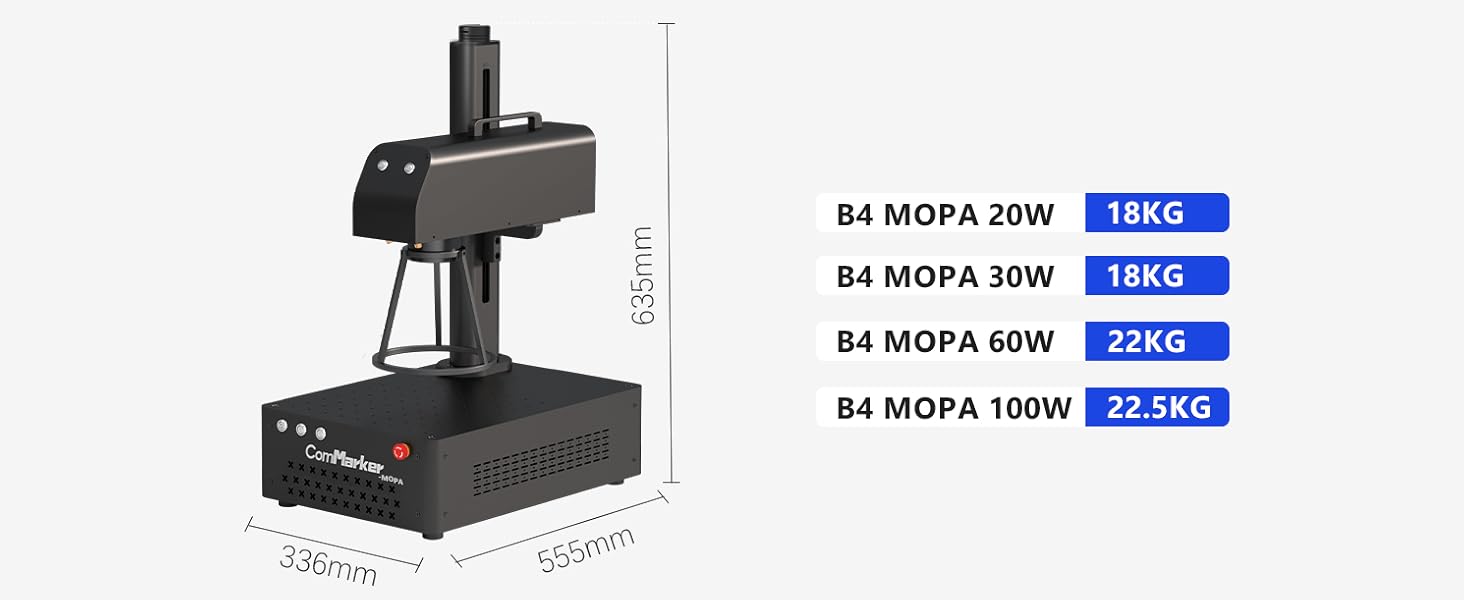
Figure 12: Physical dimensions and weight of the ComMarker B4 Mopa series.
9. Warranty & Support
ComMarker is committed to providing high-quality products and excellent customer service.
9.1 Returns Policy
This product is eligible for 30-day easy returns. Please refer to the retailer's return policy for detailed terms and conditions.
9.2 Customer Support
For technical assistance, troubleshooting beyond this manual, or warranty inquiries, please contact ComMarker Laser customer support. You can also visit the official ComMarker Store on Amazon for more information and resources.
An official Certificate of Compliance and User Guide are available for download:


