
Introduction
This manual provides comprehensive instructions for the ZdalaMit Voice Replacement Remote Control. It is designed for use with various Q-Class and S-Class 4K QLED HDR Smart TV models. Please read this manual carefully to ensure proper setup and operation of your new remote control.

Image: Front view of the ZdalaMit Voice Replacement Remote Control. The remote is black with grey circular navigation buttons and dedicated app buttons for Netflix, Prime Video, YouTube, and other services.
Setup
1. Battery Installation
The remote control requires two (2) 1.5V AAA Alkaline batteries for operation. Batteries are not included with the remote. To install batteries:
- Locate the battery compartment cover on the back of the remote control.
- Slide the cover downwards or press the latch to open it.
- Insert two AAA batteries, ensuring the positive (+) and negative (-) terminals align correctly with the markings inside the compartment.
- Replace the battery compartment cover, sliding it back into place until it clicks securely.
2. Pairing Instructions
Pairing the remote control with your TV is required before use. Follow these steps to establish a connection:
- Ensure your TV is powered on and in Google TV mode.
- Hold the remote control within 3 feet (approximately 1 meter) of your TV.
- Simultaneously press and hold the HOME button and the OK button on your remote control.
- Continue holding both buttons until a pairing confirmation message appears on your TV screen.
- Release the buttons once pairing is successful. The remote is now ready for use.
Operating the Remote
Button Functions Overview
The remote control features a standard layout for intuitive navigation and control of your TV. Key buttons include:
- Power Button: Turns the TV on or off.
- Mute Button: Mutes or unmutes the TV audio.
- Settings Button: Accesses TV settings menu.
- Navigation Pad (Circular): Used to move through menus and select items. The central button is OK.
- Back Button: Returns to the previous screen or menu.
- Home Button: Returns to the TV's home screen.
- Volume Up/Down (+/-): Adjusts the TV volume.
- Channel Up/Down (P+/P-): Changes TV channels.
- Dedicated App Buttons: Quick access to popular streaming services like Netflix, Prime Video, and YouTube.
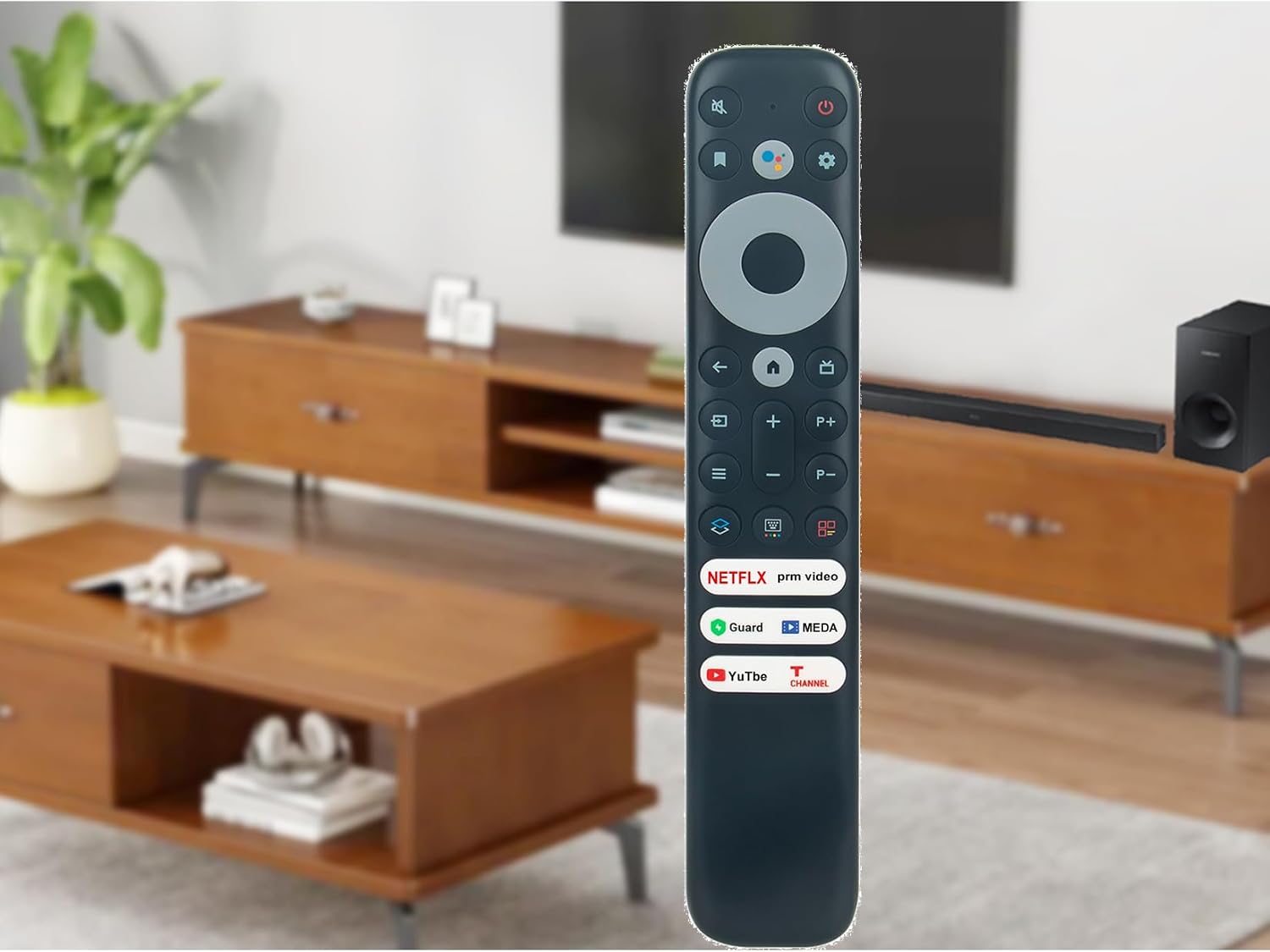
Image: A hand holding the remote control, demonstrating its use in a typical living room environment with a TV in the background.
Voice Control Function
This remote control features a voice search function, allowing you to control your TV and search for content using voice commands.
- Press the Voice Assistant Button (often represented by a microphone icon or Google Assistant logo) located near the top of the remote.
- Speak clearly into the microphone located on the remote control.
- Examples of commands include: "Open Netflix," "Search for action movies," "What's the weather?" or "Turn up the volume."
- The TV will process your command and respond accordingly.

Image: The remote control displayed alongside a prominent microphone icon, highlighting its voice control capability.
Maintenance
Cleaning the Remote
To maintain the remote control's appearance and functionality:
- Wipe the surface with a soft, dry cloth.
- For stubborn dirt, slightly dampen the cloth with water or a mild, non-abrasive cleaner.
- Avoid using harsh chemicals, solvents, or abrasive materials, as these can damage the remote's finish or internal components.
Battery Replacement
Replace the batteries when the remote control's response becomes sluggish or it stops functioning. Always replace both batteries at the same time with new 1.5V AAA Alkaline batteries. Do not mix old and new batteries, or different types of batteries.
Troubleshooting
If you encounter issues with your remote control, please refer to the following common problems and solutions:
- Remote is not responding:
- Check if the batteries are correctly inserted and have sufficient charge. Replace them if necessary.
- Ensure there are no obstructions between the remote and the TV.
- Re-attempt the pairing process as described in the Setup section.
- Pairing fails:
- Make sure the remote is within 3 feet of the TV during pairing.
- Confirm the TV is in Google TV mode.
- Ensure no other devices are interfering with the Bluetooth signal.
- Voice control is not working:
- Verify that the remote is successfully paired with the TV.
- Check your TV's settings to ensure voice control is enabled.
- Speak clearly and directly into the remote's microphone.
- Buttons require multiple presses or respond intermittently:
- This can indicate low battery power. Replace the batteries.
- Ensure the remote is clean and free from debris that might obstruct button presses.
- If the issue persists after battery replacement and cleaning, contact customer support.
Specifications
| Brand | ZdalaMit |
| Model Number | 955b4995-90a8-4f39-8ee8-5c7d13d84ae8 |
| Product Dimensions | 5.9 x 1.57 x 0.55 inches (15 x 4 x 1.4 cm) |
| Item Weight | 1.41 ounces (40 grams) |
| Power Supply | 2 x 1.5V AAA Alkaline Battery |
| Special Feature | Voice Search |
| Color | Black |
| Compatible Devices | Television (Q-Class, S-Class, QM8 Series) |

Image: The remote control shown with its approximate length (8.25 inches) and width (1.55 inches) indicated by measurement lines.
Warranty and Support
For any queries, issues, or further assistance regarding your ZdalaMit Voice Replacement Remote Control, please feel free to contact our customer support. Specific warranty details may vary; please refer to your purchase documentation or contact the seller for more information.