
C IDEA CM822
C IDEA CM822 8-inch Smart Android Tablet User Manual
Model: CM822
Introduction
Thank you for choosing the C IDEA CM822 8-inch Smart Android Tablet. This manual provides essential information for setting up, operating, and maintaining your device. Please read it carefully to ensure optimal performance and longevity of your tablet.
Safety Information
- Do not expose the tablet to extreme temperatures, direct sunlight, or high humidity.
- Avoid dropping or subjecting the tablet to severe impact.
- Use only manufacturer-approved chargers and accessories.
- Do not attempt to disassemble or repair the tablet yourself. Refer to qualified service personnel.
- Keep the tablet away from water and other liquids.
- Dispose of the tablet and its battery responsibly according to local regulations.
Package Contents
Please check the box for the following items:
- C IDEA CM822 Tablet
- Power Adapter
- USB Charging Cable
- User Manual (this document)
- Note: Additional accessories such as a stylus or protective case may be included depending on the specific package.
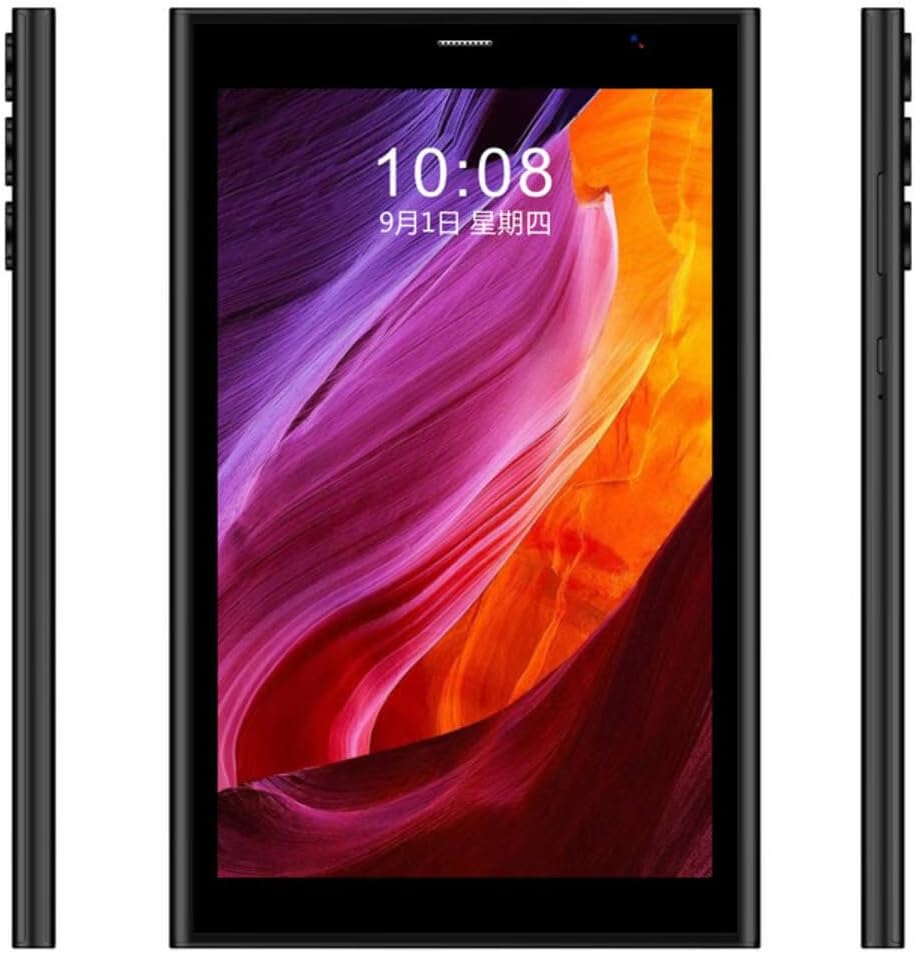
Image: The C IDEA CM822 tablet shown with its standard accessories including a charger, USB cable, and documentation. Other items like a stylus and drawing kit may be part of a bundle.
Device Layout
Familiarize yourself with the physical features of your C IDEA CM822 tablet.

Image: Front view of the C IDEA CM822 tablet displaying the screen, and a rear view showing the multi-lens camera module and branding.

Image: Side profile of the C IDEA CM822 tablet, illustrating the placement of physical buttons (such as power and volume) and various ports.
- Front Camera: Located above the screen, used for video calls and selfies.
- Display: 8-inch IPS Touch Screen LCD.
- Power Button: Typically on the side, used to turn the tablet on/off or wake/sleep the screen.
- Volume Buttons: Usually adjacent to the power button, for adjusting audio levels.
- Rear Camera: Located on the back, used for taking photos and videos.
- USB Port: For charging and data transfer.
- SIM/SD Card Slot: For inserting SIM cards for cellular connectivity and a microSD card for expandable storage.
Setup
1. Charging the Tablet
- Connect the USB charging cable to the tablet's USB port.
- Plug the other end of the USB cable into the power adapter.
- Insert the power adapter into a wall outlet.
- Allow the tablet to charge fully before first use. The battery indicator on the screen will show charging status.
2. Inserting SIM and SD Cards
The CM822 supports Dual SIM and expandable storage via an SD card.
- Locate the SIM/SD card slot on the side of the tablet.
- Use the provided SIM ejector tool (if applicable) to open the tray.
- Carefully place your SIM card(s) and/or microSD card into the designated slots on the tray. Ensure correct orientation.
- Gently push the tray back into the tablet until it clicks into place.
3. Initial Power On and Setup
- Press and hold the Power button until the C IDEA logo appears on the screen.
- Follow the on-screen prompts to complete the initial setup, which includes selecting your language, connecting to a Wi-Fi network, and signing in with your Google account.
Operating the Tablet
Basic Navigation
- Tap: Touch the screen once to select an item or open an application.
- Tap and Hold: Press and hold an item to access contextual menus or move icons.
- Swipe: Drag your finger across the screen to scroll through pages or lists.
- Pinch: Use two fingers to zoom in or out on images and web pages.
Connecting to Networks
- Wi-Fi: Go to Settings > Network & internet > Wi-Fi. Turn Wi-Fi on and select your desired network. Enter the password if prompted.
- Bluetooth: Go to Settings > Connected devices > Bluetooth. Turn Bluetooth on and pair with available devices.
- Cellular (5G): Ensure your SIM card is correctly inserted. Go to Settings > Network & internet > Mobile network to configure data settings.
Using the Cameras
The tablet features a 5MP front camera and an 8MP rear camera.
- Open the Camera application from the home screen or app drawer.
- Tap the camera icon to switch between front and rear cameras.
- Tap the shutter button to take a photo or start/stop video recording.
Face Unlock
The CM822 supports Face Unlock for convenient security.
- Go to Settings > Security & privacy > Device unlock > Face Unlock.
- Follow the on-screen instructions to register your face.
- Ensure good lighting conditions when using Face Unlock.
Maintenance
- Cleaning: Use a soft, lint-free cloth to clean the screen and body of the tablet. Avoid abrasive materials or chemical cleaners.
- Software Updates: Regularly check for system updates via Settings > System > System update to ensure your tablet has the latest features and security patches.
- Battery Care: To prolong battery life, avoid fully discharging the battery frequently. Charge the tablet when the battery level is low.
- Storage Management: Periodically clear unnecessary files and apps to maintain optimal performance.
Troubleshooting
| Problem | Possible Solution |
|---|---|
| Tablet does not turn on. | Ensure the battery is charged. Connect the charger and wait a few minutes before attempting to power on again. |
| Screen is unresponsive. | Restart the tablet by pressing and holding the Power button for about 10-15 seconds. If unresponsive, force restart by holding Power and Volume Down buttons simultaneously (method may vary). |
| Cannot connect to Wi-Fi. | Check if Wi-Fi is enabled in settings. Ensure the password is correct. Restart your Wi-Fi router and the tablet. |
| Apps are crashing or running slowly. | Close background applications. Clear app cache (Settings > Apps > [App Name] > Storage & cache > Clear cache). Restart the tablet. |
| Face Unlock is not working. | Ensure you are in a well-lit environment. Re-register your face in the security settings. Clean the front camera lens. |
Specifications
| Feature | Detail |
|---|---|
| Brand | C IDEA |
| Model | CM822 |
| Operating System | Android |
| Screen Size | 8 Inches |
| Screen Resolution | 1920 x 1080 pixels |
| RAM | 8 GB |
| Internal Storage | 256 GB |
| Front Camera | 5 MP |
| Rear Camera | 8 MP |
| Network Connectivity | 5G, Wi-Fi (802.11ac), Bluetooth, Cellular |
| Special Features | Dual SIM, IPS Touch Screen LCD, Face Unlock |
| Processor Brand | MediaTek |
| Graphics Chipset Brand | ARM |
Warranty and Support
For warranty information and technical support, please refer to the warranty card included in your package or contact your retailer. Keep your proof of purchase for warranty claims.
Ask a question about this manual
Ask about setup, troubleshooting, compatibility, parts, safety, or missing instructions. Manuals+ will review the question and use this page’s manual context to help answer it.