
1. Introduction
Thank you for choosing the Darkant K1 Mini Karaoke Machine. This device combines a portable Bluetooth speaker with two wireless microphones and dynamic LED lights, designed to provide an enjoyable audio experience. This manual provides essential information for safe operation, setup, and maintenance of your karaoke machine.

Image: The Darkant K1 Mini Karaoke Machine in pink, featuring the main speaker unit and two wireless microphones.
2. Package Contents
Please verify that all items are present in the package:
- 1 x Mini Karaoke Machine Speaker
- 2 x Wireless Microphones
- 1 x USB Charging Cable
- 1 x User Manual (this document)
3. Product Overview
3.1 Main Unit (Speaker)
The main unit houses the speaker, control buttons, LED lights, and various ports for connectivity and charging.
3.2 Wireless Microphones
Two wireless microphones are included for vocal input. Each microphone features power, volume, and voice effect controls.
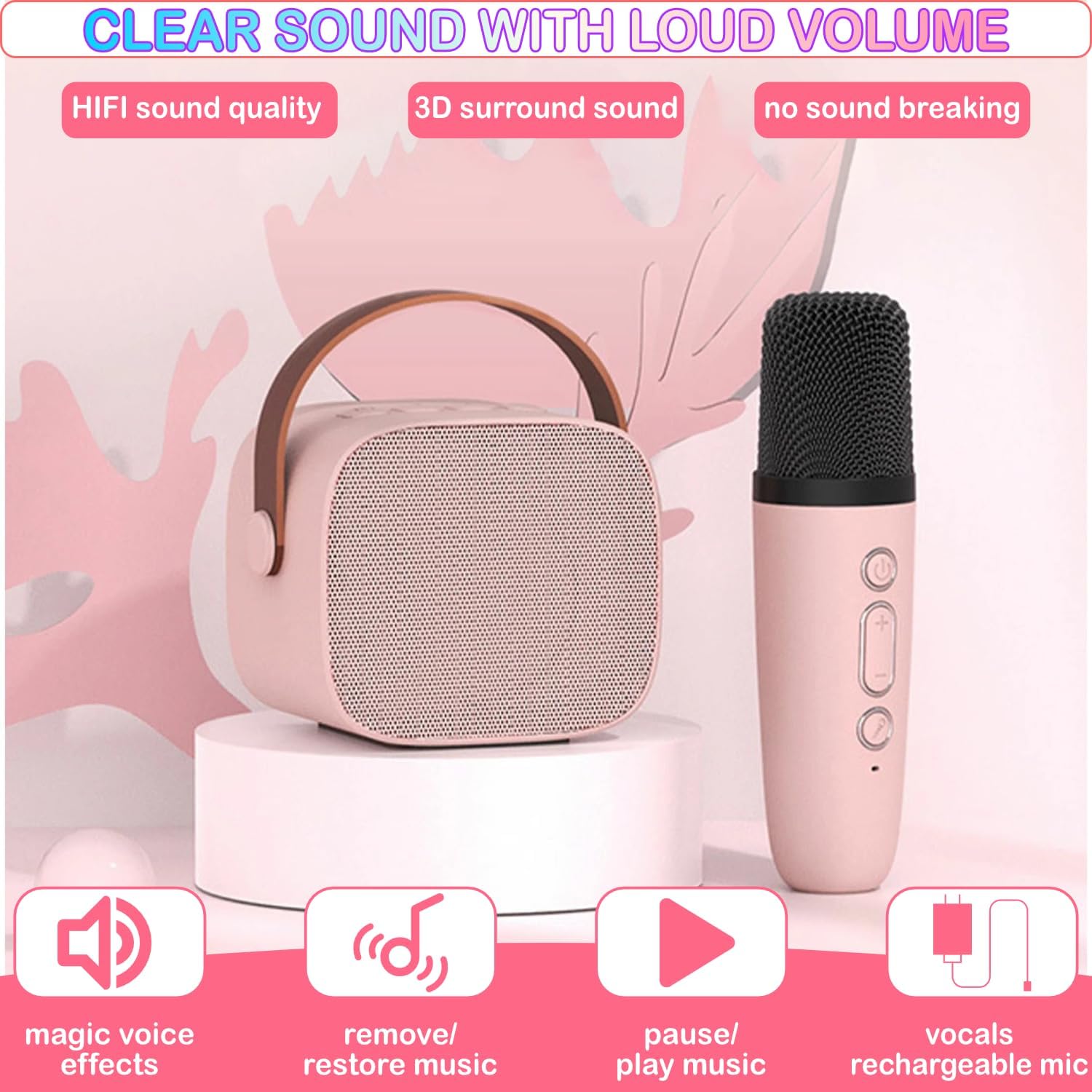
Image: Close-up view of the karaoke machine speaker and one wireless microphone, highlighting their respective control buttons.
3.3 Ports and Indicators
- Type-C Charging Port: For charging the speaker unit.
- TF Card Slot: For playing music directly from a micro-SD card.
- Audio Port (Headphone Jack): For private listening.
- LED Indicators: Display power and connection status.

Image: Diagram illustrating the location of the Type-C charging port, TF card slot, and audio port on the karaoke machine.
4. Setup
4.1 Charging the Device
Before first use, fully charge the karaoke machine speaker and both microphones. Use the provided USB charging cable.
- Connect the USB charging cable to the Type-C port on the speaker unit.
- Connect the other end of the USB cable to a compatible 5V USB power adapter (not included).
- The charging indicator light will illuminate. Once fully charged, the light may change color or turn off.
- For microphones, connect the USB cable to their respective charging ports.
A full charge provides up to 6 hours of continuous playtime at maximum volume.
4.2 Powering On/Off
- Speaker: Press and hold the power button on the speaker unit until the LED lights illuminate.
- Microphones: Press and hold the power button on each microphone until the indicator light turns on.
- To power off, repeat the process for both the speaker and microphones.
5. Operating Instructions
5.1 Bluetooth Connection
The karaoke machine uses Bluetooth 5.0 for wireless audio streaming.
- Ensure the speaker unit is powered on. It will automatically enter Bluetooth pairing mode.
- On your smartphone, tablet, or other Bluetooth-enabled device, enable Bluetooth and search for available devices.
- Select "Darkant K1" (or similar name) from the list to connect.
- Once connected, a confirmation sound will play, and the speaker's indicator light will stabilize.

Image: Illustration of the karaoke machine connecting to a smartphone, tablet, laptop, and computer via Bluetooth.
5.2 TF Card Playback
Insert a micro-SD (TF) card with pre-loaded music files into the TF card slot on the speaker unit. The machine will automatically detect and begin playing music from the card.
5.3 Volume Control
- Speaker Volume: Use the volume buttons on the speaker unit to adjust the overall music playback volume.
- Microphone Volume: Use the volume buttons on each wireless microphone to adjust individual microphone output levels.
5.4 Voice Modulation Effects
The microphones feature 5 voice options:
- Original Sound
- Girl's Voice
- Boy's Voice
- Baby's Voice
- Monster Voice
Press the dedicated voice effect button on the microphone to cycle through these options.

Image: Two children enjoying the karaoke machine, demonstrating the voice changing effects with icons for female, male, baby, and monster voices.
5.5 Dynamic LED Lights
The speaker unit features dynamic LED lights that synchronize with the music's rhythm. These lights automatically activate when the speaker is powered on. There may be a button on the speaker to toggle the lights on or off.
6. Maintenance
- Clean the device with a soft, dry cloth. Do not use liquid cleaners or abrasive materials.
- Keep the device away from water and excessive moisture.
- Store the karaoke machine and microphones in a cool, dry place when not in use.
- Avoid dropping the device or subjecting it to strong impacts.
7. Troubleshooting
| Problem | Possible Cause | Solution |
|---|---|---|
| No sound from speaker | Speaker is off; Volume is too low; Not connected via Bluetooth/TF card. | Ensure speaker is on; Increase volume; Reconnect Bluetooth or check TF card. |
| Microphone not working | Microphone is off; Microphone battery is low; Microphone volume is too low. | Ensure microphone is on; Charge microphone; Increase microphone volume. |
| Bluetooth connection fails | Device is too far; Bluetooth is off on source device; Interference. | Move device closer; Enable Bluetooth on source; Restart both devices. |
| LED lights not working | Lights are turned off; Device malfunction. | Check if there's a button to toggle lights; Contact support if issue persists. |
8. Specifications
| Feature | Detail |
|---|---|
| Model | K1-2MIC-PINK |
| Brand | Darkant |
| Item Weight | 1.12 pounds |
| Product Dimensions | 3.3 x 3.3 x 2.9 inches |
| Batteries | 1 Lithium Ion battery (included) |
| Compatible Devices | Smartphone |
| Connector Type | USB (Type-C for charging) |
| Speaker Count | 1 |
| Power Source | Battery Powered |
| Voltage | 5 Volts |
| Special Feature | Volume Control, Voice Modulation, LED Lights |
| Recommended Uses | Indoor/Outdoor |
9. Safety Information
- Do not disassemble, repair, or modify the device.
- Keep out of reach of small children to prevent choking hazards from small parts.
- Avoid exposing the device to extreme temperatures, direct sunlight, or open flames.
- Use only the provided charging cable or a certified equivalent.
- Dispose of batteries and electronic components responsibly according to local regulations.
10. Warranty and Support
For warranty information or technical support, please refer to the contact details provided with your purchase or visit the official Darkant website. Please retain your proof of purchase for warranty claims.